Every Oppex service has its own email address. An email sent to that address creates an incident on the service, with the subject as the incident title. Use it for monitoring tools that can send email but not webhooks.
This page covers email coming into Oppex. To have Oppex email your responders about incidents, see Email notifications.
Step 1: Open the Email guide in Oppex
- Open Services.
- In the service's row, click Integration Details and select Email.
- Under How it works, click the copy icon to copy the service's email address.
The address has this form, where the part after + is the service's integration key and the domain
is your organization's Oppex domain:
email-notifications+YOUR_SERVICE_KEY@yourcompany.oppex.ai
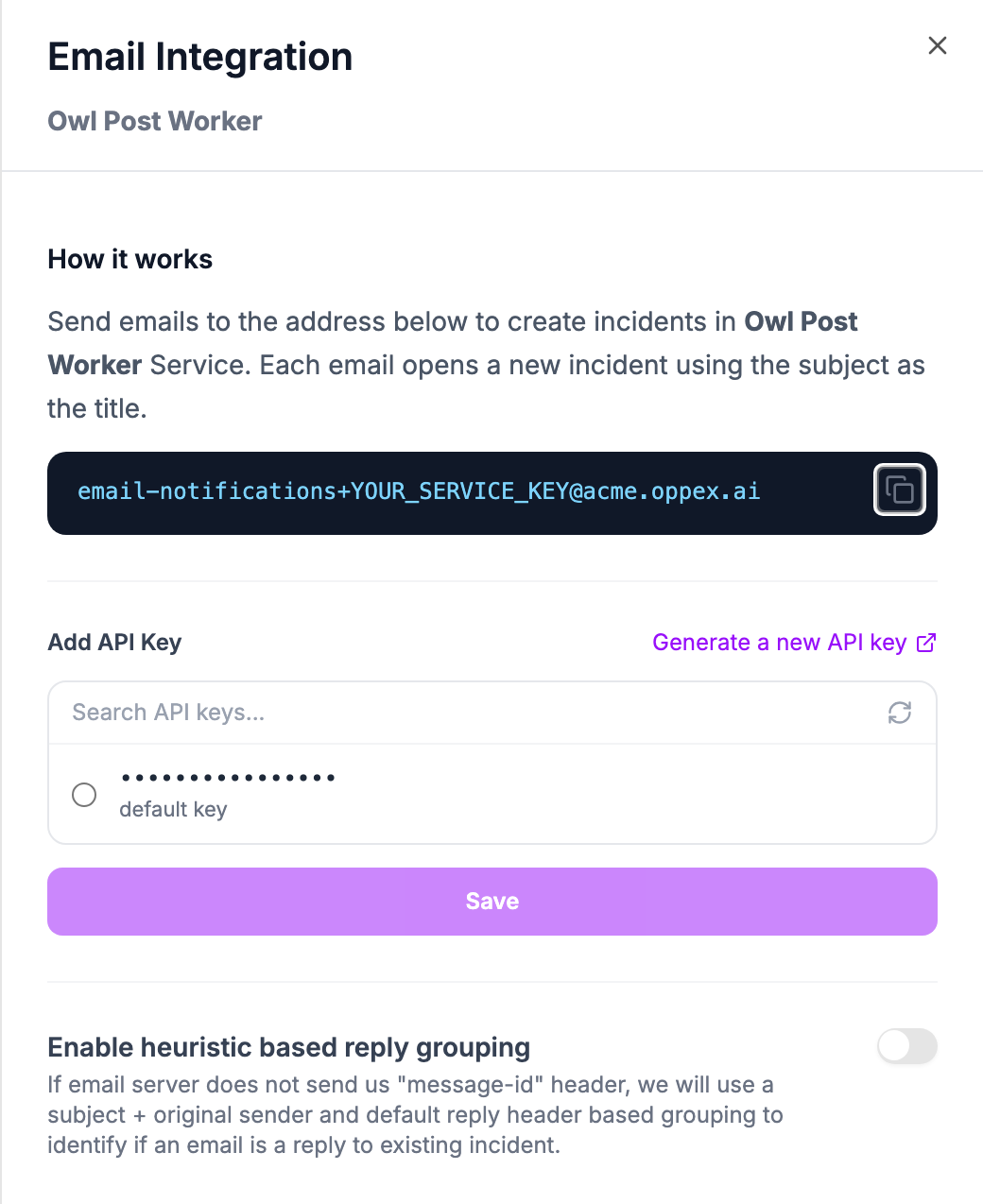
If the panel shows "error while fetching email please contact support" in place of the address, your organization's email domain is not set up. Contact Oppex support.
Step 2: Select an API key
- Under Add API Key, select a key from the list. Use Search API keys to filter the list, and the refresh icon to reload it. The list shows only enabled keys.
- Click Save. Oppex confirms with "API key saved".
If the list is empty, click Generate a new API key to open the API Keys page in a new tab, create a key, and then click the refresh icon.
Oppex creates incidents from email only after you save an API key in this panel. Until then, emails sent to the address are discarded, and the sender receives no error. Choose a key from the workspace that owns the service.
After you save, the panel shows the selected key with Edit and Remove buttons. Removing the key stops the address from creating incidents.
Step 3: Send alerts to the address
Configure your monitoring tool to email its alerts to the service's address. Oppex finds the address in the To, Cc or Bcc field, so it also works through a mailing list or group that forwards to it.
Oppex does not check who sent an email. Anyone who knows a service's address can create incidents on that service, so share the address only with the tools and people that need it.
What the incident contains
- Title: the email subject. An email with an empty subject does not create an incident.
- Source: email.
- Details: the sender, the subject, the plain-text body and the time the email was received.
Oppex reads the plain-text part of the email. Attachments are not kept, and inline images appear as a placeholder such as [image: chart.png].
Replies become notes
When someone replies to an alert email and includes the service's address, Oppex adds the reply to the existing incident as a note instead of opening a new incident. The note shows the sender, the subject and the reply text.
Oppex recognises a reply from the standard reply headers that email programs add. A reply attaches to its incident even after the incident is resolved.
Enable heuristic based reply grouping covers replies that arrive without those headers, or that the headers do not link to an incident. When the switch is on, Oppex treats an email as a reply to an earlier incident when both of these are true:
- Its subject matches the original subject, ignoring leading RE:, FW: and FWD:, letter case and extra spaces.
- The sender of the original alert email is one of its sender or recipients.
When more than one incident matches, Oppex picks the most recent. The switch is off by default.
An email that is not a reply always creates a new incident, even when its subject matches an earlier alert. Two separate alert emails titled Owl Post Queue Delayed create two incidents.
A reply email adds a note but never changes the incident's state. To resolve an incident from your inbox, use the Resolve button in the alert emails that Oppex sends to responders.
Test the integration
Send an email with a short subject, such as Owl Post Queue Delayed, to the service's address. An incident with that title appears on the Incidents page. Reply to the email, keeping the service's address in the recipients, and the reply appears as a note on the incident.
In-product guide
Oppex shows the service's address and the API key setting inside the product. Open Services, click Integration Details in the service's row, and select Email.