Slack
Many monitoring tools can post their alerts to a Slack channel. When you map that channel to an Oppex workspace, Oppex turns each alert the tool posts there into an incident, and routes it to a service with the workspace's service routing.
This page covers alerts coming into Oppex from Slack. To post Oppex incident updates out to a Slack channel, see Slack notifications.
Oppex creates incidents from messages that a bot or an integration posts in a mapped channel. Messages that people type in the channel never create incidents, so your team can discuss an alert in the same channel without raising new ones.
Before you start
You need all of the following:
- The Owner or Global Admin role. Only these roles see the Integrations page and can map channels.
- An API key in the Oppex workspace that should receive the incidents. Create one under the workspace's API Keys settings if the workspace has none.
- Service routing in that workspace, so that Oppex knows which service each alert belongs to. The workspace needs a default service, a service routing rule whose source is Slack, or both.
Step 1: Connect your Slack workspace
- Open Settings and, under Organization, click Integrations.
- In Slack Workspaces, click Connect Slack Workspace.
- In Slack, choose your Slack workspace if asked, review the permissions, and click Allow.
- Slack returns you to the Integrations page, where the Slack workspace is now listed.
A Slack workspace connects to your whole organization, not to a single Oppex workspace. You choose the Oppex workspace for each channel in step 3. If you have already connected Slack for notifications, skip this step.
Step 2: Add the Oppex app to the channel
- In Slack, open the channel your monitoring tool posts to, for example
#drs-monitor. - Add the Oppex app to the channel. In the channel, open the channel details, select Integrations, and click Add apps.
- Return to the Integrations page in Oppex. The channel now appears in the Channels list with the status Unmapped.
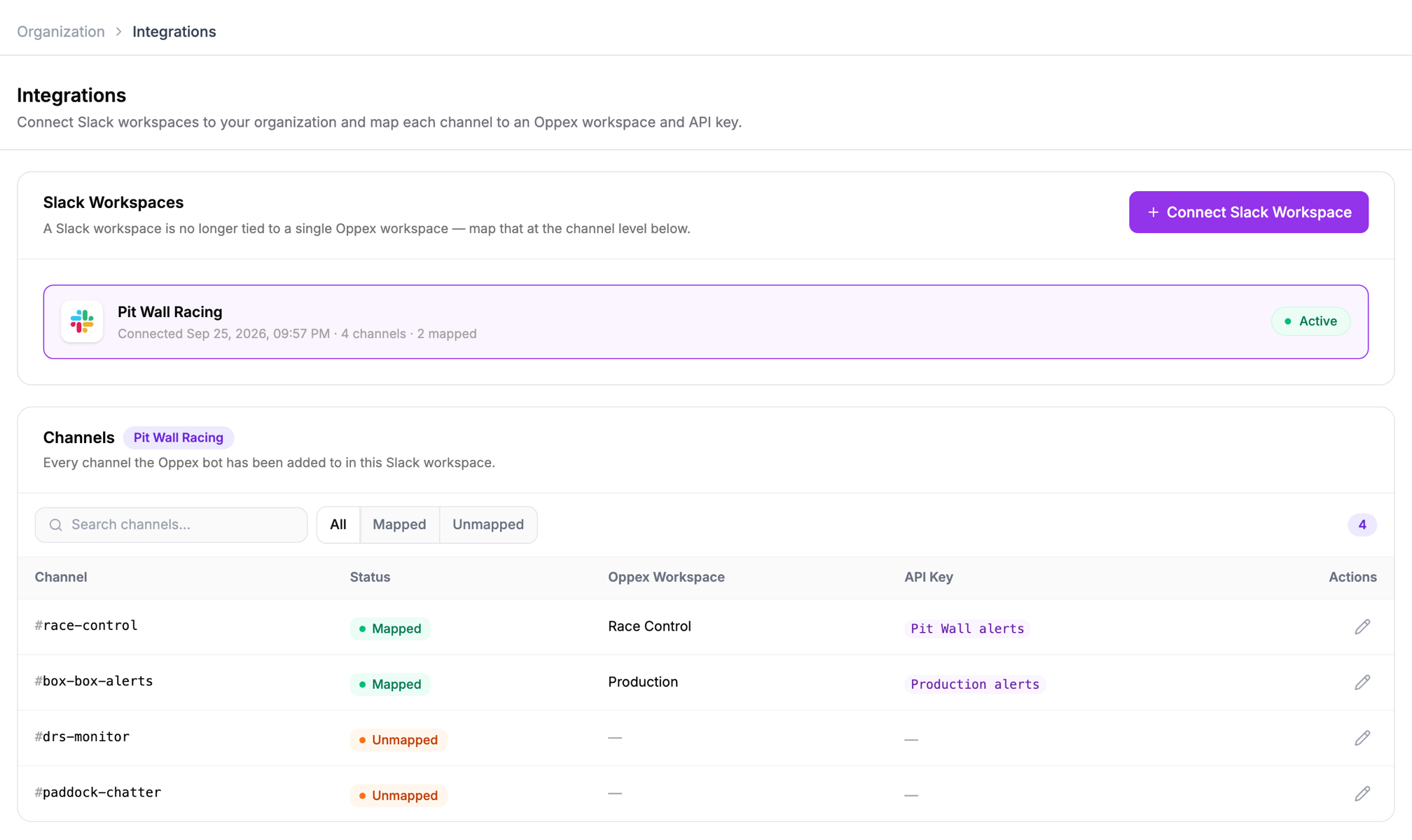
The Channels list shows every channel the Oppex app belongs to in the selected Slack workspace. Use Mapped and Unmapped to filter it, or search by channel name. If you connect more than one Slack workspace, click a workspace in Slack Workspaces to show its channels.
A private channel appears only after you add the Oppex app to it. Oppex cannot see private channels the app does not belong to.
Step 3: Map the channel to an Oppex workspace
- In the Channels list, click the pencil icon on the channel's row. The Configure Channel panel opens.
- In Oppex Workspace, select the workspace that should receive the incidents, for example Race Control.
- In API Key, select a key from that workspace, for example Pit Wall alerts. The list shows only the workspace's active keys.
- Click Save Mapping.
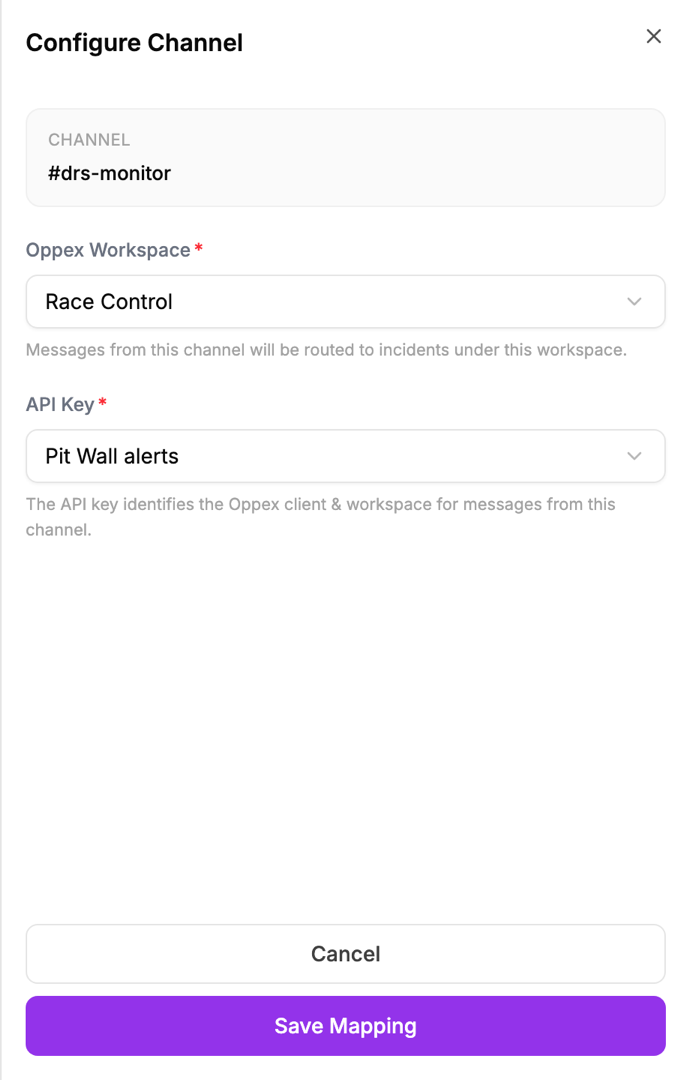
Both fields are required, and Save Mapping stays disabled until you complete them. When you change the workspace, Oppex clears the API key so that you pick a key from the new workspace.
If the workspace has no default service and no service routing rule with the source Slack, the panel shows "This workspace has no Service Routing set up for Slack." and you cannot save. Set up service routing for the workspace, then return to the panel.
If the workspace has no active API key, the panel shows "No API key found for this workspace." in place of the API Key field. Create a key in that workspace, then return to the panel.
Oppex confirms with "Channel mapped successfully", and the channel's status changes to Mapped.
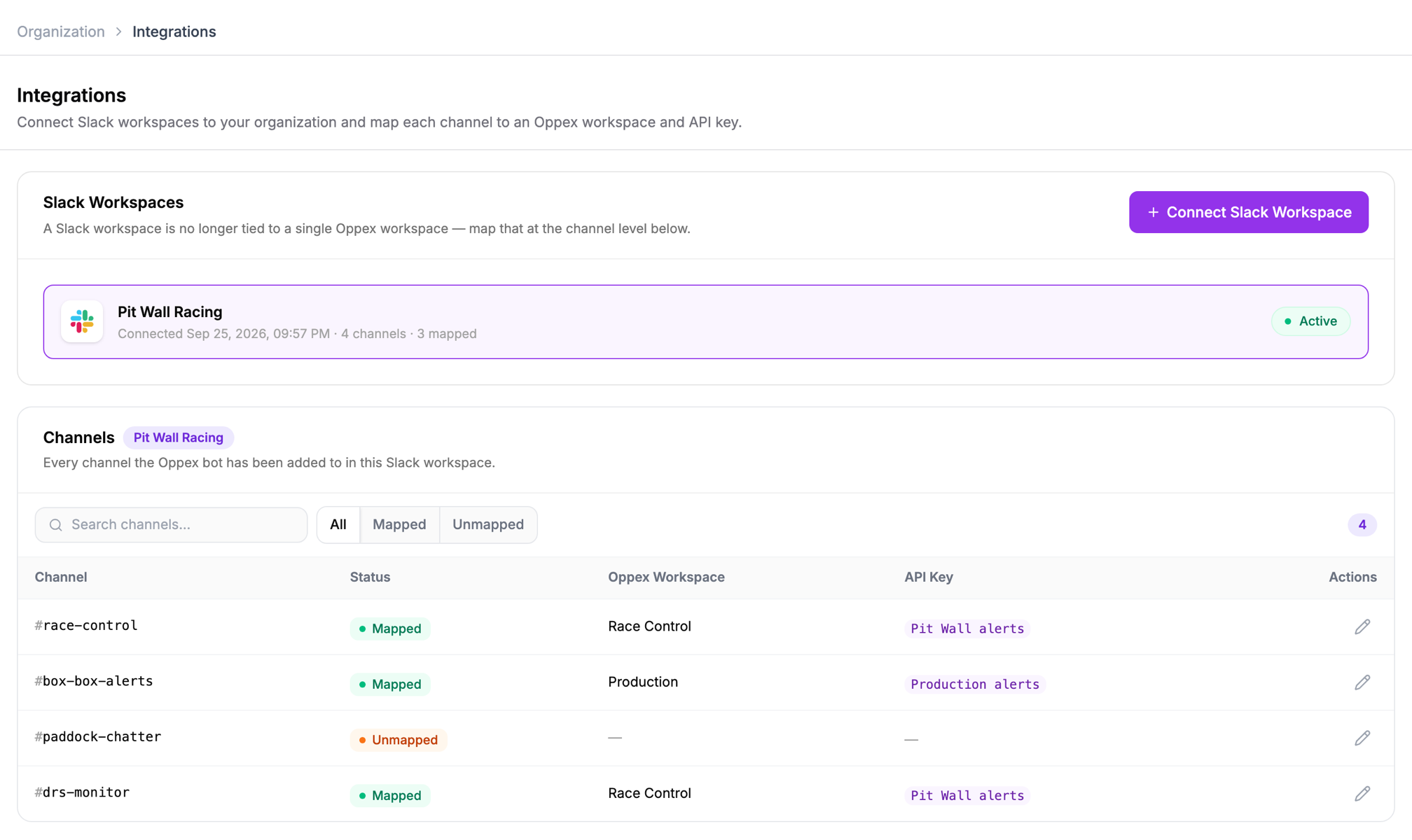
From now on, each alert your tool posts in the channel creates an incident in the selected workspace.
Which Slack messages create incidents
Oppex reads each new message in a mapped channel and creates an incident only when Slack marks the message as a bot post. The table shows how Oppex treats each kind of message.
| Message in a mapped channel | Result |
|---|---|
| An alert posted through a Slack incoming webhook | Creates an incident |
| A message a person types | Ignored |
| A reply in a thread, from a person or a bot | Ignored |
| An incident update that Oppex itself posts | Ignored |
| Any message in a channel that is not mapped | Ignored |
Service: drs-monitor-api Environment: production
In this example, the alert posted by the Grafana webhook becomes an incident titled [FIRING] DRS Monitor response time above 800 ms. If an engineer replies in the thread, or posts "Looking into it" in the channel, Oppex creates no further incidents.
Slack marks posts from an incoming webhook as bot posts. Some monitoring tools post through their own Slack app instead, and those posts may not be treated as bot posts, so they may not create incidents. If alerts appear in a mapped channel but no incident follows, configure the tool to post through a Slack incoming webhook.
What the incident contains
- Title: the text of the Slack message. When the message has no plain text, Oppex uses the text of its attachment or its first text block.
- Source: Slack. Oppex also records the channel name with the incident.
- Details: any fields the message carries, such as the fields of a formatted alert.
- Severity and priority: Severity 3 and Priority 3 for a plain-text alert. A routing rule can set a different severity.
- Service: the service chosen by the workspace's service routing. A service routing rule with the source Slack can match the alert and set its service and severity, or ignore the alert. When no rule matches, Oppex uses the workspace's default service.
If the workspace has Slack routing rules but no default service, an alert that matches none of the rules does not create an incident. Set a default service in the workspace to catch every alert.
Each Slack post creates at most one incident. If Slack delivers the same post again, Oppex ignores the repeat. A new post creates a new incident, even when its text matches an earlier post.
Oppex does not reply in Slack when it creates an incident. To follow the incident in Slack, add the channel to the service's Slack notifications, as described in Slack notifications.
Changing or stopping a channel
To send a channel's alerts to a different Oppex workspace or API key, click the pencil icon on the channel's row, select the new values in Configure Channel, and click Save Mapping. Alerts posted after you save go to the new workspace.
The Channels list has no action that removes a mapping or disconnects a Slack workspace. To stop a channel from creating incidents, remove the Oppex app from the channel in Slack. The channel keeps the status Mapped in Oppex, but Oppex no longer receives its messages. To stop only some alerts, add a service routing rule with the source Slack that ignores them.