New Relic
Connect New Relic to an Oppex service so that each New Relic alert issue creates an incident. A New Relic workflow posts the issue to Oppex when it activates, and Oppex resolves the incident when the issue closes.
Before you start
You need the following:
- An Oppex API key from the workspace that owns the service. Open Settings, and in your workspace's section click API Keys. If your organization has only one workspace, click Organization → API Keys instead. See API Keys to create one.
- The service's integration key. Oppex shows it in the service's New Relic guide, as described in step 1.
- Access to New Relic Alerts, including Alerts → ENRICH & NOTIFY.
The New Relic guide inside Oppex says Settings > Account > API Keys. The API Keys page is under your workspace's section of Settings, as described above.
Step 1: Open the New Relic guide in Oppex
- Open Services.
- In the service's row, click Integration Details and select New Relic.
- In In Oppex: Get Your Service Key, click the copy icon to copy the service integration key.
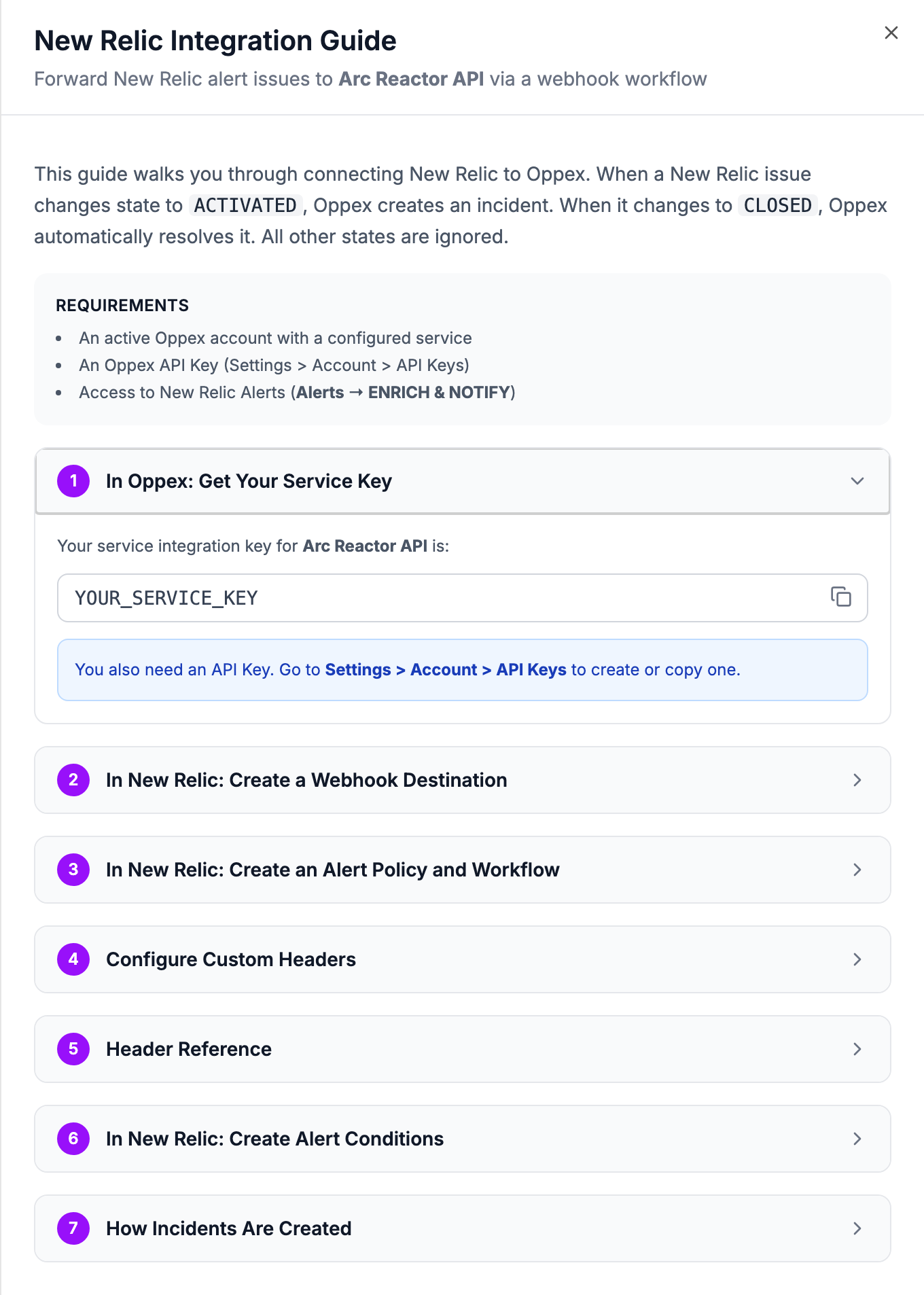
Every Oppex service uses the same New Relic webhook URL. The service integration key you send with each request, not the URL, decides which service receives the incident.
Step 2: Create a webhook destination in New Relic
-
Open the New Relic console at
https://one.newrelic.com. -
Go to Alerts → ENRICH & NOTIFY → Destinations.
-
Click Create destination and select Webhook.
-
Name the destination, for example
Oppex. -
Set Endpoint URL to the Oppex webhook URL:
https://api.oppex.ai/integrations/webhook/incident/newrelic -
Click Save destination.
You can reuse one destination in several workflows. Each workflow sends its own headers, so each workflow can target a different Oppex service.
Step 3: Create an alert policy and a workflow
- Go to Alerts → DETECT → Alert Policies.
- Click New alert policy, name it, and click Next.
- Inside the policy, click Create workflow.
- Under Notify, select the
Oppexdestination from step 2. - Click Add custom headers and add every header in step 4.
- Click Save workflow.
The workflow connects the alert policy to the Oppex webhook.
New Relic's default webhook payload contains every field Oppex needs. If you edit the payload
template, keep these top-level fields: id, state, trigger and createdAt are required, and
title and priority decide the incident title and whether an incident is created. Oppex rejects a
payload that is missing a required field and names the missing field in its response.
Step 4: Add the custom headers
In the workflow editor, click Add custom header for each row below. Oppex uses these headers to authenticate the request and to decide how it creates incidents.
| Header | Example value | Required |
|---|---|---|
X-NEWRELIC-SERVICEKEY | The service integration key from step 1 | Yes |
X-NEWRELIC-APIKEY | Your Oppex API key | Yes |
X-NEWRELIC-SEVERITY | {"CRITICAL":1,"HIGH":2,"MEDIUM":3,"LOW":4} | Yes |
X-NEWRELIC-TRIGGERED | CRITICAL,HIGH | Yes |
X-NEWRELIC-AUTORESOLVE | true | No |
X-NEWRELIC-GROUPBY | workflowName | No |
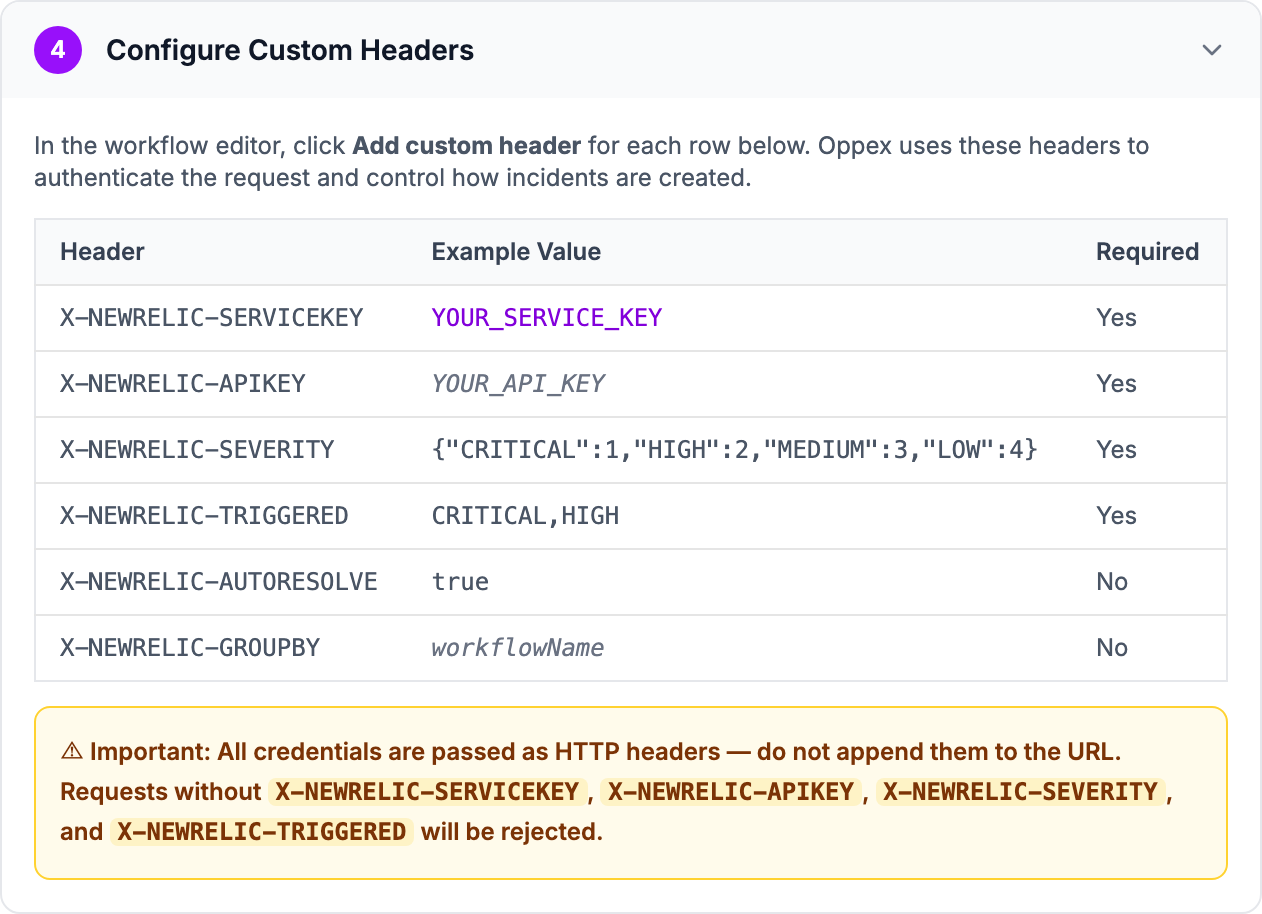
Send every credential as a header. Do not add the service key or the API key to the URL.
If a request has no X-NEWRELIC-SERVICEKEY, Oppex chooses the service with your workspace's
service routing. If no routing rule
matches and the workspace has no default service, Oppex does not create an incident.
What each header does
X-NEWRELIC-SEVERITY is a JSON object that maps New Relic priority names to Oppex severity, where
1 is the most critical and 5 is informational. Write the priority names in capitals, as in the
example, and the severities as whole numbers. A priority missing from the map creates an incident
with Severity 1. If the value is not valid JSON, every incident is created with Severity 1.
X-NEWRELIC-TRIGGERED is a comma-separated list of New Relic priorities that create incidents.
The available values are CRITICAL, HIGH, MEDIUM and LOW, and matching ignores letter case.
Oppex ignores an issue whose priority is not in the list.
X-NEWRELIC-AUTORESOLVE controls what happens when an issue closes. When the header is absent
or true, Oppex resolves the incidents linked to the issue. Any other value, including false,
leaves the incidents open for your team to resolve by hand.
X-NEWRELIC-GROUPBY controls which issues share an incident group. Without it, each New Relic
issue has its own group. With it, issues that share the value of the named field share a group. Use
dot notation for a nested value:
| Value | Groups by |
|---|---|
workflowName | All issues from the same New Relic workflow |
impactedEntities.0 | The first affected entity, such as a host name |
priority | Priority, so that all CRITICAL issues share a group |
The field must be one of the payload fields Oppex reads: id, issueUrl, title, priority,
impactedEntities, totalIncidents, state, trigger, isCorrelated, createdAt,
updatedAt, sources, alertPolicyNames, alertConditionNames or workflowName. If the field is
missing from a payload, Oppex groups that issue by its issue ID.
When an issue closes, Oppex resolves every open incident in your organization that has the same
group value, not only the incidents from that issue. With X-NEWRELIC-GROUPBY: priority, one
closed CRITICAL issue resolves every open incident grouped under CRITICAL. Choose a group field
that identifies one problem, or set X-NEWRELIC-AUTORESOLVE to false.
Step 5: Create alert conditions
- Go to Alerts → DETECT → Alert Conditions.
- Click Create a condition.
- Configure the condition for what you want to monitor, such as a CPU threshold, an error rate or a latency target.
- Under Connect this condition to a policy, select the alert policy from step 3.
- Save the condition.
Every condition attached to the policy sends its issues through the Oppex workflow.
What happens when New Relic sends an issue
The flow from alert to incident is automatic: the alert condition detects a problem, notifies the
alert policy, the policy runs the workflow, and the workflow posts the issue to Oppex with your
headers. Oppex then acts on the issue's state.
| Issue state | What Oppex does |
|---|---|
ACTIVATED, priority in X-NEWRELIC-TRIGGERED | Creates an incident with the severity from X-NEWRELIC-SEVERITY |
ACTIVATED, priority not in the list | Ignores the issue |
CLOSED, auto-resolve on | Resolves the incidents in the issue's group |
CLOSED, auto-resolve off | Leaves the incidents open |
Any other state, such as ACKNOWLEDGED | Ignores the issue |
Oppex matches ACTIVATED and CLOSED exactly, in capitals, as New Relic sends them.
The incident contains the following:
- Title: the issue title.
- Source: New Relic.
- Component: the first impacted entity, or the workflow name when the issue has no entity.
- Details: the issue link, the workflow name, the impacted entities, the sources, and the alert policy and condition names.
If New Relic sends another activated issue for a group whose incident is still open, Oppex attaches it to the open incident instead of opening a new one. After that incident is resolved, or after the workspace's grouping time window passes, the next issue opens a new incident. See Grouping strategy.
Test the integration
Trigger a condition in New Relic, or send a sample issue with curl. Replace the two keys first.
curl -X POST "https://api.oppex.ai/integrations/webhook/incident/newrelic" \
  -H "Content-Type: application/json" \
  -H "X-NEWRELIC-SERVICEKEY: YOUR_SERVICE_KEY" \
  -H "X-NEWRELIC-APIKEY: YOUR_API_KEY" \
  -H 'X-NEWRELIC-SEVERITY: {"CRITICAL":1,"HIGH":2,"MEDIUM":3,"LOW":4}' \
  -H "X-NEWRELIC-TRIGGERED: CRITICAL,HIGH" \
  -d '{"id":"nr-issue-3000","title":"Arc Reactor Cooling Failure","priority":"CRITICAL","state":"ACTIVATED","trigger":"STATE_CHANGE","createdAt":1791460800000,"workflowName":"Avengers Critical Response","impactedEntities":["arc-reactor-api"]}'
Oppex replies "Incident created successfully", and the incident appears on the Incidents page
with Severity 1. Send the same request with "state":"CLOSED" to resolve it.
If the request fails, the reply tells you why:
| Reply | Cause |
|---|---|
| Missing or invalid Authorization header or cookie | The API key header is missing |
| Invalid or disabled API key | The API key is wrong or disabled |
| X-NEWRELIC-SEVERITY header is required | A required header is missing (the message names it) |
| Field 'id' is required in payload | The payload is missing a required field (the message names it) |
| Priority LOW not in triggered states - incident not created | The issue's priority is not in X-NEWRELIC-TRIGGERED |
| State ignored - only ACTIVATED and CLOSED are processed | The issue's state is neither ACTIVATED nor CLOSED |
In-product guide
Oppex shows the same setup steps inside the product, with your service's integration key filled in. Open Services, click Integration Details in the service's row, and select New Relic.