GroundCover
Connect GroundCover to an Oppex service so that a firing GroundCover monitor creates an incident. A GroundCover workflow posts each alert to Oppex, and Oppex follows the alert's fingerprint from firing to resolution, closing the incident when the alert resolves.
Before you start
You need the following:
- An Oppex API key from the workspace that owns the service. Open Settings, and in your workspace's section click API Keys. If your organization has only one workspace, click Organization → API Keys instead. See API Keys to create one.
- The service's integration key. Oppex shows it in the service's GroundCover guide, as described in step 1.
- A GroundCover workspace with Workflows enabled.
Step 1: Open the GroundCover guide in Oppex
- Open Services.
- In the service's row, click Integration Details and select GroundCover.
- In In Oppex: Get Your Service Key, click the copy icon to copy the service integration key. The Create or copy an API Key link opens the API Keys page in a new tab.
Every Oppex service uses the same GroundCover webhook URL. The service integration key you send in a header decides which service receives the incident.
Step 2: Create a workflow action in GroundCover
-
In your GroundCover workspace, go to Monitors > Workflows.
-
Create a workflow, or edit an existing one.
-
Add a Webhook action to the workflow.
-
Set URL to the Oppex webhook URL:
https://api.oppex.ai/integrations/webhook/incident/groundcover -
Set Method to
POST. -
Add the headers from step 3.
Step 3: Configure the request headers
In the webhook action, add these headers to authenticate the request and to route alerts to the correct Oppex service.
| Header | Value | Required |
|---|---|---|
X-API-KEY | Your Oppex API key | Yes |
X-GC-SERVICEKEY | The service integration key from step 1 | Yes |
X-GROUNDCOVER-AUTORESOLVE | true | No |
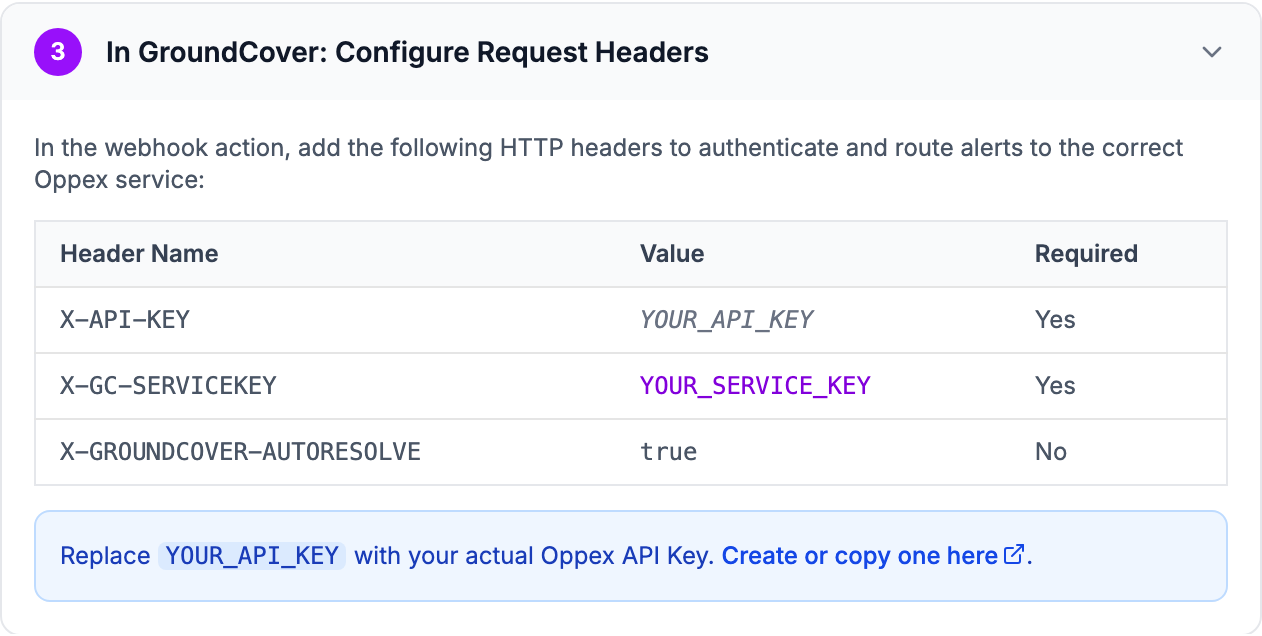
X-GROUNDCOVER-AUTORESOLVE controls what happens when an alert resolves. When the header is
absent or true, Oppex resolves the incidents linked to the alert's fingerprint. Any other value,
including false, leaves the incidents open for your team to resolve by hand.
Step 4: Configure the webhook payload
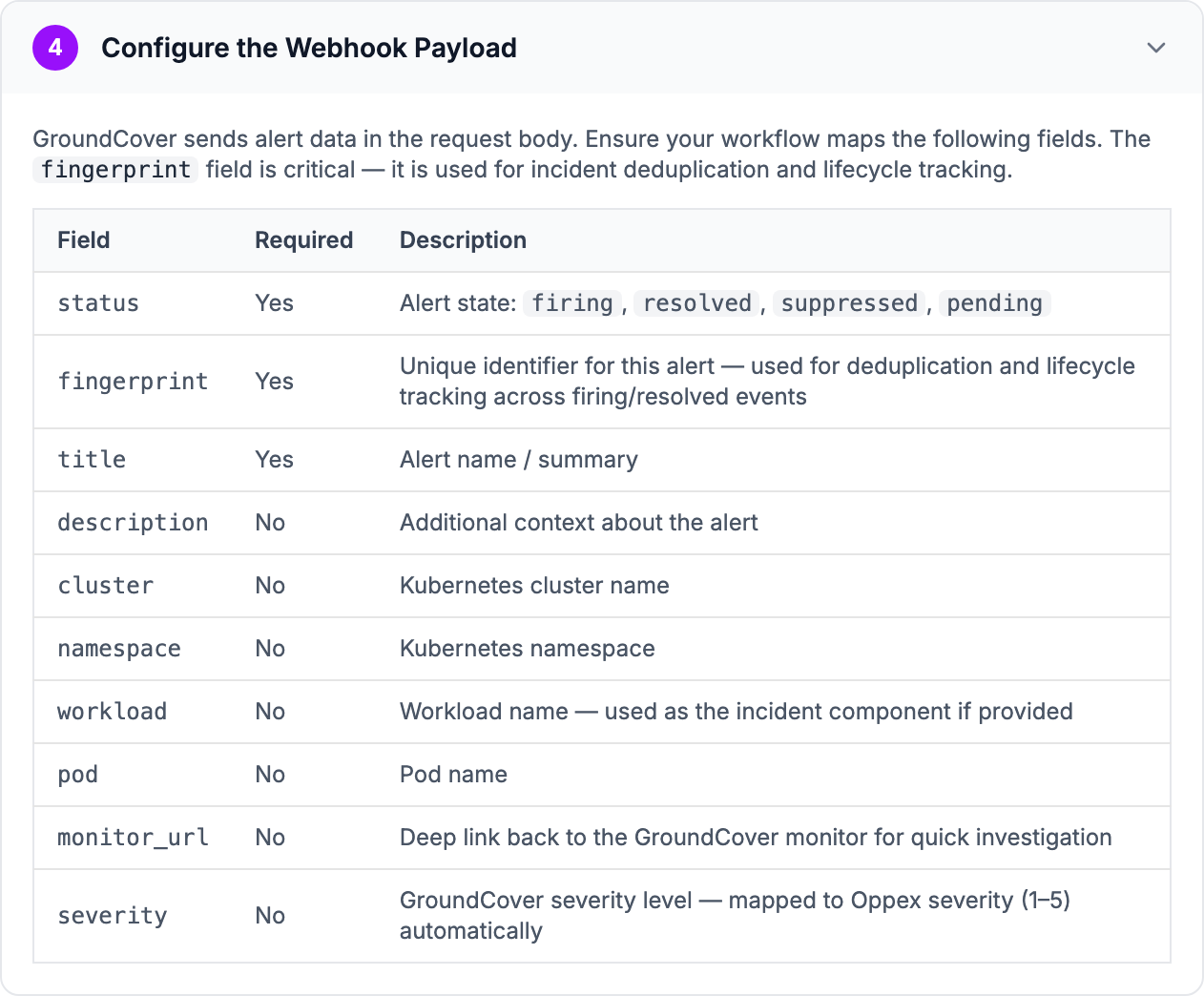
GroundCover sends the alert in the request body. Make sure the workflow sends the following fields.
The fingerprint field identifies the alert from firing to resolution.
| Field | Required | Description |
|---|---|---|
status | Yes | The alert state: firing, resolved, suppressed or pending |
fingerprint | Yes | A unique identifier for the alert, used to link its firing and resolved events |
title | Yes | The alert name or summary |
description | No | More context about the alert |
cluster | No | The Kubernetes cluster name |
namespace | No | The Kubernetes namespace |
workload | No | The workload name, used as the incident component when present |
pod | No | The pod name |
monitor_url | No | A link back to the GroundCover monitor |
severity | No | The GroundCover severity, mapped to Oppex severity as shown below |
Oppex rejects an alert without status, fingerprint or title, and replies "Invalid payload".
A body field named gc_service_key takes precedence over the X-GC-SERVICEKEY header. Use it when
one workflow should send different alerts to different Oppex services.
What happens when GroundCover sends an alert
Oppex reads the status field, ignoring letter case.
| Status | What Oppex does |
|---|---|
firing or alerting | Creates an incident linked to the fingerprint |
resolved, auto-resolve on | Resolves the incidents linked to the fingerprint |
resolved, auto-resolve off | Leaves the incidents open |
suppressed or pending | Ignores the alert |
test | Creates an incident whose title starts with [test] |
| Any other value | Ignores the alert |
Severity
Oppex maps the severity field as follows. Letter case does not matter.
| GroundCover severity | Oppex severity |
|---|---|
1, S1, P1, CRITICAL, EMERGENCY, FATAL | 1 |
2, S2, P2, ERROR, HIGH | 2 |
3, S3, P3, WARNING, MEDIUM | 3 |
4, S4, P4, NOTICE, LOW | 4 |
5, S5, P5, INFO, DEBUG | 5 |
| Any other value | 4 |
| Field absent | 1 |
If the workflow sends severity as an empty string, Oppex rejects the alert. Either leave the field
out or send a value from the table.
The incident
- Title: the
titlefield. - Source: GroundCover.
- Component: the first of
workload,pod,namespaceandclusterthat has a value. When none of them is present, Oppex uses the alert's labels, and then the title. - Details: the cluster, namespace, workload, pod, monitor link, description, labels, metric values and the original payload.
If the same fingerprint fires again while its first incident is open, Oppex attaches the new alert to that incident instead of opening a new one. After the incident is resolved, or after the workspace's grouping time window passes, the next firing alert opens a new incident. See Grouping strategy.
Test the integration
Send a firing alert with curl. Replace the two keys first.
curl -X POST "https://api.oppex.ai/integrations/webhook/incident/groundcover" \
  -H "Content-Type: application/json" \
  -H "X-API-KEY: YOUR_API_KEY" \
  -H "X-GC-SERVICEKEY: YOUR_SERVICE_KEY" \
  -d '{"status":"firing","title":"Hyperdrive Failure","fingerprint":"falcon-hyperdrive-001","cluster":"death-star-prod","namespace":"rebel-alliance","workload":"hyperdrive-worker","severity":"S1"}'
Oppex replies "Incident created", and a Severity 1 incident appears on the Incidents page within a few seconds. To test auto-resolve, send a resolved event with the same fingerprint:
curl -X POST "https://api.oppex.ai/integrations/webhook/incident/groundcover" \
  -H "Content-Type: application/json" \
  -H "X-API-KEY: YOUR_API_KEY" \
  -H "X-GC-SERVICEKEY: YOUR_SERVICE_KEY" \
  -H "X-GROUNDCOVER-AUTORESOLVE: true" \
  -d '{"status":"resolved","title":"Hyperdrive Failure","fingerprint":"falcon-hyperdrive-001"}'
If a request fails, the reply tells you why:
| Reply | Cause |
|---|---|
| Missing or invalid Authorization header or cookie | The X-API-KEY header is missing |
| Invalid or disabled API key | The API key is wrong or disabled |
| Invalid payload | The body is not valid JSON, or status, fingerprint or title is missing |
| Unknown Service ID | The service integration key does not match a service |
| State ignored: SUPPRESSED | The status is suppressed or pending |
In-product guide
Oppex shows the same setup steps inside the product, with your service's integration key and the sample requests filled in. Open Services, click Integration Details in the service's row, and select GroundCover.