Amazon CloudWatch
Connect Amazon CloudWatch to an Oppex service so that an alarm creates an incident. CloudWatch
publishes alarm state changes to an Amazon SNS topic, and an HTTPS subscription on the topic forwards
them to Oppex. When the alarm returns to OK, Oppex resolves the incident.
Before you start
You need the following:
- An Oppex API key from the workspace that owns the service. Open Settings, and in your workspace's section click API Keys. If your organization has only one workspace, click Organization → API Keys instead. See API Keys to create one.
- The service's integration key. Oppex shows it in the service's Amazon CloudWatch guide, as described in step 1.
- Access to the AWS Management Console for Amazon SNS and CloudWatch.
The Amazon CloudWatch guide inside Oppex says Settings > Account > API Keys. The API Keys page is under your workspace's section of Settings, as described above.
Step 1: Open the Amazon CloudWatch guide in Oppex
- Open Services.
- In the service's row, click Integration Details and select Amazon CloudWatch.
- In In Oppex: Get Your Service Key, click the copy icon to copy the service integration key.
Step 2: Create an SNS topic
- Open the Amazon SNS console.
- Click Create topic.
- Select the type Standard, not FIFO.
- Enter a name, for example
oppex-cloudwatch-alerts. - Click Create topic.
Step 3: Create an HTTPS subscription
-
In the new topic, click Create subscription.
-
Set Protocol to
HTTPS. -
Set Endpoint to the Oppex webhook URL, with your two keys in place of the placeholders:
https://api.oppex.ai/integrations/webhook/incident/cloudwatch?SERVICEKEY=YOUR_SERVICE_KEY&APIKEY=YOUR_API_KEY -
Select Enable raw message delivery.
-
Click Create subscription.
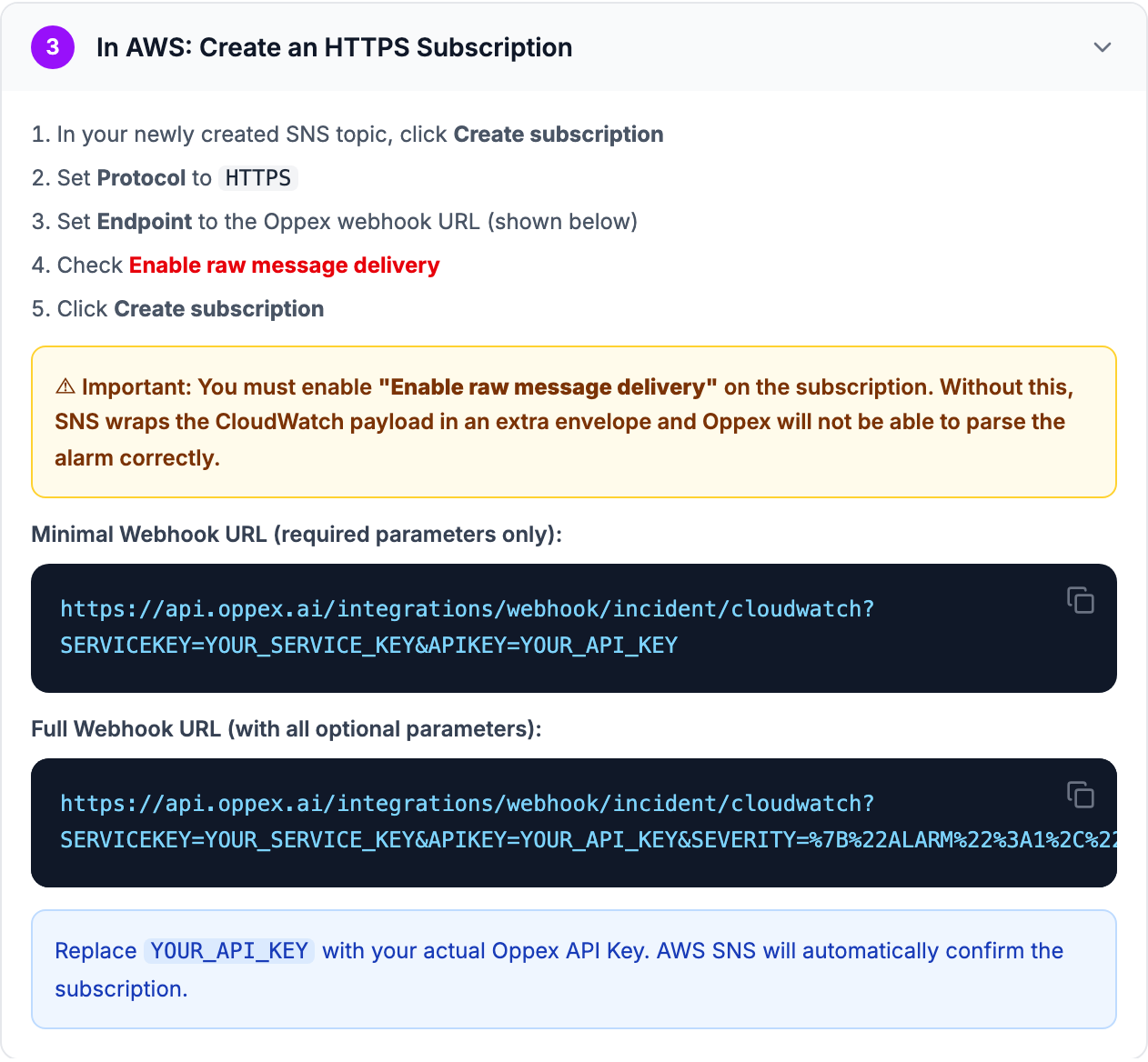
Oppex confirms the SNS subscription automatically, so the subscription's status changes to Confirmed without further action.
SNS cannot send custom headers, so the service key and the API key are query parameters in the endpoint URL. Anyone who can read the subscription's endpoint can read the API key. Limit access to the SNS topic's subscriptions accordingly.
Optional URL parameters
Add any of these parameters to the endpoint URL to change how Oppex treats the alarms.
| Parameter | Required | Description |
|---|---|---|
SERVICEKEY | Yes | The service integration key |
APIKEY | Yes | Your Oppex API key |
SEVERITY | No | A JSON map of alarm state to severity, from 1 to 5. Default: {"ALARM":1,"INSUFFICIENT_DATA":3} |
AUTORESOLVE | No | Whether Oppex resolves incidents when the alarm returns to OK. Default: true |
GROUPBY | No | The alarm field that identifies one problem. Default: AlarmName. Supports dot notation, such as Trigger.MetricName |
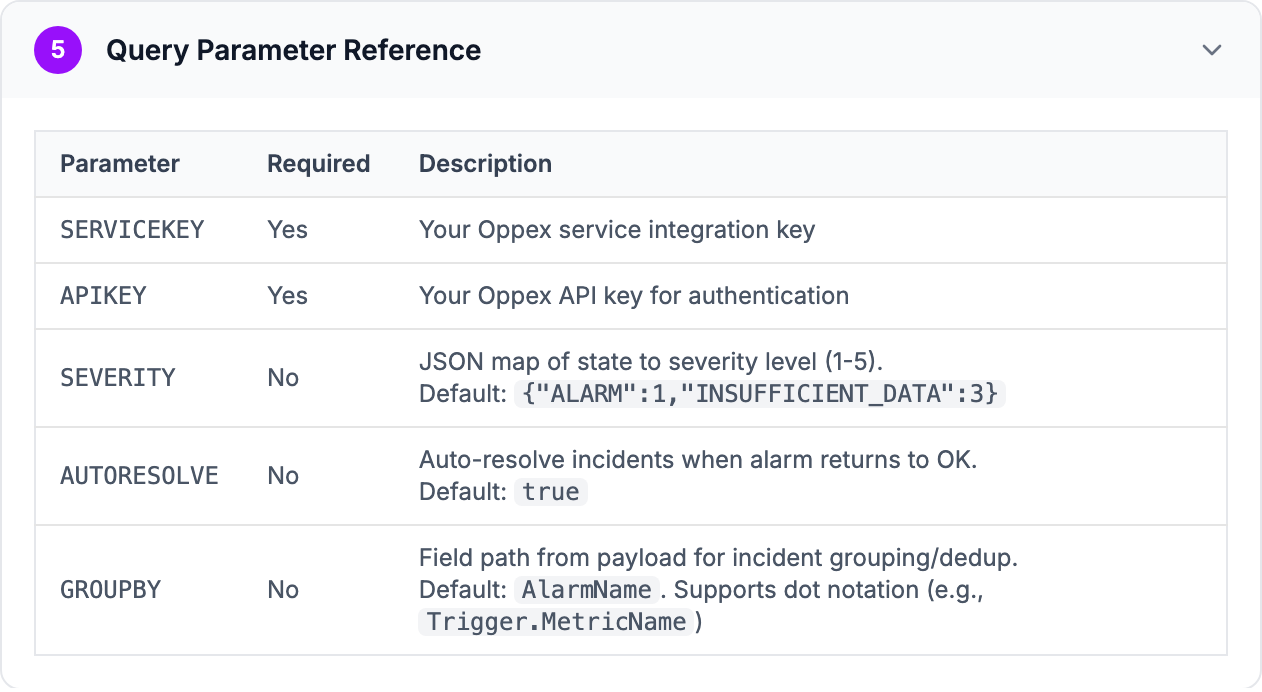
URL-encode the SEVERITY value. The full URL with every parameter looks like this:
https://api.oppex.ai/integrations/webhook/incident/cloudwatch?SERVICEKEY=YOUR_SERVICE_KEY&APIKEY=YOUR_API_KEY&SEVERITY=%7B%22ALARM%22%3A1%2C%22INSUFFICIENT_DATA%22%3A3%7D&AUTORESOLVE=true&GROUPBY=AlarmName
A state that is missing from your SEVERITY map gets Severity 3. If the map cannot be read, every
incident gets Severity 3. Any AUTORESOLVE value other than true turns auto-resolve off.
Step 4: Configure the CloudWatch alarm
- Open the CloudWatch console.
- Go to Alarms > All alarms.
- Create an alarm, or edit an existing one.
- Under Notification, select the SNS topic, for example
oppex-cloudwatch-alerts. - Add a notification action for each of the three states:
- In alarm creates an incident in Oppex.
- OK resolves the incident, when auto-resolve is on.
- Insufficient data creates an incident with a lower severity.
- Save the alarm.
You can reuse one SNS topic for many alarms that belong to the same service.
What happens when CloudWatch sends an alarm
| Alarm state | What Oppex does |
|---|---|
ALARM | Creates an incident, with Severity 1 by default |
INSUFFICIENT_DATA | Creates an incident, with Severity 3 by default |
OK, auto-resolve on | Resolves the alarm's open incidents |
OK, auto-resolve off | Leaves the incidents open |
The incident contains the following:
- Title: the alarm's state reason, or the alarm name when CloudWatch sends no reason.
- Source: CloudWatch.
- Priority: 3.
- Type: the alarm's metric name.
- Component: the metric namespace followed by the alarm's dimension values.
- Details: the alarm description, region, AWS account ID, state reason, alarm ARN, previous state and trigger.
If the same alarm fires again while its first incident is still open, Oppex attaches the new alert to the open incident instead of opening a new one. After the incident is resolved, or after the workspace's grouping time window passes, the next alarm opens a new incident. See Grouping strategy.
Oppex matches OK to incidents by alarm name, or by your GROUPBY field, across your whole
organization and not only within this service. If two alarms in different services share a name,
the recovery of one resolves the other's open incidents.
Test the integration
Change an alarm's state with the AWS CLI:
aws cloudwatch set-alarm-state \
  --alarm-name "YOUR_ALARM_NAME" \
  --state-value ALARM \
  --state-reason "Testing Oppex integration"
An incident appears on the Incidents page within a few seconds. To test auto-resolve, set the
state back to OK:
aws cloudwatch set-alarm-state \
  --alarm-name "YOUR_ALARM_NAME" \
  --state-value OK \
  --state-reason "Testing auto-resolve"
If no incident appears, check the subscription's delivery status in SNS. These replies point to the cause:
| Reply | Cause |
|---|---|
| SERVICEKEY query parameter is required | The URL has no SERVICEKEY |
| APIKEY query parameter is required | The URL has no APIKEY |
| Service not found for provided key | The service integration key does not match a service |
| State ignored - only ALARM, INSUFFICIENT_DATA and OK are processed | The alarm sent a state Oppex does not act on |
In-product guide
Oppex shows the same setup steps inside the product, with your service's integration key filled into the URLs. Open Services, click Integration Details in the service's row, and select Amazon CloudWatch.