Grouping Strategy
A single underlying problem rarely produces a single alert. One overloaded container can raise a new alert every minute, and each of those alerts would normally become its own incident, page its own responder, and appear as its own row in your incidents list.
A grouping strategy reduces duplicate incidents. You describe, per service, which alerts belong together. Oppex tests every incoming incident for that service against your rules, derives a group name for it, and attaches it to the open incident that already carries the same group name instead of raising a new one. Your team sees one incident with the repeats gathered underneath it, and the repeats do not open incidents of their own.
Grouping is configured per service, so a noisy infrastructure service and a quiet billing service can follow completely different rules.
Opening the page
- Go to Services.
- Find the service you want to configure, and open its actions menu using the vertical dots at the end of the row.
- Select Grouping.
The page that opens is titled Algorithmic Grouping in the app. It opens on the Strategies tab. The second tab, Simulate, tests a strategy against the incidents this service has already received.
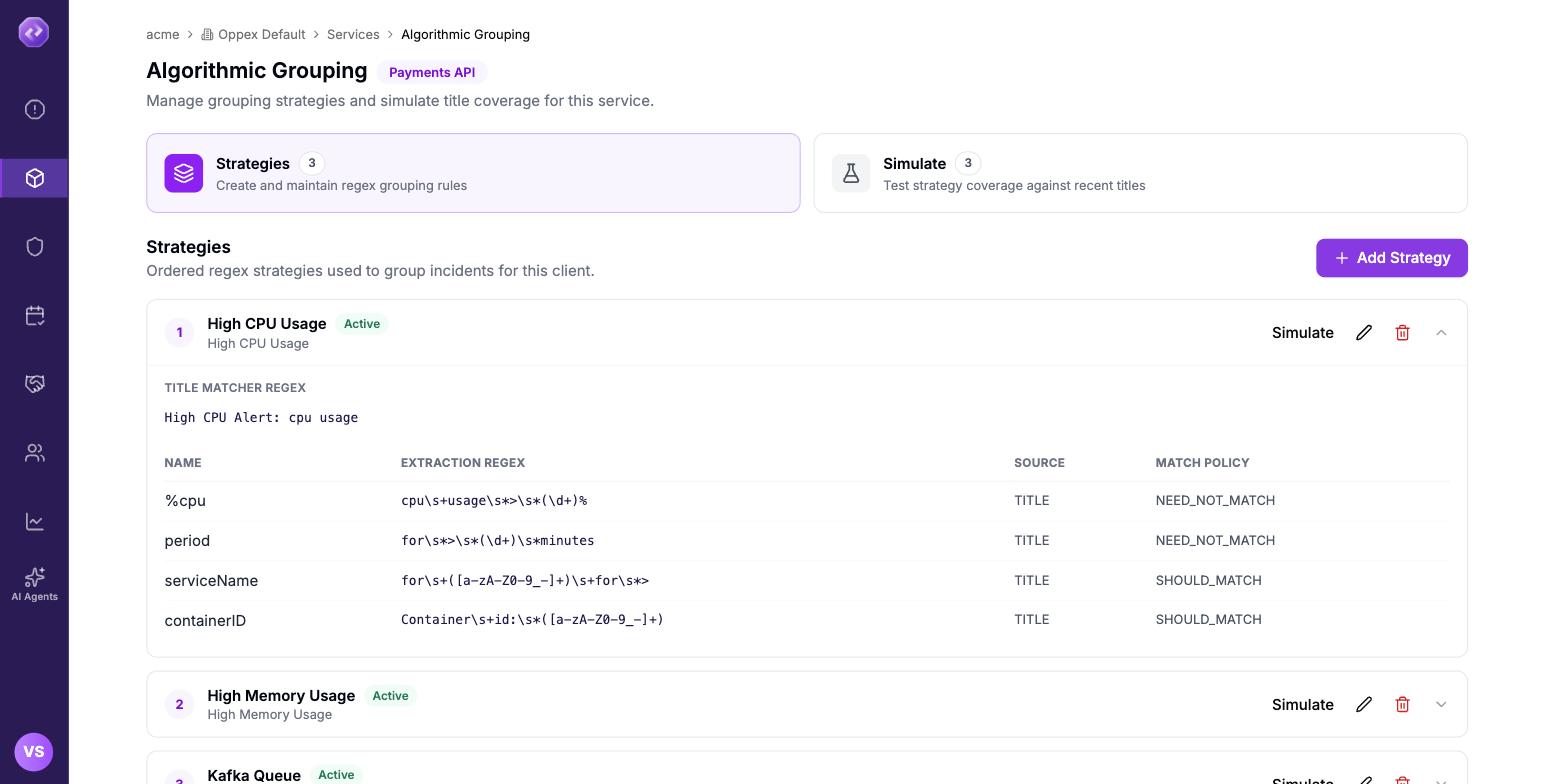
Click the chevron at the end of a row to expand a strategy and see how it is built. The number on the left is the order in which Oppex tries each strategy.
Creating a strategy
Click Add Strategy. A panel opens on the right with the strategy's fields.
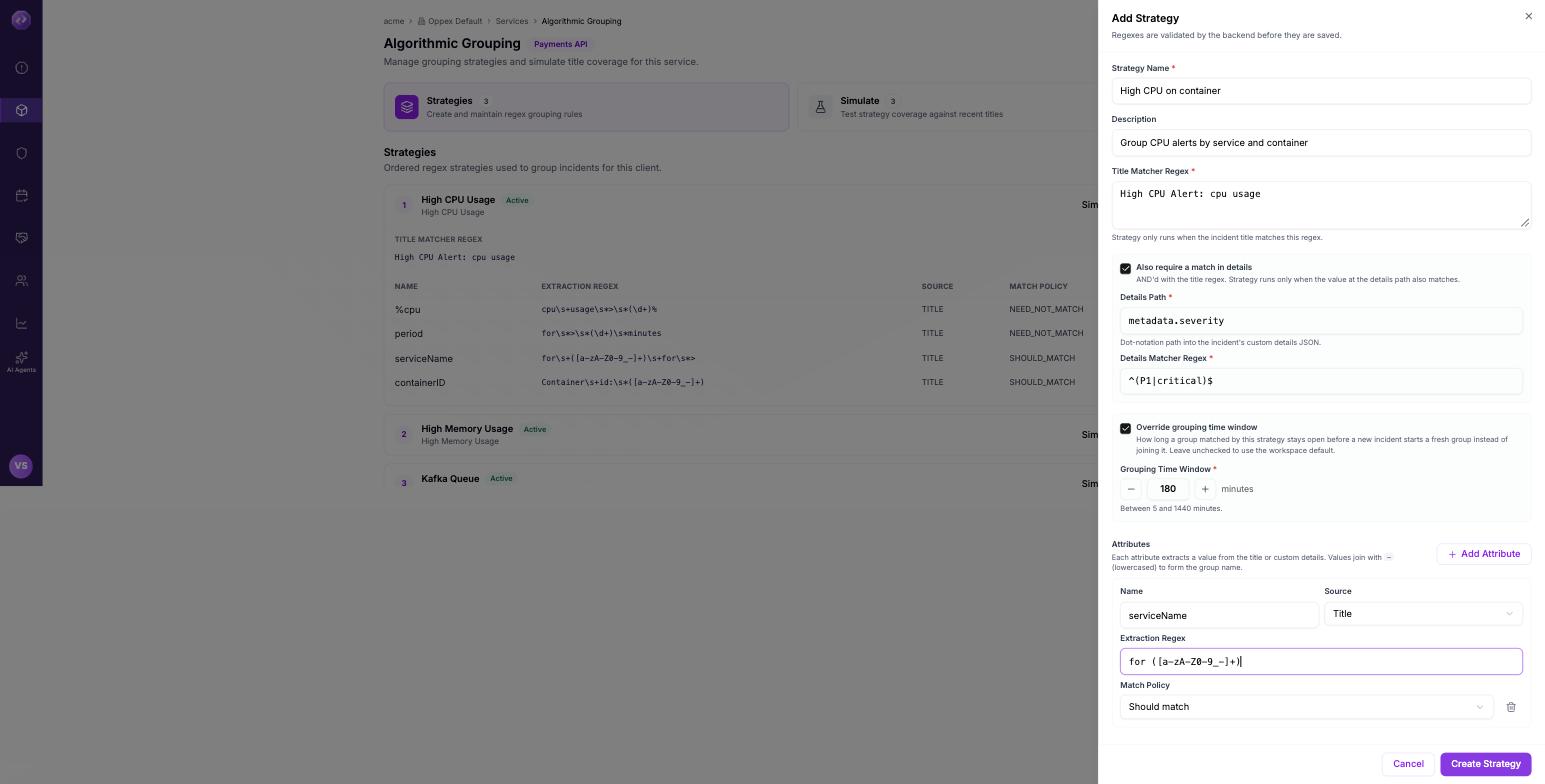
A complete strategy in the Add Strategy panel, with both optional sections ticked. Ticking Also require a match in details reveals the details path and its regex, and both are required once it is ticked. Ticking Override grouping time window reveals the window. Both sections are unticked when the panel first opens.
The fields are:
| Field | Required | What it controls |
|---|---|---|
| Strategy Name | Yes | How the strategy appears in the list. It has no effect on matching. |
| Description | No | A note for whoever reads the strategy next. |
| Title Matcher Regex | Yes | The gate. The strategy is only considered when this expression is found somewhere in the incident title. |
| Also require a match in details | No | Adds a second gate on the incident's custom details. Both gates must pass. |
| Override grouping time window | No | Sets how long this strategy's groups stay open. Leave it unticked to use the workspace default. |
| Attributes | No, but see below | The values Oppex pulls out of each incident. These build the group name. |
Oppex checks every expression you enter before saving the strategy. An expression that is not valid is rejected with the reason, and nothing is saved.
A strategy with no attributes is accepted, but it has no grouping key, so Oppex falls back to grouping by the full incident title. Two incidents then group together only when their titles are identical, which rarely happens once a title carries a percentage, a count, or a timestamp.
Click Create Strategy to save. New strategies are added to the end of the list.
How the group name is built
Each attribute you add pulls one value out of the incident. Oppex takes the values from the attributes marked Should match, joins them with a hyphen, and converts the result to lower case. That string is the group name, and two incidents join the same group when their group names are identical.
An attribute reads from one of two places, which you choose in Source:
- Title reads the incident title.
- Details reads a value out of the incident's custom details, at the Details Path you
supply. A path is written in dot notation, so
metadata.environment.regionreads theregionfield insideenvironmentinsidemetadata.
The Extraction Regex then pulls the value out of that text. If your expression contains a capture group, Oppex keeps what the group captured. If it contains several, it joins them with a hyphen. If it contains none, it keeps the whole match.
Take the strategy shown above and these three incoming alerts:
| Incident title | Group name |
|---|---|
High CPU Alert: cpu usage > 91% for payments-api for > 10 minutes Container id: web-04 | payments-api-web-04 |
High CPU Alert: cpu usage > 96% for payments-api for > 15 minutes Container id: web-04 | payments-api-web-04 |
High CPU Alert: cpu usage > 88% for payments-api for > 10 minutes Container id: web-07 | payments-api-web-07 |
The first two alerts land in the same group and raise one incident between them, because the two Should match attributes — the service name and the container id — produced the same values. The third alert names a different container, so it starts a separate group. The reported CPU percentage and the duration differ across all three, but neither affects the outcome, because both of those attributes are marked Need not match.
Should match and Need not match
Every attribute carries a match policy, and it decides whether that attribute has any say in which group an incident lands in.
| Policy | Effect on the group name | Effect when the value is missing |
|---|---|---|
| Should match | The value becomes part of the group name, so a different value means a different group. | The strategy does not match at all, and Oppex moves on to the next strategy. |
| Need not match | The value is never part of the group name, so incidents that differ only in this value still group together. The value is still recorded and shown on the incident. | The strategy still matches, and the attribute is recorded as absent. |
Use Should match for the parts of an alert that identify which thing is broken: the service, the host, the container, the queue. Use Need not match for the parts that describe how badly it is broken at this instant, such as a percentage, a duration, or a current count. Those values change on every repeat of the same alert, and treating them as significant would put every repeat in its own group and defeat the purpose of grouping.
Give every strategy at least one Should match attribute. A strategy whose attributes are all Need not match has no grouping key at all, and falls back to grouping by the whole incident title.
Requiring a match in the incident details
Some alerts cannot be told apart by their titles alone. A monitoring tool may send an identically worded alert for both a warning and a critical breach, with only the payload distinguishing them.
Tick Also require a match in details and the strategy gains a second gate. Supply the Details Path to read, and the Details Matcher Regex the value at that path must match. The strategy now runs only when the title gate and the details gate both pass. If the incident carries no custom details, or the path does not exist in them, the strategy does not match.
Both fields are required once the option is ticked. Oppex rejects the strategy if you fill in only one of them.
When several strategies match
Strategies are tried in the order shown on the page, top to bottom, and the first one whose gates pass is the one that groups the incident. The numbered circle on each row is that order. Later strategies are not consulted once a match is found, so put your most specific rules above your broader ones.
One further check applies at the moment an incident would join an existing open group. Oppex compares the incident's Should match values against the values recorded on that group. If any of them differs, the incident does not join, which protects you from two unrelated alerts being merged because their group names happened to collide.
How long a group stays open
A group does not stay open forever. Each group has a time window, and once it expires the next matching incident starts a fresh group rather than joining the old one. This prevents an incident raised by yesterday's outage from collecting today's alerts.
There are two places the window can come from:
- The strategy. Tick Override grouping time window and set a value between 5 minutes and 1440 minutes, which is 24 hours. The default offered is 180 minutes.
- The workspace. If you leave the option unticked, the strategy uses the Default Grouping Window from Workspace Preferences, under Grouping Time Window.
A window set on the strategy always wins over the workspace default.
Testing a strategy before you rely on it
The Simulate tab replays a strategy against the incidents this service has already received, so you can measure how much of your recent alert traffic it would have matched before you rely on it.
- Open the Simulate tab.
- Choose a saved strategy in Load Strategy. Its title matcher and attributes are filled in for you, and the simulation runs straight away.
- Adjust the Title Matcher Regex or the attributes as needed, then click Run Simulation to score the new version.
- Click Save Strategy to write your changes back to the strategy you loaded.
A simulation scores the Title Matcher Regex and the attributes only. If your strategy also uses Also require a match in details, it may group fewer incidents in practice than the coverage shown here, because that second condition is not applied during simulation.
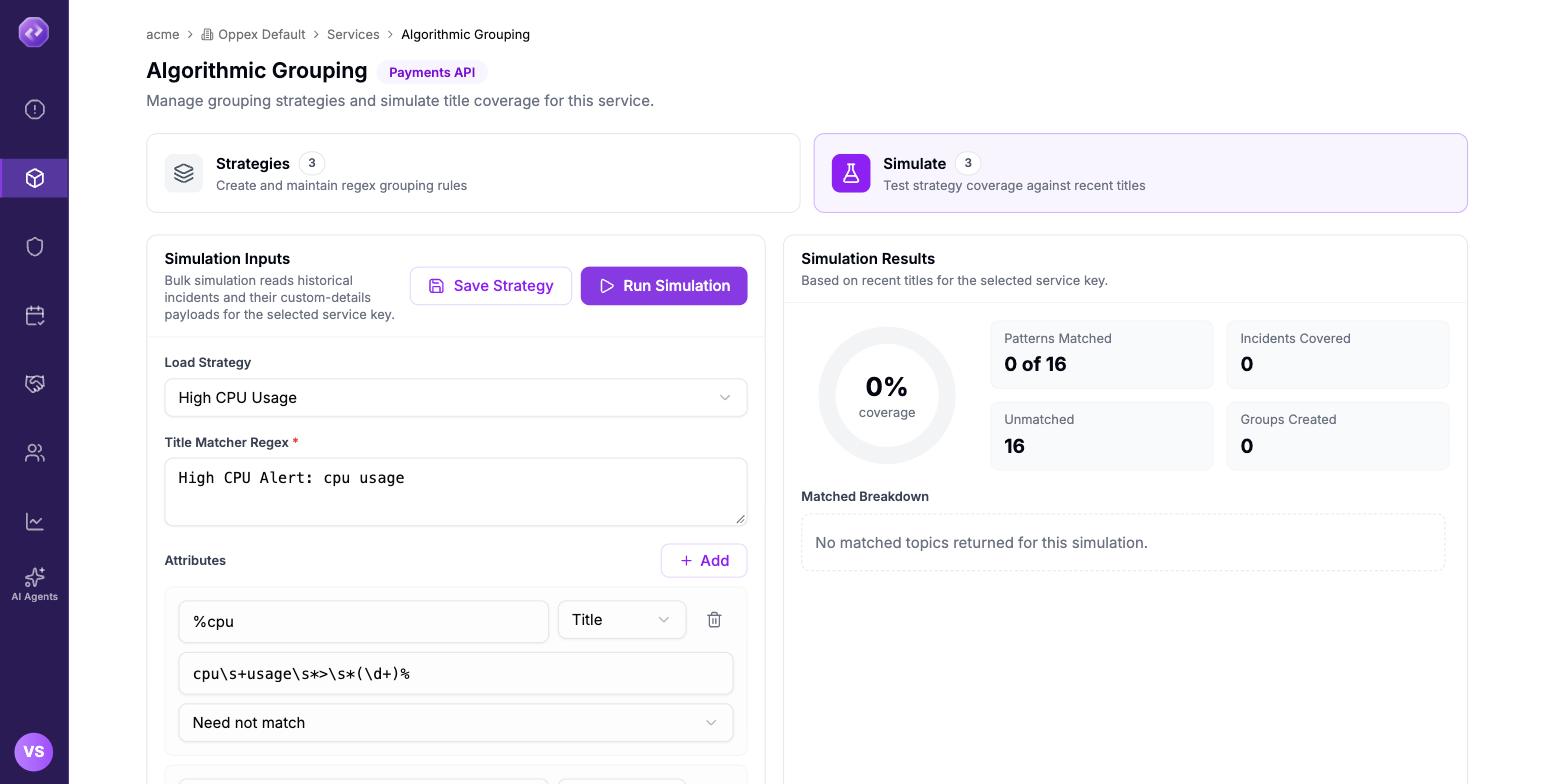
Opening the tab loads the first saved strategy and runs it immediately. In this run the strategy matched none of the service's 16 recent incidents, which is what a coverage of 0% means: every one of those incidents would still have been raised on its own. A run that does match lists each matched title under Matched Breakdown with the group name it resolved to, and tags an incident Child when it would have joined a group another incident had already opened.
The numbers mean:
| Result | What it counts |
|---|---|
| coverage | The share of the simulated incidents your strategy matched. |
| Patterns Matched | How many incidents matched, out of how many were read. |
| Incidents Covered | The incidents your strategy would have grouped. |
| Unmatched | The incidents it would have left alone, each raising its own incident as before. |
| Groups Created | How many distinct groups those matches would have formed, and so how many incidents they would have produced in place of the matched ones. |
Read coverage and Groups Created together. High coverage with a groups count close to the matched count means the strategy matches most of your alerts but still separates them into almost as many groups, which usually points to a Should match attribute capturing a value that changes on every alert.
Coverage of 0%, as in the run above, means the opposite: nothing matched at all. Check the Title Matcher Regex first, then each Should match attribute, since a single one that fails to extract makes the whole strategy miss.