Slack
Oppex can post a service's incident updates to one or more Slack channels, so the whole team can follow an incident without opening Oppex. Setting this up takes two steps: an administrator connects your Slack workspace to Oppex once, and then you choose channels and events for each service.
Slack posts go to channels, not to individual people, and they are sent in addition to the contact methods on the escalation policy.
Step 1: Connect your Slack workspace
Only an Account Owner or Account Admin can see the Integrations page and connect Slack.
- Open Settings and, under Organization, click Integrations.
- In Slack Workspaces, click Connect Slack Workspace.
- Slack opens in your browser. Choose your Slack workspace if asked, review the permissions, and click Allow.
- Slack returns you to the Integrations page, where the workspace is now listed.
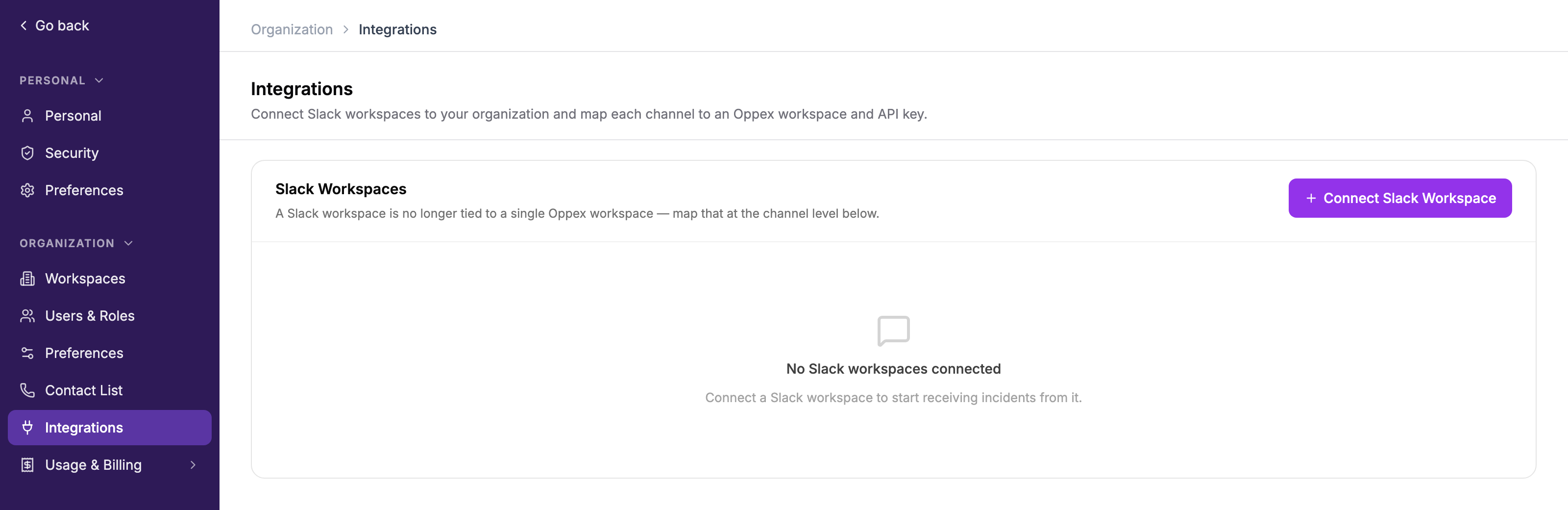
When the connection works, the Slack workspace appears in the list, with the date it was connected and who connected it. If it fails, your browser shows a page that starts with "OAuth failed:", followed by the reason.
You do not need to map channels on the Integrations page to receive notifications. The Channels list and Configure Channel there are for creating Oppex incidents from messages that other bots post in Slack.
Step 2: Choose a channel for your service
- Open Services and click the service, for example Telemetry Gateway. The Edit Service dialog opens.
- Under Notifications, select the Slack tab.
- In Add Slack Channel, search for the channel, select it, and click Add. The channel is saved as soon as you add it.
- Under Notification Events, select the events to post: Triggered, Assigned, Acknowledged, Service Change, Severity Change or Resolved.
- Click Save Events.

The figure shows the Slack tab before a Slack workspace is connected. Until you complete step 1, the tab shows "Connect Slack in Settings → Integrations to enable channel notifications." in place of the channel picker.
Oppex selects Assigned for each channel you add. Select any other events you want, then click Save Events. If you clear every event, Oppex shows "Slack is configured but no events are selected. No notifications will be sent."
The channel list shows public channels, and private channels only after you add the Oppex app to them in Slack.
When you add a channel while creating a new service, you can pick one channel, and Oppex saves it when you click Create Service. Add more channels by editing the service afterwards.
What a post looks like
Each post shows the event, the incident title, the service, the severity and the time in UTC. Later updates for the same incident are posted in the same thread.
Service: Telemetry Gateway Severity: SEV1
Assigned to: Alex Morgan
Time: 27 Sep 2026, 07:45 UTC
The View Incident button opens the incident in Oppex. Posts for acknowledged, resolved, transferred and severity-change events also name the person who acted, when Oppex knows who it was.
If your organization connects more than one Slack workspace, Oppex sends service posts through the workspace it connected first. Posts to a channel in a different Slack workspace may not arrive.
For what each event means once an incident is running, see Slack notifications.