Setting up Your Service
Every incident in Oppex belongs to a service. The service decides which escalation policy handles each severity, and the policy decides who is paged, how, and when to move on to the next person. Build the three pieces in this order: a schedule of who is on call, an escalation policy that pages that schedule, and a service that uses the policy.
Creating schedules, escalation policies and services needs the Service Admin role or higher.
Step 1: Create a schedule
A schedule rotates on-call duty through a list of people.
- Open Schedules and click Add Schedule. If you have no schedules yet, click Create Schedule instead.
- Replace Enter Scheduler Name Here... with a name, for example Race Control On-Call.
- Under Sequence, click Add Users and add the people who share the rotation, in the order they take turns.
- Set the Start Date. It cannot be earlier than today.
- Under Period Rotation, choose the Period type (Daily, Weekly or Monthly) and how many periods each person covers. For a weekly rotation, also choose the Changeover day and Changeover time.
- Check the calendar preview on the right, then click Create Schedule.
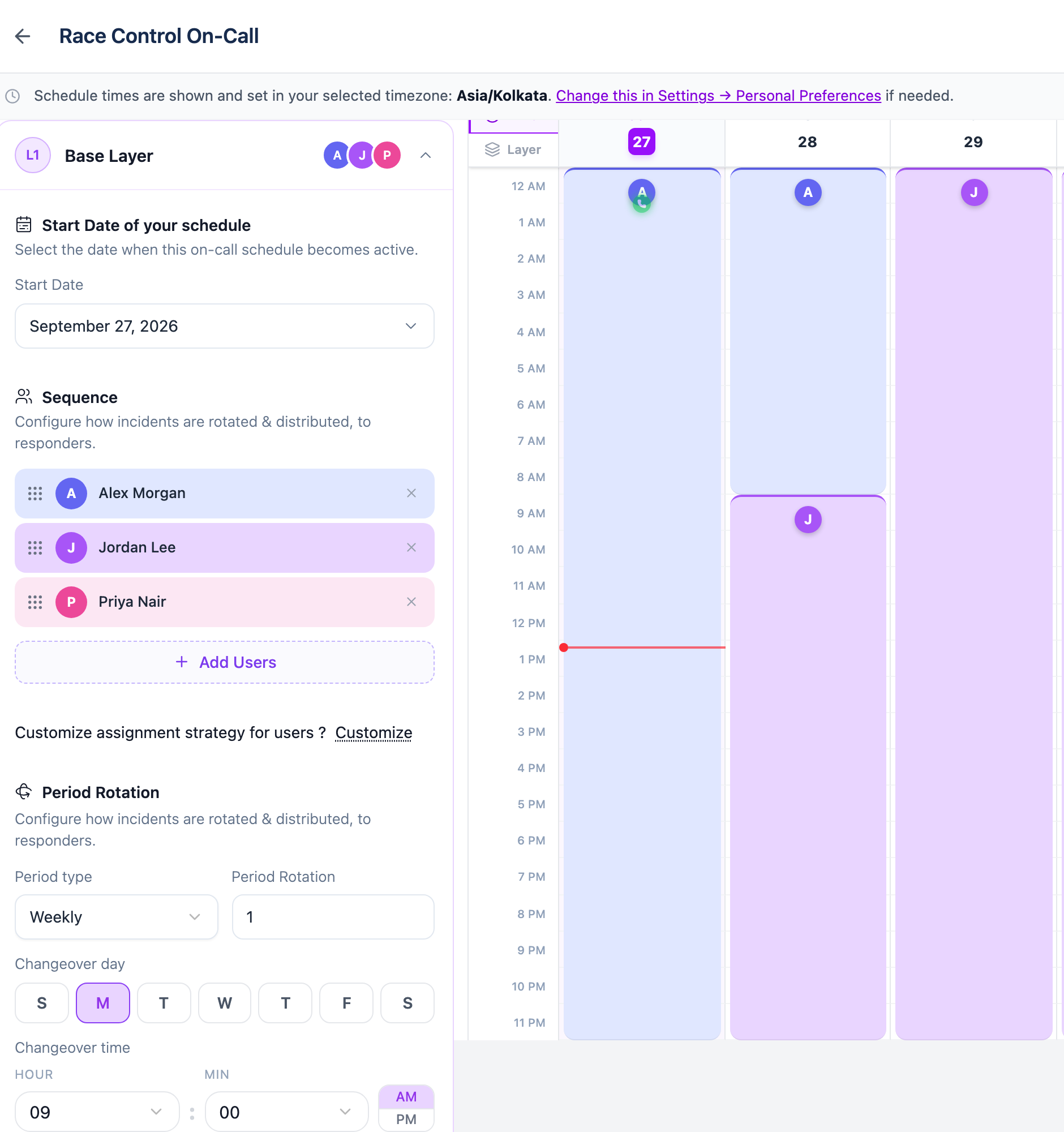
In this example the rotation starts on Sunday 27 September. Alex Morgan is on call until the first changeover on Monday 28 September at 9:00 AM. Jordan Lee then covers a full week, followed by Priya Nair.
The schedule uses the timezone shown in the banner at the top of the editor, which is your own display timezone. Period type, Period Rotation, and the changeover day and time can only be set while you create the schedule. To use a different timezone, change it under Settings → Personal → Preferences before you start.
For layers, overrides and other rotation patterns, see Create a schedule and Layers.
Step 2: Create an escalation policy
An escalation policy is an ordered list of levels. Oppex pages Level 1 first. If nobody acknowledges before that level's Escalate After time runs out, Oppex pages the next level.
- Open Policies and click + Add Escalation Policy.
- Enter a Policy Name, for example Safety Car Escalation, and optionally a Description.
- Set Delay Before First Assignment to Immediately, or to 5, 10 or 15 minutes.
- For Level 1, choose Schedule and select the schedule you created in step 1.
- Set Escalate After for Level 1. You can choose from 5 to 60 minutes.
- Click + Add Level 2 and choose who is paged next. This can be another schedule or a single User.
- Under Setup Preferred Contact Methods, open Contact Method and select Phone, Message, WhatsApp and Email. Message is SMS.
- Set # of reminders to No reminders, 1 Time or 2 Times.
- Click Add Policy.
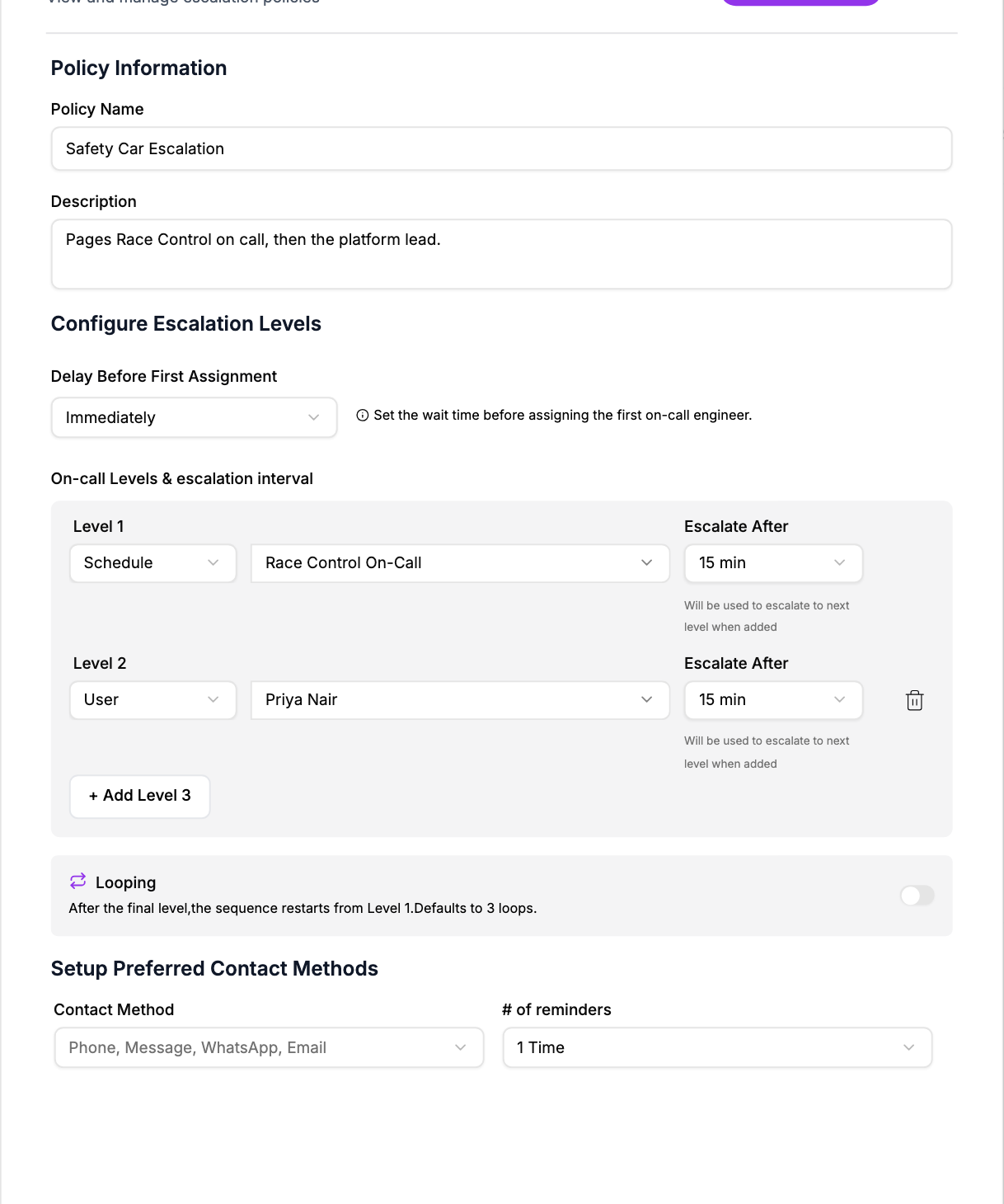
Each person the policy pages is contacted by every method you select, at the same time. The reminder count is also shared by all levels. If a contact method is missing from the list, a workspace administrator has turned it off under Allowed Contact Methods in the workspace preferences.
With Looping off, Oppex stops after the last level. Turn it on to start again from Level 1.
How the timing works
Oppex spreads reminders evenly across a level's Escalate After time. With the policy above, an incident that nobody acknowledges plays out as follows:
| Time | What Oppex does |
|---|---|
| 0 minutes | Assigns the incident to whoever is on call in Race Control On-Call, and contacts them by phone, SMS, WhatsApp and email. |
| 7.5 minutes | Sends the same person one reminder on every contact method. |
| 15 minutes | Escalates to Level 2 and contacts Priya Nair on every contact method. |
| 22.5 minutes | Sends Priya Nair one reminder. |
Acknowledging the incident at any point stops the escalation.
Step 3: Create the service
- Open Services and click Add Service.
- Enter a Service Name, for example Telemetry Gateway, and optionally a Description.
- Under Map Escalation By Severity, select your escalation policy for each severity level. For a severity that should never page anyone, choose Do Not Escalate.
- Optionally, set up email or Slack updates under Notifications. See Integrating Notifications.
- Click Create Service.
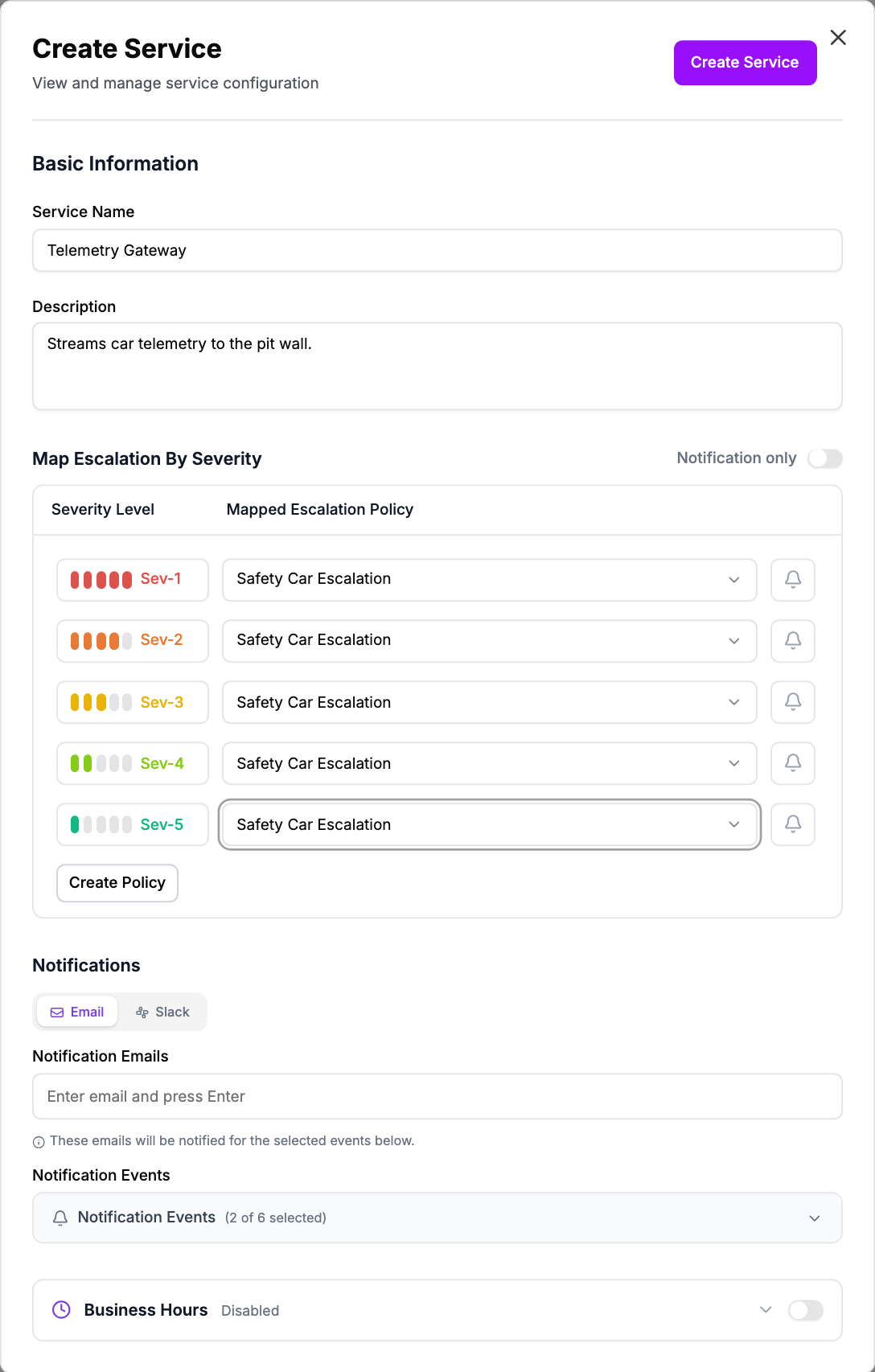
Each severity level needs an escalation policy or Do Not Escalate. If your workspace has no escalation policies yet, create one first. The service name can be up to 100 characters and the description up to 500.
Turning on Notification only means incidents on this service never page anyone. They stay unassigned, and only the service's email and Slack notifications are sent.
Oppex generates an integration key for the service when you create it. Your monitoring tools use that key to send alerts to this service. See Integrating Oppex with Your Stack.
Your service is ready. Next, raise a test incident to check that everyone is paged the way you expect.