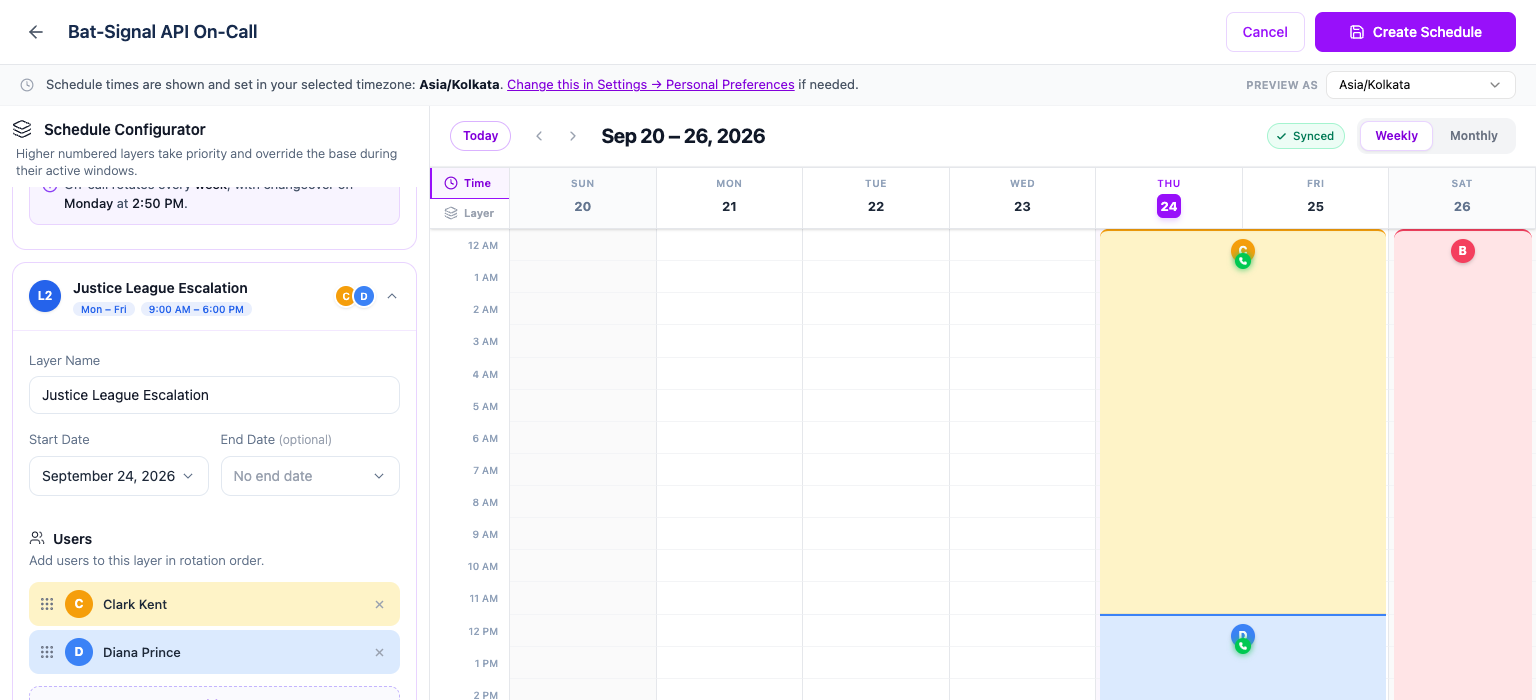
Create a Schedule
Every schedule starts with one layer — the base layer — that covers the full day, every day, until you add more layers on top of it.
Steps
- Go to Schedules and click New Schedule.
- Name the schedule.
- Click Add Users and choose who belongs to the base layer, in the order they should rotate.
- Set the Start Date — the date the rotation becomes active.
- Leave Period type and Period Rotation at their defaults, or change them now. See Rotation & Cadence for what each option does.
- Click Create Schedule.
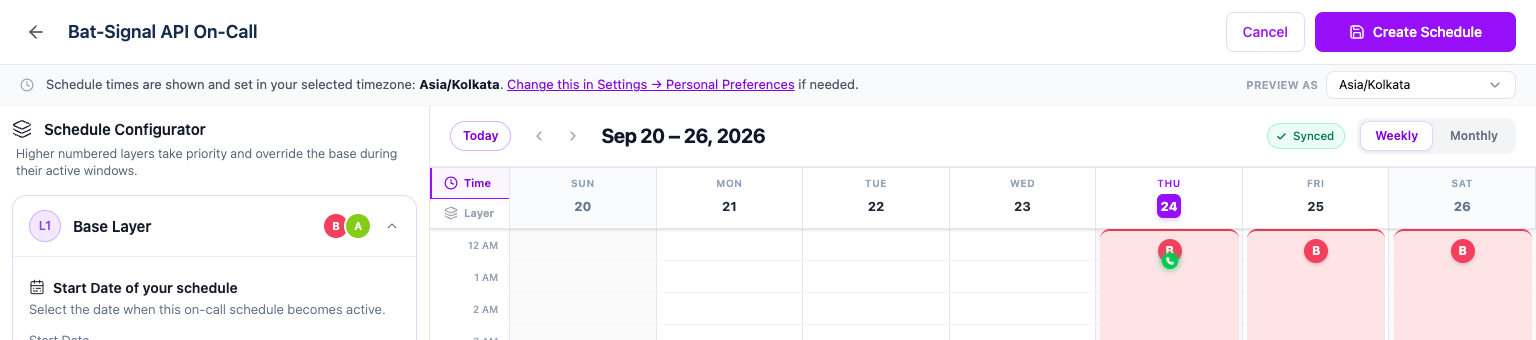
Oppex sets the schedule's timezone automatically, from your own display timezone at the moment you click Create Schedule — there is no timezone field to fill in. Once the schedule exists, that timezone cannot be changed. If you're building this on behalf of another team, switch your own timezone first under Settings → Personal Preferences.
If Period type is Weekly, you choose which day of the week the rotation hands off and at what time. This is also only editable while creating the schedule — once saved, the changeover day and time are locked for that layer.
Add more layers
Click Add Layer to stack a second layer on top of the base layer — for example, a weekend-only escalation layer, or a Notify All layer for a whole team. See Layers for the full walkthrough.