Rotation & Cadence
Cadence controls how often a Scheduled rotation layer moves on to the next person in its list. It has no effect on Notify all or Distribute evenly layers, since those don't rotate one person at a time.
Set the cadence
- Open the layer's settings.
- Set Period type to Daily, Weekly, or Monthly.
- Set Period Rotation to how many of that period each person holds before handing off.
- If Period type is Weekly, choose the changeover day and time — the exact moment the rotation hands off each week.
- Set the Start Date — the date this cadence starts counting from.
Oppex summarizes the cadence you've built in plain language right below the fields, so you can confirm it says what you meant before saving.
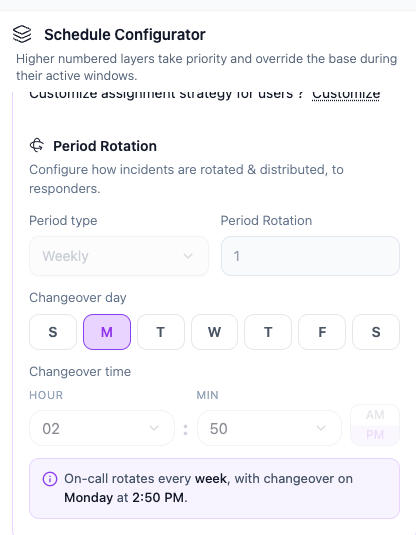
What "Period Rotation" actually means
| Period type | Period Rotation N means |
|---|---|
| Daily | Each person holds the slot for N days. |
| Weekly | Each person holds the slot for N weeks, handing off on your chosen changeover day. |
| Monthly | Each person holds the slot for N months. |
The rotation always works through your member list strictly in order, and loops back to the first person after the last.
Worked example — this schedule, live
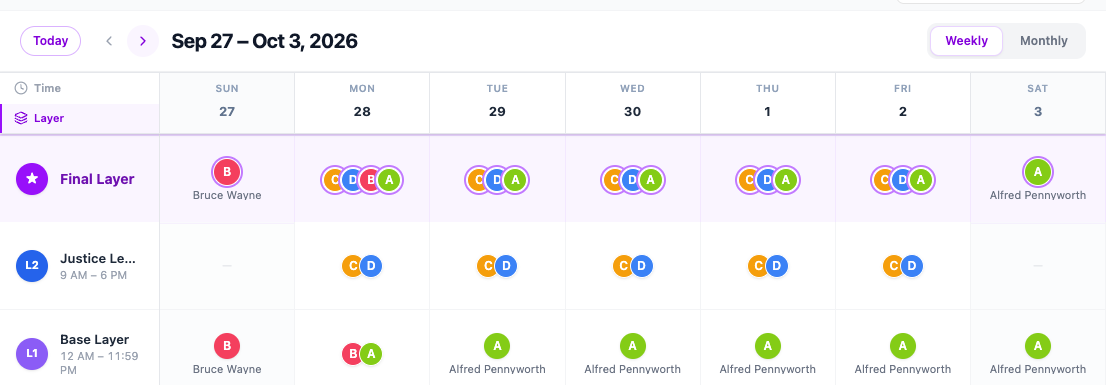
The base layer above is Weekly, Period Rotation 1, changeover Monday, with Bruce Wayne and Alfred Pennyworth in the rotation. The calendar below shows exactly what that produces: Bruce Wayne covers through Sunday, hands off to Alfred Pennyworth on Monday, and Alfred Pennyworth continues through the following Sunday.
Worked example — a longer period
For a rotation that changes less often, set Period Rotation higher. With Weekly and Period Rotation 2, three members (Tony Stark, Pepper Potts, James Rhodes), a start date of Monday, January 5, and changeover day Friday:
| Who's on call | Dates |
|---|---|
| Tony Stark | Jan 5 – Jan 9 (a short first stretch — see note below) |
| Pepper Potts | Jan 9 – Jan 23 (2 weeks) |
| James Rhodes | Jan 23 – Feb 6 (2 weeks) |
| Tony Stark | Feb 6 – Feb 20 (2 weeks) |
A rotation's first stretch always runs from the schedule's Start Date to the first occurrence of the changeover day — it only reaches the full length you configured from the second handoff onward. Every handoff after that is the full period you set.