Active Days & Hours
Active Days and Active Hours let a layer apply only on certain days of the week, or only during certain hours — useful for a business-hours layer or a weekend-only escalation layer. This only applies to layers you add on top of the base layer; see the note below.
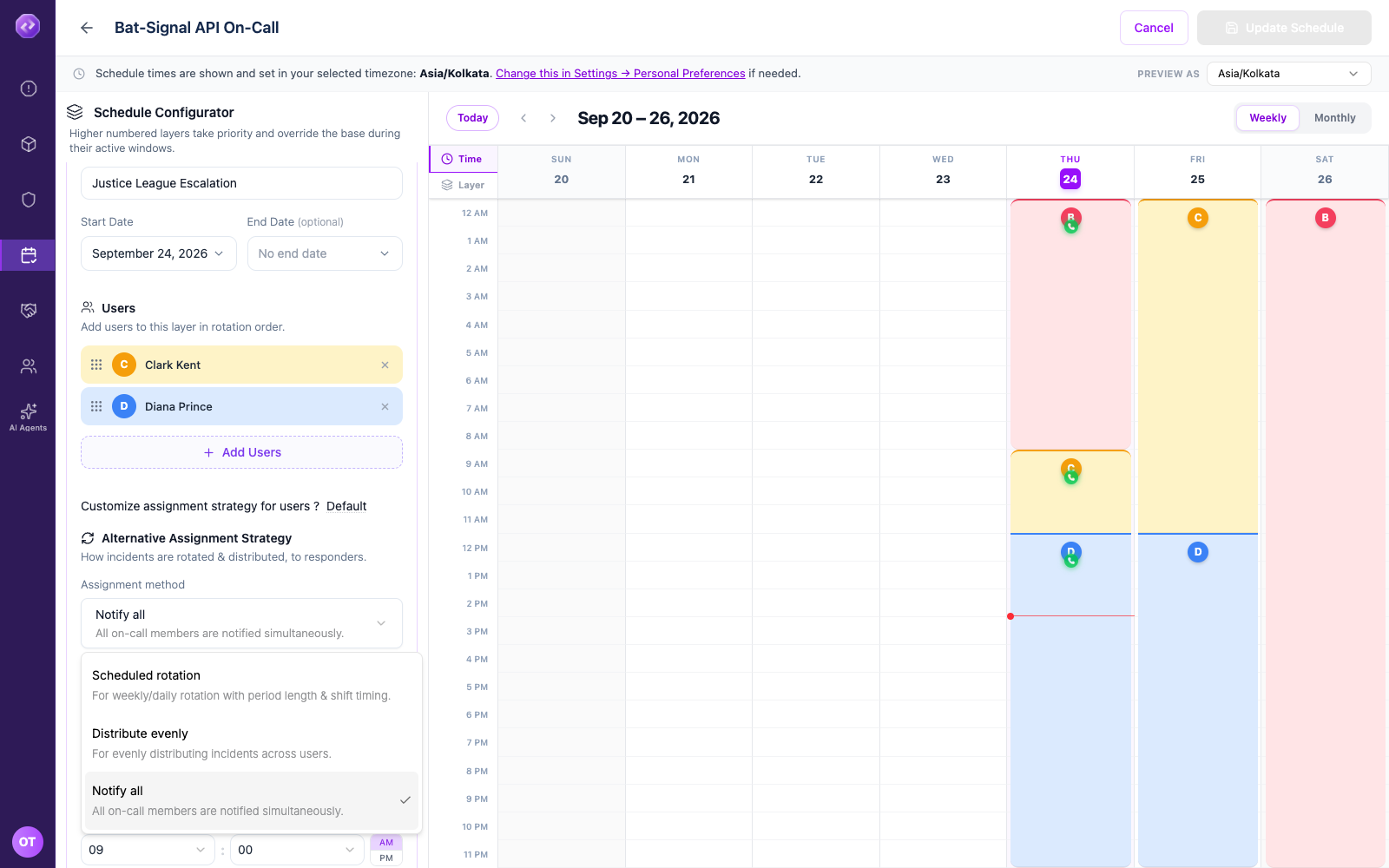
Restrict a layer
- Open the layer's settings.
- Under Active Days, click each day to toggle it on or off. Selected days turn solid purple.
- Under Active Hours, set a Start and End time — or check Until end of day to cover the rest of the day with no end time. Oppex shows the resulting shift length (for example, 9 hrs) so you can confirm the window is what you meant.
- Save the schedule.
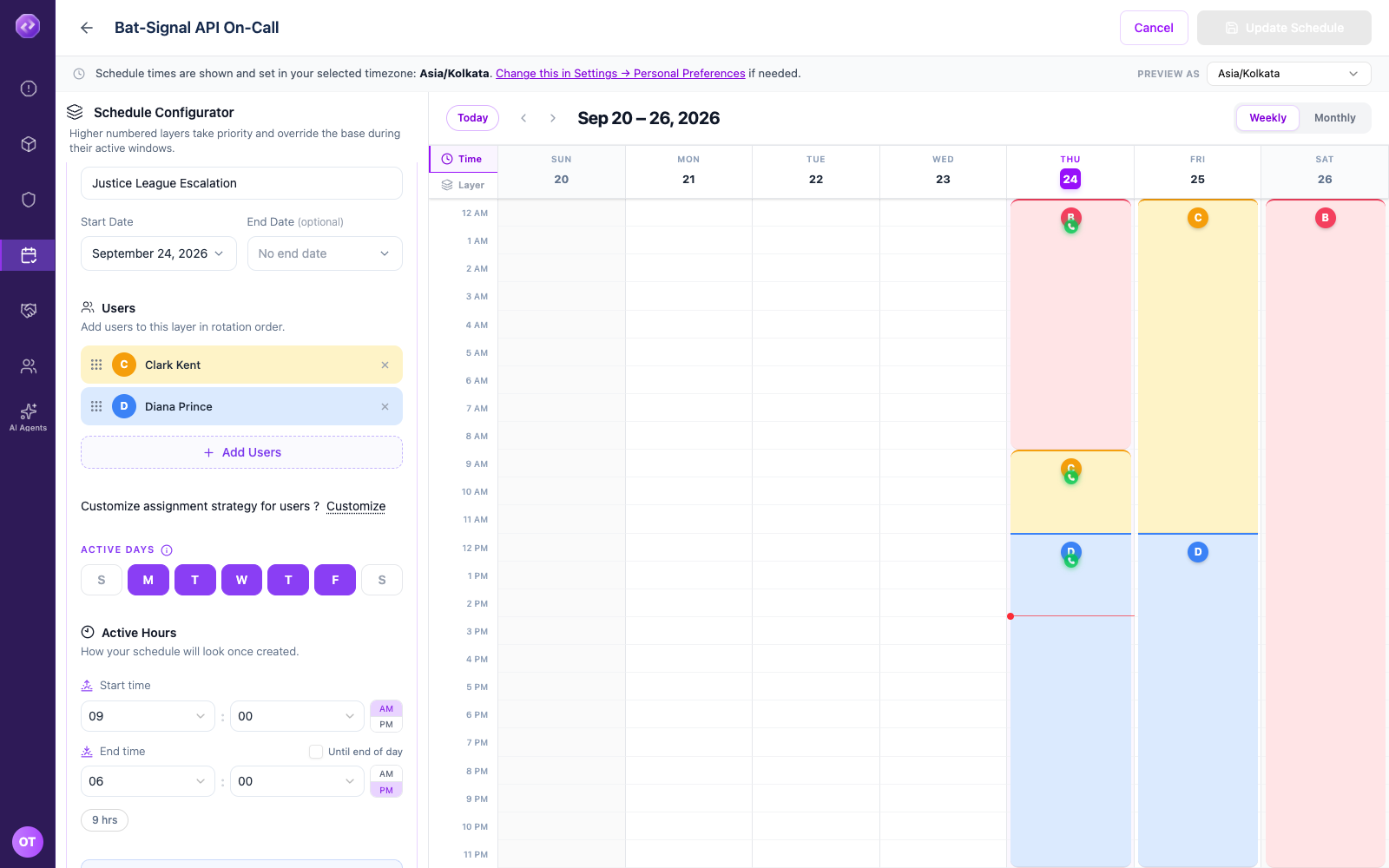
Example: a layer with Active Days set to Monday–Friday and Active Hours set to 9:00 AM – 6:00 PM applies only during business hours on weekdays. Outside that window — evenings, nights, and all of Saturday and Sunday — the layer below it (or the base layer, if there is no layer below) covers on-call instead.
When you add a layer, Saturday and Sunday start turned off. Turn them on if the layer should also cover weekends.
The base layer always covers the full 24 hours of every day — Active Days and Active Hours only appear on layers you add afterward. See Layers.
Which calendar day a layer is "active" on is decided in the schedule's own configured timezone, not the timezone you happen to be viewing it in — including while you're previewing the schedule in a different timezone.