Raising Your First Incident
A test incident is the quickest way to confirm that your service, escalation policy and schedule work together. You raise the incident from the Oppex app, receive it on every contact method, and acknowledge it. Oppex handles an incident you raise in the app in the same way as one sent by a monitoring tool.
Before you start
Check the following, or the test may not reach you:
- You have a service, an escalation policy and a schedule set up as described in Setting up Your Service.
- You are on call right now in the schedule that Level 1 of the policy pages. Open the schedule and check the calendar, or add yourself as the only member while you test.
- The escalation policy has Phone, Message, WhatsApp and Email selected under Contact Method.
- Your contact number is correct. Open Settings → Personal and check Contact number.
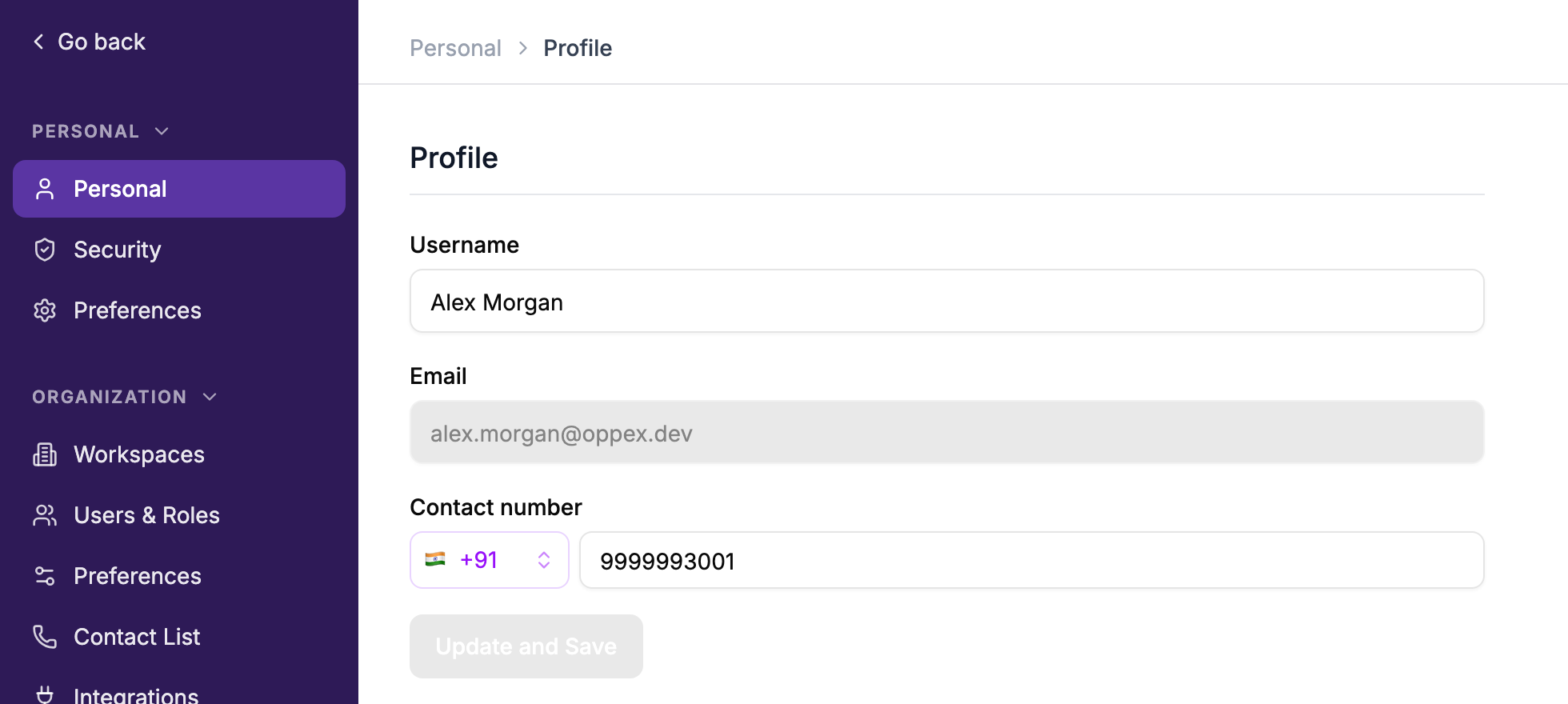
Oppex calls, texts and sends WhatsApp messages to the same Contact number, so WhatsApp must be set up on that number. Oppex accepts mobile and landline numbers, and rejects toll-free, premium and internet (VoIP) numbers. It does not send a code to confirm the number, so check each digit and the country code before you click Update and Save.
Oppex also sends a push notification to every phone where you are signed in to the Oppex mobile app. See Mobile to install it before you test.
Raise the incident
- Open Incidents and click Create Incident.
- Enter an Incident title, for example Box Box: Telemetry Gateway latency above 2s.
- Choose the Service you set up.
- Choose a Severity that is mapped to your escalation policy.
- Optionally, open Additional details and add context as Text or JSON.
- Click Create Incident.
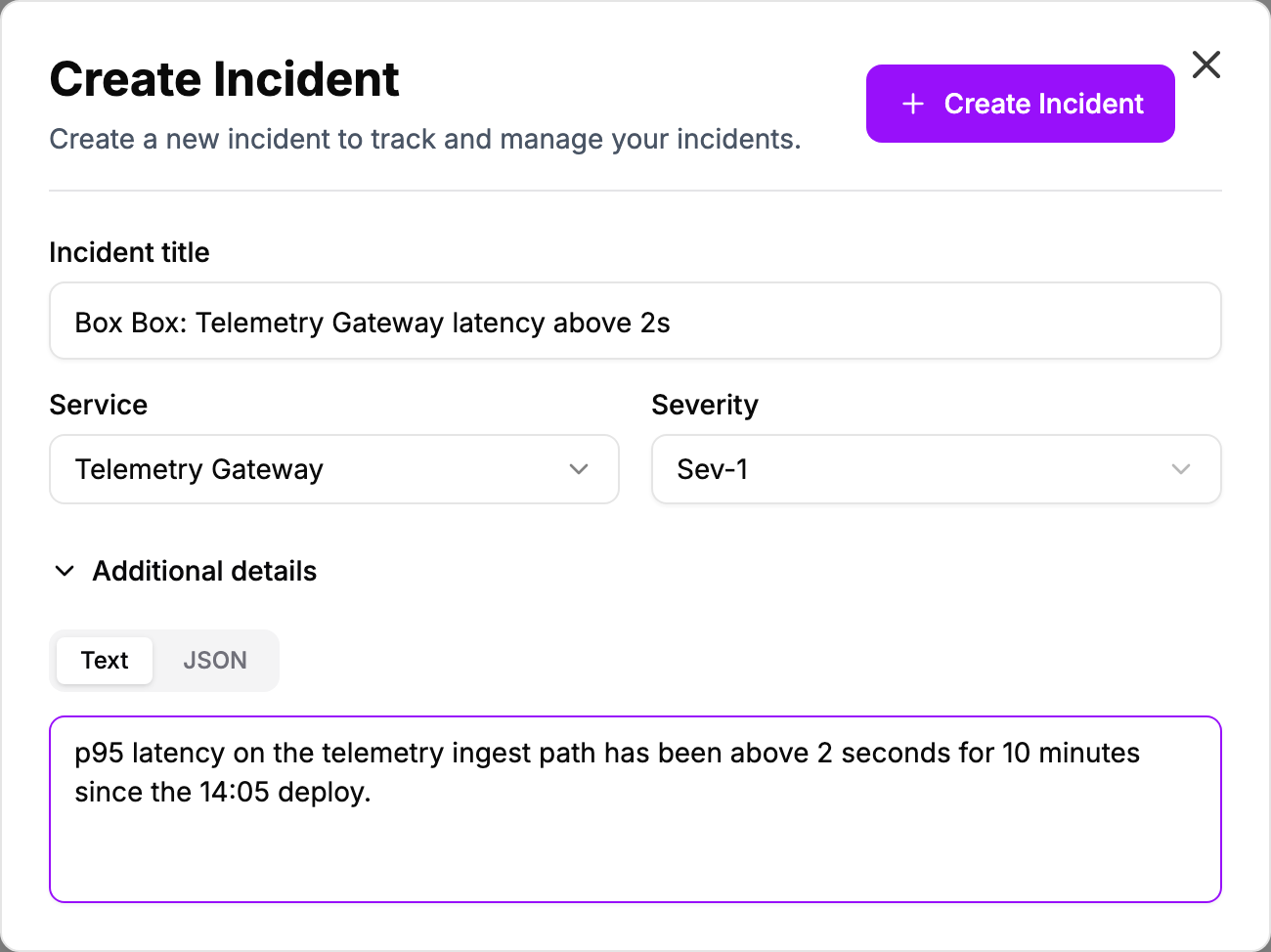
If your workspace uses service routing, Service and Severity are optional. Oppex applies your routing rules to choose them. Leave them set for this test so you know which policy pages you.
Anyone in the workspace can raise an incident, whatever their role.
What you receive
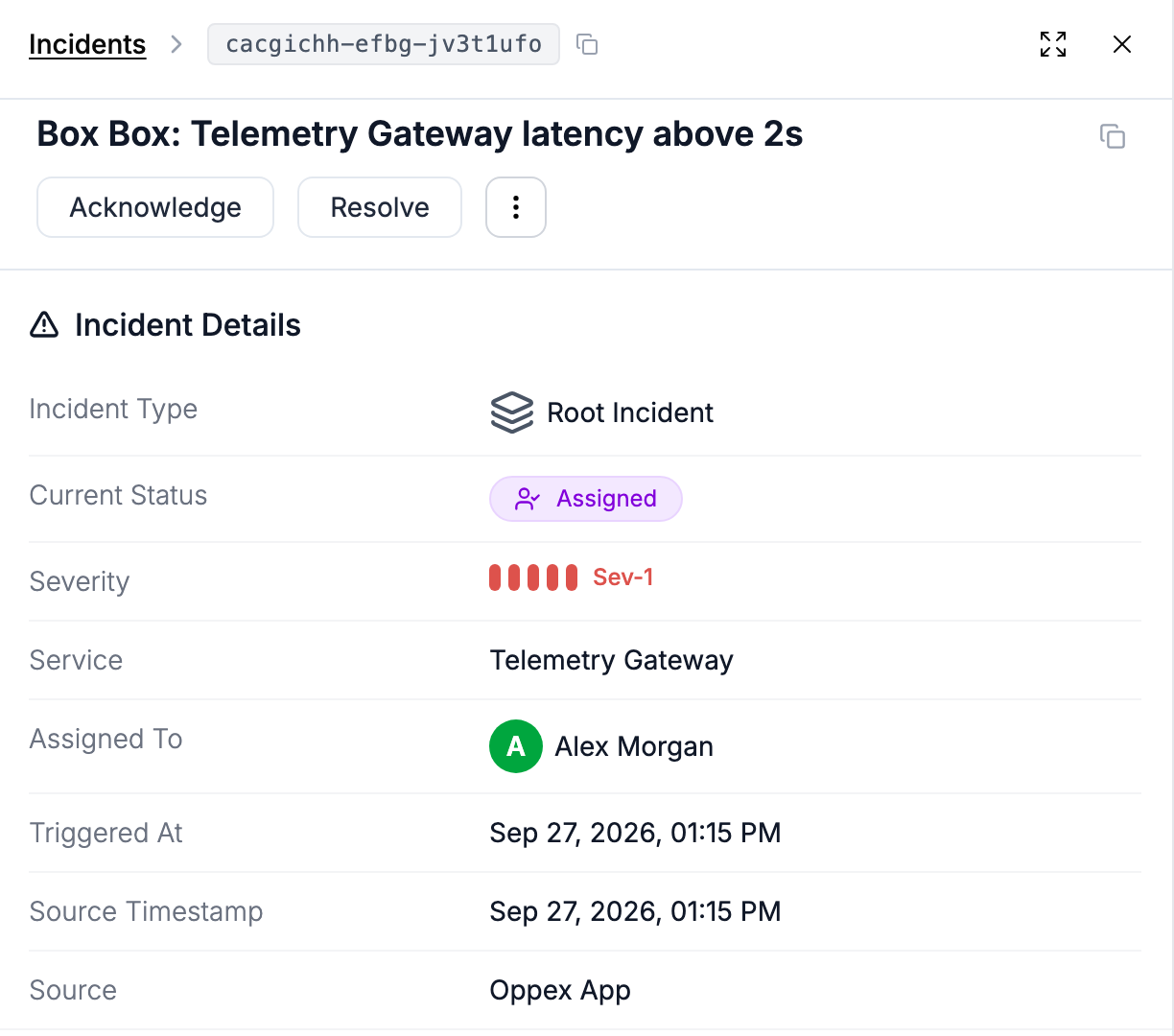
Oppex assigns the incident to whoever is on call at Level 1 and contacts that person on every contact method at once. In the example, the incident was assigned to Alex Morgan, who was on call in Race Control On-Call.
| Contact method | What arrives | Acknowledge from it |
|---|---|---|
| Phone call | An automated call that reads out the incident title. | Press 1 to acknowledge, or 2 to snooze. |
| SMS | "Incident - <title> - assigned to you. Login to Oppex for details." | No. The message has no link. |
| A message with your name, the incident title and the incident ID. | Tap the acknowledge button. | |
| An email from Oppex Alert with the incident details. | Click Acknowledge. You can also click Resolve, unless your organization requires a root cause analysis. | |
| Mobile app | A push notification titled "Incident Assigned: <service name>". | Open it and tap Acknowledge. |
The acknowledge buttons in the email and in WhatsApp act on the same incident. After you use one, the other opens a page that says "Incident already acknowledged." Both stay valid for 7 days and need no sign-in.
For each channel in detail, see Phone call alerts, SMS alerts, WhatsApp alerts and Email alerts.
Acknowledge the incident
Acknowledge from any channel above, or click Acknowledge on the incident in Oppex. The status changes to Acknowledged and escalation stops, so Level 2 is not paged.

If nobody acknowledges, Oppex sends reminders and then escalates to the next level on the timing set in the policy. See How the timing works.
To close the test, click Resolve. If your organization requires a root cause analysis (RCA), Oppex asks you to fill it in first. See Resolve.
If you were not paged
| Check | Where |
|---|---|
| Is the incident assigned to you? If it is assigned to someone else, you were not on call at Level 1. | The incident's Assigned To field |
| Is the incident Triggered and unassigned? The severity may be mapped to Do Not Escalate, or the service may be set to Notification only. | The service's Map Escalation By Severity |
| Did only some channels arrive? Check the policy's Contact Method list and your Contact number. | Policies, and Settings → Personal |
| Is a maintenance window or business hours setting holding the incident back? | The service's settings |
For more causes, see Troubleshoot notifications.