Resolve
Resolve an incident when the problem is fixed. Oppex stops escalation, closes the incident, and notifies the service if it subscribes to resolutions.
The person the incident is assigned to can always resolve it. Owner, Global Admin, and Workspace Admin: any incident. Admin: incidents on services they are an admin of, or whose escalation policy they belong to. Responder: incidents on services whose escalation policy they belong to.
Resolve an incident
- In the Incidents list, find the incident, or open it to use its detail panel.
- Click Resolve. Oppex shows "Status updated to Resolved."
The incident's status changes to Resolved, and the timeline records who resolved it. You can also resolve from the email or the mobile app.
After you resolve an incident, it can no longer be acknowledged, snoozed, or changed. Oppex shows "Resolved incidents cannot be modified." If the problem returns, the next alert opens a new incident.
Resolve with a root cause analysis
Your organization may require a root cause analysis (RCA) before an incident can be resolved. To turn this requirement on or off, contact Oppex support.
When an RCA is required, clicking Resolve opens the Submit RCA form:
- In Issue Summary, describe what went wrong. This field is required.
- In Root Cause, describe why it happened. This field is required.
- In Fix Status, select Permanent or Temporary.
- If you selected Temporary, enter a Ticket Link that starts with http:// or https://, and pick an ETA for Permanent Fix. Both are required for a temporary fix.
- Optional: Add Remarks, and click Attach file to add supporting files.
- Click Submit & Resolve. Oppex shows "RCA submitted and incident resolved successfully".
| Field | Limit |
|---|---|
| Issue Summary, Root Cause | Required. 2,000 characters each. |
| Remarks | Optional. 10,000 characters. |
| Ticket Link | Required for a temporary fix. An http:// or https:// link of 1,000 characters or fewer. |
| ETA for Permanent Fix | Required for a temporary fix. Today or a later date. |
| Supporting Files | Up to 5 files of 5 MB each: PNG, JPG, WebP, PDF, DOCX, XLSX, or CSV. |
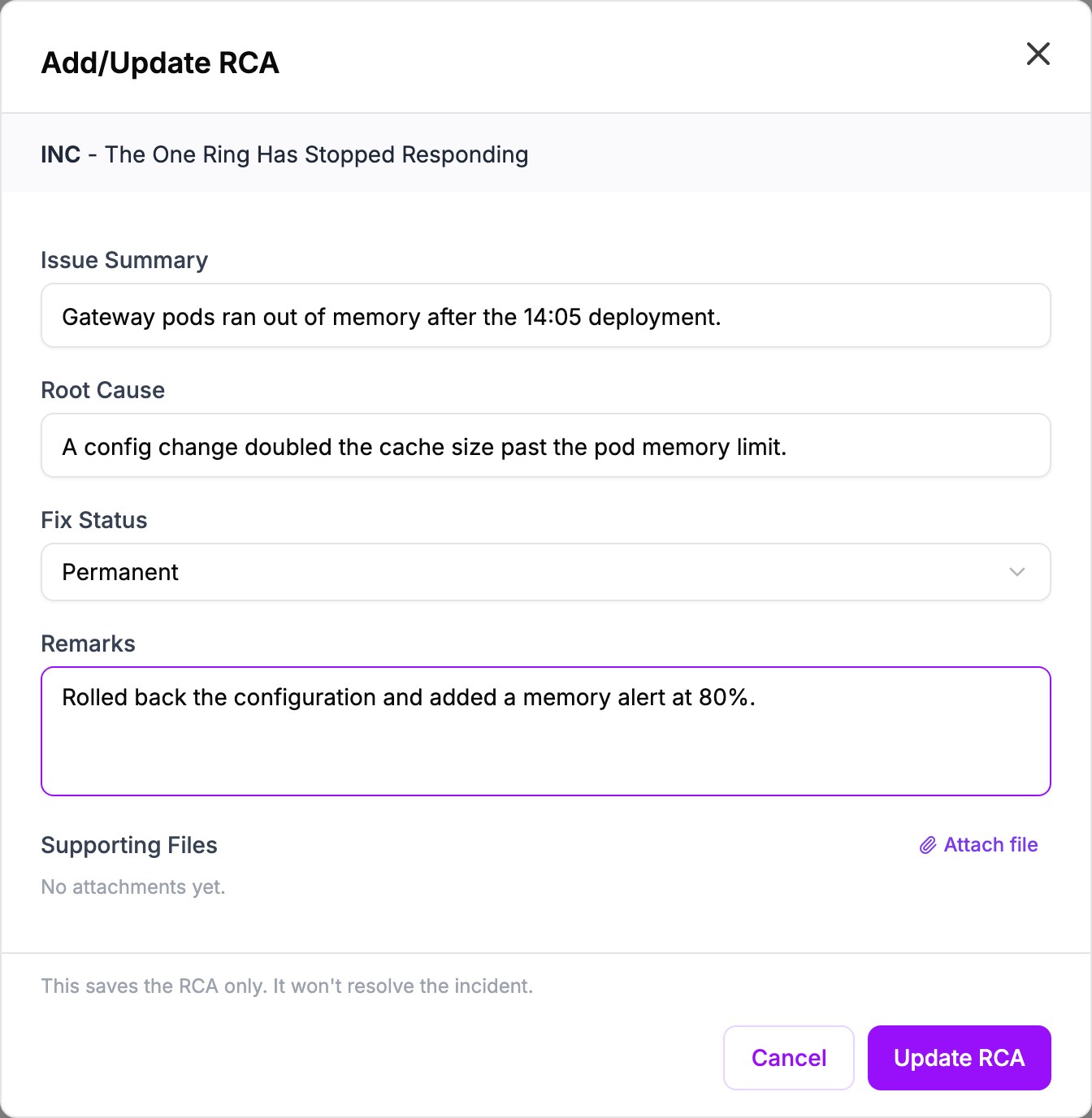
Click ⋮, and then click Update RCA. The form saves the RCA only and does not resolve the incident. On a resolved incident, click Update RCA to edit its RCA.
What happens when you resolve
- Escalation stops, and nobody else is paged.
- The service's notification emails and Slack channel receive a resolution update if the service subscribes to Resolved. The email names who resolved it and includes the comments, and the RCA when your organization requires one.
- The incident's group closes, so the next matching alert opens a new incident.