Snooze
Snooze an incident when you need time before acting on it, for example while a fix is deploying. Oppex pauses notifications and escalation for the time you choose, and then contacts the on-call person at the same level again.
You can snooze only an incident that is currently assigned to you. This rule is the same for every role, including Owners and admins. An unassigned incident cannot be snoozed.
Snooze an incident
- In the Incidents list, click ⋮ on the incident's row. The same menu is also in the incident's detail panel.
- Click Snooze…. The Snooze Incident dialog opens.
- Select a duration: 30 min, 1 hour, 2 hours, 4 hours, 8 hours, or 24 hours.
- Optional: To enter another duration, click Custom…, and then enter the hours and minutes.
- Click Snooze. Oppex confirms the snooze and shows when the incident resumes.
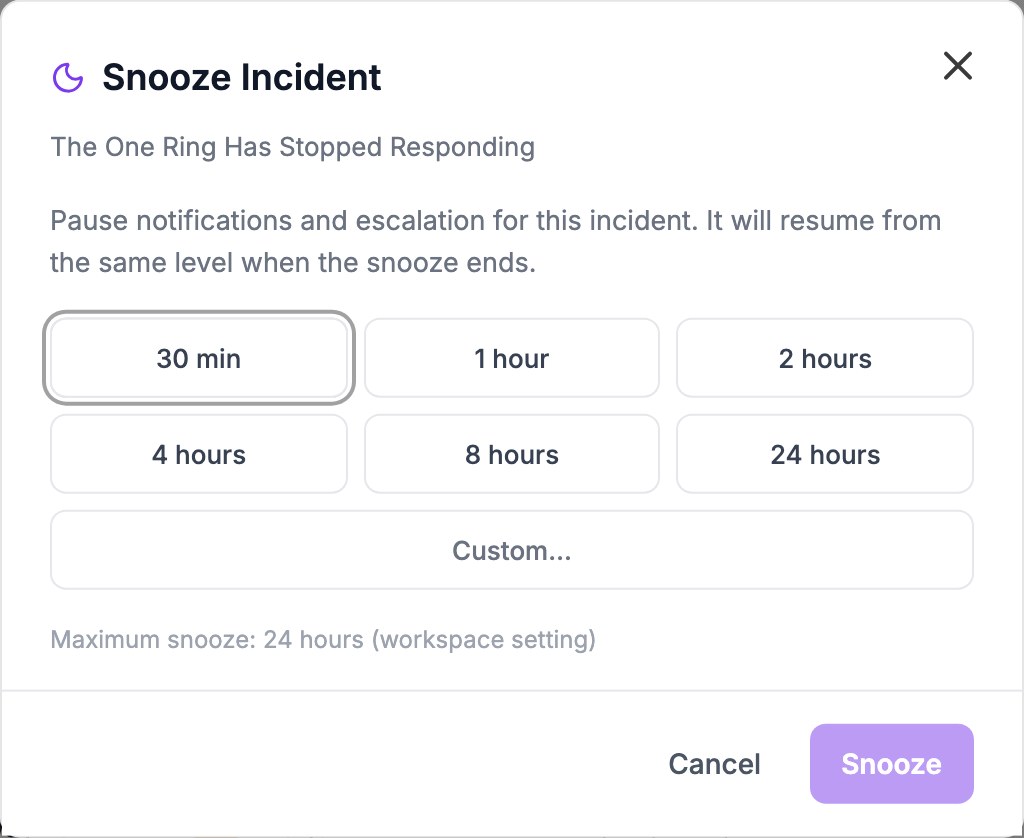
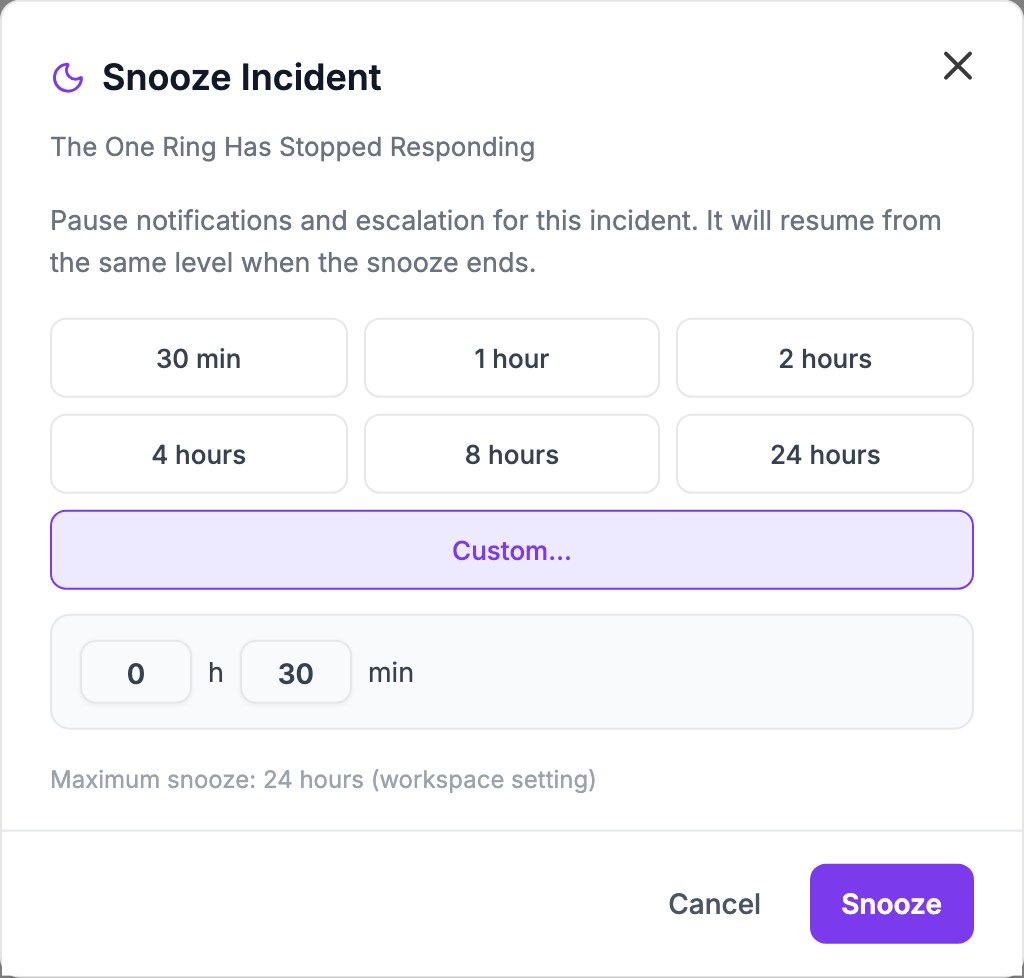
The incident's status changes to Snoozed. You can still acknowledge or resolve a snoozed incident at any time. You can also snooze from the phone call or the mobile app.
The shortest snooze is 1 minute. The longest is your workspace's maximum snooze, 24 hours by default, shown under the durations. Oppex shows "Snooze must be at least 1 minute" or "Snooze cannot exceed 24 hours" when a custom duration is outside these limits.
When the snooze ends
Oppex contacts the on-call person at the level the incident was on when you snoozed it. If your workspace has Escalate After Acknowledge/Resolve Timeout turned on, escalation then continues as usual.
Snoozing does not notify anyone. New alerts that Oppex groups under the snoozed incident do not end the snooze.
Change the maximum snooze
An administrator sets Maximum Snooze Duration between 1 and 72 hours:
- In an organization with several workspaces, in the workspace's Preferences, under Incident Behaviour. This needs the Workspace Admin role or higher.
- In an organization with one workspace, in the organization's Preferences, under Snooze. This needs the Admin role or higher.