Acknowledge
Acknowledge an incident to tell your team that you are working on it. Oppex stops escalating the incident, so nobody else on the escalation policy is paged.
You can acknowledge an incident that is assigned to you, or one handled by an escalation policy you belong to. This rule is the same for every role, including Owners and admins. Being an administrator of the service is not enough on its own.
Acknowledge an incident
- In the Incidents list, find the incident. You can also open it to use the same buttons in its detail panel.
- Click Acknowledge. Oppex shows "Status updated to Acknowledged."

The incident's status changes to Acknowledged, and the timeline records who acknowledged it and how. You can also acknowledge from the phone call, the email, the WhatsApp message, or the mobile app.
If an administrator turns on Escalate After Acknowledge/Resolve Timeout in the workspace preferences, escalation resumes when the Acknowledge Timeout runs out, 60 minutes by default. By default this setting is off, and an acknowledged incident stays with you until it is resolved.
Oppex does not notify other responders. If the service subscribes to the Acknowledged event, its notification emails and Slack channel receive an update.
Share progress in comments
- Open the incident. The detail panel opens.
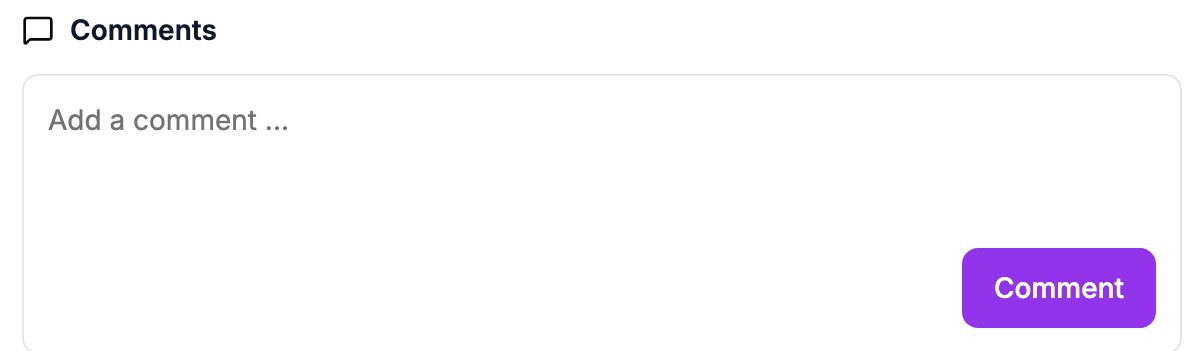
- In Comments, type your update in Add a comment ....
- Click Comment. Oppex shows "Note added successfully".
Anyone who can view the incident can comment. Only the author of a comment can edit or delete it. Grouped child incidents do not have comments; comment on the root incident instead.