Changing Service
Move an incident to another service when it was routed to the wrong team. The incident keeps its history, and escalation may restart under the new service's escalation policy.
Owner, Global Admin, and Workspace Admin: any incident. The person the incident is assigned to: always. Admin and Responder: incidents on services they administer or whose escalation policy they belong to.
Change the service
- In the Incidents list, click ⋮ on the incident's row. The same menu is also in the incident's detail panel.
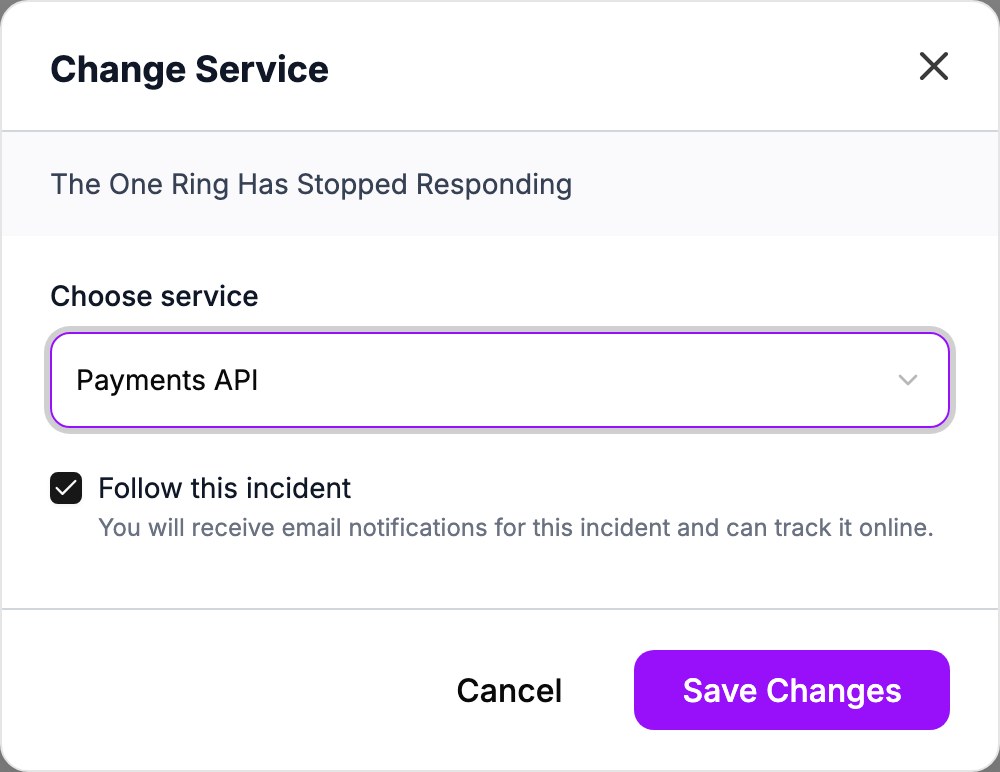
- Click Change Service. The Change Service dialog opens.
- In Choose service, select the new service. The list shows every active service in the current workspace.
- Optional: Clear Follow this incident. It is selected by default and keeps the previous service updated.
- Click Save Changes. Oppex shows "Service updated".
The timeline records "Service transferred" with the old and new service names.
If the new service uses a different escalation policy for the incident's severity, Oppex restarts escalation from its first level. The incident returns to Triggered and is unassigned, even if it was acknowledged or snoozed. If the new service has no escalation policy for this severity, escalation stops and nobody is paged. If both services use the same policy, nothing restarts.
Who is notified
- The previous service receives an update that the incident was transferred, if it subscribes to Service Change.
- The new service receives an assignment update, if it subscribes to Assigned.
- When escalation restarts, the first level of the new policy is paged through its contact methods.
With Follow this incident selected, the previous service keeps receiving the incident's acknowledgement, resolution, and severity change updates through its notification emails and Slack channel.