Working with Oppex MCP Server
The Oppex MCP server lets an AI assistant work with Oppex on your behalf. MCP (Model Context Protocol) is the standard that assistants such as Claude Code use to connect to other products. Once connected, you can ask the assistant who is on call, which incidents are assigned to you, or to acknowledge an incident, and it acts with your own Oppex account and permissions.
Step 1: An administrator turns it on
An Account Owner or Account Admin opens Settings → Organization → Preferences and, in the MCP Server section, clicks Enable. This only needs to happen once for the organization. See Let AI tools connect to your Oppex data.
If you do not see an MCP Server section, MCP is not yet available for your organization. Contact Oppex support.
Step 2: Connect Claude Code
- In Oppex, open Settings and, under Personal, click MCP Server.
- Under Add to Claude Code, click the copy button next to the command.
- Paste the command into your terminal and run it. It registers Oppex with Claude Code but does not connect yet.
- Start Claude Code, or restart it if it was already running.
- Type
/mcpand select oppex. - Your browser opens Oppex. Sign in if asked, check the email address shown, and click Authorize.
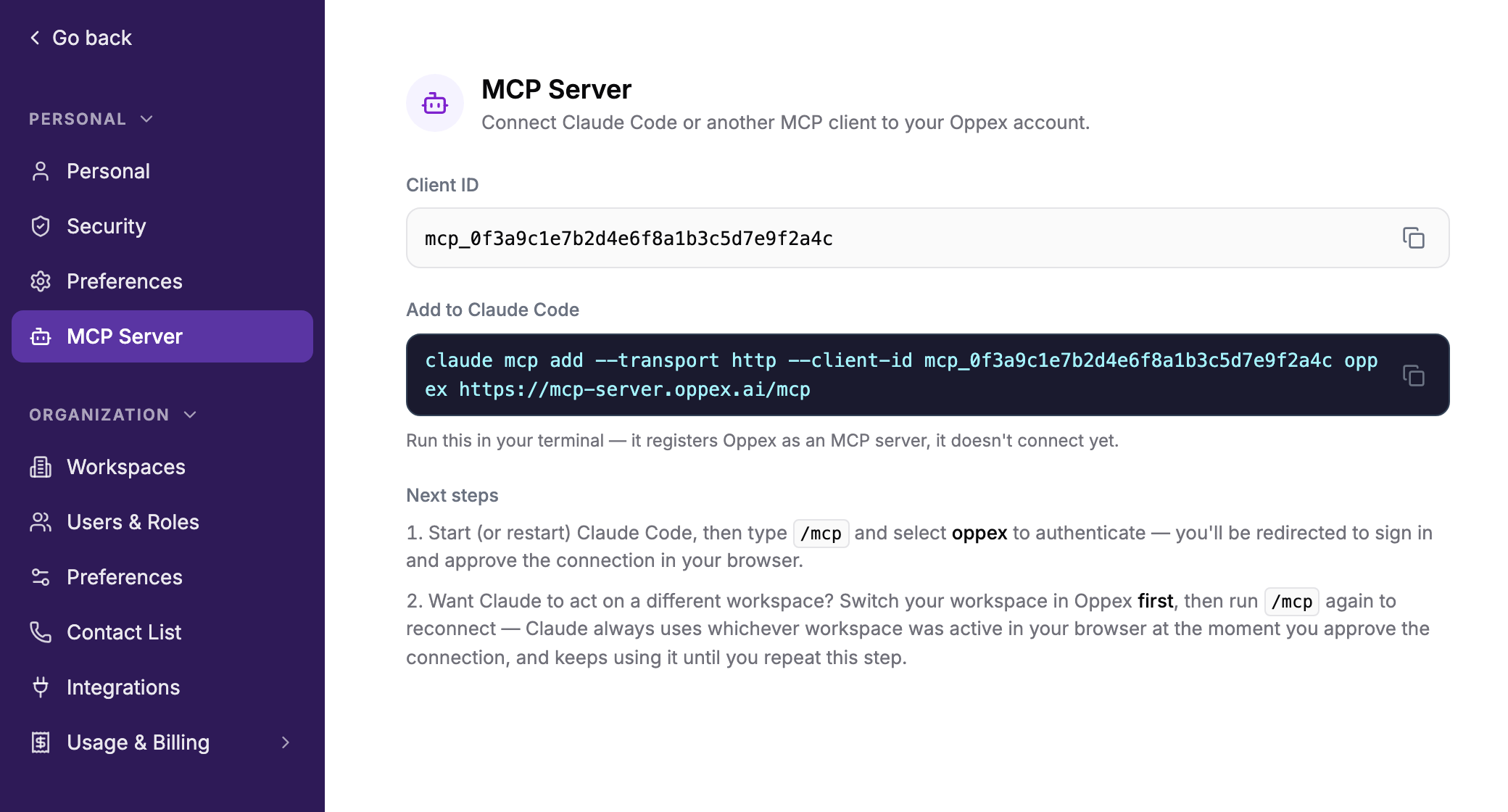
The command has this form, with your organization's client ID in place of the placeholder:
claude mcp add --transport http --client-id <your-client-id> oppex https://mcp-server.oppex.ai/mcp
The sign-in and approval must be completed within two minutes of starting it. If it takes longer,
type /mcp and select oppex again.
Everyone in your organization uses the same Client ID. It identifies your organization to the sign-in step, and your own sign-in decides whose account the assistant uses.
Choose the workspace the assistant works in
Each connection works in one workspace: the workspace that was active in Oppex when you clicked Authorize. The assistant keeps using it until you reconnect.
- In Oppex, switch to the workspace you want with the workspace switcher.
- In Claude Code, type
/mcp, select oppex, and reconnect. - Click Authorize again.
If you authorize without switching first, the connection uses your organization's default workspace when you belong to it, or another of your workspaces when you do not. Ask the assistant who you are connected as to check which one it chose.
What the assistant can do
The assistant can only do what your Oppex role allows.
| Area | Examples |
|---|---|
| Incidents | List incidents assigned to you or visible to you, search by title, acknowledge, snooze, add and read notes, resolve, and add or update a root cause analysis (RCA). |
| Incident analysis | Read the Oppex AI Responder's analysis of an incident, once one has finished. |
| On-call | Find who is on call for a service, at each level of its escalation policy, or look up a person's on-call assignments. |
| People | List users and workspaces. Administrators can also invite users, add or remove them from a workspace, and deactivate them. |
| Settings | Read a setting, such as whether an RCA is required. Settings cannot be changed through the assistant. |
For example, you can ask "Who is on call for Telemetry Gateway?" or "Acknowledge the Box Box incident on Telemetry Gateway." For every tool, its rules and more example prompts, see MCP Server.
There is no bulk action. When you ask about a group of incidents, the assistant lists them first and acts on each one separately after you confirm the list.
If your organization requires a root cause analysis before resolving, the assistant has to provide it when it resolves an incident. Oppex rejects a resolve without one.
The assistant cannot create incidents, reassign or escalate them, or change services, schedules and escalation policies. Use the Oppex app for those.