Organization Preferences
Organization Preferences hold the settings that apply to everyone in your Oppex organization: how people sign in, whether you can use placeholder users in escalation, and whether AI tools can connect to your data. Settings that shape how incidents behave live one level down, in Workspace Preferences, and settings that affect only you live in Personal Preferences.
Where the settings are, and who can change them
Open your profile menu (your initials at the bottom of the left navigation), click Settings, and then click Preferences under Organization.
- In an organization with multiple workspaces, only an Account Owner or Account Admin sees the Organization section. The incident settings (contact methods, time zone, timeouts, snooze, and SLA thresholds) are on each workspace's own Workspace Preferences page.
- In an organization with one workspace, a Service Admin or anyone above can open this page. It also shows Contact Methods, Timezone, Incident Behaviour, Snooze, and SLA Thresholds, which work exactly as described in Workspace Preferences.
Auto-Resolve Aged Incidents, Call Recording, and Grouping Time Window appear only on the Workspace Preferences page. If your organization has a single workspace, contact Oppex support to change them.
Choose how your users sign in
Authentication Preferences controls which sign-in options appear on the Oppex login page.
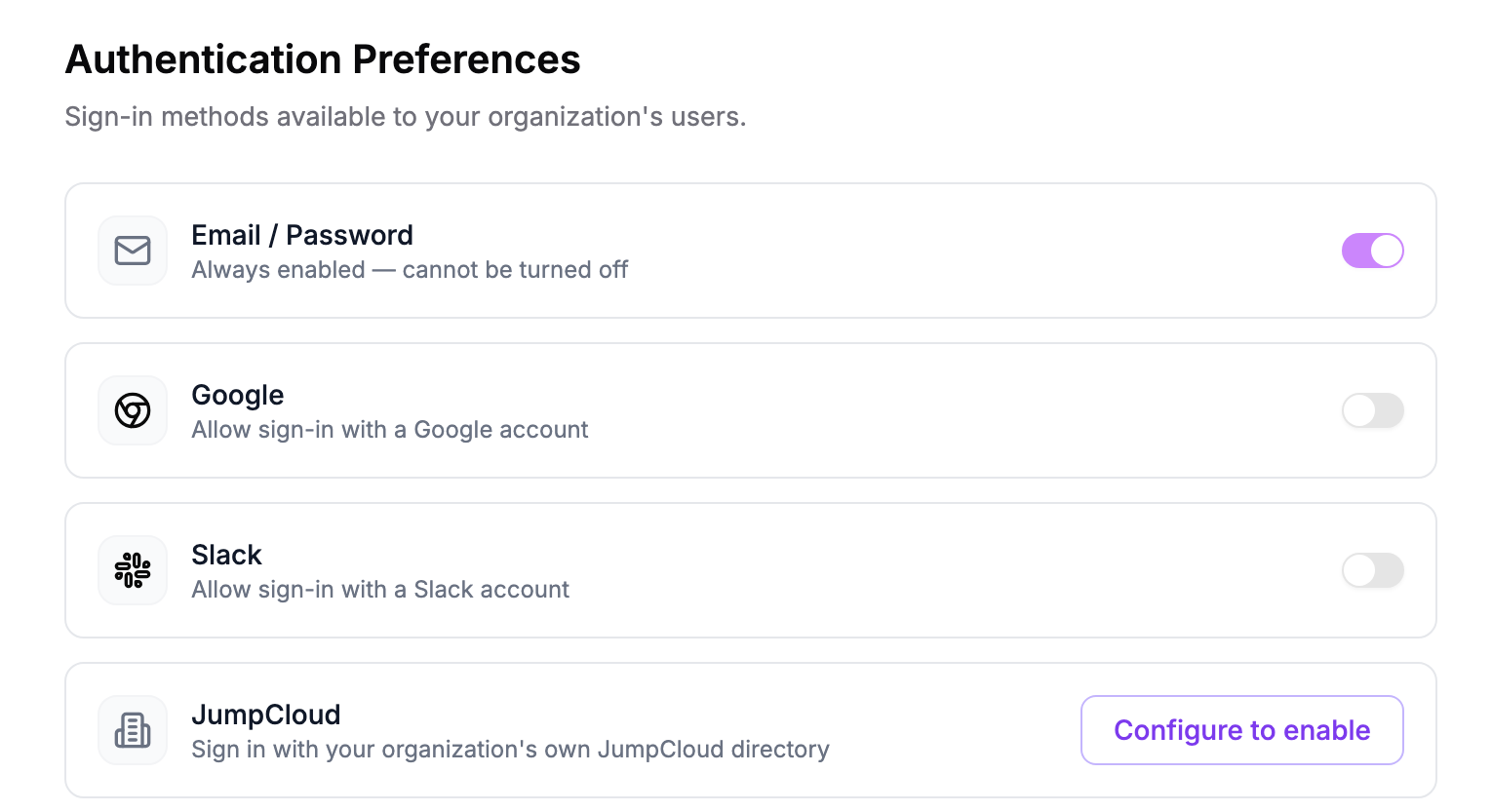
- Email / Password is always on and cannot be turned off.
- Google and Slack each have a switch. Turn one on to let people sign in with that account.
- JumpCloud lets people sign in through your organization's own JumpCloud directory. It needs setting up first; see below.
When you turn off Google or Slack, Oppex asks you to confirm. Anyone who signed in that way is blocked with the message "Google sign-in is disabled for your organization" (or Slack). Make sure those people can sign in another way, such as with a password, before you turn a method off.
These three options can be hidden for your organization. If you do not see them, contact Oppex support.
Set up JumpCloud sign-in
- On the JumpCloud row, click Configure to enable.
- Enter the Issuer URL for your JumpCloud region. The page lists the India (default), EU, and US addresses.
- Enter the OIDC Client ID and OIDC Client Secret from your JumpCloud SSO application.
- Copy the Redirect URI and Login URL shown on the page into the matching fields of your JumpCloud application.
- Click Save.
- Go back to Preferences and turn on the JumpCloud switch.
The switch appears on the JumpCloud row only after the Issuer URL and Client ID are saved, and saving the configuration never changes it. Turn it on yourself when you are ready. After the secret is saved, it is masked; click the pencil icon to replace it.
Use placeholder users in escalation (No-Op users)
Some escalation policies and schedules need a slot that should not page anyone, for example an overnight gap that you want escalation to pass through. No-Op users are placeholder users that exist only as a display name. When escalation reaches one, Oppex does not contact anyone and moves on to the next level.
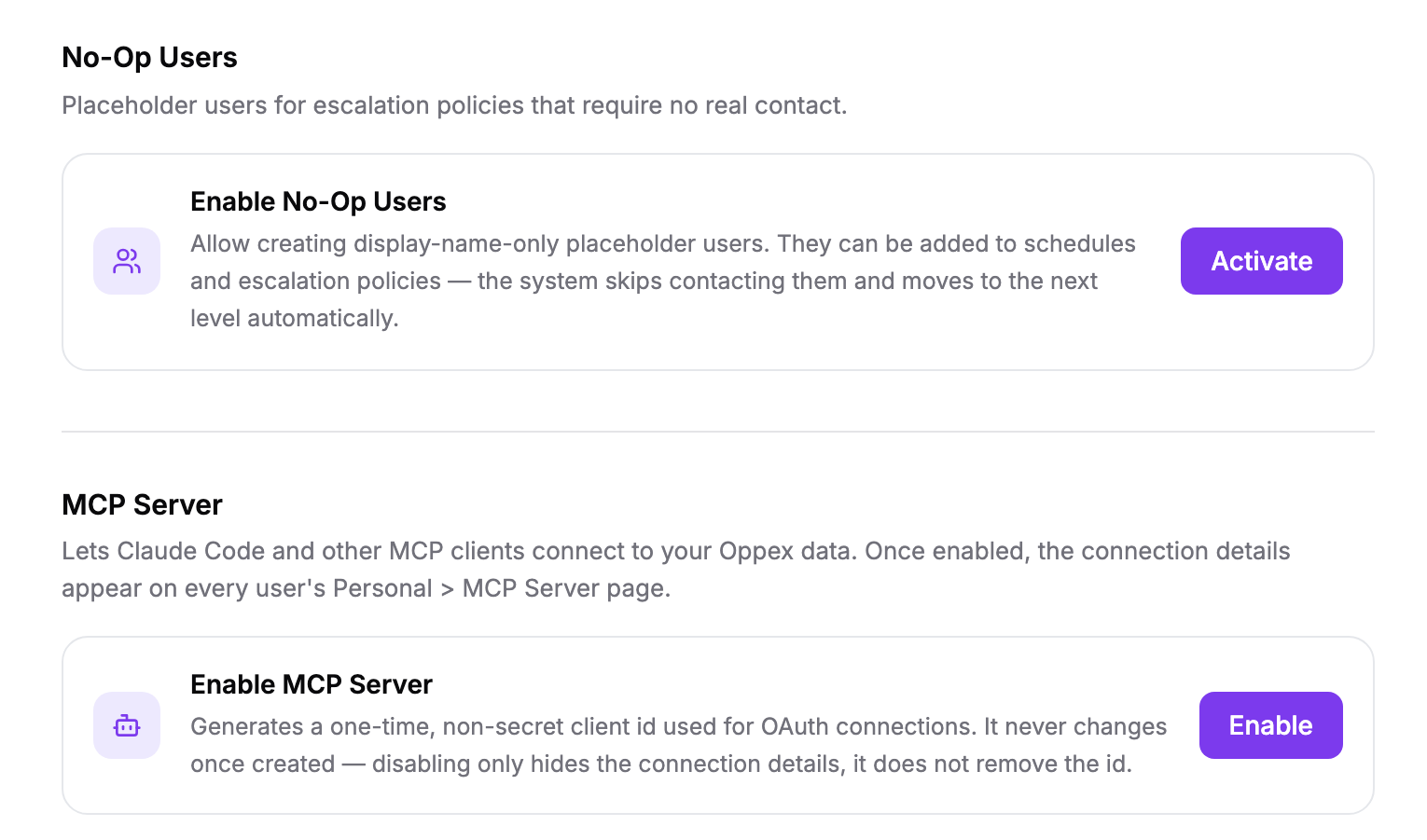
- Under No-Op Users, click Activate. Oppex creates one placeholder user.
- Edit the placeholder user's name if you want a clearer label.
- Add the placeholder user to schedules and escalation policies like any other user.
If every level of the escalation policy an incident uses contains only No-Op users, Oppex resolves the incident as soon as it arrives. No email or Slack notification is sent for it.
To turn the feature off, click Deactivate. Oppex refuses while any schedule or escalation policy still uses a No-Op user, and lists them so that you can replace them first. No-Op users can never be made a Workspace Admin or given a workspace role.
Let AI tools connect to your Oppex data (MCP Server)
The MCP Server section lets Claude Code and other MCP clients connect to your Oppex data. Only an Account Owner or Account Admin sees it, and only when the MCP server is available for your organization.
- Under MCP Server, click Enable.
- Oppex generates a connection ID for your organization. Each user then finds the connection details on their own Personal → MCP Server page.
See Working with the MCP server for how each person connects.
Clicking Disable hides the connection details from everyone. The connection ID is kept, so it is the same if you enable the server again.