Workspace Preferences
Workspace Preferences control how incidents behave in one workspace: how responders can be contacted, how long an acknowledgement lasts, how long a snooze can run, and when old incidents close on their own. Each workspace has its own copy, so a production workspace can run tighter limits than a staging one.
Open Workspace Preferences
- Open your profile menu (your initials at the bottom of the left navigation) and click Settings.
- In the section named Workspace: name, click Preferences.
You see a Workspace: name section for each workspace where you are a Workspace Admin, Account Admin, or Account Owner.
If your organization has a single workspace, most of these settings are on the Organization Preferences page instead. Auto-Resolve Aged Incidents, Call Recording, and Grouping Time Window are available only here.
Every section has its own Save changes button and saves only that section. Timezone is the exception: it saves as soon as you pick a value.
Limit which contact methods responders can be paged by
Contact Methods decides which ways of reaching a responder can be used in this workspace's escalation policies: Phone Call, SMS, WhatsApp, and Email. All four are allowed by default.
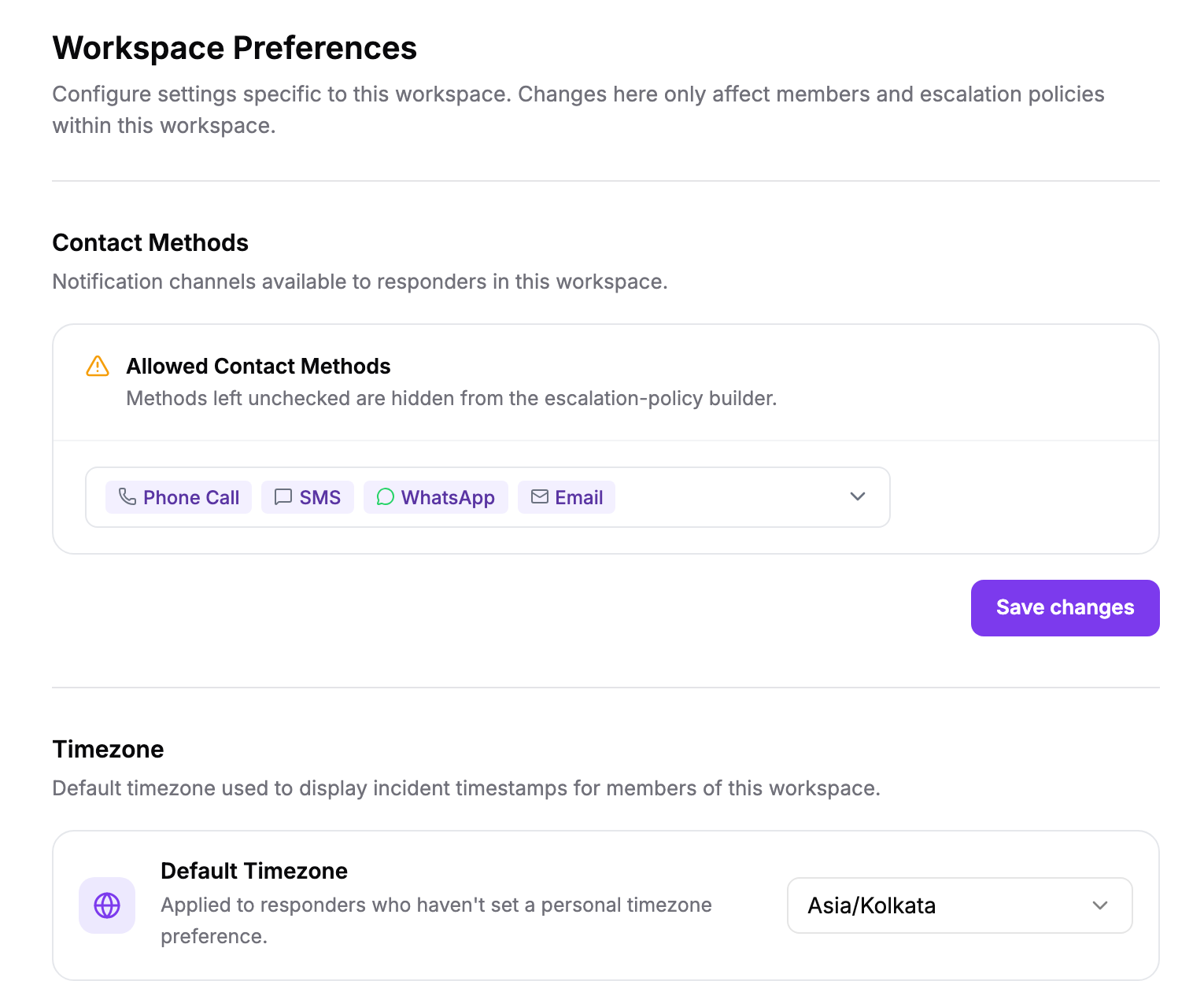
- Open the Allowed Contact Methods list and untick any method you do not want used.
- Click Save changes.
A method you untick disappears from the escalation-policy builder, and Oppex rejects saving a policy that still uses it.
Unticking a method does not update policies that already use it. Those policies keep paging by that method until someone edits them. Review your policies after you narrow the list.
If you untick every method and save, Oppex treats the list as unrestricted, and all four methods stay available.
Set the workspace time zone
Default Timezone sets the time zone that incident timestamps are shown in for everyone in this workspace who has not chosen a personal time zone. It is set to Asia/Kolkata until you change it.
This time zone also decides when each service's business hours start and end. A person can override the display time zone for themselves in Personal Preferences.
Control what happens after an acknowledgement
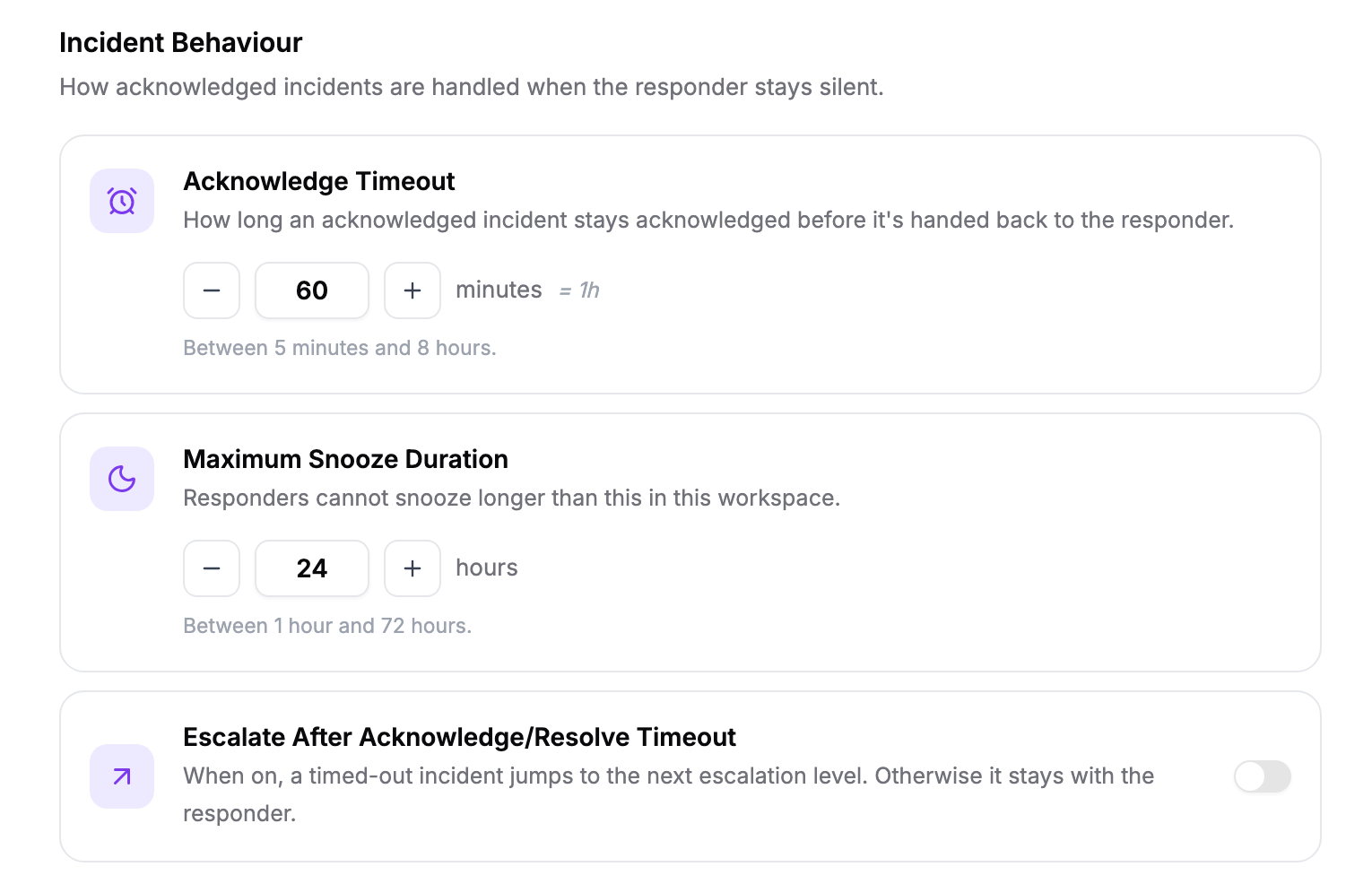
Incident Behaviour sets how long an acknowledgement lasts and what Oppex does when it runs out.
| Setting | What it does | Range | Default |
|---|---|---|---|
| Acknowledge Timeout | How long an incident stays acknowledged before its acknowledgement runs out | 5 minutes to 8 hours, in 5-minute steps | 60 minutes |
| Maximum Snooze Duration | The longest a responder can snooze an incident in this workspace | 1 to 72 hours | 24 hours |
| Escalate After Acknowledge/Resolve Timeout | What Oppex does when an acknowledgement runs out, or a snooze ends | On or off | Off |
Escalate After Acknowledge/Resolve Timeout behaves as follows:
- When it is on, and an acknowledgement runs out or a snooze ends, Oppex pages the current escalation level again and then carries on to the next levels as normal.
- When it is off, and an acknowledgement runs out, Oppex does not page anyone and the incident stays with the responder who acknowledged it. When a snooze ends, Oppex pages the current level once.
Despite its name, the switch applies to the acknowledge timeout and to the end of a snooze. Oppex has no timer that acts on resolution.
A new Acknowledge Timeout applies to acknowledgements made after you save it. An incident that was already acknowledged keeps the timeout that applied when it was acknowledged. The switch takes effect straight away, including for timers already running.
A snooze longer than Maximum Snooze Duration is rejected. If a responder snoozes from a phone call, Oppex shortens the snooze to the maximum instead. See Snooze.
Close incidents that have been open too long
Auto-Resolve Aged Incidents closes incidents that have stayed open past an age you choose, so that forgotten incidents stop counting against your open queue. It is off until you turn it on.
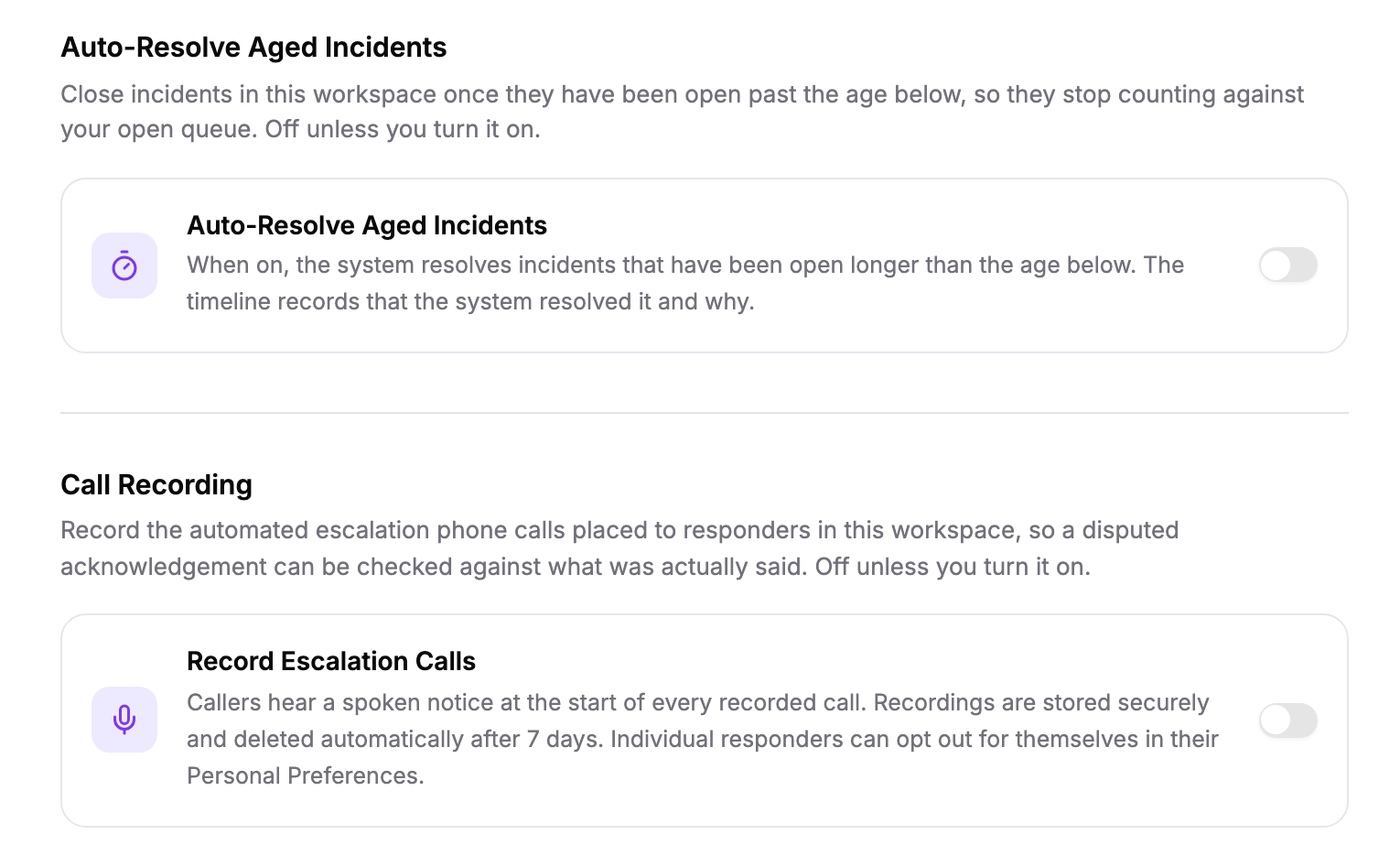
- Turn on Auto-Resolve Aged Incidents.
- Set Auto-Resolve Age between 7 and 180 days. The default is 60 days.
- Click Save changes.
Oppex checks once a day and resolves the oldest incidents first, up to 500 in a workspace each day. Any backlog clears over the following days. The incident timeline records that Oppex resolved the incident and why.
Oppex measures age from creation, not from the last update. An incident that people are still working on is resolved once it reaches the age you set.
Only a Workspace Admin, Account Admin, or Account Owner can change this setting. Others see the section as read-only.
Record escalation phone calls
Record Escalation Calls records the automated escalation phone calls that Oppex places to responders in this workspace. You can use a recording to check a disputed acknowledgement against what was actually said. It is off until you turn it on, and only a Workspace Admin, Account Admin, or Account Owner can change it.
When you turn it on and save, Oppex emails every member of the workspace once to tell them.
A call is recorded only when this switch is on and the responder has turned on Record My Calls in their Personal Preferences. That personal setting is off for everyone until they turn it on. Callers hear a spoken notice at the start of every recorded call, and recordings are deleted automatically after 7 days.
For how responders receive calls, see Set up how you are paged.
Set the default grouping window
Default Grouping Window sets how long a group of related incidents stays open to new matching incidents before the next match starts a fresh group. The range is 5 minutes to 24 hours, and the default is 180 minutes.
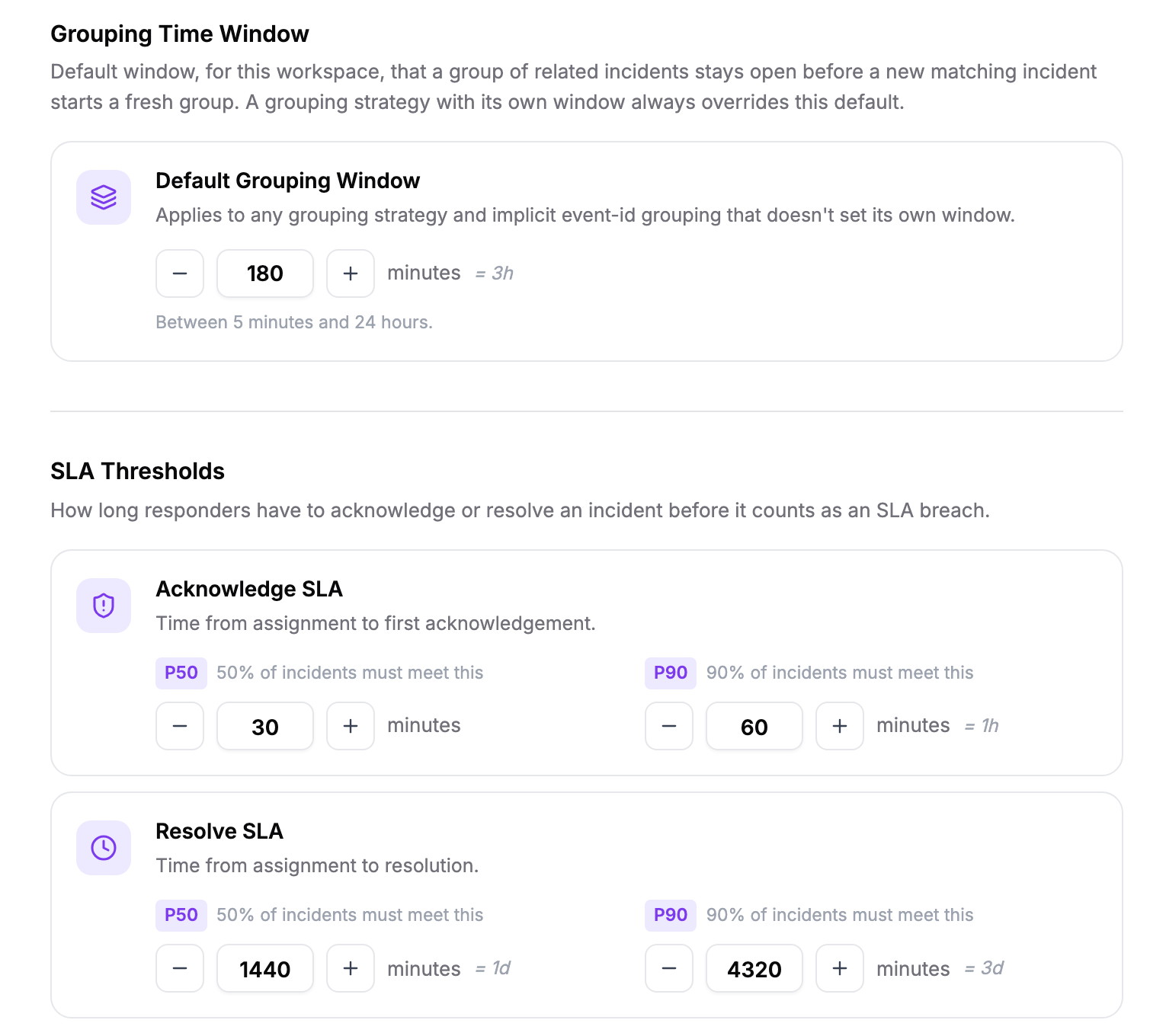
A grouping strategy that sets its own window always uses that window instead. See Grouping strategy.
Set SLA targets for reports
SLA Thresholds set how quickly responders are expected to acknowledge and resolve incidents. Each target has a P50 value, which half of incidents should meet, and a P90 value, which 90% of incidents should meet. Both are measured from when the incident is assigned.
| Target | Range | Default P50 | Default P90 |
|---|---|---|---|
| Acknowledge SLA | 5 to 1,440 minutes | 30 minutes | 60 minutes |
| Resolve SLA | 60 to 20,160 minutes (14 days) | 1,440 minutes (1 day) | 4,320 minutes (3 days) |
These targets are used only by SLA reports. Missing one does not page anyone or change how an incident escalates.