Set up how you are paged
Your contact number and personal preferences decide where Oppex reaches you and how its phone calls sound. The channels themselves are chosen by administrators, on the workspace and on each escalation policy.
Every user can change their own profile and personal preferences. Changing workspace preferences needs the Workspace Admin role or higher. Escalation policies are managed by administrators.
Set your contact number
- In Settings, under Personal, click Personal. The Profile page opens.
- In Contact number, select your country code and enter your phone number.
- Click Update and Save.
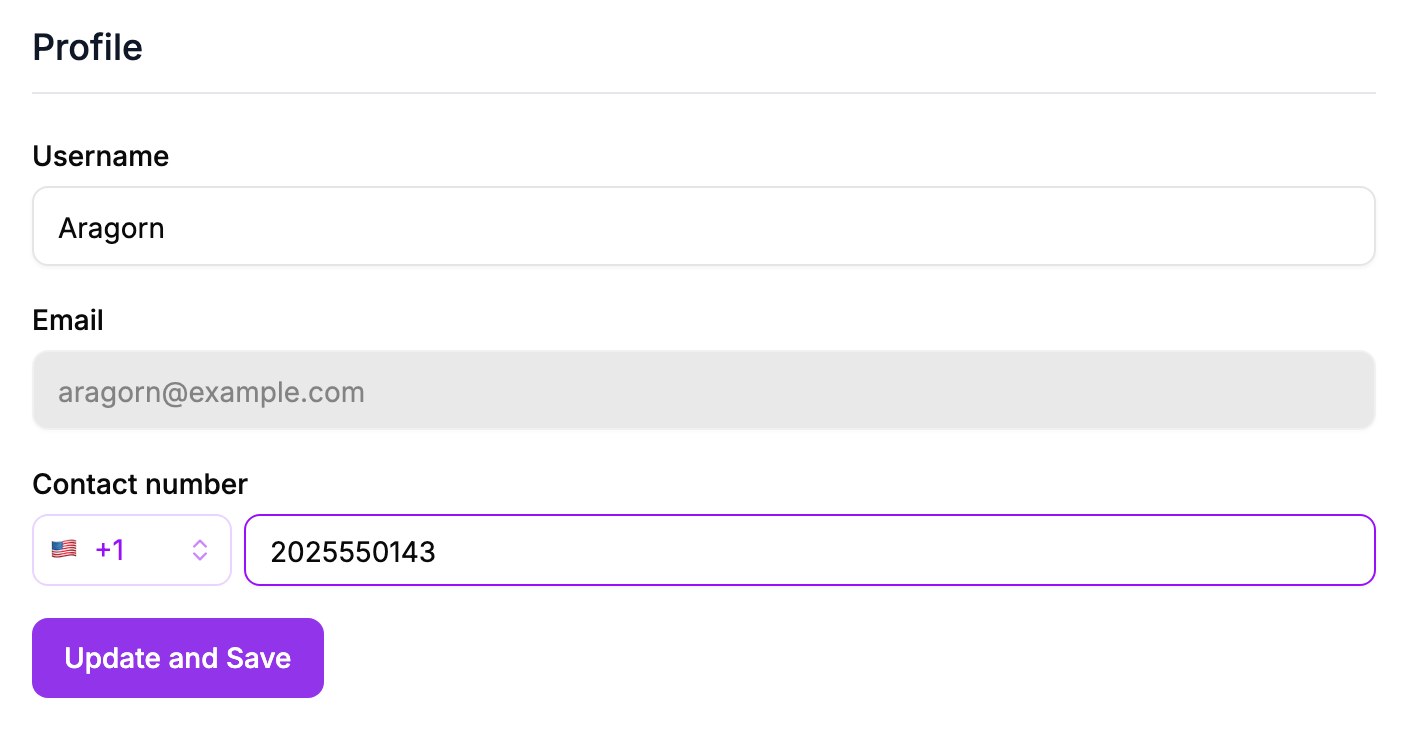
Oppex uses this number for phone calls, SMS, and WhatsApp messages. It must be a valid phone number, and Oppex rejects one that is not.
Oppex does not send a code to confirm the number. Check it carefully, because a wrong number means you miss every call and message.
Choose the call voice and recording
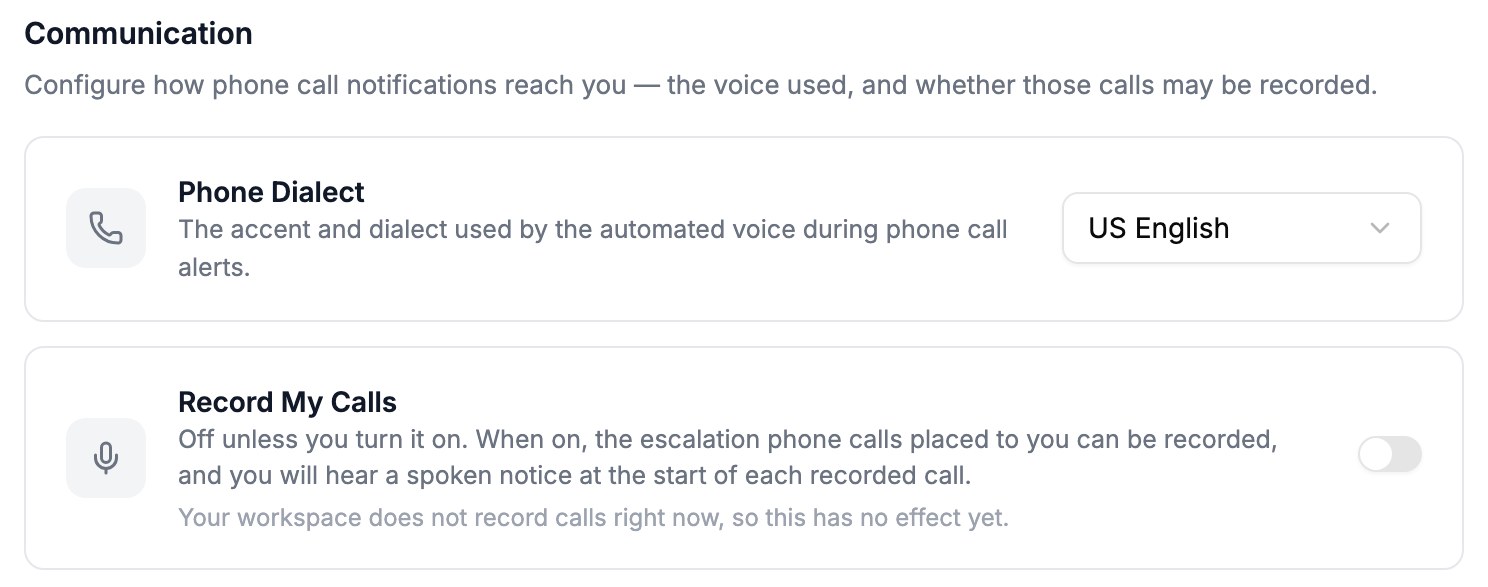
- In Settings, under Personal, click Preferences.
- In Phone Dialect, select US English, UK English, or Indian English. This sets the accent of the automated voice on phone calls.
- Optional: Turn on Record My Calls to let Oppex record the escalation calls it places to you.
What administrators control
Allowed contact methods
In Workspace Preferences, under Contact Methods, a workspace administrator chooses the Allowed Contact Methods: Phone Call, SMS, WhatsApp, and Email. All four are allowed by default. Methods left unchecked are hidden from the escalation-policy builder.
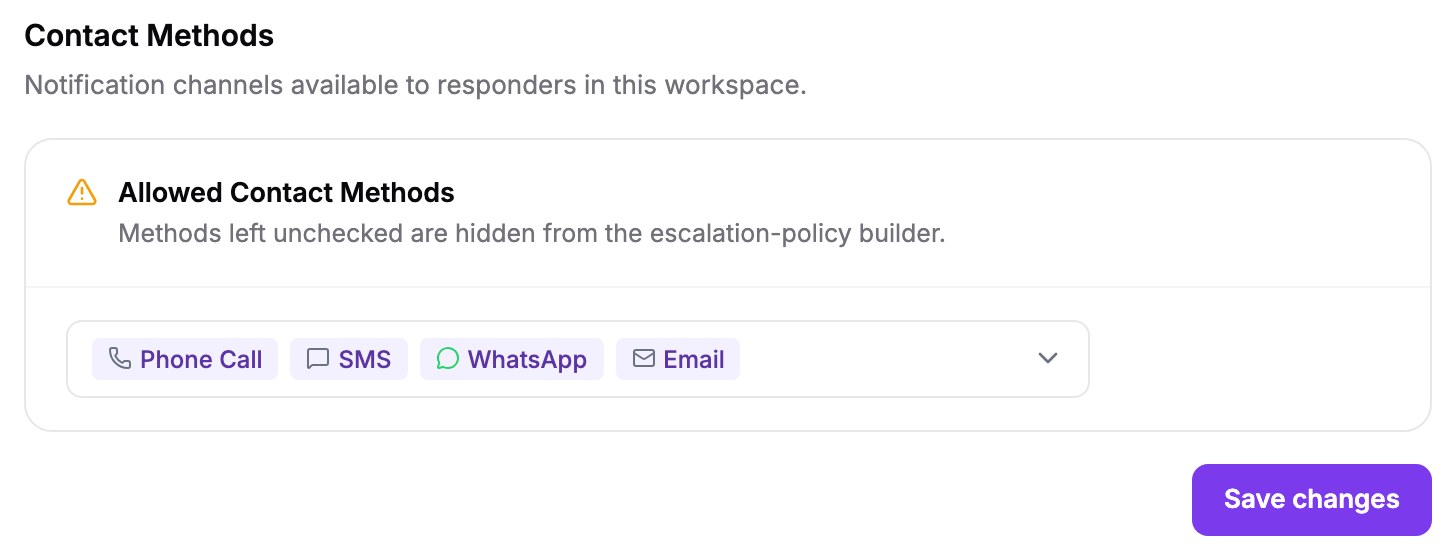
Removing a method stops new policies from using it. A policy saved earlier keeps paging with that method until someone edits and saves it.
Contact methods on each escalation policy
Each escalation policy lists its contact methods under Setup Preferred Contact Methods: Phone, Message (SMS), WhatsApp, and Email. The policy also sets the number of reminders and the delay before the first assignment. See Receiving an incident.
Call recording
In Workspace Preferences, under Call Recording, a workspace administrator can turn on Record Escalation Calls. When it is turned on, every member of the workspace receives an email that explains call recording.
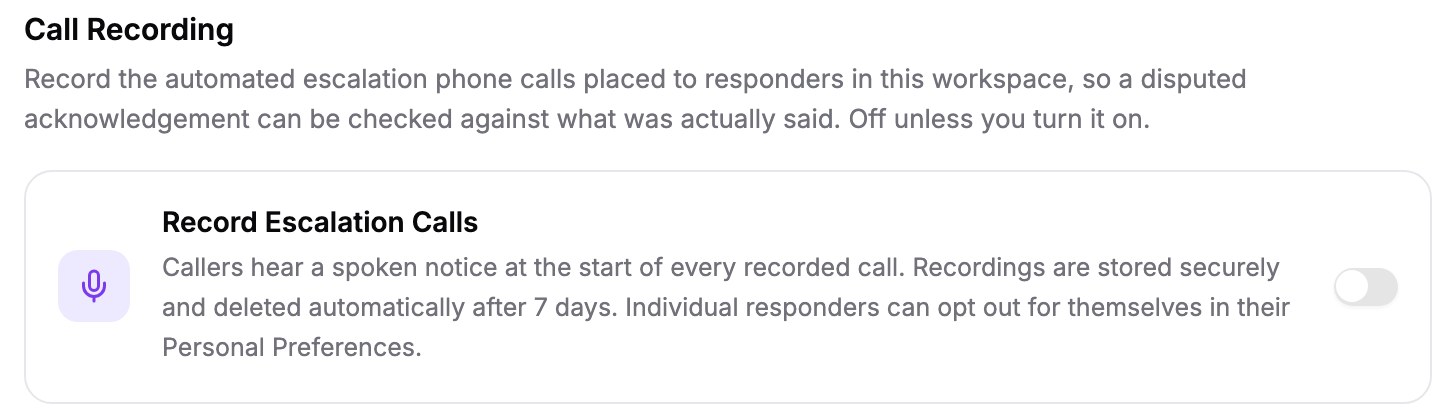
A call is recorded only when both of these are on:
- Record Escalation Calls for the workspace.
- Record My Calls in your own personal preferences.
A recorded call starts with the notice "Please note, this call is being recorded." Recordings are stored securely and deleted automatically after 7 days.