Business Hours
Business hours let a service hold back low-urgency incidents that arrive at night or at the weekend, and page for them when the working day starts. For each severity you choose whether an out-of-hours incident escalates immediately or waits. Urgent incidents can still page at 3 a.m. while routine ones wait for the morning.
Business hours are set per service. They change only what happens to an incident created outside the service's hours; inside business hours, every incident escalates normally.
Turn on business hours for a service
- Click Services in the left navigation, then click the service's name to open Edit Service.
- Scroll to Business Hours and turn on its switch.
- Under Business Days, select the days your team works.
- Set the Start Time and End Time. The same hours apply to every selected day.
- Under Off Business Hours — Escalation Behavior, assign every severity to a behavior (see below).
- Set Spread across first N minutes under Stagger Escalation at Start of Business Hours.
- Click Save Changes.
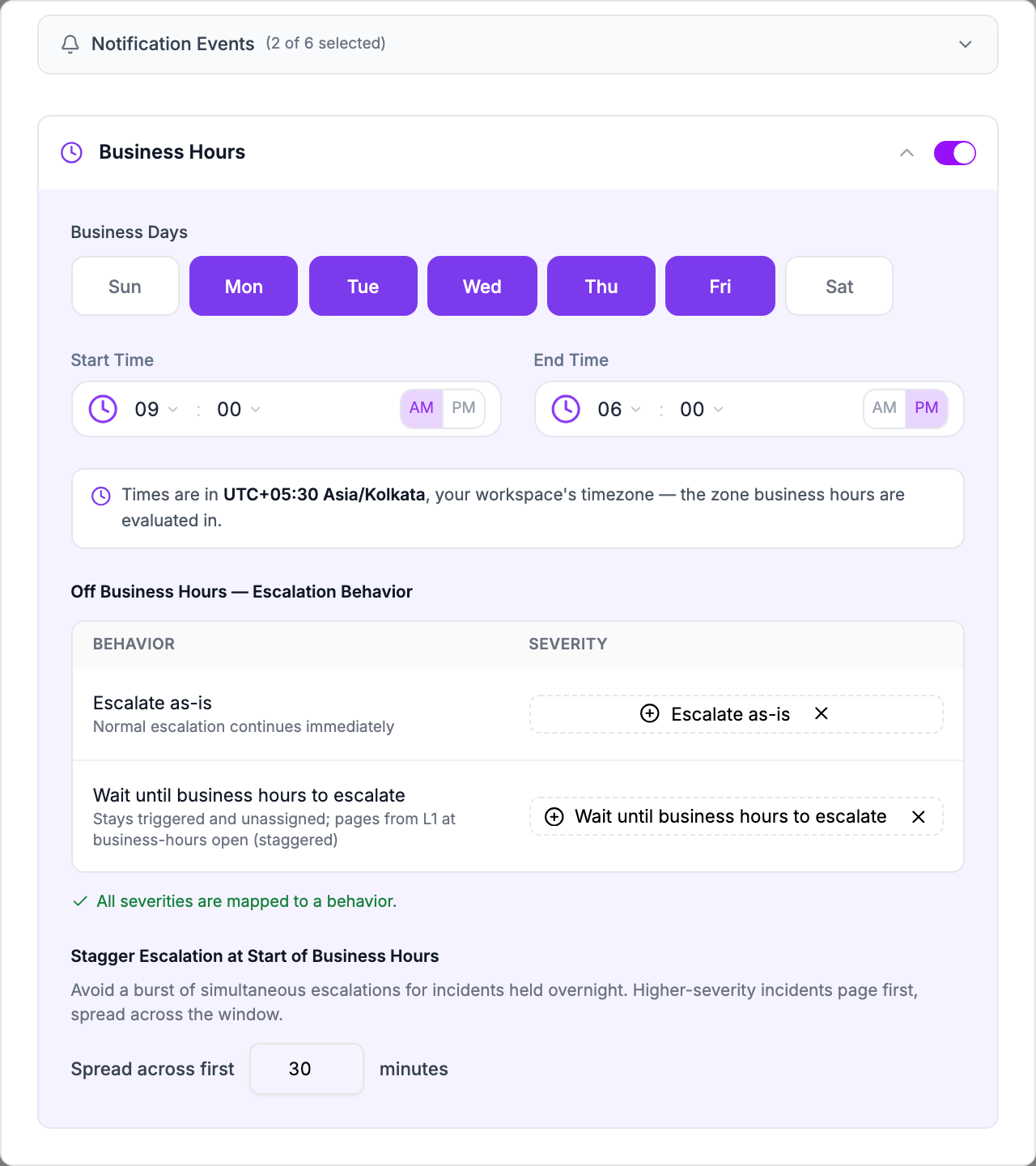
When you first turn it on, the section is filled in with Monday to Friday, 09:00 AM to 06:00 PM, a 30-minute stagger, Sev-1 and Sev-2 set to escalate, and Sev-3 and lower set to wait.
The note under the times shows the time zone Oppex uses, which is your workspace's time zone. It does not depend on the time zone of the person editing the service, so 09:00 means 09:00 in the workspace time zone for everyone. Oppex follows local clock time through daylight saving changes.
Choose what each severity does out of hours
Each row of the table is a behavior. Click the picker on a row and tick the severities that should follow it. A severity can belong to only one row.
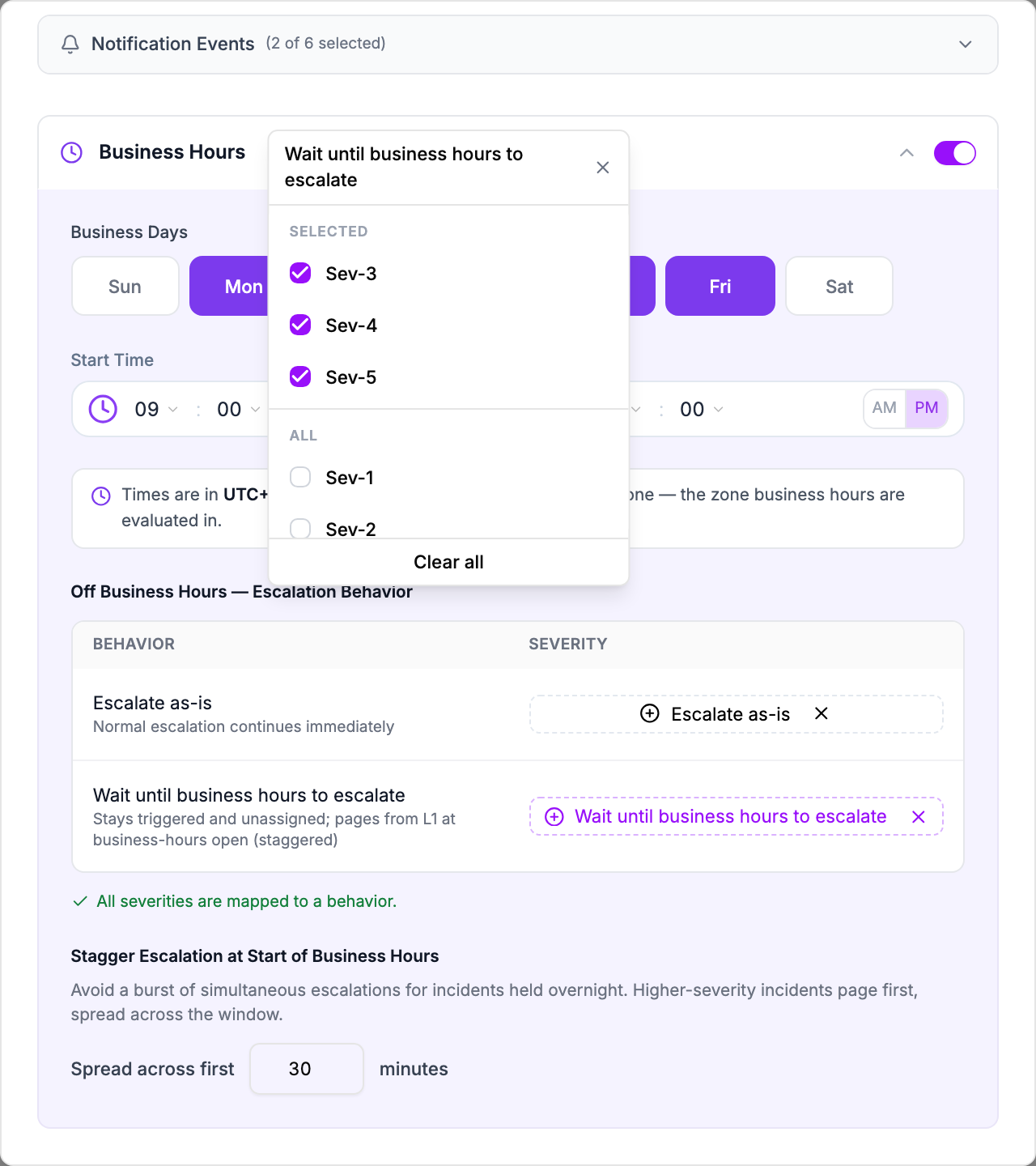
| Behavior | What happens to an incident created outside business hours |
|---|---|
| Escalate as-is | It escalates immediately, exactly as it would during business hours. |
| Wait until business hours to escalate | It stays triggered and unassigned, and nobody is paged until business hours begin. |
While business hours are switched on, Oppex does not save the service until every severity is assigned to a row. The table shows which severities are still unmapped.
What happens to an incident that waits
When an incident on a waiting severity arrives outside business hours:
- Oppex creates it as Triggered and leaves it unassigned. Nobody is paged.
- The incident shows an Off business hours chip. Hover over it to see when escalation starts.
- When business hours begin, Oppex pages the first level of the escalation policy mapped to that severity, and escalation continues normally from there.
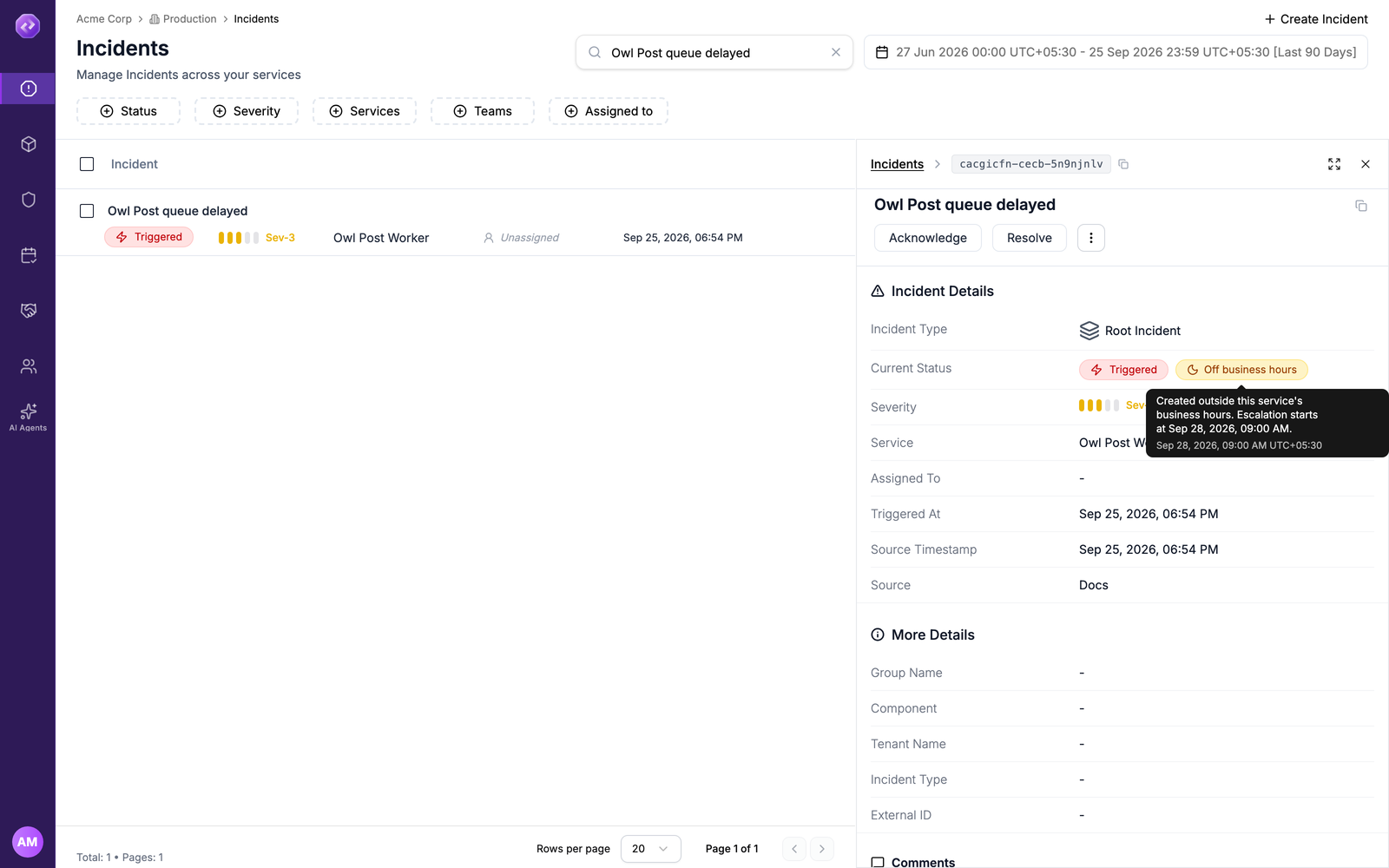
In the example above, the service works Monday to Friday, 09:00 to 18:00. A Sev-3 incident created on Friday at 18:54 is held over the weekend, and escalation starts at 09:00 on Monday.
The incident timeline records Created outside business hours for every incident that arrives out of hours, whichever behavior applies.
Only paging is held back. If the service sends team notifications for new incidents, they go out as soon as the incident is created.
If someone acknowledges, resolves, snoozes, or assigns the incident before business hours begin, Oppex does not page for it when the hours start.
How staggering spreads the morning pages
When several incidents have waited overnight, paging for all of them at 09:00 would wake the whole team at once. Stagger spreads them out. Oppex pages the highest severity first, then the incidents that have waited longest. Pages are spread evenly across the stagger window and are never more than five minutes apart.
With business hours starting at 09:00 and a 30-minute stagger, four incidents that waited overnight on the same service page as follows:
| Order | Incident | Severity | Paged at |
|---|---|---|---|
| 1 | Owl Post queue delayed | Sev-3 | 09:00 |
| 2 | Howler delivery failed | Sev-3 | 09:05 |
| 3 | Floo Network latency high | Sev-4 | 09:10 |
| 4 | Daily Prophet feed stale | Sev-5 | 09:15 |
Four incidents leave three gaps. Thirty minutes divided by three is ten minutes, which is more than five, so the gaps are five minutes each. With thirteen incidents the gaps would be two and a half minutes, and the last page would go out at 09:30.
A change to the stagger setting applies to incidents that start waiting after you save it. Incidents that are already waiting keep the stagger that applied when they arrived.
See which services use business hours
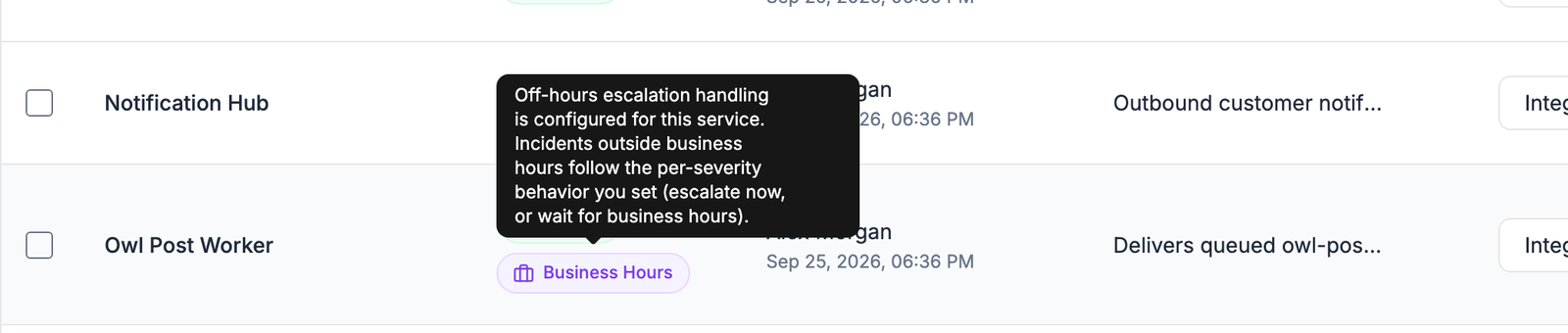
Services with business hours switched on show a Business Hours badge in the Status column of Services. Hover over it for a short explanation.
Limits and edge cases
- Overnight hours are allowed. Set an End Time earlier than the Start Time, such as 22:00 to 06:00, to cover a night shift.
- A start time equal to the end time leaves no business hours, so every incident counts as out of hours.
- With no business days selected, a waiting incident has no opening to wait for, so Oppex escalates it immediately.
- There are no holidays or exception dates, and one start and end time applies to every selected day.
- Only new incidents are affected. An incident that is already escalating when business hours end keeps escalating.
- Business hours never change which escalation policy is used. They only decide when paging starts. A severity set to Do Not Escalate stays unpaged, and a service set to Notification only pages nobody, so business hours have no effect there. See Escalation by severity.
- Changing the workspace time zone does not move incidents that are already waiting. Their start time was set when they arrived.
A Service Admin can change business hours on the services they administer. A Workspace Admin, Account Admin, or Account Owner can change them on any service.
Business hours are different from a schedule's active days and hours. A schedule decides who is on call at a given moment, while business hours decide whether and when paging starts. When a waiting incident is released, Oppex pages whoever the schedule says is on call at that moment.