Maintenance Windows
A maintenance window stops planned work from paging your responders. While a window is active on a service, Oppex resolves that service's incoming incidents as soon as they arrive, so nobody is escalated to. You can cover every alert on the service, or only the alerts that match a filter you define.
Schedule a maintenance window
- Click Services in the left navigation.
- Open the menu (⋮) on the service's row and click Create maintenance window.
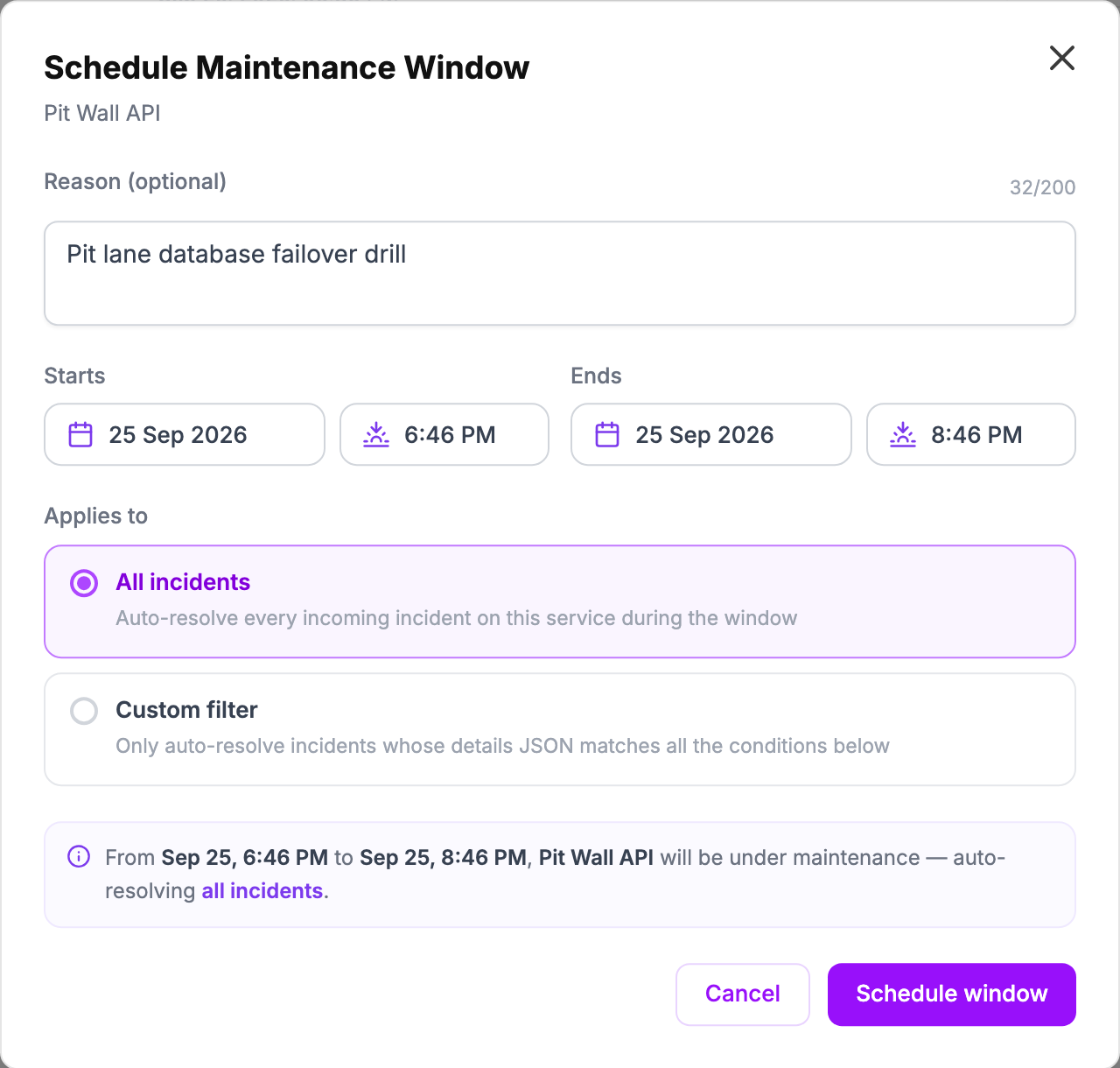
- Optionally, enter a Reason of up to 200 characters. Your team sees it in the service's maintenance details.
- Set Starts and Ends with the date and time pickers.
- Under Applies to, choose All incidents.
- Check the summary line at the bottom, then click Schedule window.
The times you pick are in your personal display time zone, or your workspace's time zone if you have not set one. The list of windows shows the offset next to each time. Colleagues in other time zones see the same window in their own local time.
You cannot pick a start time in the past. A window runs once, from its start to its end; there is no repeating schedule, and there is no maximum length.
Cover only some alerts with a custom filter
Choose Custom filter when only part of a service is under maintenance, for example one region. Oppex then resolves only the incidents whose details match every condition you add, and escalates the rest as normal.
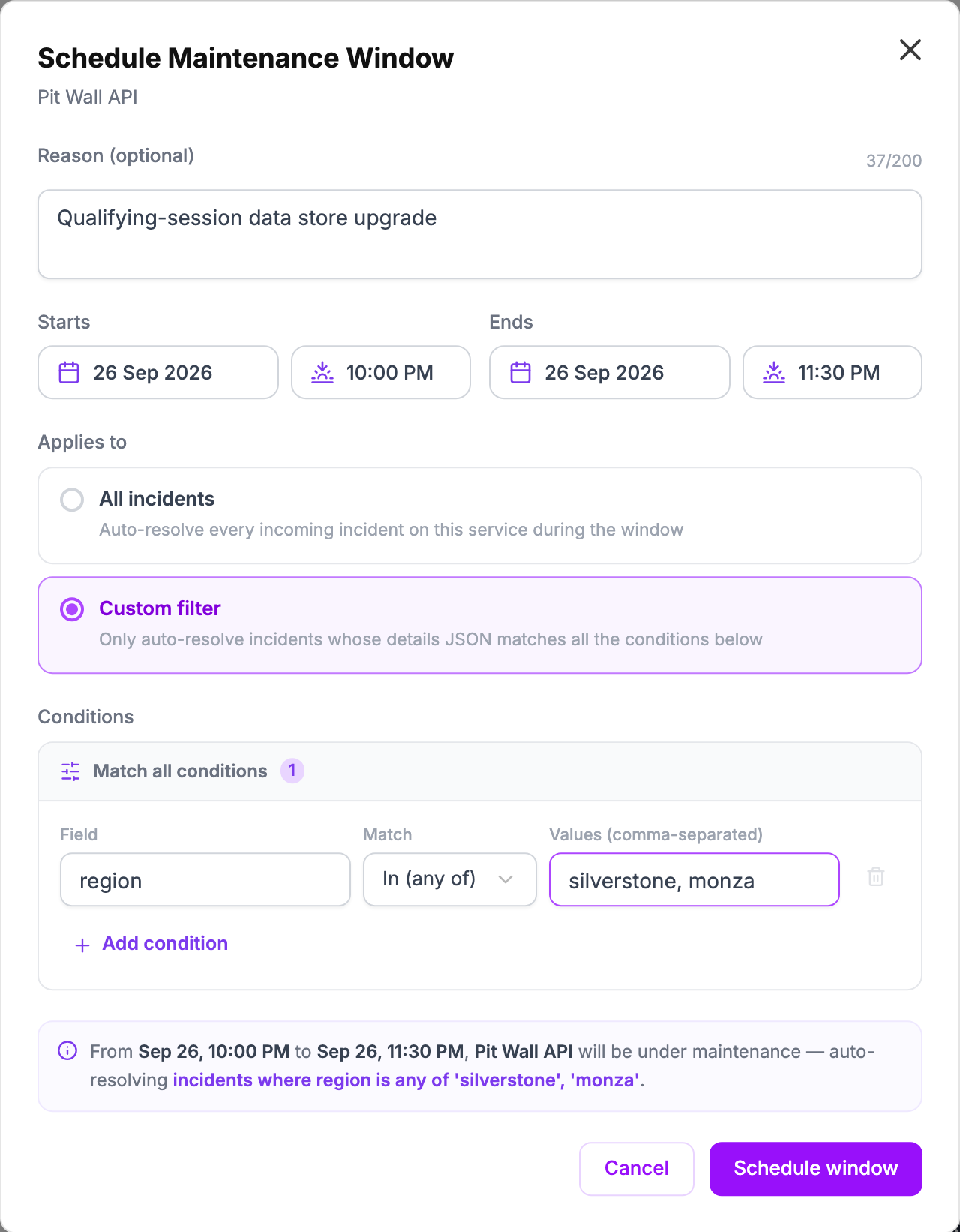
- Under Applies to, choose Custom filter.
- For each condition, enter a Field from the alert's details, choose a Match type, and enter a Value.
- Click Add condition to add another. It stays disabled until the current row is complete.
| Match | An incident matches when the field… |
|---|---|
| Exact | is exactly the value |
| Contains | contains the value anywhere in it |
| In (any of) | equals any one of a comma-separated list of values |
The Field is the name of a field in the details that your monitoring tool sends with the alert.
Use dots to reach a nested field, such as location.region.
Matching is case-sensitive, so Monza does not match monza. If an alert has no such field, that
condition does not match, and the incident escalates normally. When a field holds a list, the
condition matches if any item in the list matches.
Put several services into maintenance at once
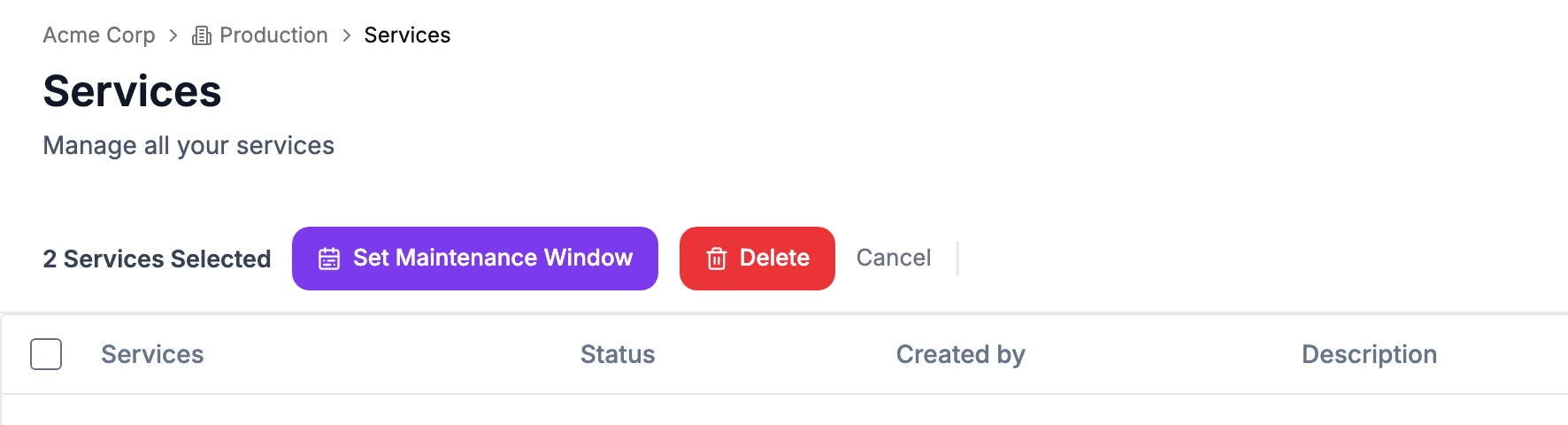
- On Services, tick the services you want.
- Click Set Maintenance Window in the bar that appears.
- Fill in the Bulk Maintenance Window dialog the same way as for one service, then click Schedule maintenance.
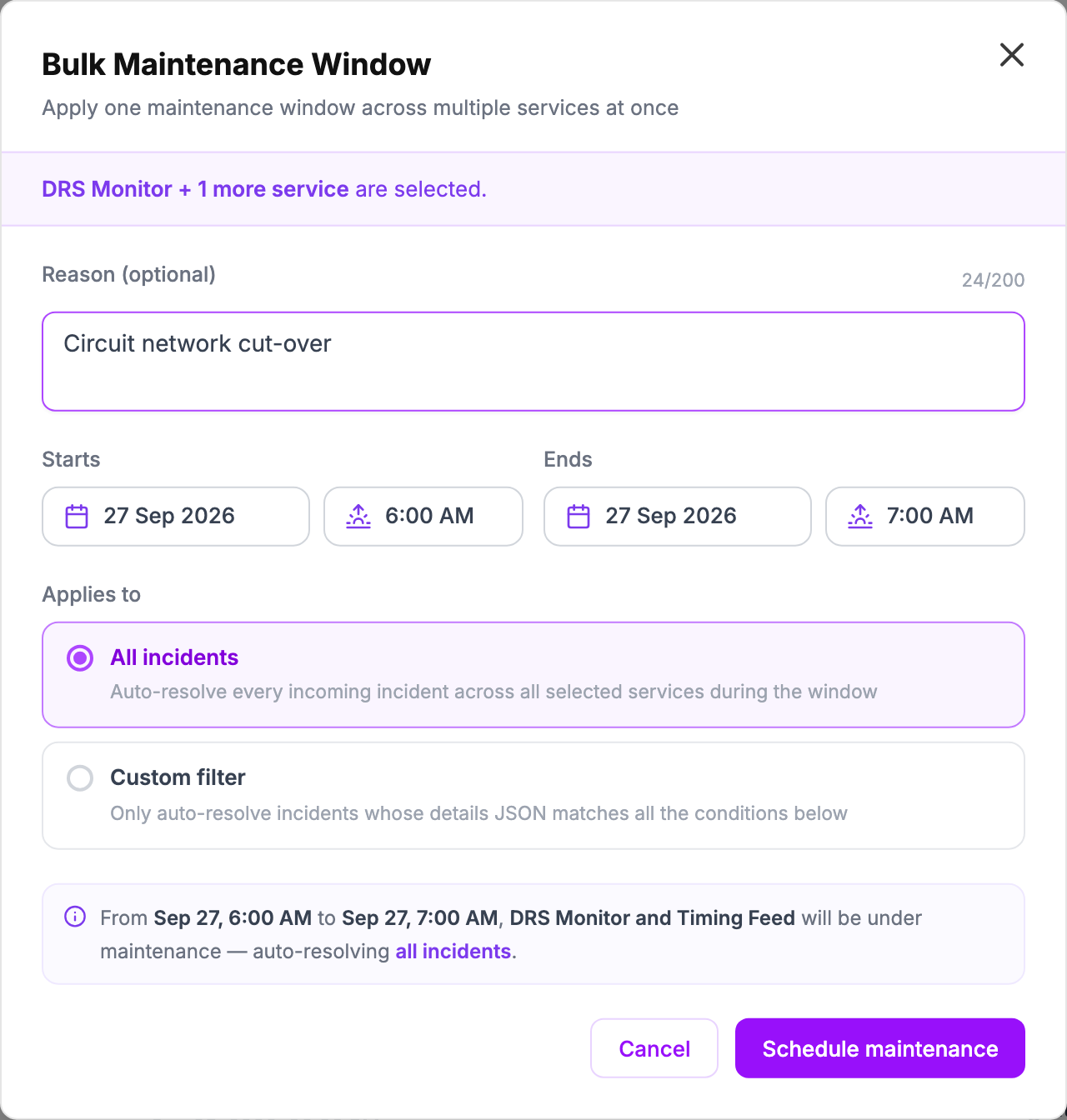
Oppex creates a separate window on each service, linked together.
A window created this way has no Edit action. Clicking End now on any of the linked windows ends maintenance on every service in the group at once.
What happens to an alert during a window
When an alert arrives for a service during a window that covers it, Oppex still creates the incident, so you keep a record of it. It then resolves the incident immediately. The incident is not escalated, nobody is paged, and the service's team notifications are not sent for it.
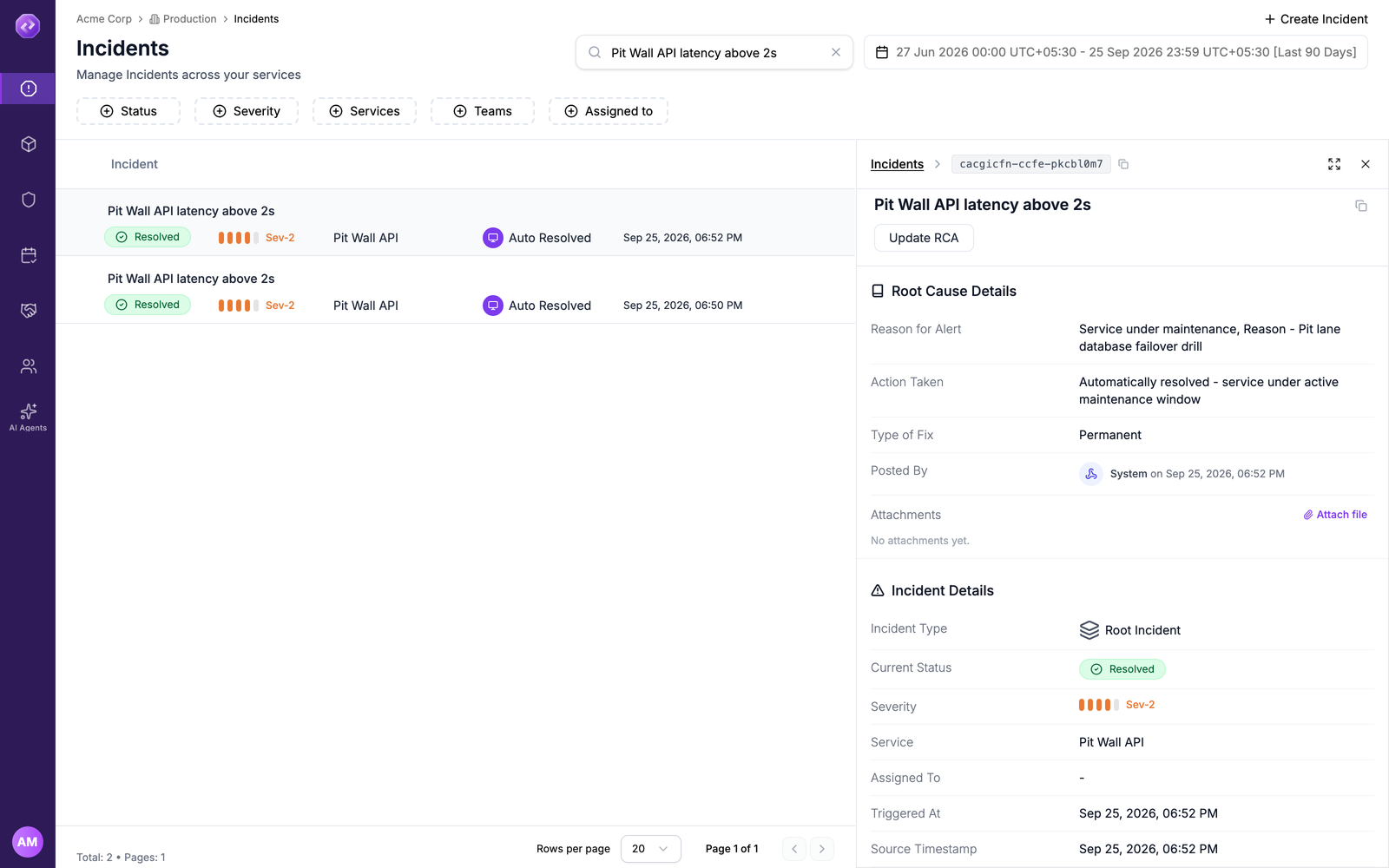
- The incident shows as Resolved, resolved by Auto Resolved.
- Its timeline records Incident Auto-Resolved, because the service was under maintenance.
- If your workspace requires a root cause analysis (RCA) on resolve, Oppex fills it in with "Service under maintenance" and the window's reason.
- The incident is not grouped into an incident that is already open. Each alert becomes its own resolved incident.
Oppex decides using the time the alert was received, and a window covers both its start and its end time.
See which services are in maintenance
The Status column on Services shows Full Maintenance when an active window covers all incidents, and Partial Maintenance when it covers only filtered ones. Hover over the badge to see each active and upcoming window with its time range, scope, and reason.
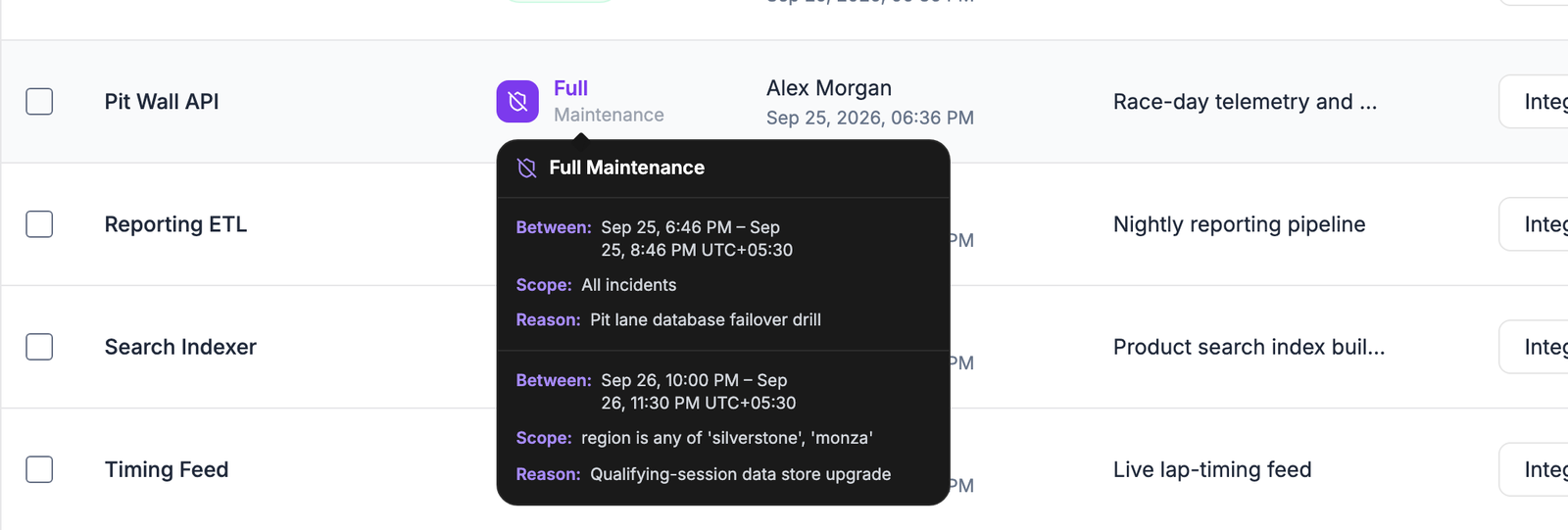
A service with only an upcoming window shows its normal Active status until the window starts.
Manage, end, or cancel a window
Open the service's menu (⋮) and click View maintenance window. The page lists Upcoming & Active windows, with past windows in a collapsed section underneath.
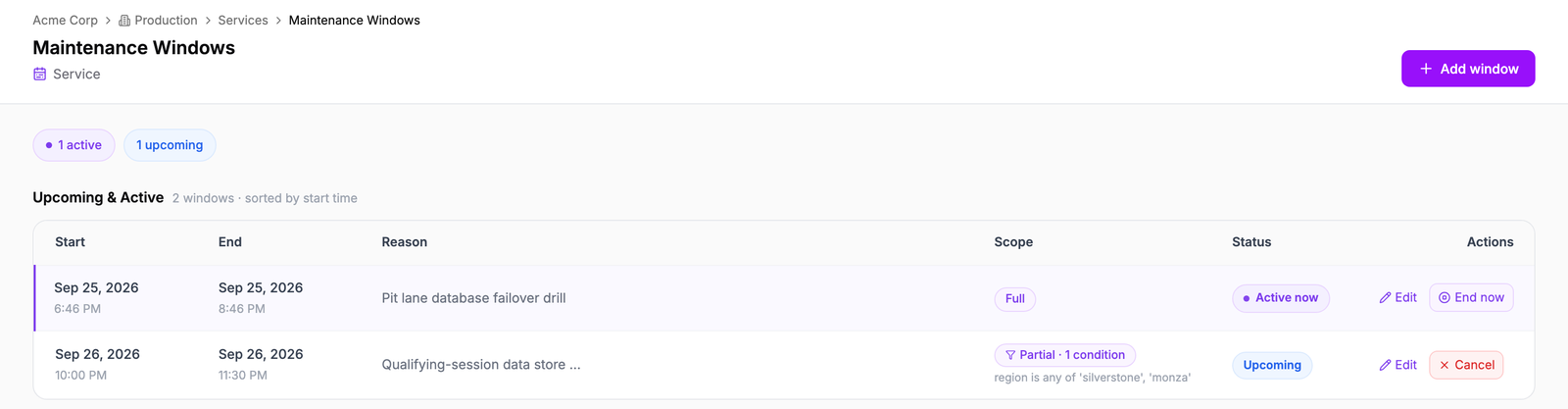
| Status | Actions |
|---|---|
| Upcoming | Edit, or Cancel to delete the window permanently |
| Active now | Edit, or End now to finish maintenance immediately |
| Expired | View only |
While a window is active you can still change its end time, reason, and scope. A scope change applies to the next alert that arrives.
When a window ends
Nothing is reopened when a window ends, or when you end it early. Incidents that the window resolved stay resolved and nobody is paged for them. Alerts that arrive after the end are handled normally.
Incidents that were already open before the window started are not affected by it and keep escalating. Resolve or snooze them separately if you need to.
Who can manage maintenance windows
- A Service Admin can create and manage windows on the services they administer. On Services, the checkboxes and the Create maintenance window option are greyed out for other services.
- A Workspace Admin, Account Admin, or Account Owner can manage windows on any service.
- A Responder can view windows but cannot create or change them.