Team Notifications
Team notifications keep a whole group informed about a service's incidents, not only the person on call. Each service can send updates to shared email addresses, such as a team mailing list, and post them to Slack channels. You choose which events trigger an update.
Team notifications are sent in addition to paging. Escalation still pages the on-call responder as normal. Teams in Oppex are separate: a team groups services and people, but does not receive notifications itself.
Send a service's updates to email addresses
- Click Services in the left navigation, then click the service's name to open Edit Service.
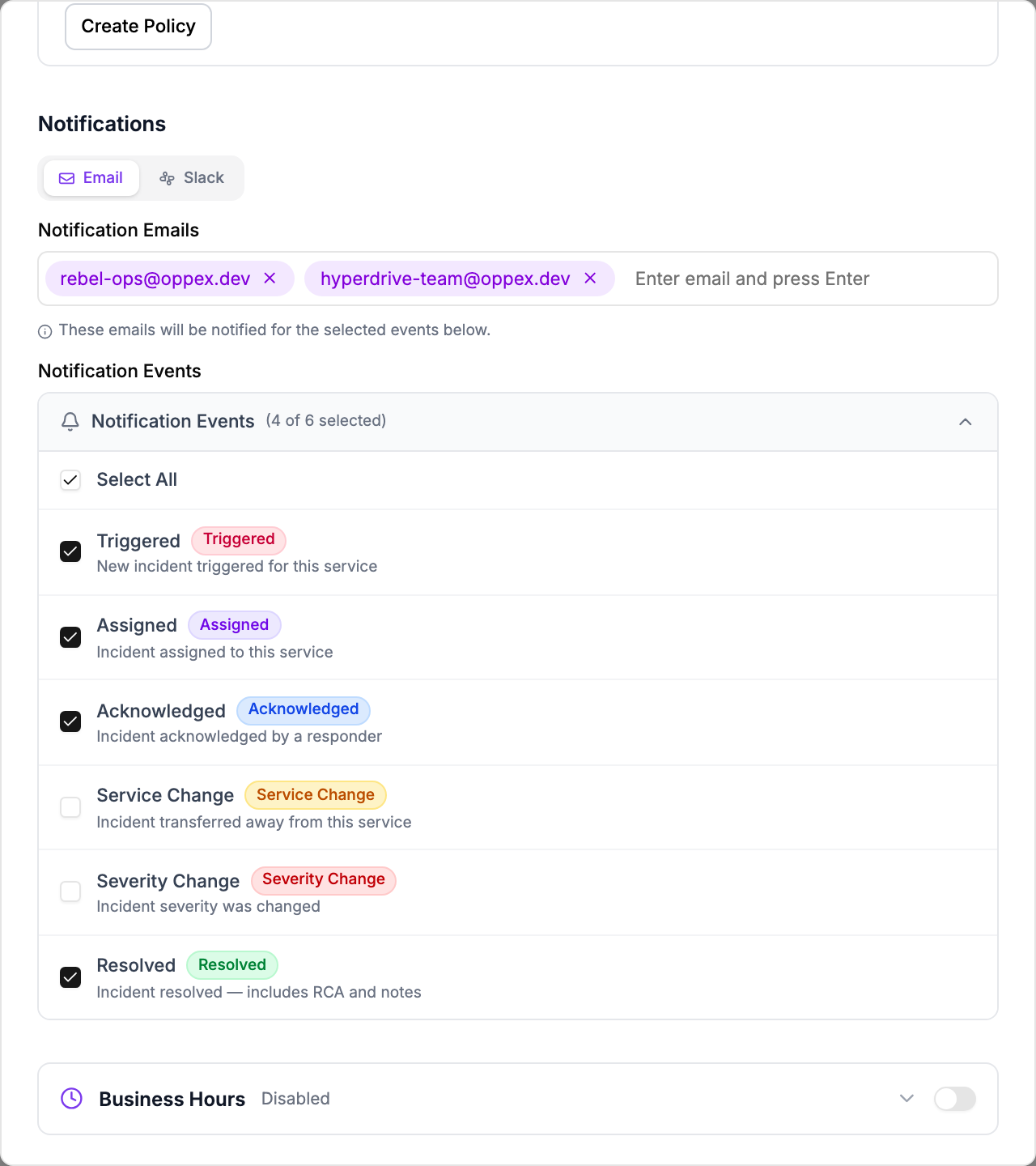
- Scroll to Notifications and stay on the Email tab.
- In Notification Emails, type an address and press Enter. Repeat for each address.
- Open Notification Events and tick the events that should send an email.
- Click Save Changes.
Oppex accepts only addresses on your organization's approved email domain, for example
@yourcompany.com. An address on any other domain, including a subdomain, is rejected when you save,
and the error names the address. To reach people outside your domain, send to an internal list that
forwards to them.
A new service starts with Assigned and Resolved ticked. If you add addresses, at least one event must stay ticked. Email changes are saved only when you click Save Changes.
Post a service's updates to a Slack channel
Slack must first be connected to your organization under Settings → Integrations. Until it is, the Slack tab shows a message pointing you there. See Slack.
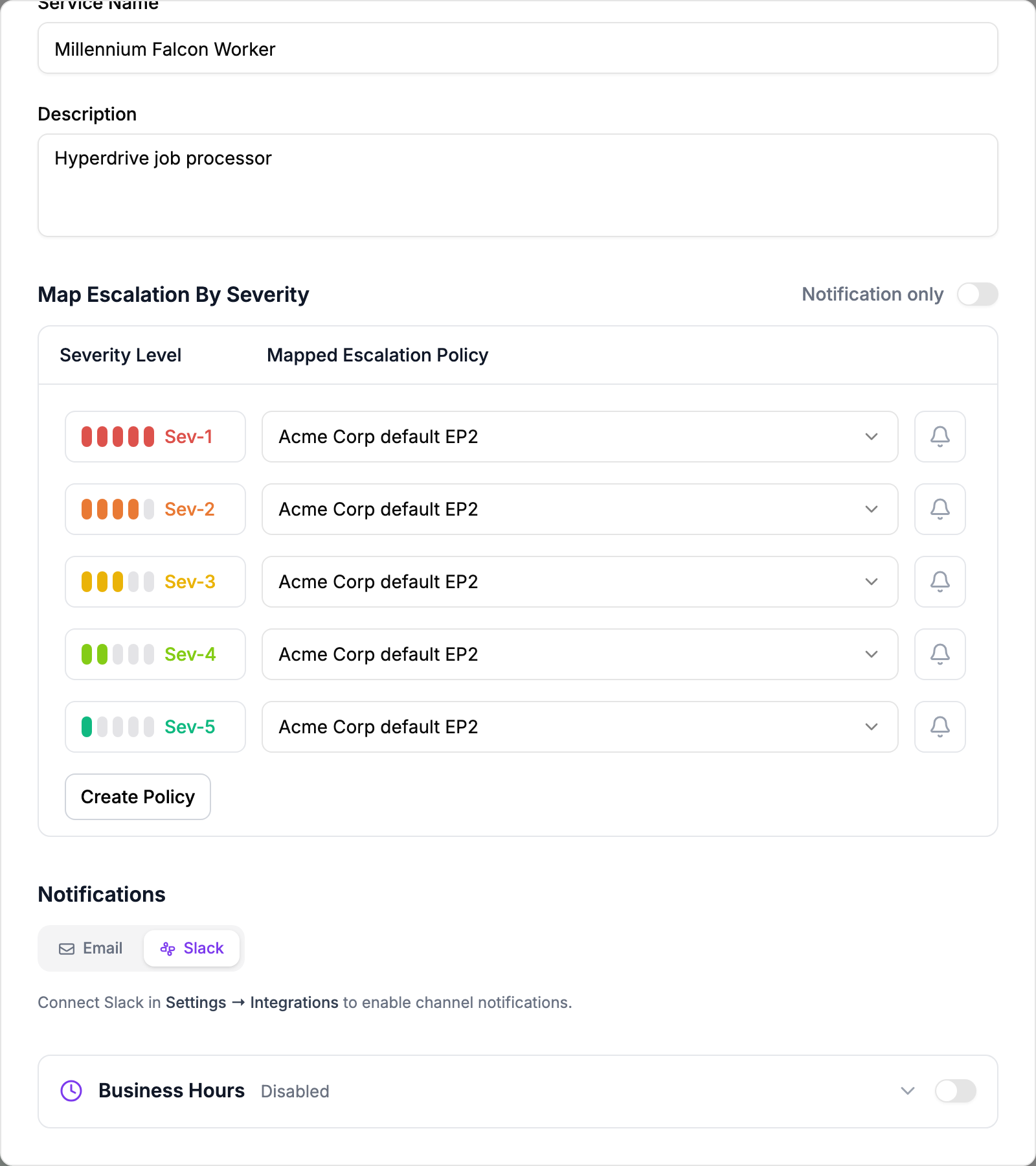
- Open Edit Service and, under Notifications, click the Slack tab.
- In Add Slack Channel, search for the channel and select it.
- Click Add. The channel is saved immediately.
- Open Notification Events, tick the events to post, and click Save Events.
Adding or removing a channel takes effect straight away, without Save Changes. If you close the dialog without saving, your email changes are discarded but your Slack changes remain. The events you save with Save Events apply to every channel on the service.
When you create a new service, you can add one Slack channel. Add more by editing the service afterwards. New channels start with only Assigned ticked.
The channel list shows up to 200 channels. Public channels work without inviting the Oppex app. A private channel appears only after you invite the Oppex app to it.
Choose which events send an update
| Event | Sent when |
|---|---|
| Triggered | A new incident is created on the service. |
| Assigned | By email: an incident is moved to this service from another one. In Slack: the same, and also each time escalation reaches a new level, naming who it was assigned to. |
| Acknowledged | A responder acknowledges the incident. |
| Service Change | An incident is moved away from this service to another one. |
| Severity Change | The incident's severity is changed. |
| Resolved | The incident is resolved. The update includes the RCA and notes. |
Updates are sent for every severity. You cannot limit team notifications to particular severities.
A Slack post names the event, the service, the severity, who acted, and the time in UTC, with a View Incident button. Later posts about the same incident are added as replies in a thread under the first post in that channel.
Each email event is sent once per incident. A severity change is emailed once for each distinct change, such as Sev-3 to Sev-1. In Slack, Severity Change is posted only for the first severity change on an incident in each channel.
Notify without paging anyone
Turn on Notification only in the Map Escalation By Severity section of Edit Service to stop the service from paging anyone. Every incident stays triggered and unassigned, and only the service's email and Slack notifications are sent. See Escalation by severity.
When team notifications are not sent
- During a maintenance window. An incident that a maintenance window resolves on arrival sends no team notifications.
- When the escalation policy contains only No-Op users. Oppex resolves those incidents on arrival without notifying anyone. See Organization Preferences.
- When Slack has been disconnected. Posts are skipped until Slack is connected again. Email updates are still sent.
While an incident waits for business hours, the Triggered update is still sent straight away.
If your organization has connected more than one Slack workspace, Oppex posts service notifications through the first one that was connected. Pick channels from that Slack workspace, or posts to the channel may not arrive.
Who can change team notifications
- Email addresses and events: a Service Admin of the service, or a Workspace Admin, Account Admin, or Account Owner.
- Slack channels: any member of the workspace, including Responders.