Workspaces
A workspace is a separate area inside your Oppex organization with its own services, incidents, schedules, and escalation policies. Organizations use workspaces to keep teams, business units, or environments apart, so that each group sees only the incidents and on-call setup that belong to it.
What a workspace keeps separate
Everything you build for incident response belongs to exactly one workspace. When you create something, Oppex creates it in the workspace you are currently working in.
| Belongs to one workspace | Shared across the organization |
|---|---|
| Services, and each service's maintenance windows, business hours, and notification settings | User accounts |
| Incidents, including their notes, root cause analysis (RCA), and timeline | The Slack connection (individual channels are mapped to a workspace) |
| Escalation policies, schedules, and teams | Sign-in methods and other organization preferences |
| API keys, service routing rules, and grouping strategies | Contact list |
| Variables, parsers, and workspace preferences | Billing |
A person can belong to several workspaces and can hold a different role in each one.
Get multiple workspaces for your organization
Every organization starts with one workspace, and everything lives there until more workspaces are added. Multiple workspaces are turned on for your organization by Oppex. Contact Oppex support to enable them.
Until then, the Workspaces settings page, the workspace switcher, and the workspace-level Users page do not appear.
Create a workspace
Only an Account Owner or Account Admin can create a workspace.
- Open your profile menu (your initials at the bottom of the left navigation) and click Settings.
- Under Organization, click Workspaces.
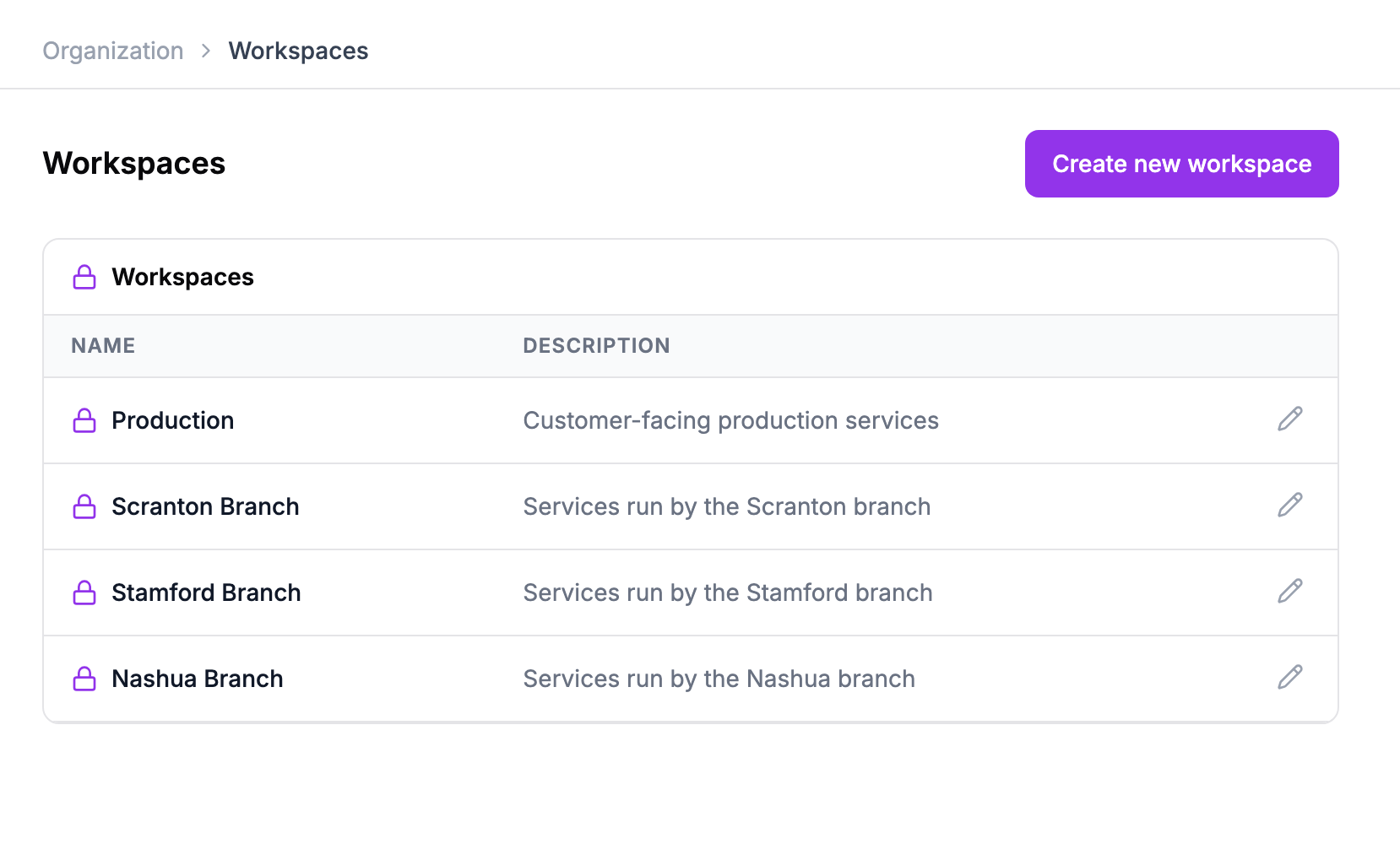
- Click Create new workspace.
- Enter a Workspace name and, optionally, a Workspace description.
- Under Admin User, select the person who will manage the workspace. They become its Workspace Admin.
- Click Create Workspace.
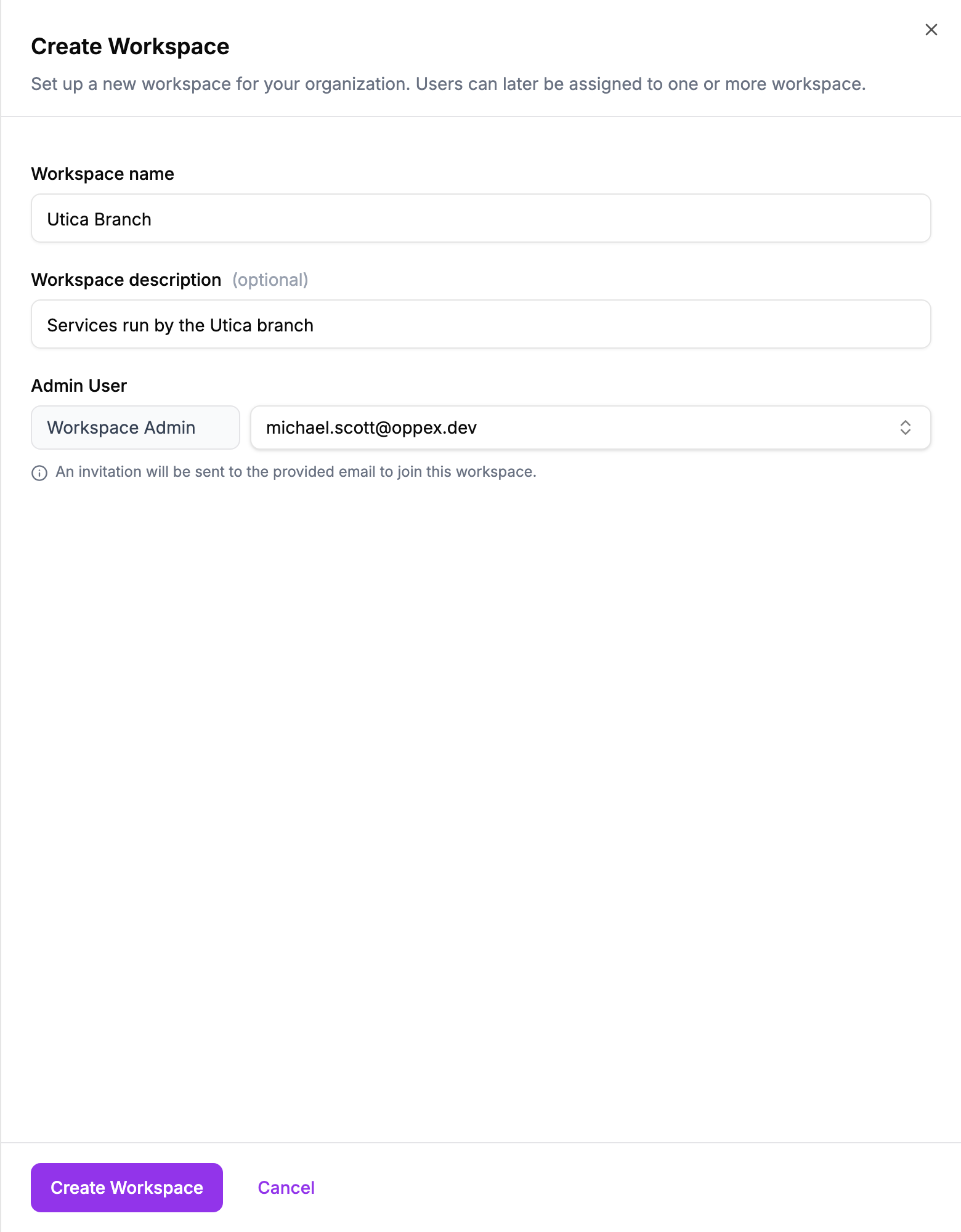
The form says an invitation will be sent, but Oppex does not send an email here. It adds an existing member of your organization to the new workspace as its Workspace Admin. To bring in someone new, invite them to the organization first.
Workspace names are required and must be unique within your organization. Oppex ignores capitalisation when it checks, so "Utica Branch" and "utica branch" count as the same name.
A new workspace starts with no services, escalation policies, or schedules. Its members are the Workspace Admin you chose plus every Account Owner and Account Admin. Oppex copies your severity and priority settings into it from the workspace your organization started with.
Rename a workspace
- Go to Settings → Workspaces.
- Click the pencil icon on the workspace's row.
- Change the Workspace name or Workspace description, then click Save Changes.
There is no way to delete a workspace from Oppex. You can rename it. Contact Oppex support if you need a workspace removed.
Switch workspaces
- Open your profile menu at the bottom of the left navigation.
- Under Workspace, click the workspace you want. A check mark shows the one you are in now.
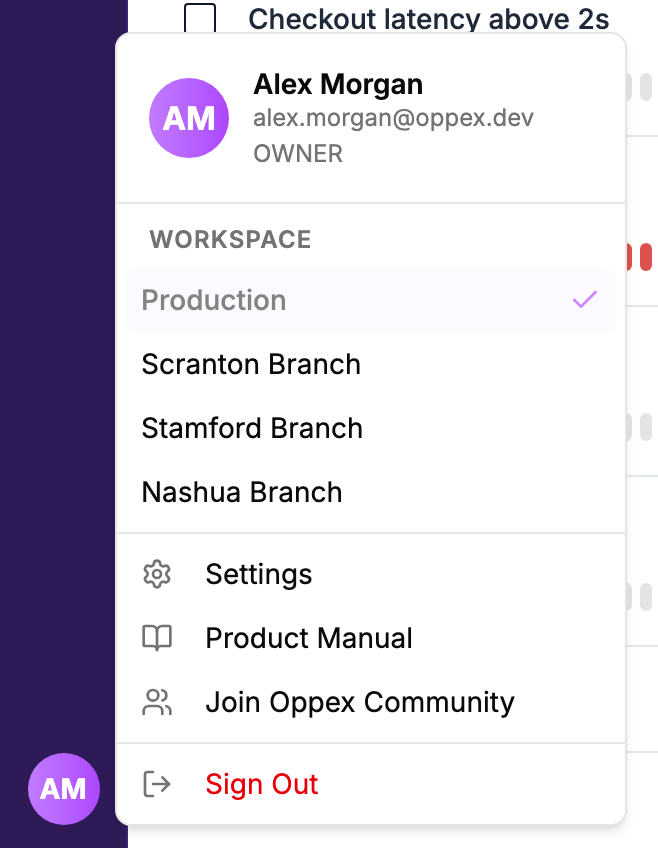
Oppex reloads and opens Incidents in the workspace you picked. The list shows only the workspaces you belong to. If you have Oppex open in another browser tab, that tab asks you to reload so that it does not keep showing the previous workspace.
Your role can change when you switch, because roles are set per workspace. The menu shows your role in the current workspace under your name.
Choose the workspace you land in when you sign in
Switching does not change where you land the next time you sign in. To set that:
- Go to Settings → Preferences under Personal.
- Under Workspace, choose a Default Workspace. It applies from your next sign-in.
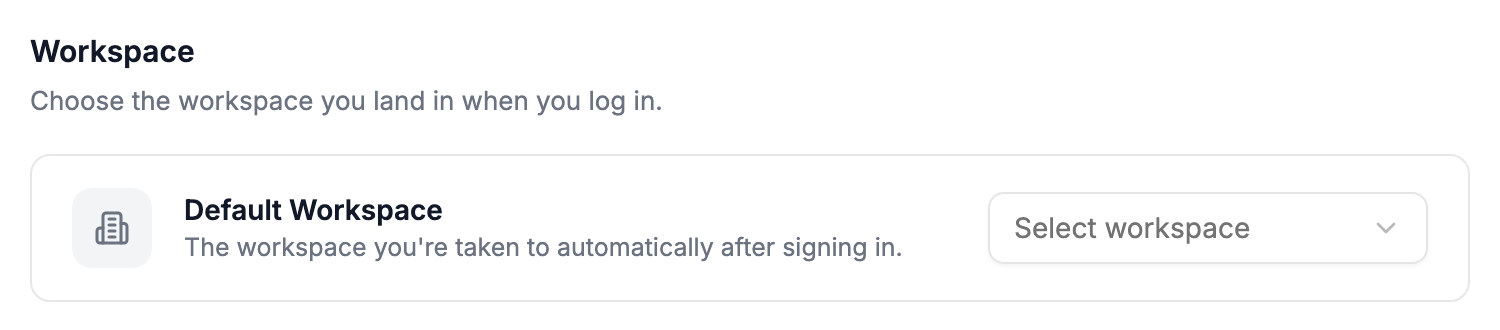
This setting appears only when you belong to more than one workspace. If you have not set it, or you are no longer a member of the workspace you chose, Oppex signs you in to the workspace your organization started with. If you are not a member of that one, Oppex uses the first workspace you do belong to.
Add people to a workspace
You add people to the workspace you are currently in. A Workspace Admin, Account Admin, or Account Owner can add members.
- Switch to the workspace you want to add people to.
- Click Users in the left navigation.
- Click + Add members.
- Search for each person and tick them. People who are already members show Already in workspace.
- Choose a role for each person: Responder, Service Admin, or Workspace Admin.
- Click Add N members.
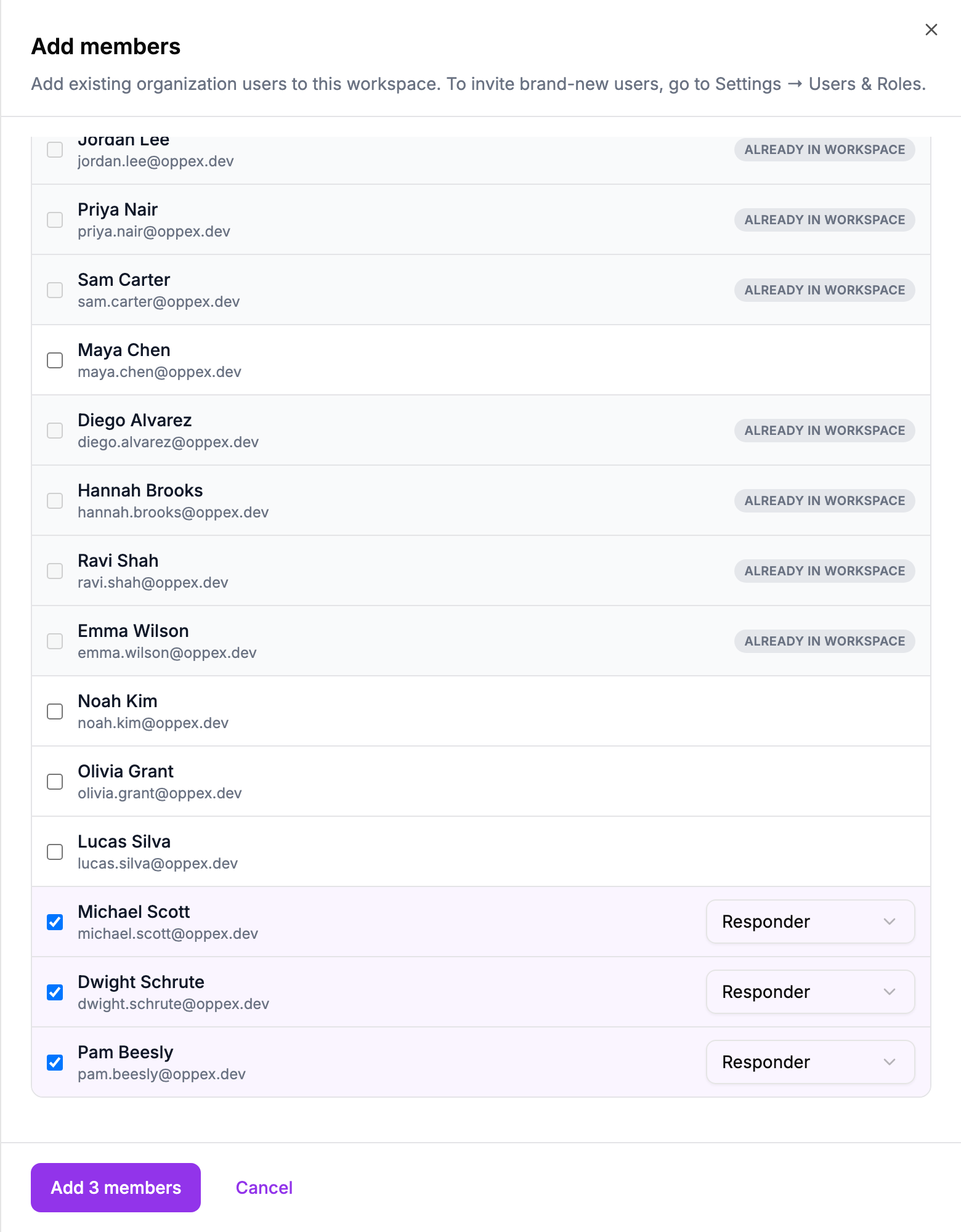
You can add only people who already belong to your organization. To invite someone new, use Settings → Users & Roles. See Invite a user.
The Users page lists everyone in the current workspace and their Role in this workspace. Account Owners and Account Admins are tagged Organization-managed, because their access comes from their organization role rather than from this workspace.
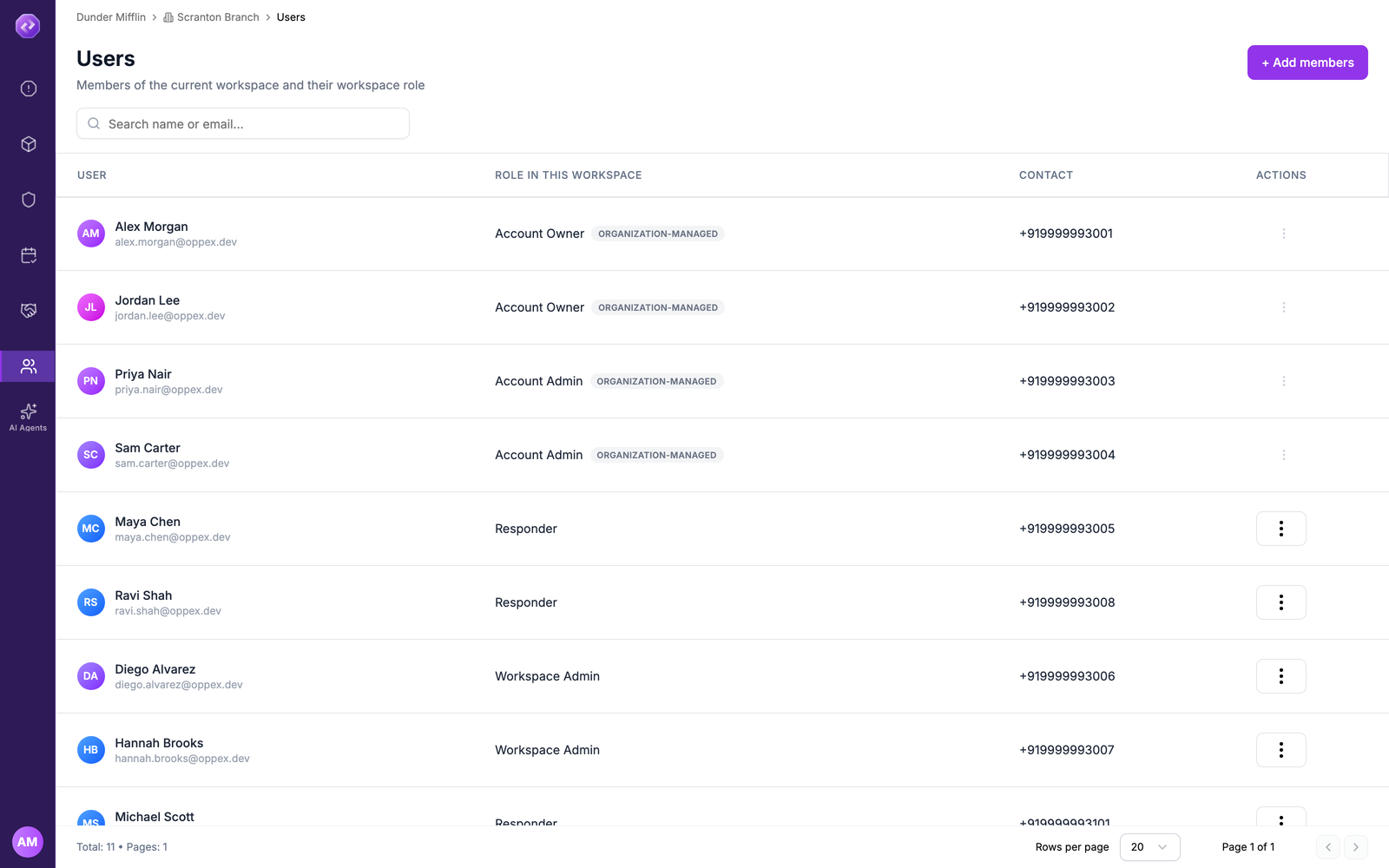
The role you give someone here applies only in this workspace. The same person can be a Workspace Admin in one workspace and a Responder in another. For what each role can do, see Users and roles.
Remove someone from a workspace
- On the Users page, open the menu on the person's row and click Remove.
- Confirm with Remove.
The person keeps their Oppex account and stays in their other workspaces. You can add them back later.
If the person is part of an escalation policy or schedule in this workspace, or is linked to an unresolved incident here, Oppex does not remove them. It lists what they are still assigned to. Replace them in those policies and schedules, and resolve or reassign those incidents, then try again.
Account Owners and Account Admins cannot be removed from a workspace. They belong to every workspace, including ones created later. To change that, change their organization role under Settings → Users & Roles.