Personal Preferences
Personal settings affect only you: the name and phone number your team sees, your password, the voice that calls you during an incident, the time zone you read timestamps in, and the workspace you land in after signing in. Everyone can change their own personal settings, whatever their role.
Open your profile menu (your initials at the bottom of the left navigation) and click Settings. The Personal section has three pages: Personal, Security, and Preferences.
Update your name and phone number
The Personal page holds your profile.
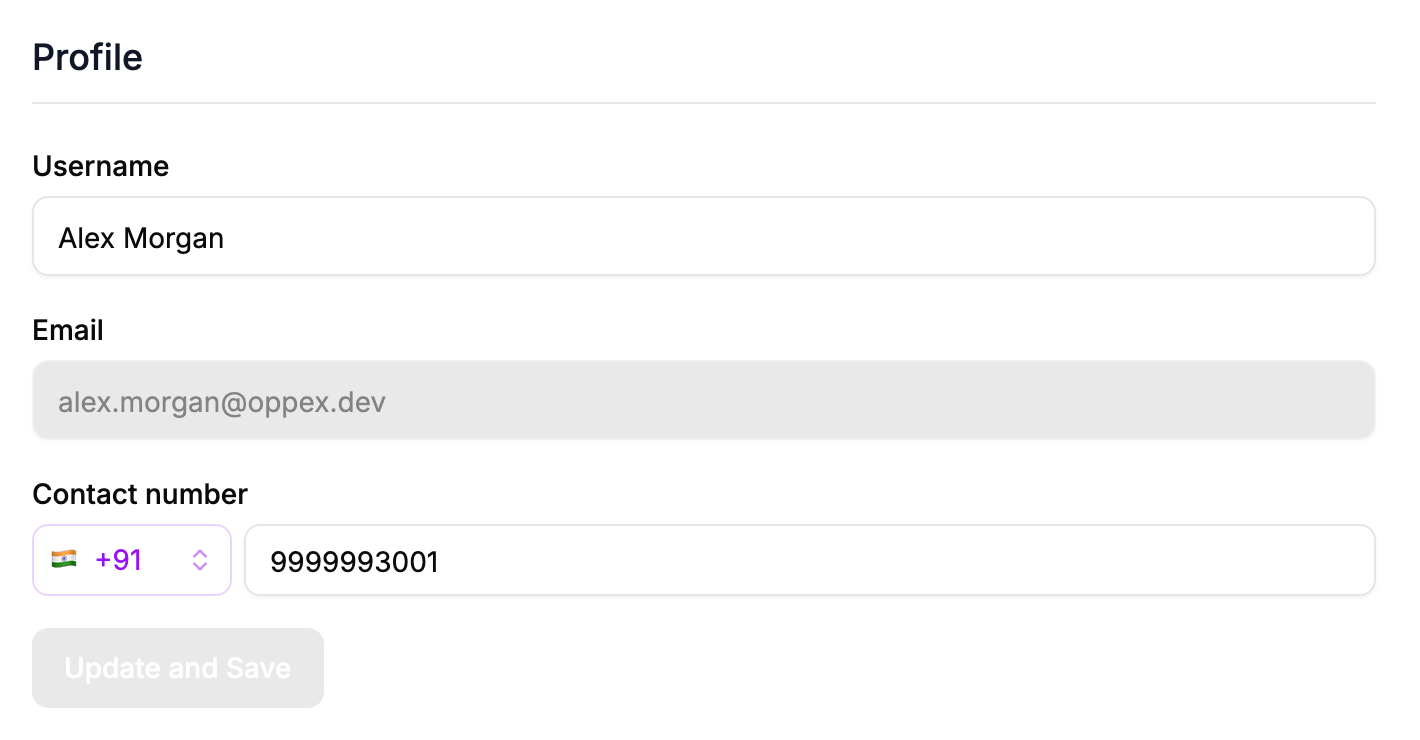
- Change your Username or your Contact number.
- Click Update and Save.
- Username is the name other people see on incidents, schedules, and escalation policies. It cannot be empty.
- Email cannot be changed.
- Contact number is the number Oppex calls and texts when you are paged. It is required. Pick your country code from the list; the countries offered are set for your organization.
Change your password
- On the Security page, enter your Current Password.
- Enter a New Password and repeat it in Confirm New Password.
- Click Update and Save.
After the change, Oppex signs you out, and you sign in again with the new password.
A new password must be at least 8 characters long and contain an uppercase letter, a lowercase letter, a number, and a special character. The checklist under the field does not list the lowercase rule, but Oppex still enforces it and rejects the password if it is missing.
Set your preferences
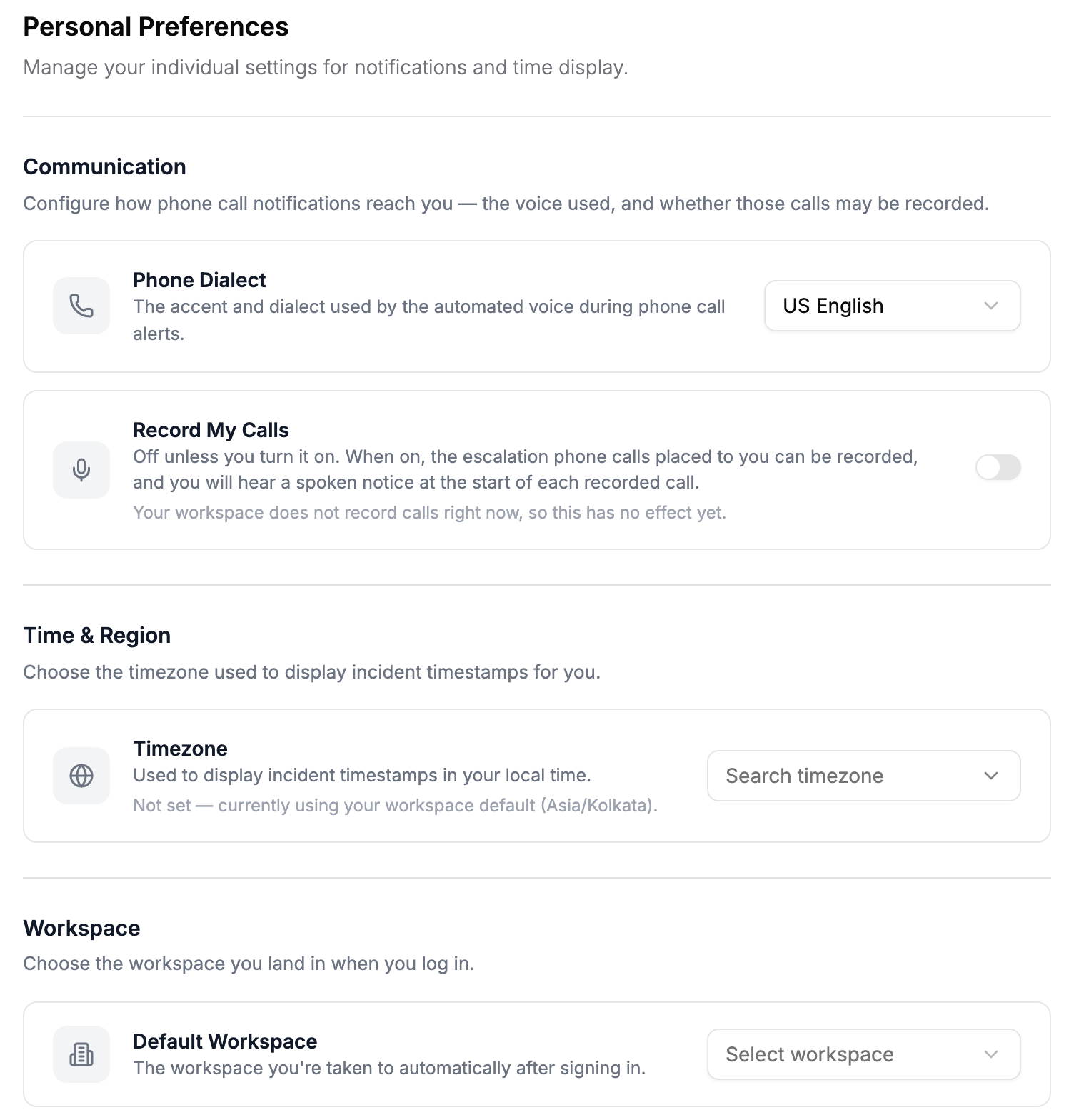
The Preferences page saves each setting as soon as you change it. There is no Save button.
Choose the voice that calls you
Phone Dialect sets the accent of the automated voice in incident phone calls: US English, UK English, or Indian English. The default is US English. The follow-up prompts during the call, such as the options to acknowledge, use the same voice.
Opt in to call recording
Record My Calls allows the escalation calls placed to you to be recorded. It is off until you turn it on. A call is recorded only when your workspace has also turned on call recording. If it has not, the page tells you that the setting has no effect yet.
Your choice applies in every workspace you belong to. When a call is recorded, you hear a spoken notice at the start. For more on phone calls, see Set up how you are paged.
Show timestamps in your own time zone
Timezone sets the time zone that Oppex uses to show incident timestamps to you. Until you choose one, Oppex uses your workspace's time zone, and the page shows which one.
Your choice applies in every workspace. It changes only how times are displayed to you. Business hours and other workspace schedules still follow the workspace time zone.
There is no option to clear your time zone. To follow the workspace time zone again, select the same time zone the workspace uses. Oppex then stops treating it as a personal choice, and your display follows the workspace if its time zone changes later.
Choose the workspace you land in
Default Workspace sets the workspace Oppex opens after you sign in. It appears only if you belong to more than one workspace, and a change applies from your next sign-in. See Workspaces.
Reminders before your on-call shifts, and emails when you are assigned to cover a shift, are set on Settings > Personal > Notifications. See On-call emails.