Logging into Oppex
You can sign in to Oppex in a web browser or in the Oppex mobile app. The web app accepts your email address and password, or single sign-on (SSO) with Google, Slack or JumpCloud. The mobile app accepts your email address and password, Google, or a one-time password (OTP) sent to your phone.
You need an Oppex account before you can sign in. If you have not created one yet, follow Signup into Oppex (Single Workspace) or Signup into Oppex (Multiple Workspaces).
| Sign-in method | Web app | Mobile app |
|---|---|---|
| Email address and password | Yes | Yes |
| Yes, when your company has enabled it | Yes, when your company has enabled it | |
| Slack | Yes, when your company has enabled it | No |
| JumpCloud | Yes, when your company has enabled it | No |
| One-time password by text message | No | Yes, for Indian (+91) phone numbers |
Signing in on the web
Use your company's Oppex address
Every company has its own Oppex web address, for example https://acme.oppex.ai. It is the
address your invitation link opened when you signed up. Sign in there. If you sign in at a
different company's address, Oppex rejects the attempt with the message "Invalid URL. Please
login with correct URL".
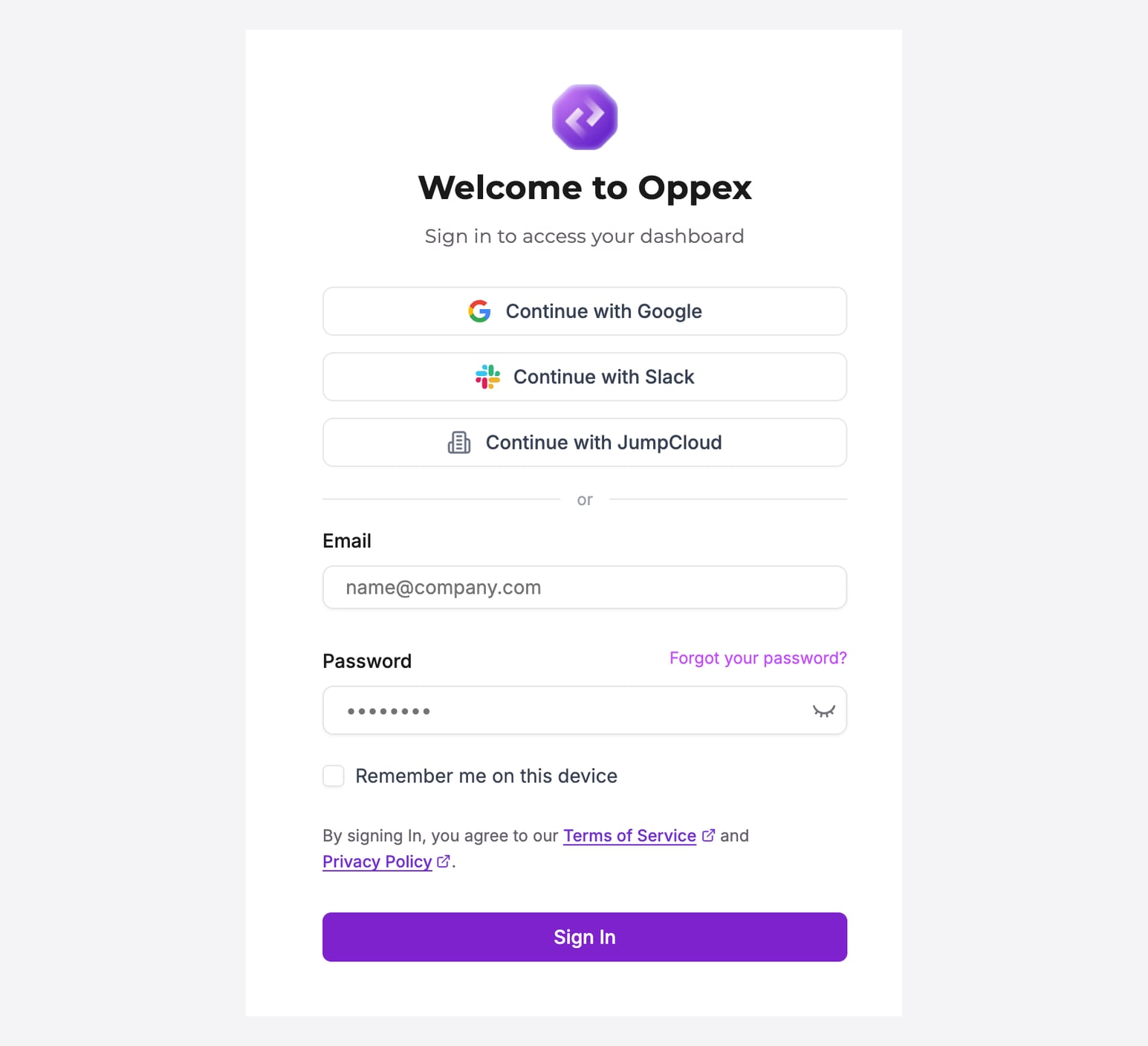
The sign-in page shows a button for each SSO provider your company has enabled. If your company has not enabled any, the page shows only the email and password fields.
Sign in with your email address and password
- Enter your email address in Email.
- Enter your password in Password.
- To stay signed in on this device, tick Remember me on this device.
- Click Sign In.
Oppex opens the Incidents page. If you followed a link to a specific Oppex page before you signed in, Oppex opens that page instead.
Sign in with Google, Slack or JumpCloud
- Click Continue with Google, Continue with Slack or Continue with JumpCloud.
- Sign in to the provider when it asks you to.
The provider returns you to Oppex, which signs you in. The provider account must use the same email address as your Oppex account, because Oppex finds your account by that address. Oppex does not create a new account from an SSO sign-in.
Reset a forgotten password
- On the sign-in page, click Forgot your password?.
- Enter your email address in Email and click Send.
- Open the reset email and click its link.
- Enter your email address, enter a new password in New Password and Confirm Password, and click Create New Password.
- Sign in with the new password.
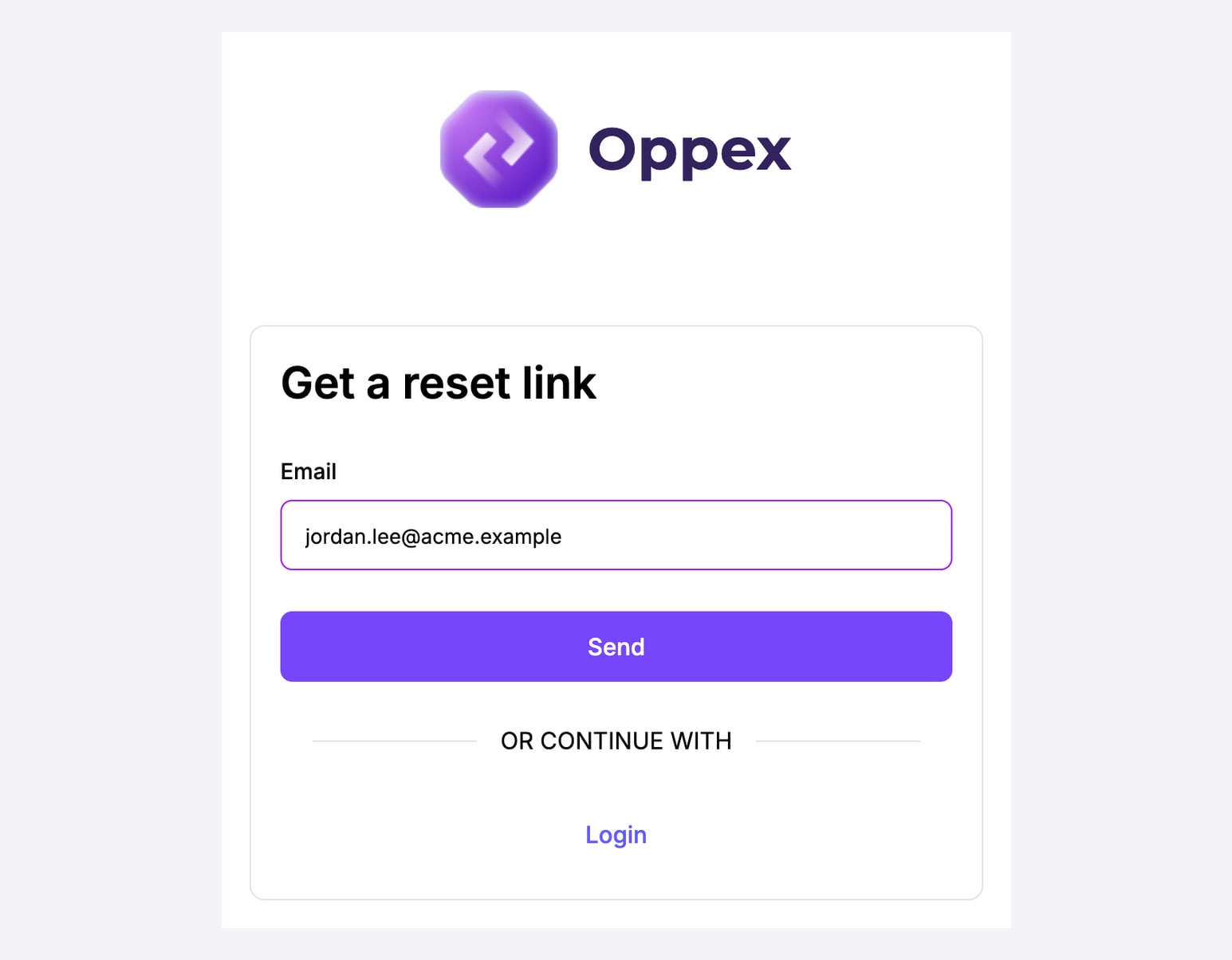
The reset link works for 1 hour. If you request another link, the earlier one stops working. The new password follows the same rules as at signup: at least 8 characters, with at least one uppercase letter, one lowercase letter, one number and one special character.
Which workspace opens after you sign in
If your account has a single workspace, Oppex opens that workspace. There is nothing to choose.
If your account has multiple workspaces, Oppex opens your default workspace. You set it under Settings → Personal → Preferences, in the Workspace section. Default Workspace is "the workspace you're taken to automatically after signing in".
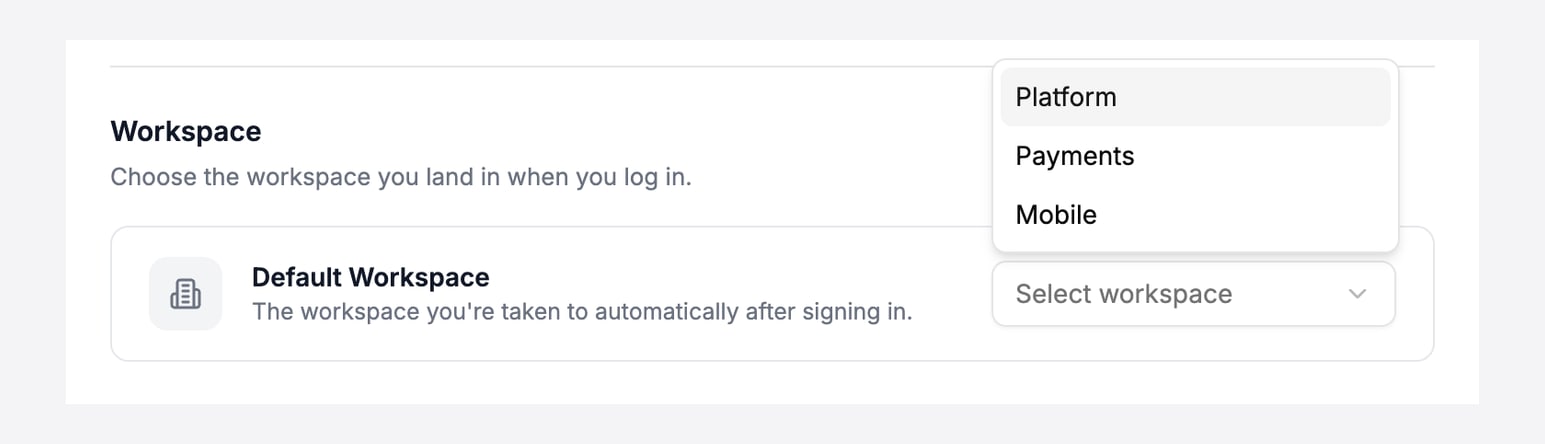
If you have not chosen a default, Oppex opens your account's default workspace when you are a member of it, and otherwise the first workspace you belong to. The Workspace section appears only when you belong to more than one workspace. To move to another workspace after you sign in, open your profile menu and select it under Workspace. For more about workspaces, see Workspaces.
Signing in on the mobile app
Get the app
Install Oppex from the App Store on an iPhone, or from Google Play on an Android phone. The mobile app does not ask for your company's Oppex address. It finds your company from the account you sign in with.
The app opens on Sign in with email. The Login with phone OTP and Sign in with email links switch between the two sign-in forms, and switching clears what you have typed.
Sign in with your email address and password
- Enter your email address in Email address.
- Enter your password in Password.
- Tap Sign In.
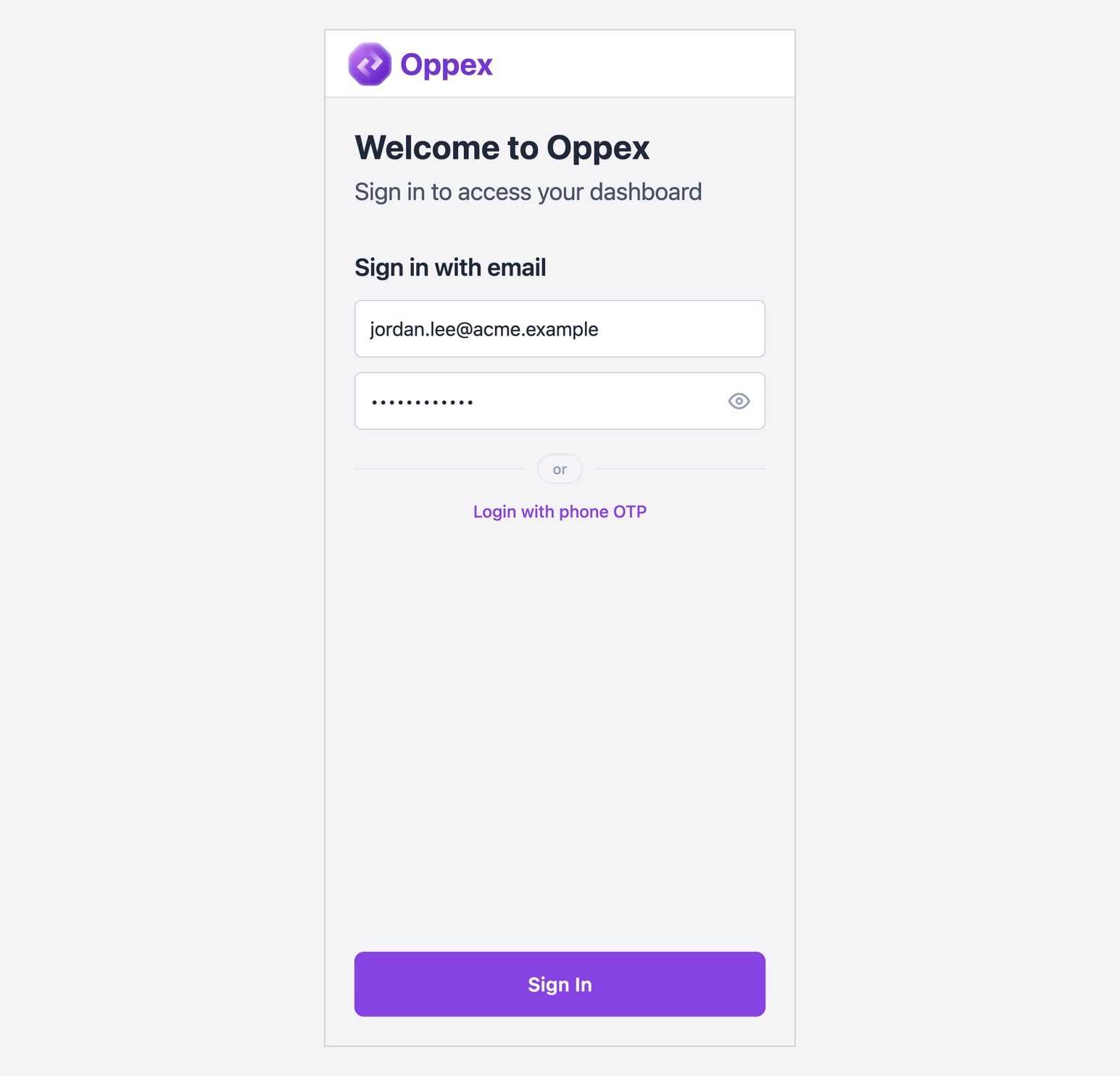
The app has no password reset. If you forget your password, reset it on the web as described in Reset a forgotten password, then sign in on the app with the new password.
Sign in with Google
Google is the only SSO provider in the mobile app. The installed app shows Continue with Google above the email fields. Signing in with it works only when your company has enabled Google sign-in.
- Tap Continue with Google.
- Choose your Google account.
The Google account must use the same email address as your Oppex account. If Oppex cannot sign you in, the app shows "Authentication failed". That message appears when no Oppex account uses that Google address, and also when Google sign-in is turned off for your company. If you close the Google window without choosing an account, the app stays on the sign-in screen and shows no error.
The mobile app does not offer Slack or JumpCloud sign-in. If you created your account with an email address and password, use them on the mobile app. If you created your account with Slack or JumpCloud, it has no Oppex password, so sign in on the mobile app with a one-time password.
The screenshot above does not show Continue with Google, because it was taken from a build of the app that runs in a web browser, where Google sign-in is not available. The installed iPhone and Android apps show the button.
Sign in with a one-time password
Oppex can text a 6-digit code to the phone number on your Oppex profile.
- On the sign-in screen, tap Login with phone OTP.
- Enter your 10-digit mobile number after +91, and tap Send OTP.
- Enter the 6-digit code from the text message. The app signs you in when the sixth digit is entered, or you can tap Sign in.
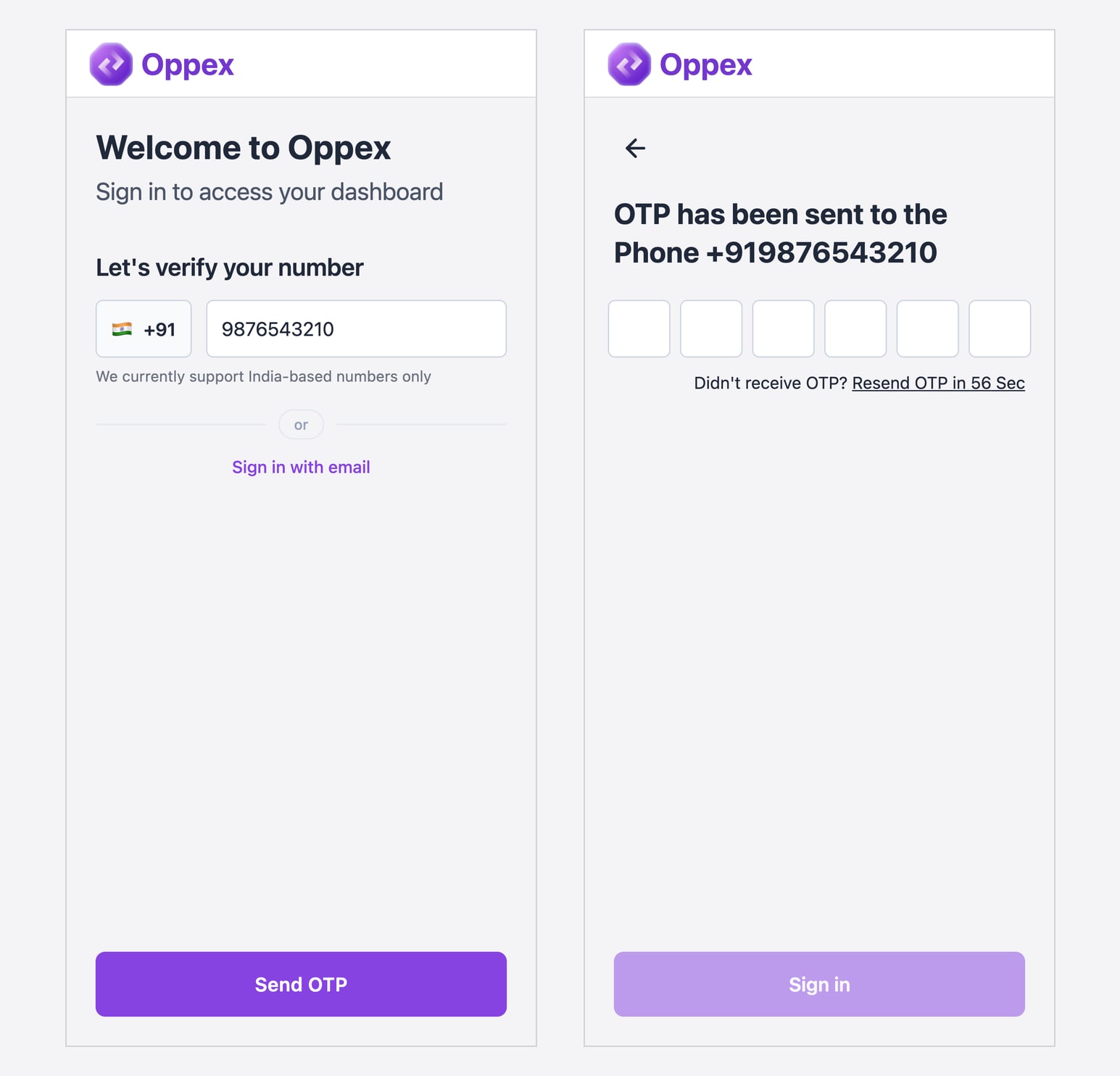
The number must be the Contact number on your Oppex profile, and it must be an Indian (+91) number. If no Oppex account has that number, the app shows "This number [your number] is not registered with Oppex". To change the number on your profile, see Checking your contact number.
The code has these limits:
| Limit | What happens |
|---|---|
| The code is valid for 5 minutes. | After 5 minutes, request a new code. |
| You can enter a wrong code up to 3 times. | Your next attempt shows "Too many failed attempts. Please request a new OTP." and the app locks the code boxes. Tap Resend OTP to get a new code. |
| Resend OTP becomes available 59 seconds after a code is sent. | Until then, the link shows how many seconds remain. |
| You can request up to 5 new codes in 30 minutes. | After that, wait 30 minutes from your last request before you ask again. While the limit applies, Send OTP shows "Too many OTP requests. Please try again later." and Resend OTP shows "Failed to resend OTP. Try again." |
Which workspace opens after you sign in
If your account has a single workspace, the app opens that workspace.
If your account has multiple workspaces, the app opens the same default workspace as the web app. After that, it remembers the workspace you last chose on that phone and opens it the next time you sign in.
To switch workspaces in the app, open the side menu and tap the Workspace row, which shows the workspace you are in. The row appears only when you belong to more than one workspace. In Switch Workspace, tap the workspace you want. The app switches straight away, and the current workspace carries an Active label. When you belong to more than five workspaces, a search box helps you find one.
If your phone number is registered in more than one Oppex organization, the app asks which one to open after you enter the code. Select it under Select your workspace and tap Continue.
Staying signed in and signing out
On the web, a password sign-in lasts 12 hours. If you tick Remember me on this device, Oppex keeps you signed in on that browser for up to 30 days. A Google, Slack or JumpCloud sign-in keeps you signed in for up to 30 days without the checkbox. To sign out, open your profile menu and select Sign Out.
On the mobile app, you stay signed in for up to 30 days, including when you close and reopen the app. After 30 days, the app asks you to sign in again. To sign out, open the side menu, tap Log Out, and confirm with Log Out.
Common sign-in messages
| Message | What it means | What to do |
|---|---|---|
| User not found | No active Oppex account uses that email address, or the account has been removed. | Check the address, or ask your administrator whether your account is active. |
| Invalid email or password. Please try again. | The password does not match the account. | Try again, or reset your password on the web. |
| No password set. Sign in with a different method. | You created your account with SSO, so it has no Oppex password. | On the web, use the SSO button you signed up with. On the mobile app, use Google or a one-time password. |
| Invalid URL. Please login with correct URL | You are on a different company's Oppex web address. | Sign in at your own company's address. |
| Provider sign-in is disabled for your organization | Your company has not enabled that SSO provider. | Use another method, or ask your administrator. |
| This number [number] is not registered with Oppex. | No account has that number as its contact number. | Sign in with email, then update Contact number on your profile. |
| Too many failed attempts. Please request a new OTP. | You entered 3 wrong codes. | Tap Resend OTP for a new code. |
| Account configuration error. Please contact support. | More than one account in your company uses the same phone number. | Contact Oppex support at support@oppex.ai. |