Signup into Oppex (Single Workspace)
Oppex accounts are invitation-only. A colleague sends you an invitation by email, and you open the link in that email to create your account. This page walks through both halves of that process for an account that uses a single workspace.
This page covers accounts with a single workspace. If the Invite User panel in your account shows a Workspace access section, or your profile menu lists more than one workspace, follow Signup into Oppex (Multiple Workspaces) instead.
What you need before you start
Have the following ready before you open your invitation:
| You need | Why |
|---|---|
| An invitation sent to your work email address | Oppex does not offer self-signup. You can create an account only from an invitation link. |
| A phone number, including its country code | The signup form asks for your phone number first, and you cannot finish signup without it. |
| A password that meets the password rules, or a Google, Slack or JumpCloud account | You choose how you sign in during signup. The sign-in providers you can use depend on what your company has enabled. |
| Up to 7 days from the date the invitation was sent | An invitation link stops working 7 days after it is sent. |
How you get invited
An administrator in your company sends the invitation from Settings → Users & Roles. The administrator follows these steps:
- Click + Invite User.
- Enter your work email address under Email address.
- Choose your Role.
- Click Send Invite.
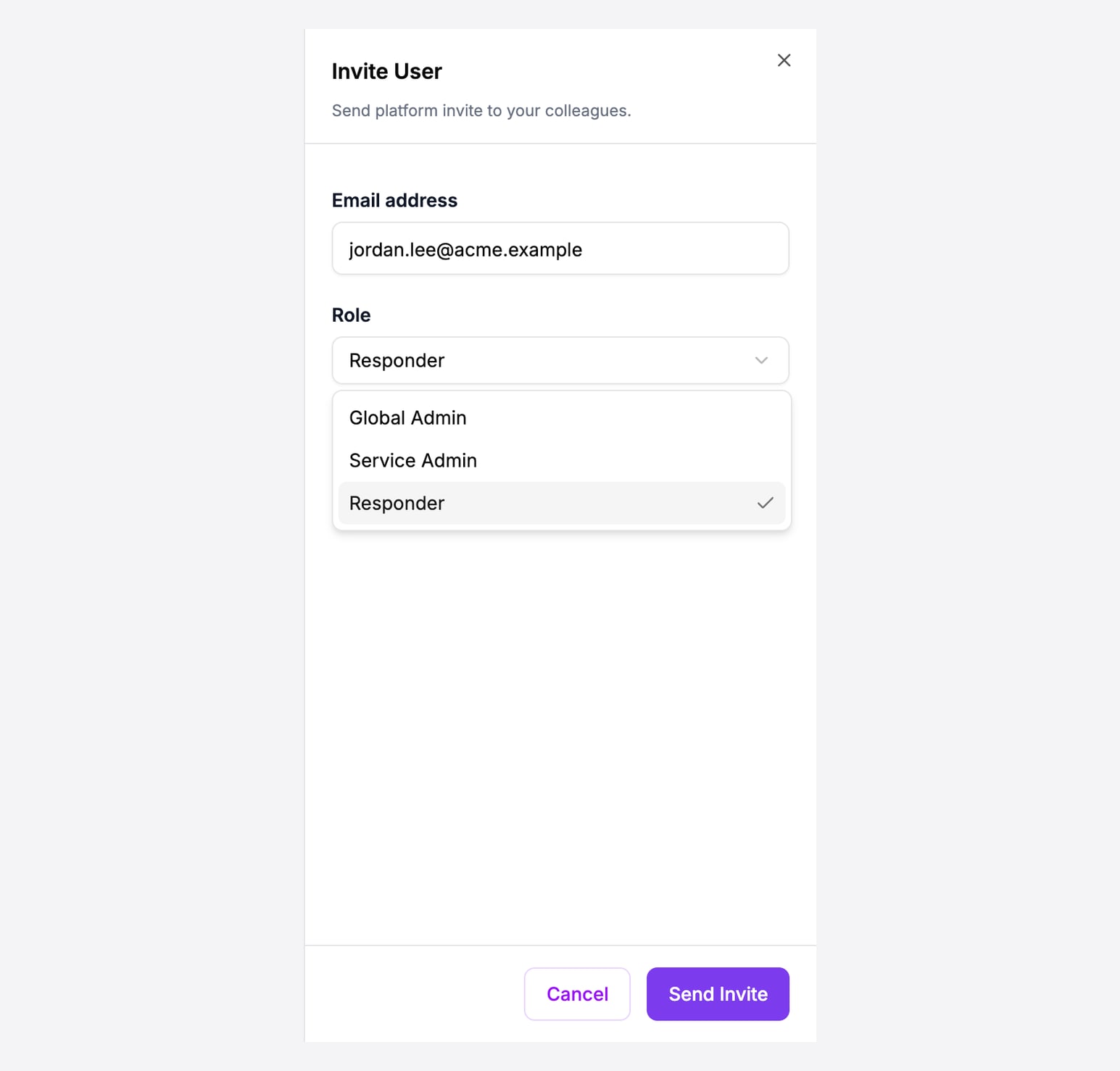
The roles in the Role list depend on the inviter's own role, because nobody can give a role higher than their own. An Owner can choose Owner, Global Admin, Service Admin or Responder. A Global Admin cannot choose Owner, and a Service Admin can choose only Service Admin or Responder. Responders cannot invite users. The list opens on Responder.
Oppex accepts an invitation only for an address on one of your company's approved email domains. An invitation to a personal address, or to a domain your company has not registered with Oppex, is rejected with the message "Email domain not whitelisted for this client". To add another domain, contact Oppex support at support@oppex.ai.
For the full administrator procedure, including how to change a user's role after they join, see Inviting Users.
The invitation email
The invitation arrives from Oppex Notifications, with the subject line "Inviter's name has invited you to join Oppex." Open it and click Accept Invitation, or copy the link below the message into your browser.
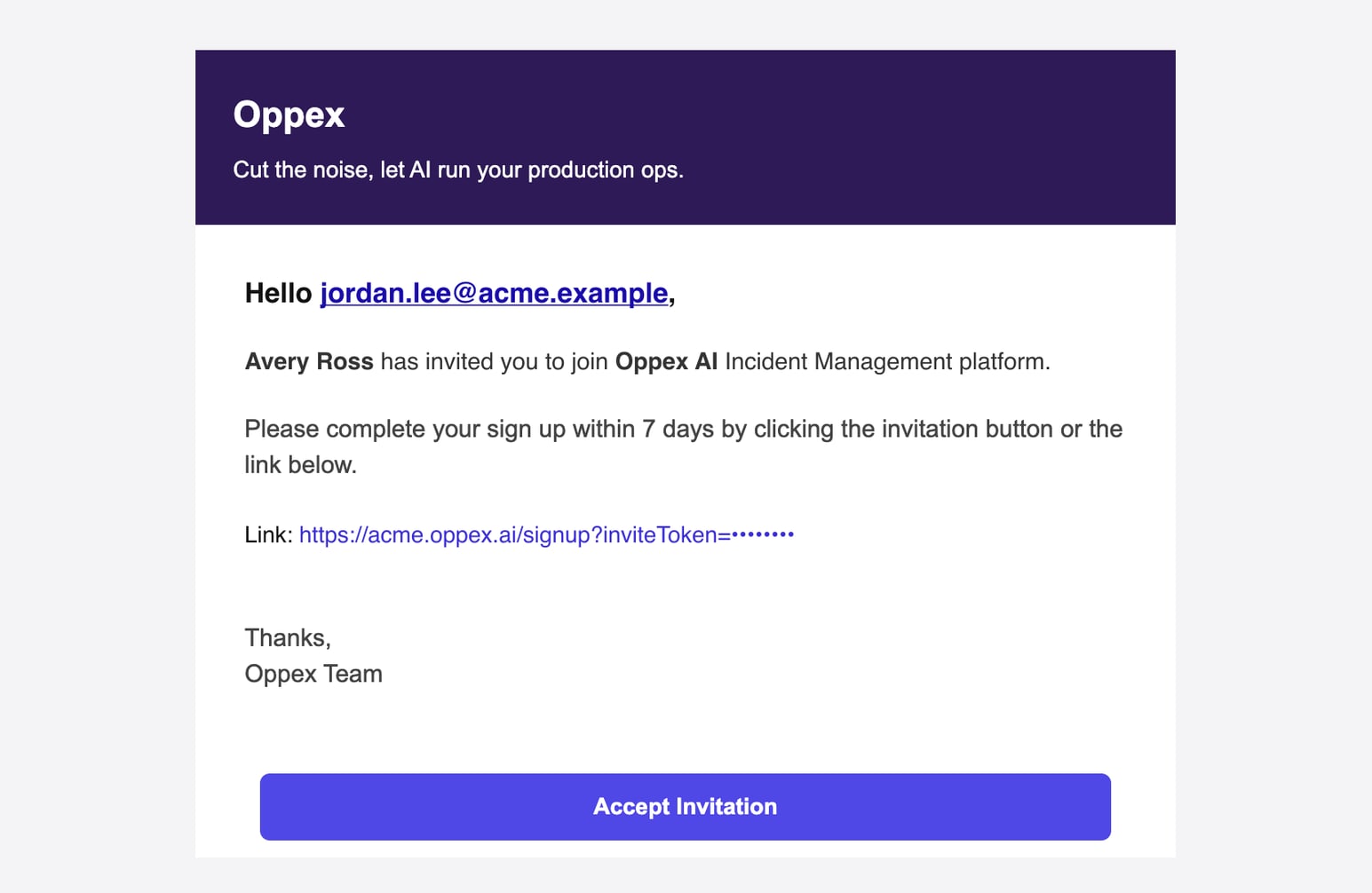
The link opens your company's own Oppex address, for example https://acme.oppex.ai. That is
also the address you sign in at after signup, so keep a note of it. Each invitation link is
personal to you and works for one signup only. Do not forward it.
Signing up
Signup takes two or three short steps, depending on whether your company has enabled any sign-in providers.
Step 1: Enter your phone number
The Email field already contains the address you were invited with. It carries an Invited label and you cannot change it.
- Select your country code from the list next to Phone Number.
- Enter your phone number without the country code.
- Click Continue.
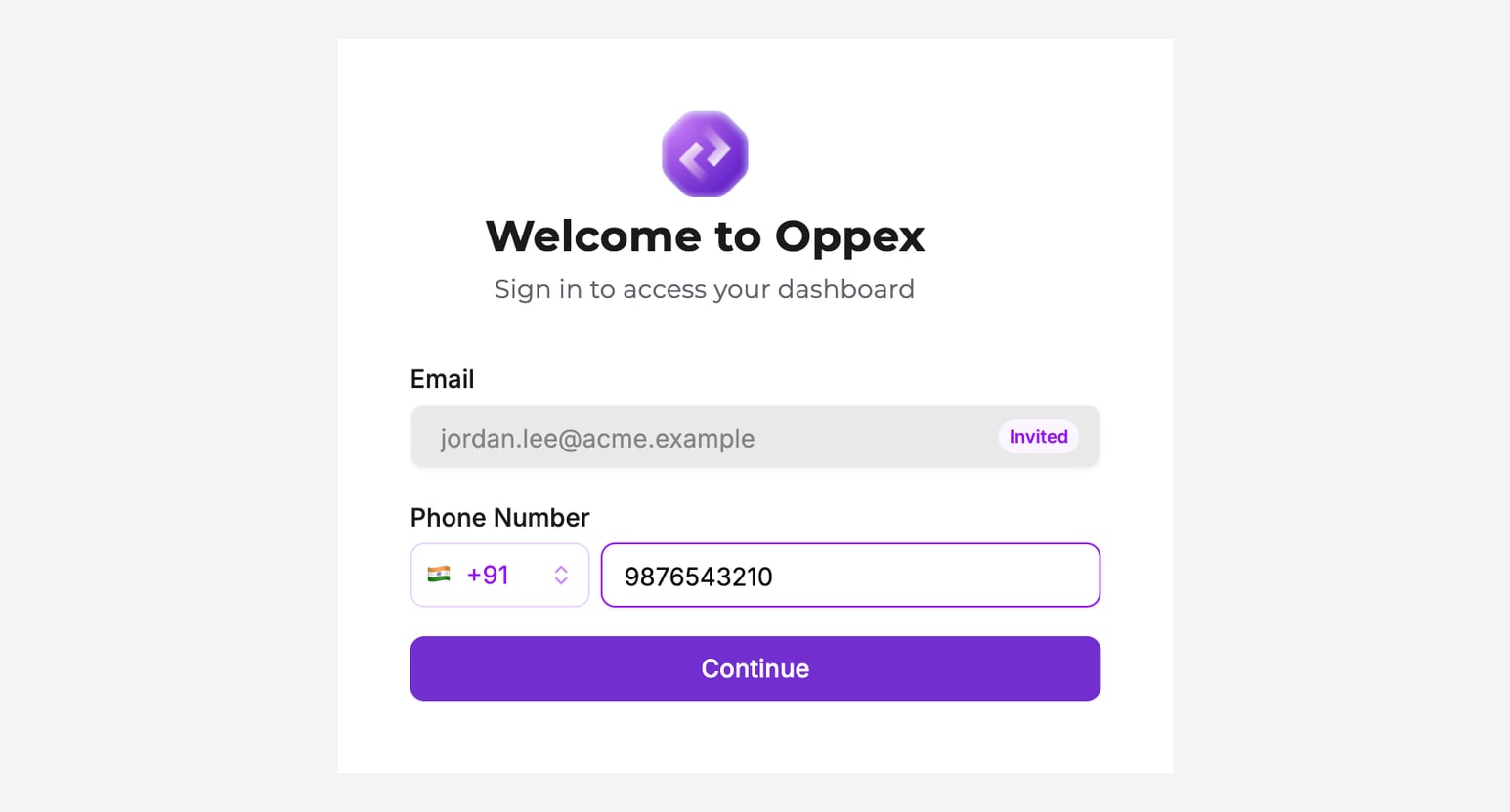
Oppex accepts mobile and landline numbers. It rejects toll-free, premium-rate, shared-cost, Voice over IP (VoIP), pager and voicemail numbers, and shows the reason under the field. The country list shows only the countries your company allows. If your country is missing, ask your administrator.
Step 2: Choose how to sign up
If your company has enabled one or more sign-in providers, Oppex asks how you want to sign up. If no provider is enabled, Oppex skips this step and goes straight to Step 3.
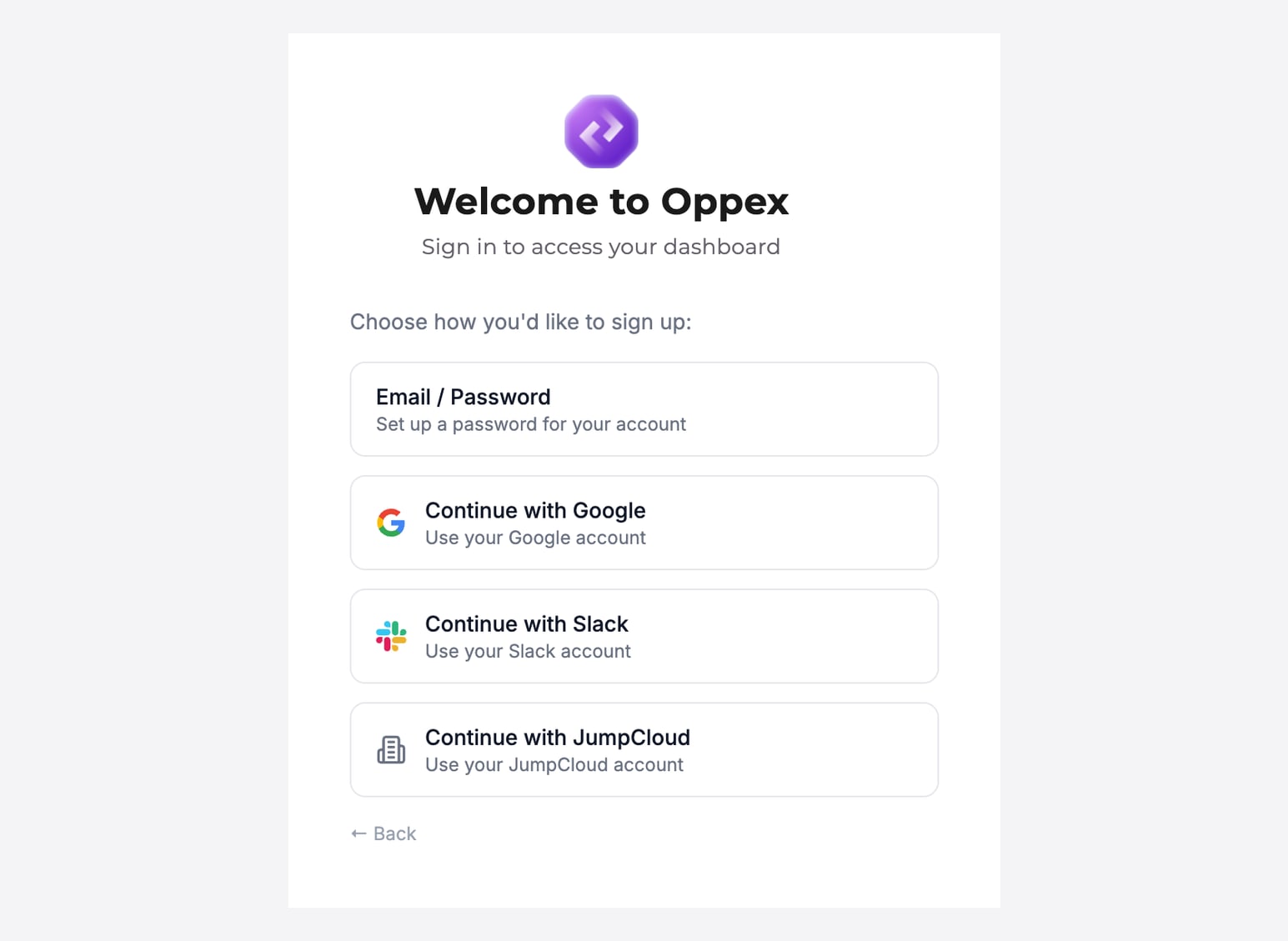
- Select Email / Password to create a password for Oppex, and continue to Step 3.
- Select Continue with Google, Continue with Slack or Continue with JumpCloud to sign up with that provider. Sign in to the provider with the same email address your invitation was sent to. Oppex rejects a provider account with a different address, with the message "Email does not match invite".
The options you see match the providers your company has enabled, so your list may be shorter than the one shown here.
Step 3: Enter your name and password
- Enter your name in Full Name.
- Enter a password in Password, and enter it again in Confirm Password.
- Click Create Account.
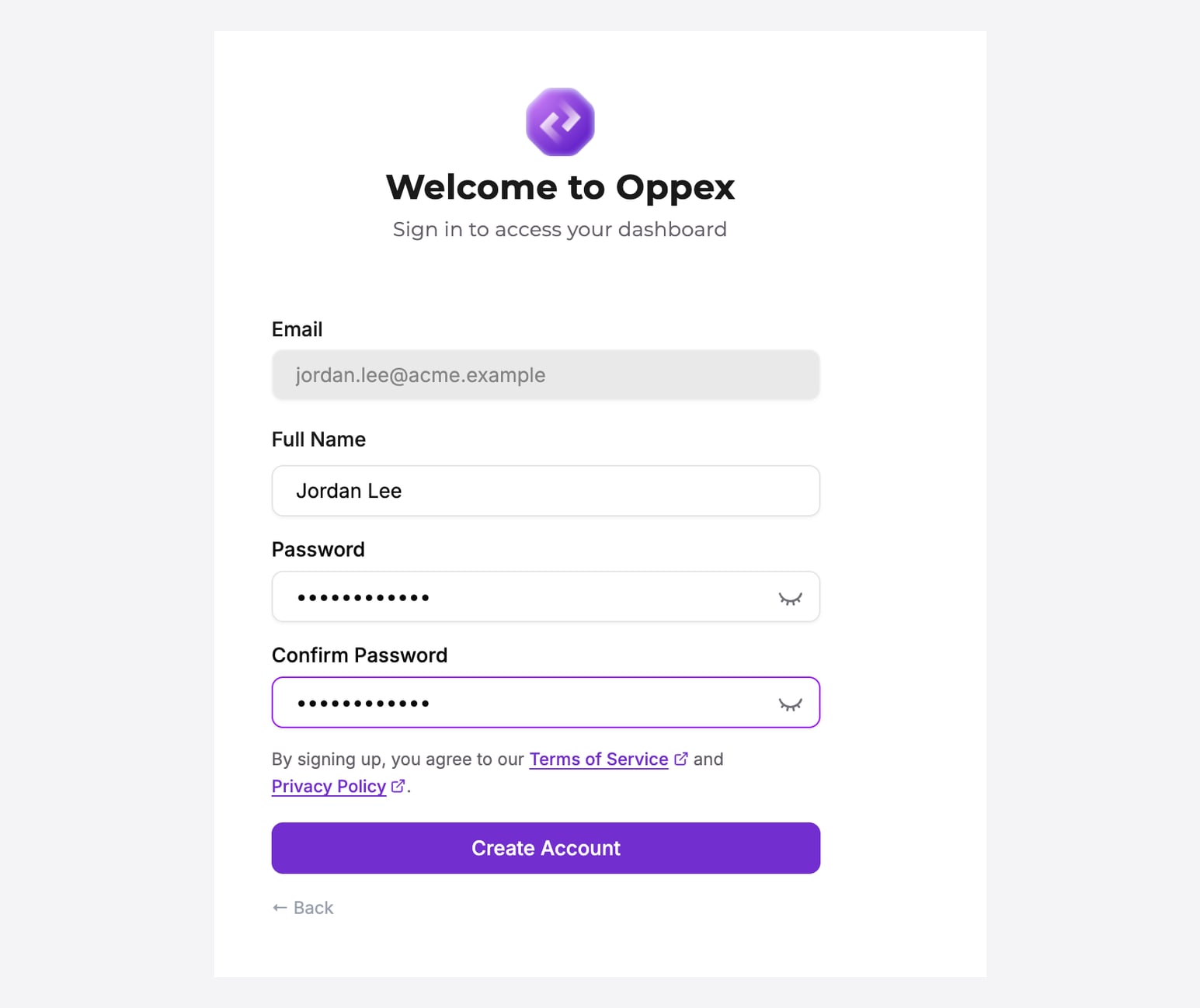
Your password must be at least 8 characters long and include at least one uppercase letter, one lowercase letter, one number and one special character. If it does not, Oppex shows the rule under the Password field and does not create the account.
When the account is created, Oppex shows "Account created successfully!", signs you in, and opens the Incidents page. Your role is the one your administrator chose in the invitation.
After you sign up
Signing in again
Sign in at your company's Oppex address, the same address your invitation link opened. You can sign in with your email address and password, or with any sign-in provider your company has enabled. Signing in at a different company's address fails with the message "Invalid URL. Please login with correct URL".
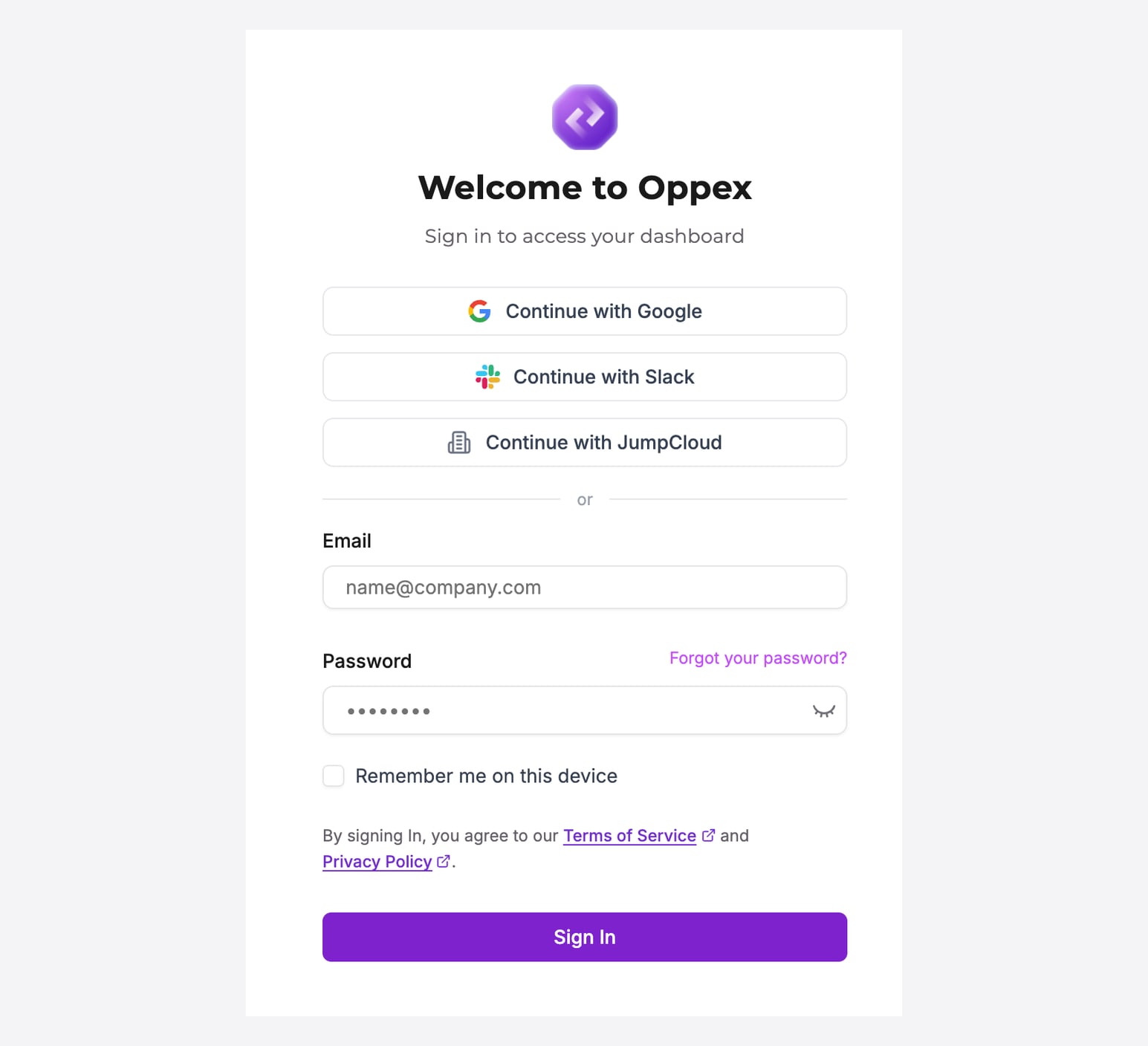
If you forget your password, click Forgot your password? and enter your email address. Oppex emails you a reset link that works for 1 hour.
Checking your contact number
You can change the phone number you entered during signup at any time. Open your profile menu, select Settings, and then select Personal. Update Contact number and click Update and Save.
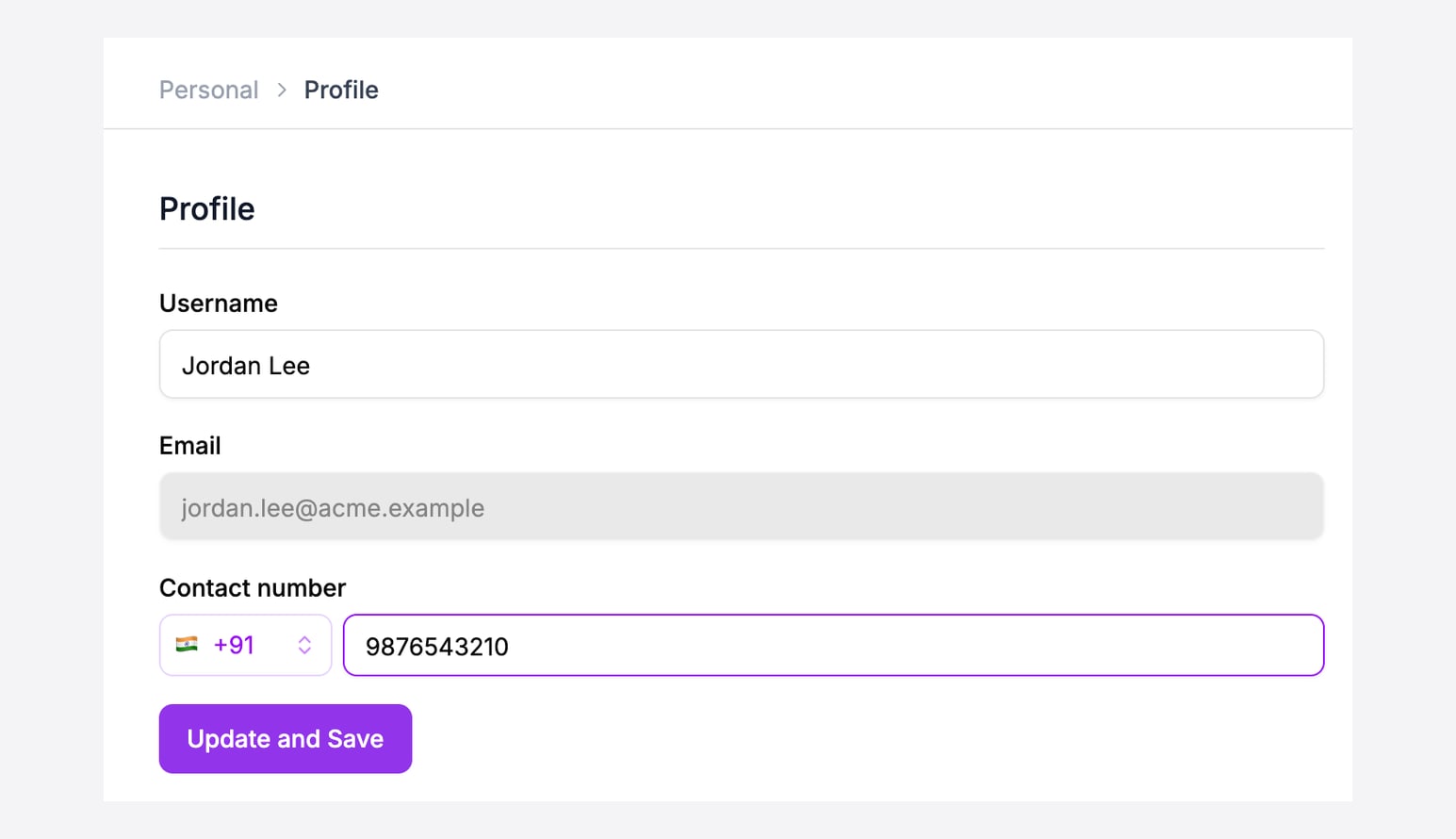
Your email address cannot be changed after signup.
If your invitation link does not work
An invitation link stops working in any of these cases:
- It was sent more than 7 days ago.
- Your administrator sent you a newer invitation. Only the most recent link works.
- Your administrator revoked the invitation.
- The link has already been used to create an account.
When you open a link that no longer works, Oppex shows an error message and the Email field on the signup form is empty. Ask your administrator to send you a new invitation.
To send one, the administrator opens Settings → Users & Roles and sets the Status filter to Invitation Sent. They open the actions menu at the end of your row and select Re-Invite User. Oppex emails you a new link that is valid for another 7 days, and your earlier link stops working.
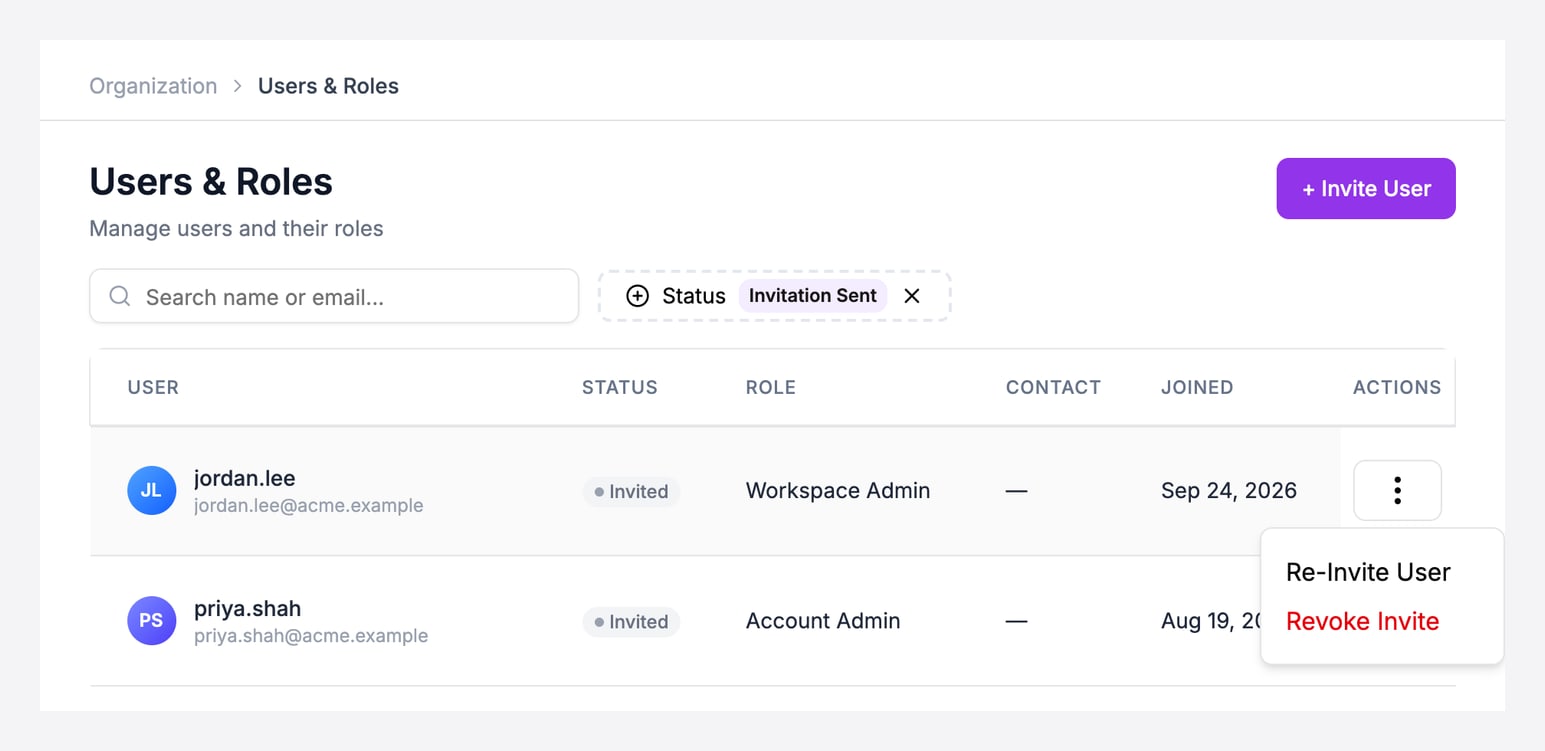
Revoke Invite cancels a pending invitation, so its link stops working without a replacement.