Use incident fields in rules
Every incident carries a title and a block of details, and it also carries five labels that the sending tool attaches to the alert: its source, tenant, component, type and external ID. You can use these labels in your rules. A routing rule can send every alert for one customer to the team that owns that customer, a parser can store the part of a component name you care about, a grouping strategy can group by tenant, and a notification condition can restrict a channel to one customer.
This page covers the two functions that read these labels, where each one is available, and what happens when an alert does not carry a label.
The five incident fields
| Field | What it holds |
|---|---|
source | The tool that sent the alert, for example New Relic. |
tenant | The customer or account the alert belongs to. |
component | The part of the system the alert came from, for example a host. |
type | The kind of alert. |
external_id | The identifier the sending tool gave the alert. |
Field names are not case-sensitive, and spaces around the name are ignored. These five are the only labels the functions accept. An alert posted through the Oppex API or the generic webhook can carry all five. Other sources send a subset: most send a source and an external ID, and a tenant comes only from sources that have the concept, such as the generic webhook, Google Cloud Monitoring, Cloudflare and OpenSearch. A field the sender did not provide is empty on the incident.
The two functions
| Function | What it does |
|---|---|
payload_matches(field, pattern) | Is true when the field matches the pattern. |
extract_from_payload(field, /regex/) | Keeps the part of the field that sits inside the parentheses of the regular expression. |
You split the arguments at the first comma, so a comma inside the pattern is safe. You join
functions with &&& (and) and ||| (or), write ! directly in front of a function to negate it,
and group with ((( and ))). ! is applied first, then &&&, then |||.
Where you can use each function depends on the feature:
| Where | payload_matches | extract_from_payload | The pattern is |
|---|---|---|---|
| Service Routing rule | Yes | No | Plain text, not case-sensitive. The field only has to contain it. |
| Workspace parser | Yes, as the condition | Yes, as the extract rule | A regular expression between slashes. |
| Algorithmic grouping | Yes, as the match expression | Yes, as an attribute | A regular expression between slashes. |
| Notification condition | No. The five fields are available by name instead. | No | Set by the condition functions. |
Regular expressions are case-sensitive. Start one with (?i) to ignore case.
Route incidents to a service by tenant
A routing rule decides which service an incident lands on when the sender did not name one.
- Open Settings, then your workspace, then Service Routing.
- Click Add Rule.
- In step 1 · Match, next to Look in, select Expression.
- In Custom Expression, type
payload_matches(. Oppex lists the five fields. Select one. - Complete the expression, for example
payload_matches(tenant, redbull) &&& !payload_matches(type, test). Wait for Expression is valid to appear. - Click Next, choose where matching incidents go, click Next, and then click Save.
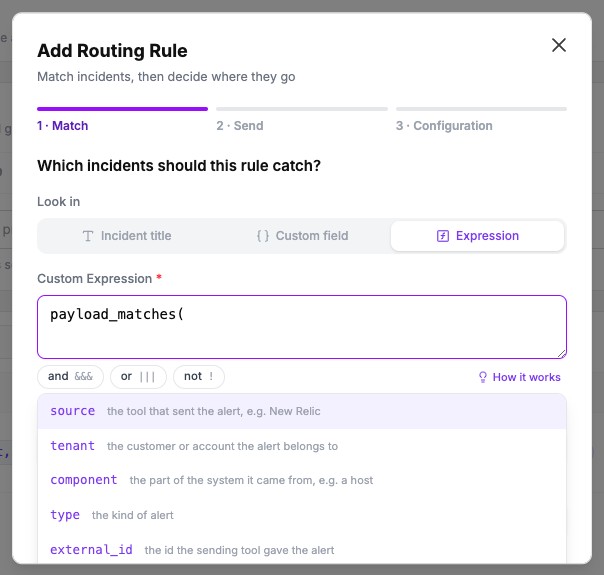
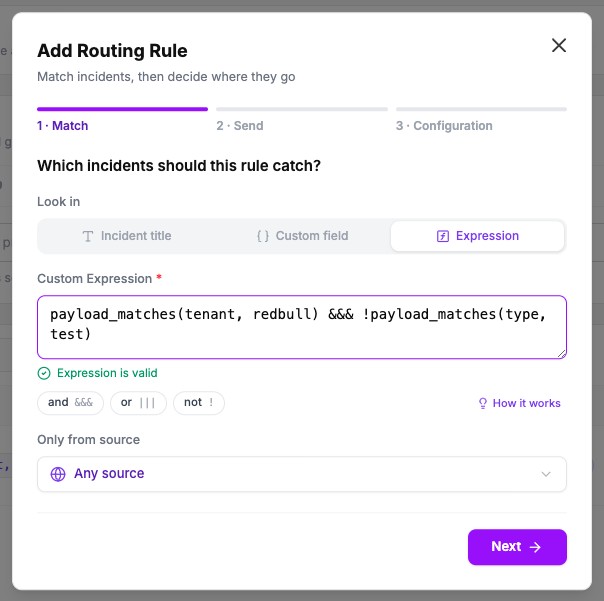
The tenant and type values below show how that expression behaves.
| Tenant | Type | Rule matches | Why |
|---|---|---|---|
RedBull-Racing | alert | Yes | The tenant contains redbull, ignoring case, and the type does not contain test. |
redbull | load-test | No | The type contains test, and the expression excludes it. |
Mercedes | alert | No | The tenant does not contain redbull. |
| Not sent | alert | No | An empty tenant matches nothing. |
If your text calls payload_matches with a field name Oppex does not know, or with no pattern,
Oppex refuses to save the rule and shows the reason, for example payload_matches: unknown field 'colour'. Allowed fields: source, tenant, component, type, external_id. Without this check, the
text would be saved as a plain title pattern and match unrelated incidents.
Fill a variable from an incident field
A workspace parser reads a value from each new incident and stores it in a workspace variable.
Use payload_matches as the condition and extract_from_payload to pick the value.
- Open Settings, then your workspace, then Parsers.
- Click Write a rule by hand.
- Enter a Name and choose the Linked variable the parser fills.
- In Condition, enter
payload_matches(tenant, /^redbull/). - In Extract regex, enter
extract_from_payload(component, /^(\w+)-/). - Set Run order, choose whether to fill past incidents, and click Add parser.
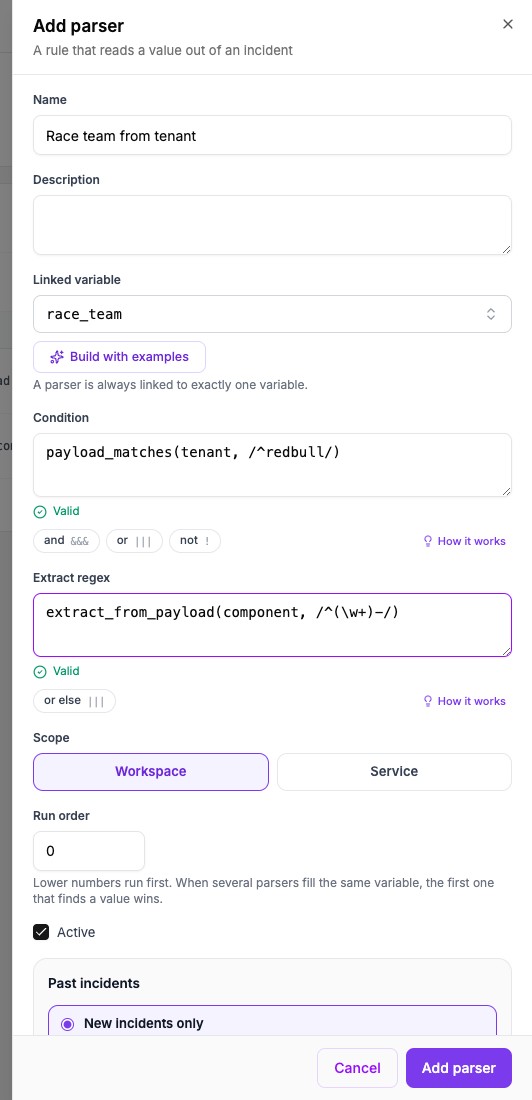
The part of the field inside the parentheses becomes the value. For an incident whose tenant is
redbull-racing and whose component is pit-wall-api, the condition matches, and the extract rule
stores pit, because (\w+) captures the text before the first hyphen. An incident whose tenant is
RedBull-Racing does not match, because the condition is case-sensitive.
When the condition is false, or the field is empty, the parser stores no value for that incident, and any later parser for the same variable gets its turn.
Group incidents by an incident field
An algorithmic grouping strategy uses the match expression as its gate and an attribute to build the group name.
- Open the service, then its Algorithmic Grouping page.
- Click Add Strategy.
- Enter a Strategy Name.
- In Match Expression, enter
payload_matches(tenant, /^redbull$/). - Click Add Attribute, name it, and keep Should match.
- In Extraction Expression, enter
extract_from_payload(component, /^(\w+)-/). - Click Create Strategy.
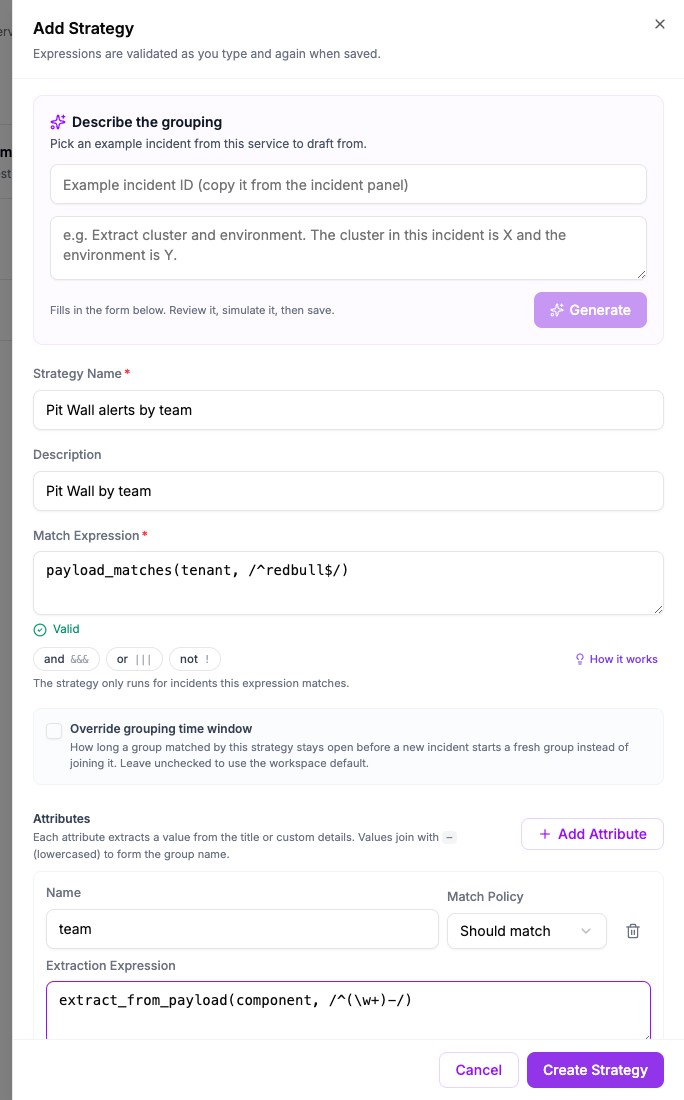
With this strategy, an incident whose tenant is exactly redbull and whose component is
pit-wall-api joins a group named pit. A later incident with the component pit-lane-timing also
produces pit, so it attaches to the open incident that already carries that group. An incident
for any other tenant is not affected by the strategy.
If the Algorithmic Grouping page is not available, ask your account administrator to enable it.
Notify only for one customer
A notification condition is a saved test that a notification route can use, so that the route sends
only for incidents the test accepts. In a condition, the five fields are available by name with the
prefix incident.: incident.source, incident.tenant, incident.component, incident.type and
incident.external_id. You test them with the condition functions, such as equals, contains,
starts_with, matches, in and exists.
- Open Settings, then your workspace, then Conditions.
- Click Add condition.
- Enter a Name.
- Click Insert field and select a field, or type the name.
- Enter an expression, for example
equals(incident.tenant, "redbull") &&& matches(incident.component, /^pit-wall/). - When Valid expression appears, click Add condition.
- Open a service, add a notification route, and choose the condition in the route's Condition list.
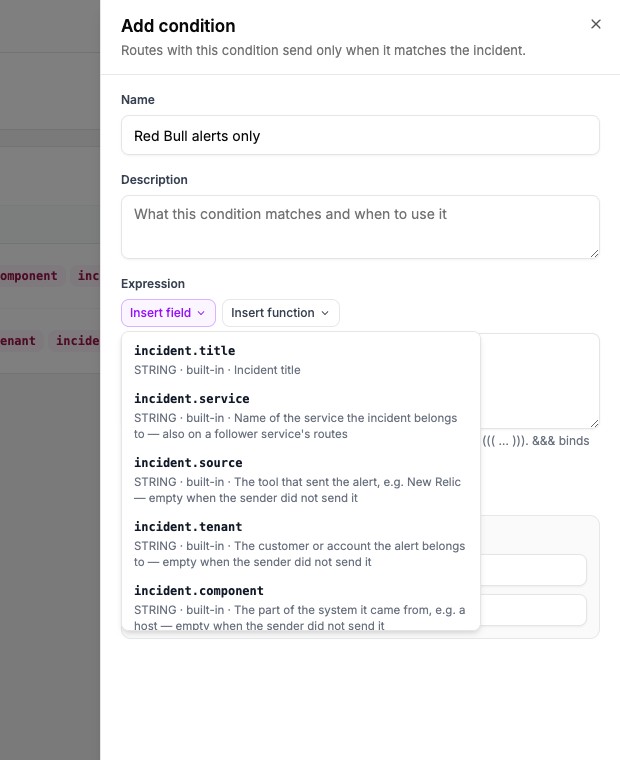
The panel also offers sample values, so you can check an expression before you save it.
!equals(incident.tenant, "redbull") is true for an incident that carries no tenant, because the
tenant is simply not redbull. This differs from !payload_matches in routing, parsers and
grouping, where a negated test on an empty field is false. Add exists(incident.tenant) to the
condition if you want to exclude incidents with no tenant.
Pick a field without typing it
Every expression editor that accepts payload_matches or extract_from_payload helps you write
it.
- Type the function name and an opening parenthesis. Oppex lists the five fields with a short description of each. Press Enter or click a field to insert it.
- Under the editor, the and, or and not chips write the operator symbols at the caret. Hover a chip to read what it does.
- Select How it works to see plain-language examples and add one to the editor.
When an alert does not send a field
A field the sender did not provide, or sent blank, is empty. In routing rules, parsers and grouping:
payload_matcheson an empty field is false.extract_from_payloadon an empty field stores nothing.!payload_matcheson an empty field is also false. A rule such as!payload_matches(tenant, mercedes)therefore does not match alerts that carry no tenant, which keeps a rule that suppresses incidents from silencing every alert whose sender never sends a tenant.
Notification conditions behave differently for negated tests, as the warning in the previous section describes.