
Managing API keys

An API key lets your own scripts, monitoring tools and systems call Oppex on your behalf. The API Keys page is where a workspace's administrators create those keys and control who can see their values. Every key is hidden by default and shown as a masked label, so a key value is never on screen unless someone deliberately reveals it.

To use a key to call the Oppex HTTP APIs, see API Keys under APIs & Tools.

Open the API Keys page​

  1. Open Settings.
  2. Under the workspace you want, select API Keys.

The page lists every key in that workspace with four columns: API Key (the masked value, with controls to reveal or copy it), Description, Access Level (Full Access or Read Only), and Created On.

Who can open this page

The API Keys page is available to a workspace's administrators — Workspace Admins, and Account Admins and Account Owners. Responders do not see it.
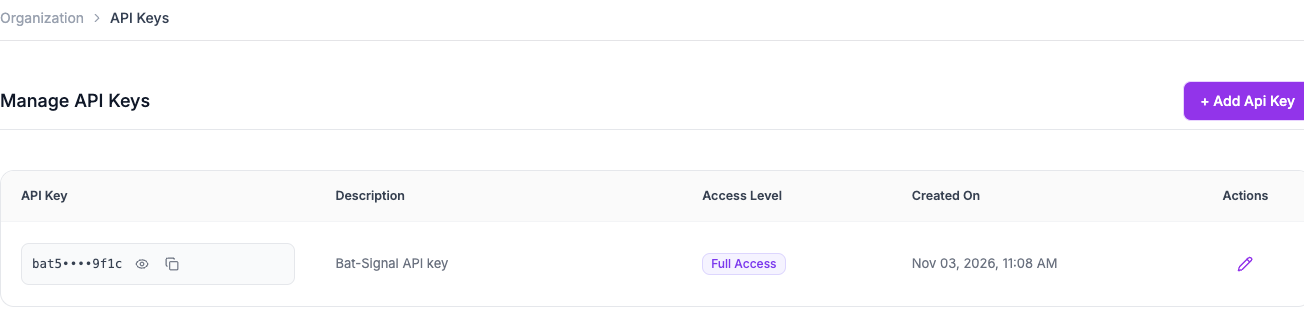
The API Keys page listing one key. The API Key column shows a masked value — the first four and last four characters with the middle hidden — followed by a reveal control and a copy control. The Description reads "Bat-Signal API key" and the Access Level is Full Access.

Read a masked key​

Oppex shows each key as a masked label — the first four and last four characters with the middle hidden, for example bat5••••9f1c. The masked label is enough to tell two keys apart and to recognise one you already use elsewhere, without putting the full value on screen.

The full value is never in the list. You retrieve it only through the Show or Copy control next to the key.

Reveal a key's full value​

Use this when you need to read the whole key — for example to paste it into a new tool for the first time.

  1. Find the key in the list.
  2. Select the Show control (the eye) next to its masked value.
  3. The full key replaces the masked label in place. Select Show again to hide it.
Revealing a key does not change it

Showing a key displays the same value it has always had. It does not rotate, regenerate or expire the key, and any system already using that key keeps working.

Copy a key without showing it​

Use this when you want the key on your clipboard but not on your screen.

  1. Find the key in the list.
  2. Select the Copy control next to its masked value.

Oppex copies the full key to your clipboard and confirms with API key copied to clipboard. The value stays masked on screen the whole time.

Create, describe or disable a key​

  • To create a key, select + Add Api Key, enter a Description, choose whether it is read-only, and save. The new key appears in the list, masked like the others, and you can reveal or copy it straight away.
  • To change a key's description, select the pencil in its Actions column. The description is the only detail you can edit — the key value and its access level are fixed once the key is created.
A key you create is yours to reveal

When you create a key, you can always reveal and copy its own value, whatever role you hold.

FAQ

What does the masked value tell me?

The masked value shows the first four and last four characters of the key with the middle hidden, for example bat5••••9f1c. It is a label for recognising a key, not a usable value — it is never the full key.

Is the key hidden from everyone, or only on screen?

Masking controls what is shown on the page. The full value is never sent to the list; it is retrieved only when you select Show or Copy, and only for someone allowed to reveal that key.

Who can reveal or copy a key?

Anyone who can open the API Keys page can reveal or copy the keys in it — the workspace's administrators. You can also always reveal a key you created yourself.

I am choosing an existing key for an integration and the list is masked. How do I pick the right one?

Pick the key by its Description. When you save the integration, Oppex uses the key you selected — you do not need to read its full value to choose it.

Can I change a key's value or access level later?

No. Only the description is editable after a key is created. If you need a different value or a different access level, create a new key.

In this article

FAQ

What does the masked value tell me?

The masked value shows the first four and last four characters of the key with the middle hidden, for example bat5••••9f1c. It is a label for recognising a key, not a usable value — it is never the full key.

Is the key hidden from everyone, or only on screen?

Masking controls what is shown on the page. The full value is never sent to the list; it is retrieved only when you select Show or Copy, and only for someone allowed to reveal that key.

Who can reveal or copy a key?

Anyone who can open the API Keys page can reveal or copy the keys in it — the workspace's administrators. You can also always reveal a key you created yourself.

I am choosing an existing key for an integration and the list is masked. How do I pick the right one?

Pick the key by its Description. When you save the integration, Oppex uses the key you selected — you do not need to read its full value to choose it.

Can I change a key's value or access level later?

No. Only the description is editable after a key is created. If you need a different value or a different access level, create a new key.