Create a report from a chat
When an answer is worth keeping, you can turn it into a report. The report reruns the same question for the dates you choose, appears in your workspace's Reports list, and can be emailed on a schedule. You need the Account Admin or Account Owner role to create a report from a chat.
Create the report
- Ask a question that returns numbers or a table. See Ask a question.
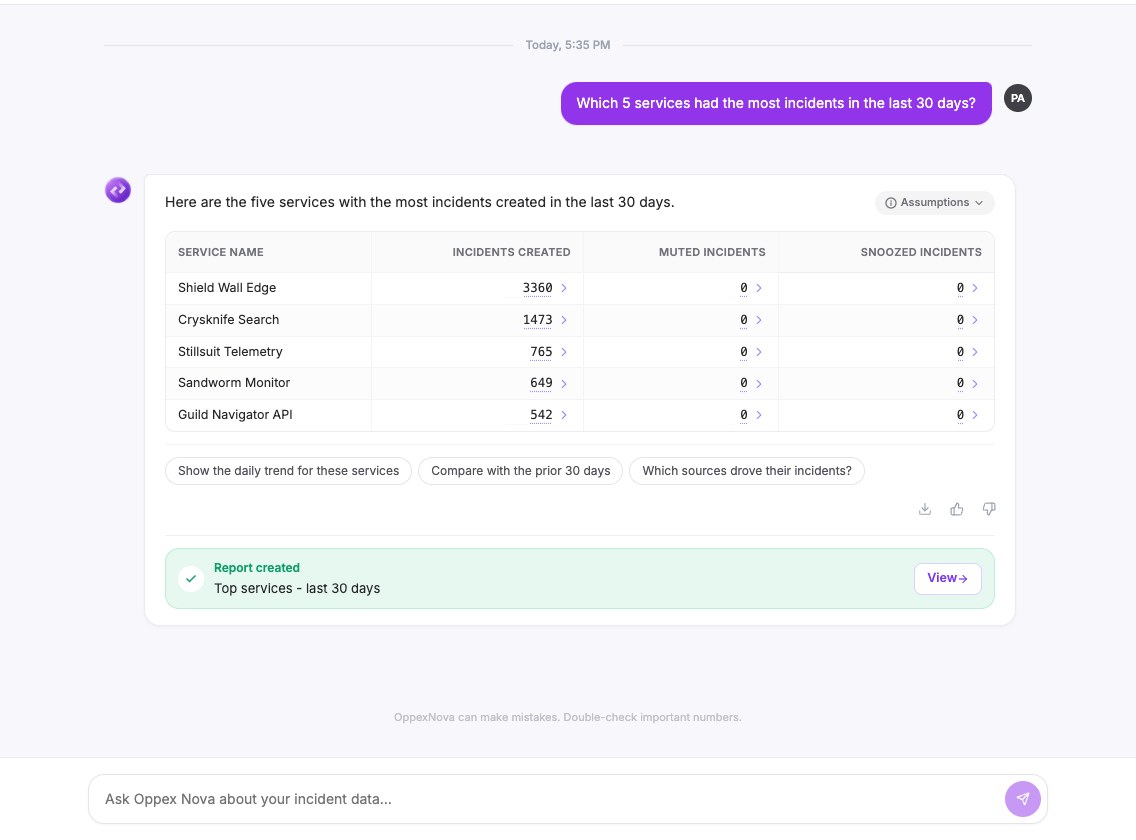
- Select the Create Report icon under the answer. You can also type a request such as "Create a report from that".
- If you typed a request, Nova replies "Want me to create a report from my last answer? Confirm below and I'll get started." Select Create to confirm.
- Wait while Oppex builds the report. A panel on the right shows "Putting your report together...".
- Review the draft in the panel, then name it. See the next section.
- Select Publish.
When the report is published, a green banner says Report created with the name of the report and a View button that opens Reports.
Review the draft
The draft opens with the title Untitled report and a Draft label.
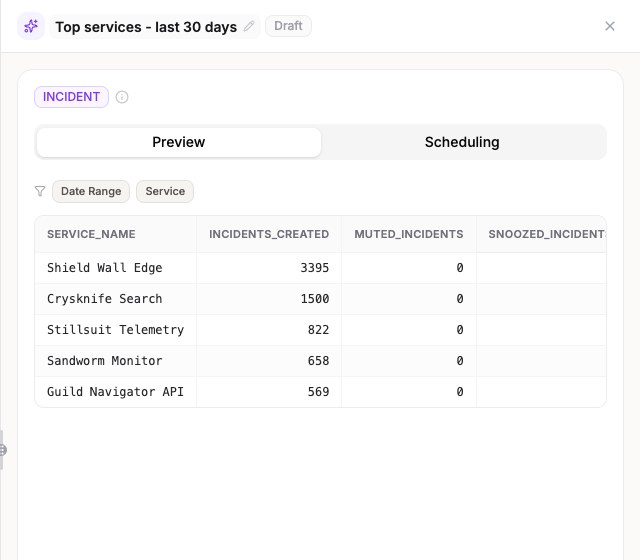
- Name. Select the title and type a name. Publish stays disabled until the report has a name.
- Preview. The Preview tab shows the filters people can set when they run the report, such as Date Range and Service, and a sample of up to 20 rows. The columns appear with the names the report returns. Select a column heading to hide or show it.
- Changes. Type in the box Ask, or click a quick action… to add or remove a column, add or remove a filter, rename the report or change the schedule. While you review, the chat box at the bottom is replaced by this box, so every change goes through the panel.
- Discard. Select Discard to throw the draft away.
Schedule the report
Select the Scheduling tab and turn on Recurring schedule.
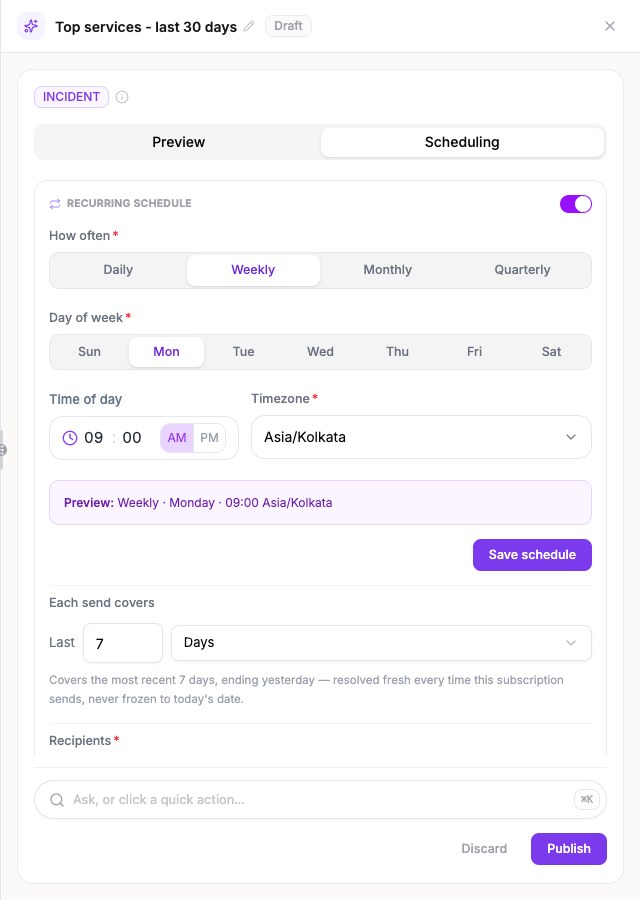
- Choose How often, the day and the time, and the Timezone.
- Under Each send covers, set the period, for example Last 7 Days. The period ends yesterday.
- Under Recipients, select Add people for users in your workspace, or Add email for an address at your organization's domain.
- Select Save schedule, then Publish.
The schedule becomes an ordinary scheduled report that you can pause or change from Manage Subscription. If the report is created but the schedule cannot be saved, Oppex tells you that the report was published but scheduling failed, and gives the reason.
Find the report
The new report appears in the Reports list of the workspace where you created it, in the Incident Reports category.
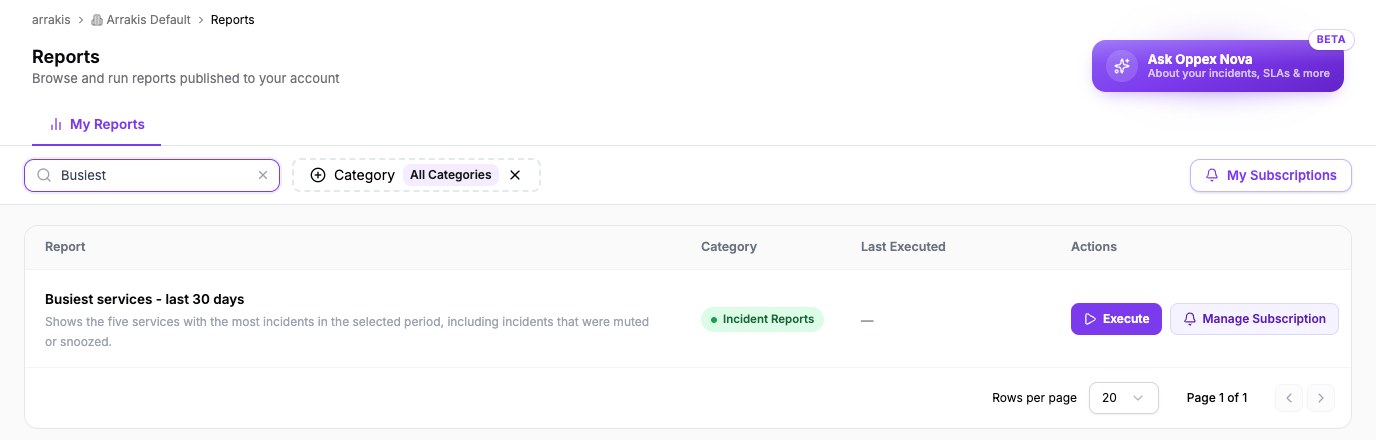
A report created from a chat is available only in the workspace where you created it.
Each conversation can have one report draft in progress. If you start a second, Oppex tells you to finish the first.