Schedule a report by email
A scheduled report is a subscription. Oppex runs the report at the day and time you choose and emails the result to the people you list, so nobody has to open Reports. You need the Service Admin role or higher to create, change or delete a subscription.
Create a subscription
- Select Reports in the left navigation.
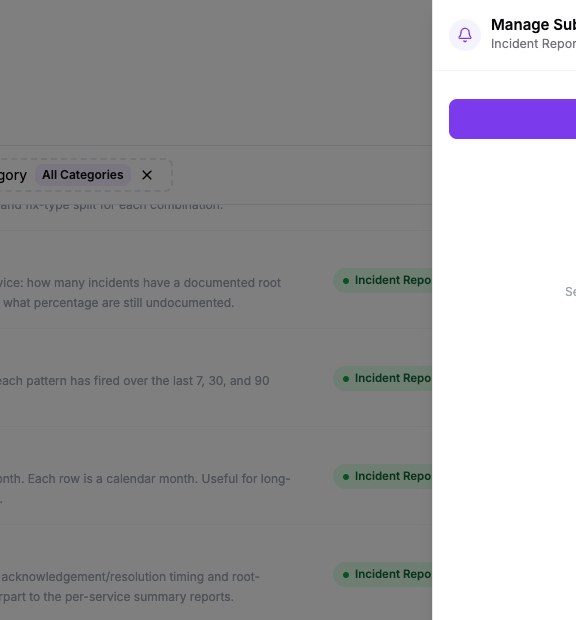
- Select Manage Subscription in the report's row.
- Select Create New Subscription. A panel named New Subscription opens with three steps.
- In Filters, set the reporting period and any optional filters. Select Next.
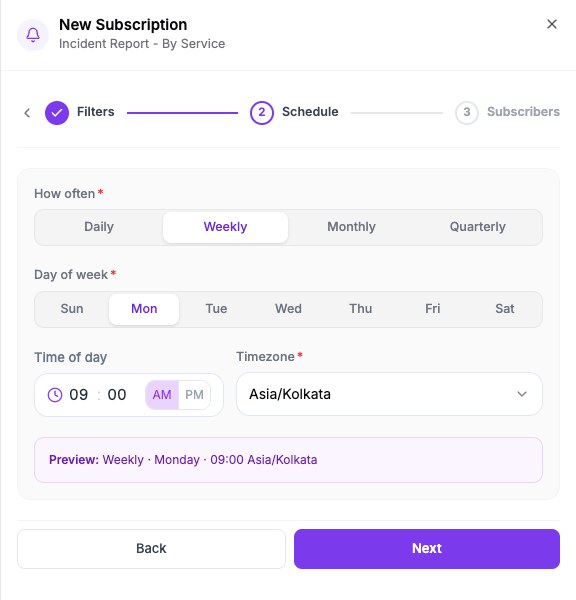
- In Schedule, choose when the email is sent. Select Next.
- In Subscribers, add the recipients. Select Create Subscription.
Step 1: Filters
A subscription has no fixed start and end date. Instead, you set a Reporting Period such as Last 7 Days. You can choose days, weeks, months or quarters, and a number from 1 to 365.
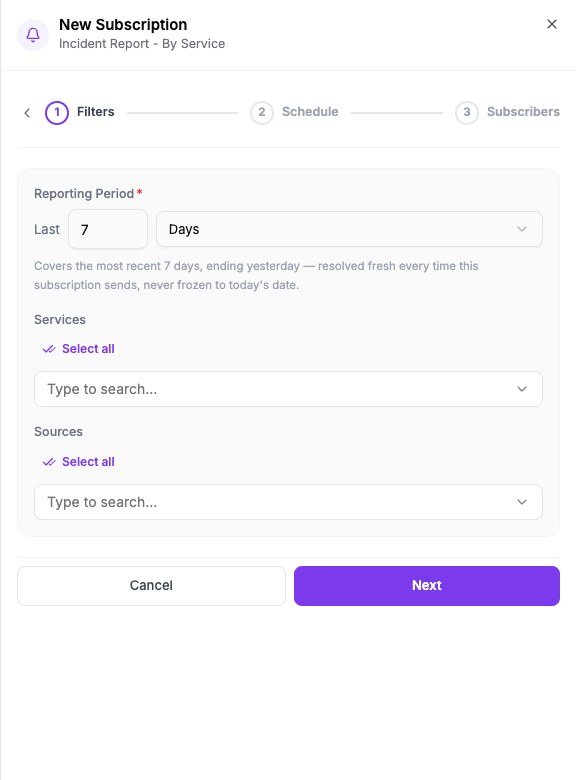
Oppex works out the period again every time the email is sent. It ends on the previous day and is never fixed to the day you created the subscription.
The other filters work the same way as when you run a report.
Step 2: Schedule
Choose How often: Daily, Weekly, Monthly or Quarterly. Then set the details.
- Weekly adds Day of week.
- Monthly adds Which day. Choose Fixed date, such as the 1st, or Weekday pattern, which picks a weekday in the month instead of a date.
- Quarterly adds the same Which day choice and also asks which month of the quarter the email is sent in.
- Time of day sets the hour and minute, and Timezone sets the time zone. The time zone starts as your display time zone.
A Preview line summarises the schedule, for example Weekly · Monday · 09:00 Asia/Kolkata. A new subscription starts as weekly, on Monday at 09:00.
If your chosen time does not exist on a day because the clocks move forward, Oppex skips the email for that day.
Step 3: Subscribers
Add at least one recipient. A subscription can have up to 100 recipients in total.
- Existing Oppex users lists members of your workspace. Select Add people.
- Notification emails accepts addresses at your organization's domain, such as a team distribution list. Select Add email.
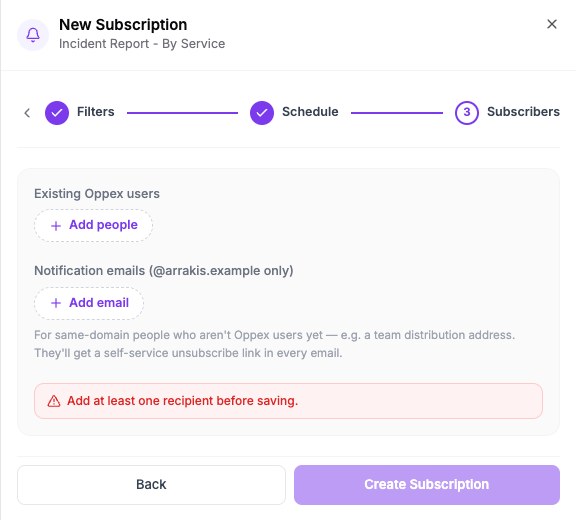
Oppex rejects an address from another domain. Every recipient can unsubscribe from the email without signing in.
What the email contains
Each recipient receives their own email. Its subject names the report and the last day of the period. The body shows the report name, the period, the schedule, the number of rows and the date of the data. It also shows the first 10 rows of the result. The complete result is attached as a CSV file.
If the report has no data for the period, the email still arrives and says that no data is available.
If the complete CSV is larger than 7 MB, the attachment contains only the first 500 rows.
Manage subscriptions
Select Manage Subscription on a report to see its subscriptions. Each one shows whether it is Active or Paused, when it sends next, and when it last sent. You can pause or resume it, send it now with Run now, edit it, or delete it. Select My Subscriptions on the Reports page to see every subscription you created or receive, across all reports.
Anyone with the Service Admin role or higher can edit, pause or delete a subscription, not only the person who created it.
When a send fails
Oppex counts failed sends in a row. After three, Oppex pauses the subscription and emails the person who created it. Resuming the subscription starts the count again. Oppex also pauses a subscription straight away when the report is no longer available to your account.