Reporting overview
A report is a ready-made view of your incident data. For example, it can show how many incidents each service received, how quickly responders acknowledged them, and which incidents still have no root cause analysis (RCA). You choose a date range, run the report, read the result in a table, and then download it or have Oppex email it to your team on a schedule.
You do not build reports from scratch. Oppex publishes a set of reports to your account, and each report works on the incidents of the workspace you are in. You can also save an answer from Oppex Nova as a report of your own.
Find Reports
Select Reports in the left navigation. The My Reports tab lists every report published to your workspace, with its category, the last time anyone in the workspace ran it, and the actions you can take.
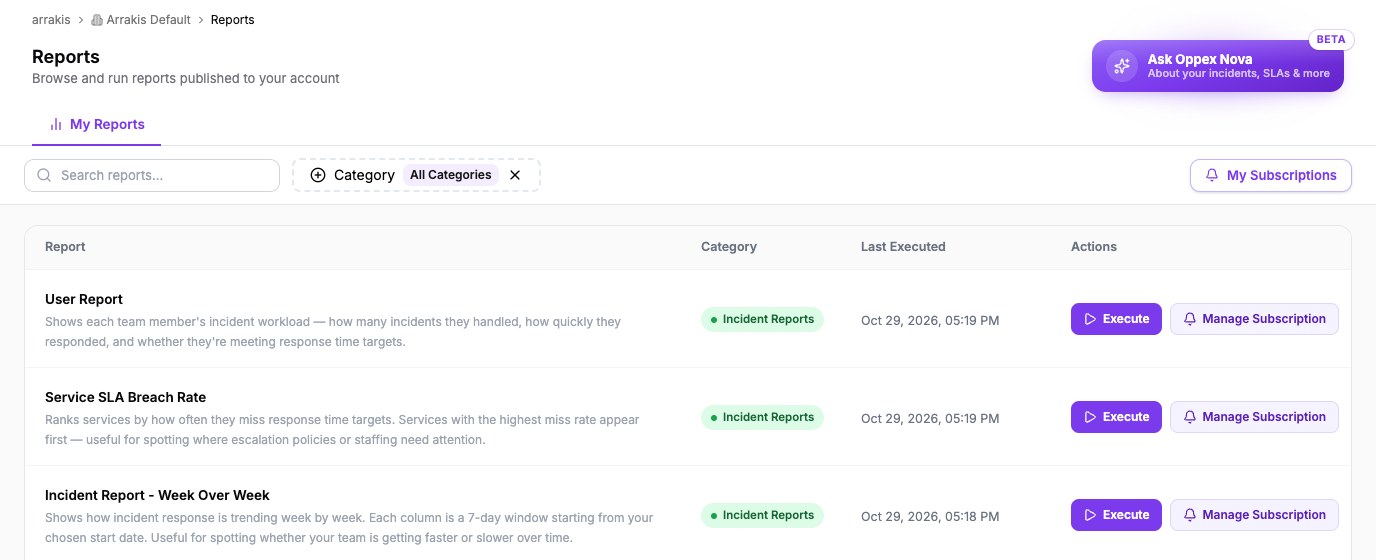
Reports is available when Oppex has enabled it for your account. If Reports does not appear in the left navigation, contact Oppex support.
Who can do what
| Action | Role you need |
|---|---|
| Open Reports, run a report, and open past runs | Any signed-in user |
| Set up or change a scheduled email for a report | Service Admin or higher |
| Ask Oppex Nova a question from the Reports page | Workspace Admin or higher |
What you can do with a report
- Run a report for a date range, with optional filters.
- Read the results, including the incidents behind any number.
- Export the data as CSV or Excel.
- Find an earlier run or share a result with a teammate.
- Schedule a report by email so it arrives without anyone running it.
- Look up what each report shows in the built-in reports reference.
If a run returns nothing or fails, see Troubleshoot reports.
How fresh the data is
Reports read from a reporting copy of your incident data that Oppex rebuilds every night. A report therefore holds data up to the end of the previous day. An incident that was created today does not appear until the next nightly refresh.
A report counts an incident on the day it was created. If you run a report for 1 October to 28 October, it includes every incident created on those days, including the last day.
The response-time targets that some reports compare against come from your workspace settings. See Set SLA targets for reports.