Run a report
Running a report builds a table from your incident data for the dates and filters you choose. Every signed-in user can run reports. The run happens in the background, so you can close the window and come back to the result later.
Run a report
- Select Reports in the left navigation.
- Find the report. Type in Search reports…, or use the Category filter to show one category.
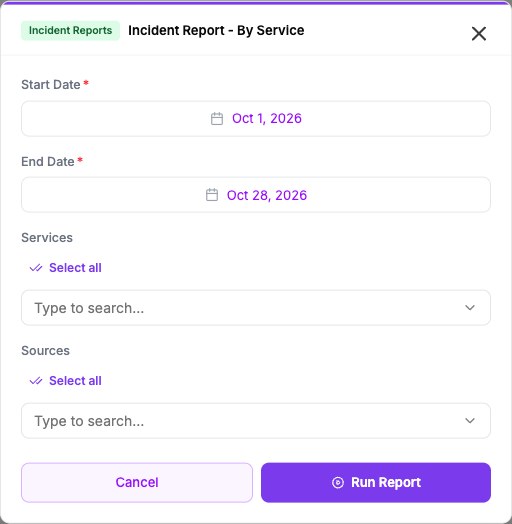
- Select Execute in the report's row. A window opens with the report's filters.
- Set Start Date and End Date. Both are required and both days are included.
- Narrow the report with the optional filters, if you want to. The next section explains each one.
- Select Run Report.
Search reports… filters the reports on the page you are viewing. The list shows 20 reports per page.
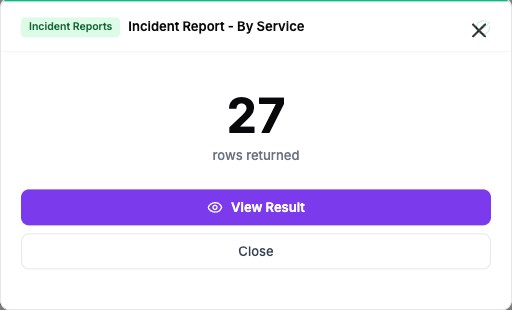
While the report runs, the window says that the report is running in the background. You can close it. When the run finishes, the window shows how many rows were returned, and View Result opens the result.
Choose the filters
Which filters you see depends on the report. The built-in reports page lists them.
| Filter | What it does |
|---|---|
| Start Date, End Date | The days to include. Oppex counts an incident on the day it was created. |
| Services | Limits the report to the services you select. Leave it empty to include every service. |
| Sources | Limits the report to incidents from the sources you select, for example New Relic or Slack. Leave it empty to include every source. |
| Incidents With RCA Only | Choose Yes to include only incidents that have a root cause analysis. The default is No. |
| Custom Variable Values | Limits the report to incidents whose workspace variable values match the choices you select. Choices for the same variable match any of them. Choices for different variables must all match. |
For Services, Sources and Custom Variable Values, select Select all to choose every option that is listed, or type at least two characters to search.
The red asterisk marks the dates as required, but Oppex does not stop you from running without them. A report run with an empty date may return no rows.
If the run fails
When a run fails, the window shows Execution failed and the reason. Oppex stops a report that runs for more than two minutes. Choose a shorter date range or fewer filters, and run it again. You can also re-run a failed report from the execution history, where the window opens with your earlier choices.
Worked example
On the Arrakis workspace, a Responder runs Incident Report - By Service from 1 October 2026 to 28 October 2026, with no service or source selected. Oppex returns 27 rows, one for each service that received incidents in that period. The row for Sandworm Monitor shows 632 incidents created.