Execution history and sharing
The execution history lists every report run in your workspace, including runs by other people and runs started by a scheduled email. Use it to reopen a result, download it again, or re-run a failed report.
Open the execution history
- Select Reports in the left navigation.
- Select the name of any report. Oppex opens Execution History.
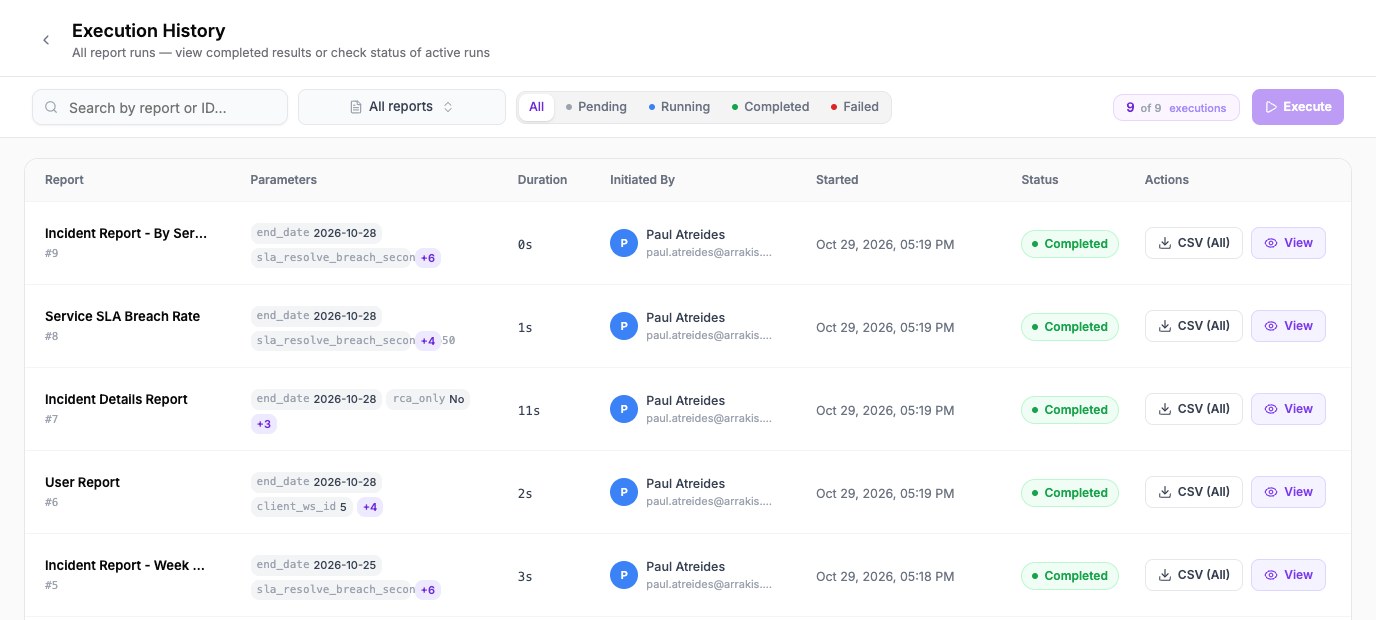
The list refreshes every 10 seconds, so a run that is still in progress updates by itself.
Find a run
- Type in Search by report or ID… to search the runs that are loaded on the page.
- Use the report filter to show one report.
- Use the status buttons All, Pending, Running, Completed and Failed to filter by status.
Each row shows the report and its run number, the parameters that were used, how long the run took, who started it, when it started, and its status.
Act on a run
| Status | What you can do |
|---|---|
| Completed | Select View to open the result, or CSV (All) to download every row. |
| Failed | Select View Error to read the reason, or Re-run to open the run window with the same choices already filled in. |
| Pending or Running | Wait. The row shows Queued or Running until it finishes. |
To run a report from this page, choose it in the report filter and select Execute.
Share a result
- Open the result of the run.
- Copy the address from your browser's address bar.
- Send the address to a teammate.
Only people in the same account and workspace can open the link
The person must be signed in to your Oppex account and working in the same workspace. Anyone else sees the message "Execution not found".