Read report results
A finished report opens as a table. You can read column descriptions, flip the table on its side, and select a number to see the incidents it counts. Open a result from the run window with View Result, or from the execution history.
Read the table
The header shows the report name, its status, when it started and completed, how long it took, and how many rows it returned. Rows keep the order that the report returns them in. You cannot sort or filter the table on the page.
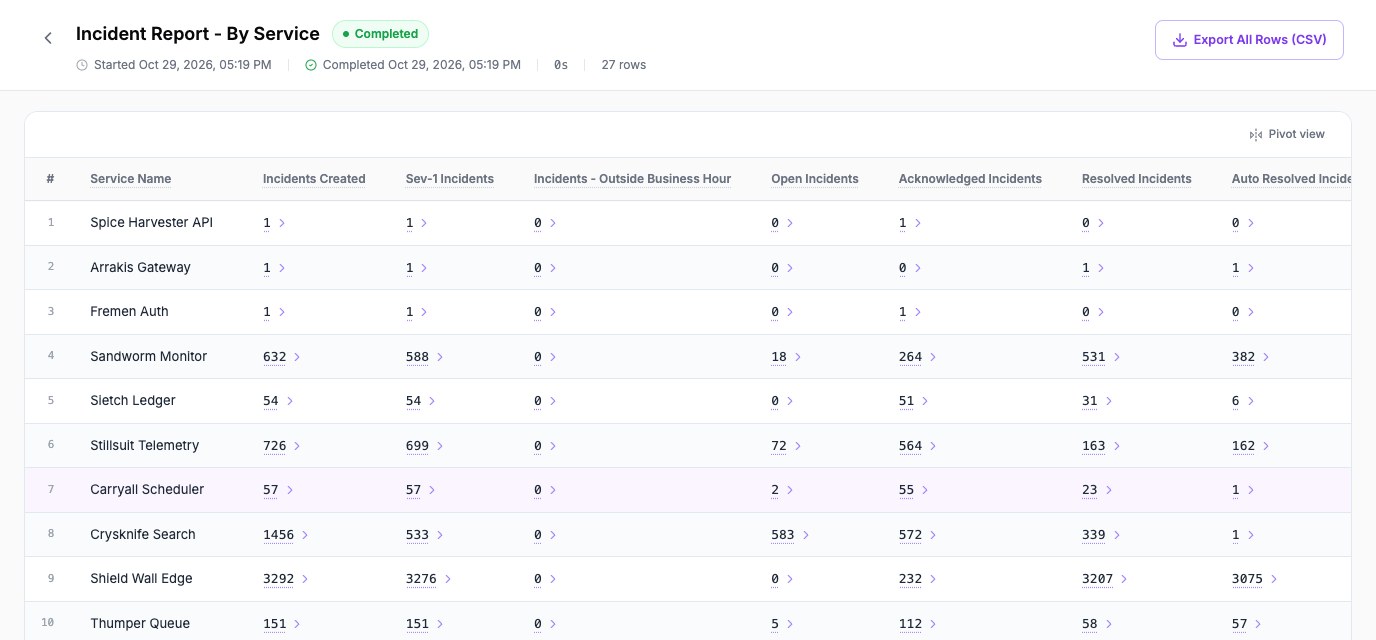
- Hover over a column heading to read what the column means.
- Dates and times appear in your display time zone.
- An empty value appears as a dash.
- Hover over a value that is cut off to read all of it.
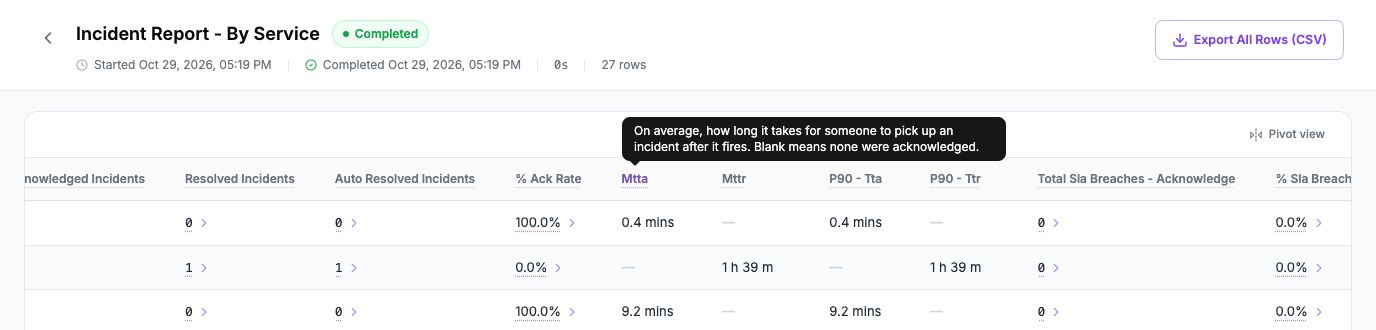
Switch to pivot view
Select Pivot view to turn the table on its side, so that the first column becomes the column headings. Pivot view suits reports that compare periods, such as Incident Report - Week Over Week. Select Table view to switch back.
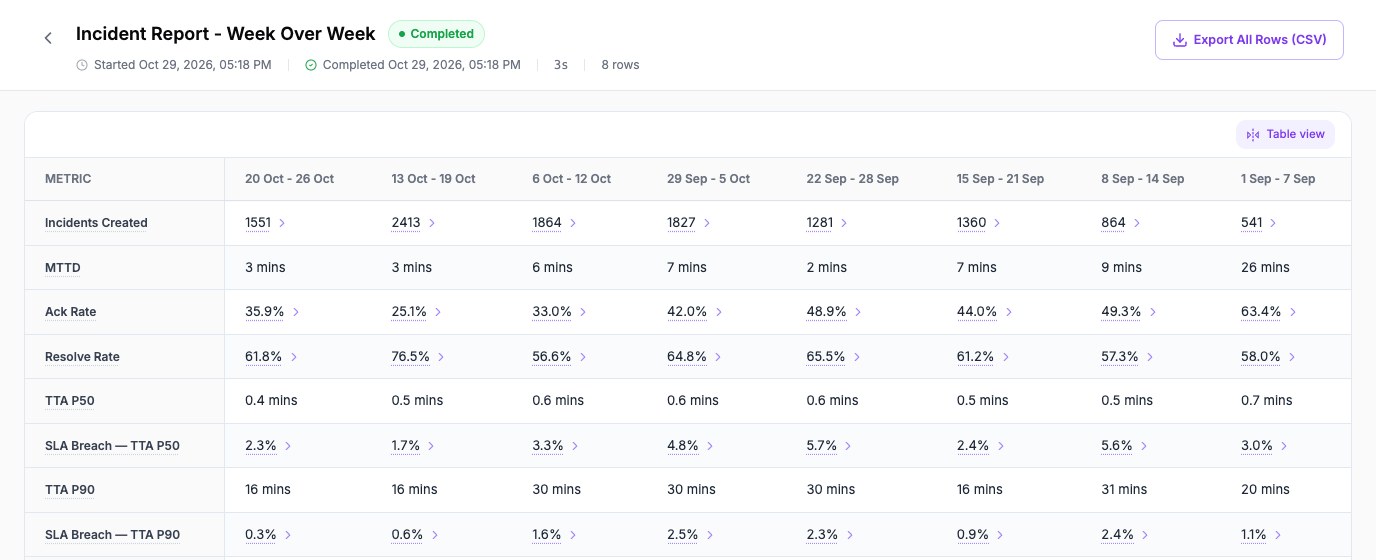
Understand the 500-row limit
A result shows at most 500 rows. When a report returns more, a chip at the top says how many rows exist, for example Showing 500 of 632 rows. Nothing is lost. The remaining rows are in the export. Use Export All Rows (CSV) to download every row. See Export report data.
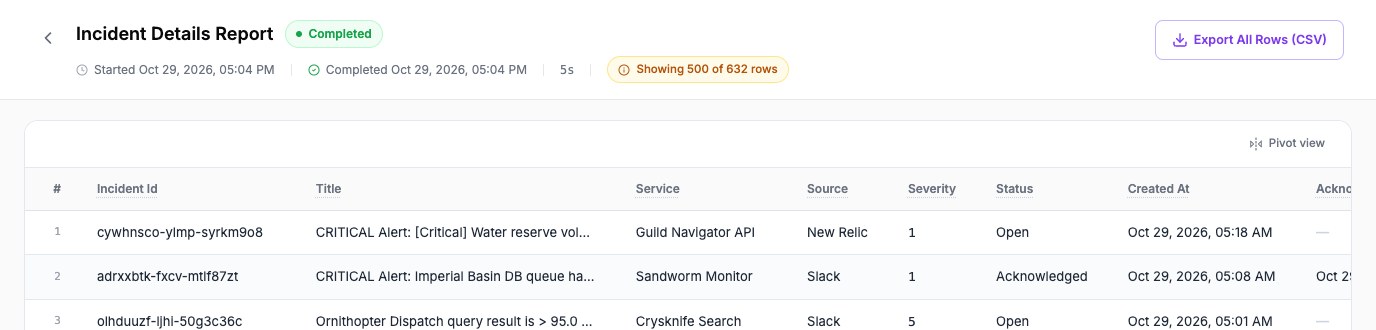
See the incidents behind a number
Most counts and rates in the summary reports open a list of the incidents behind them. Numbers you can open have a dotted underline and an arrow.
- Select the number, for example the Incidents Created value for Sandworm Monitor.
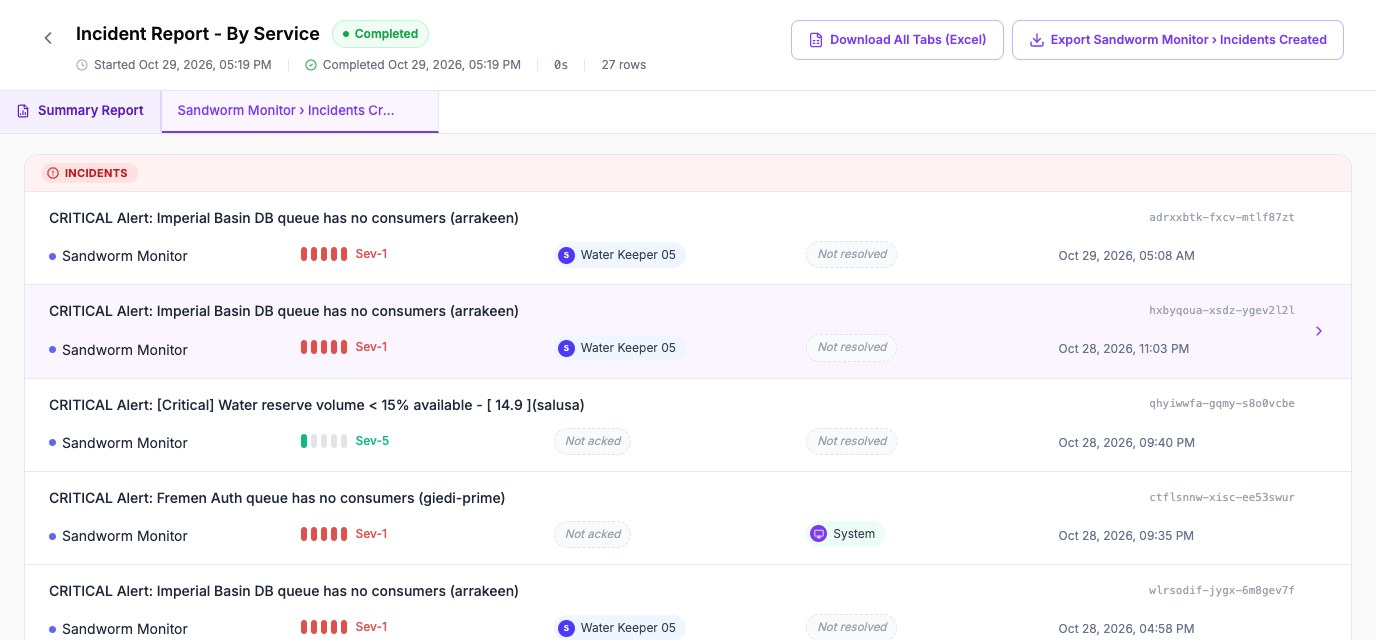
- Oppex opens a new tab next to Summary Report, named after the row and the column.
- Scroll the list. It shows each incident with its title, service, severity, who acknowledged it, who resolved it, and when it was created.
- Select an incident to open it.
- Use Rows per page and the page arrows to move through the list. The footer shows the total, for example Total: 632 • Pages: 64.
Incident Details Report already lists one incident per row, so it has nothing to open. In other reports, only columns that show a dotted underline can be opened.
When you open an incident list from an earlier run, Oppex uses the dates and filters that run used, not today's.
You can keep several drill-down tabs open at once. Open tabs matter when you export to Excel.