Understand an answer
Every Oppex Nova answer states what it did, so you can judge whether it answers your question. This page explains each part of an answer, how to see the incidents behind a number, and what to do when an answer looks wrong.
The kinds of answer
| Answer | What you see |
|---|---|
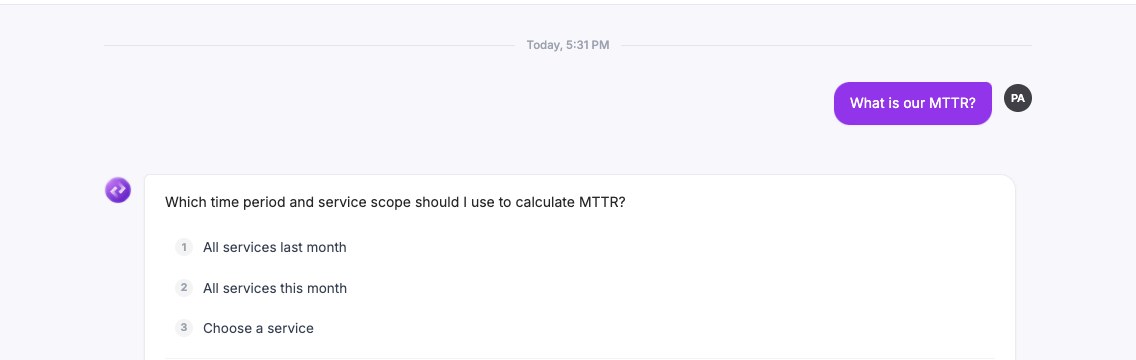
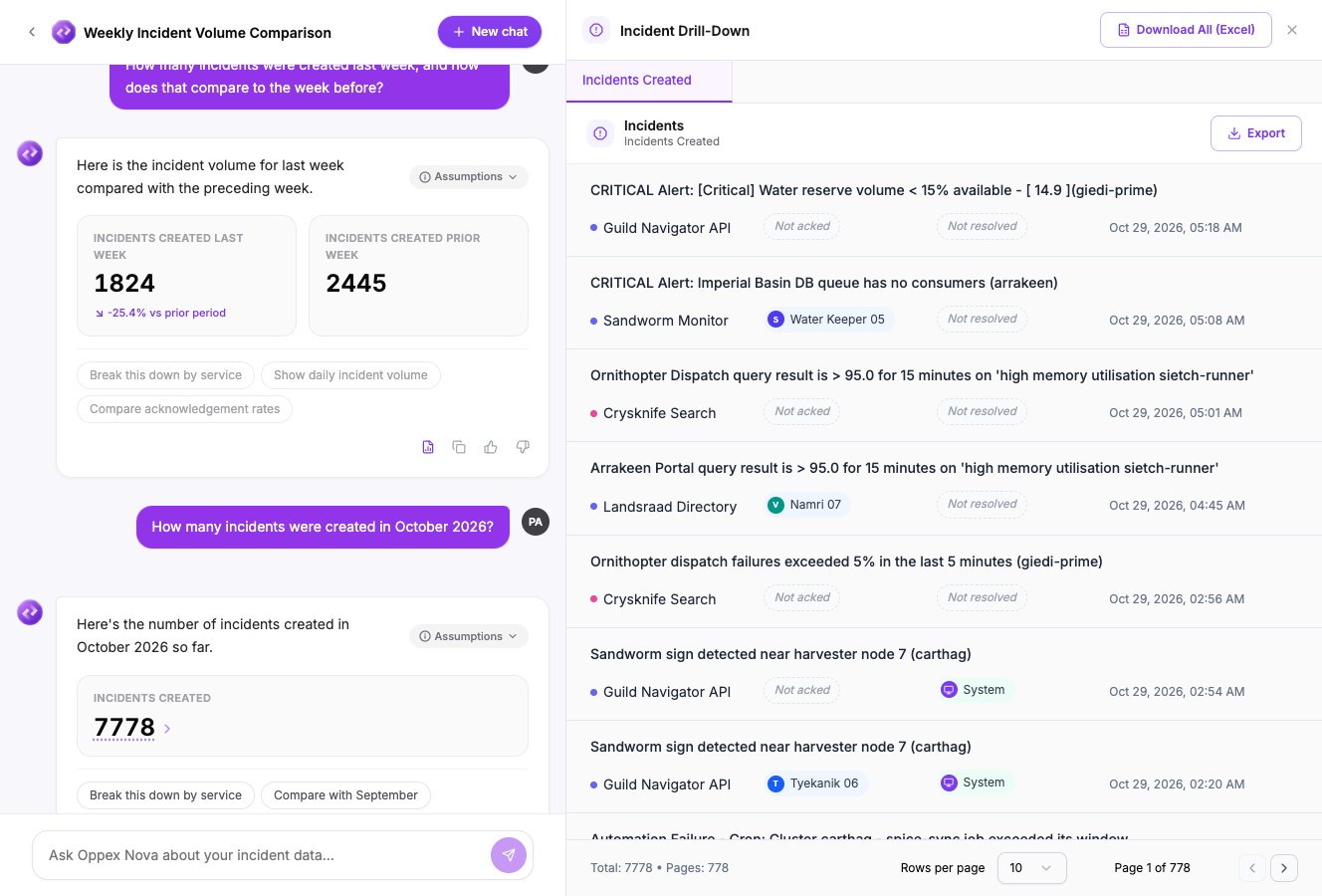
| Numbers | One or more tiles with a label and a large value. A tile that compares two periods can show a change such as -25.4% vs prior period. |
| Table | Rows and columns, with a scroll bar when the table is longer than the window. |
| Clarifying question | A numbered list of choices. Select one, or type your own reply. |
| Explanation | A short answer in words, for example when you ask how a number was calculated. |
| Cannot help | A short message that says why, for example when you ask about another workspace. |
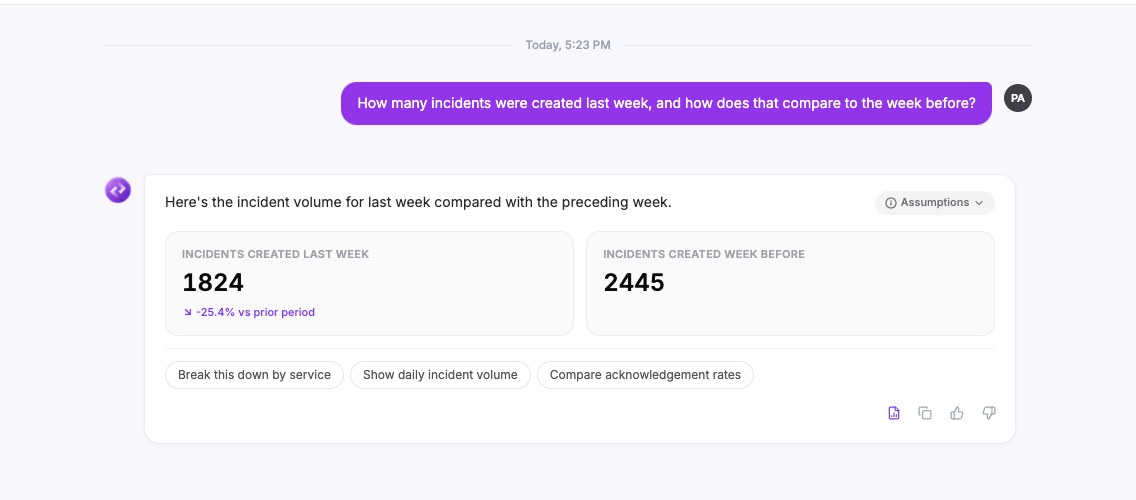
When your question is missing a period or a scope, Nova asks before it answers. For example, What is our MTTR? gets a numbered list of periods and services to choose from.
Check the assumptions
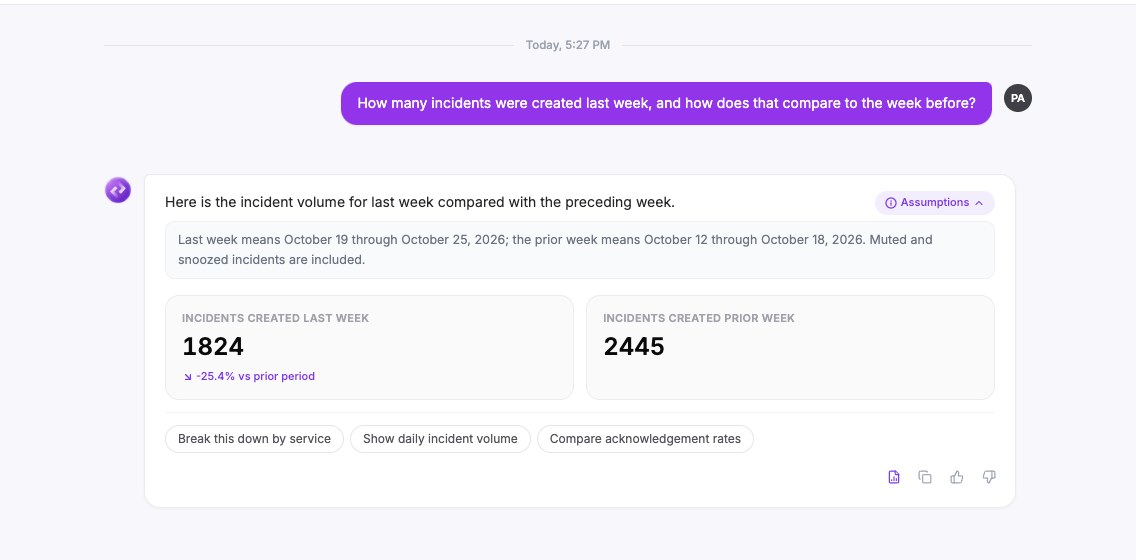
Select Assumptions at the top right of an answer to see the dates and scope Nova used. For example, it spells out that "last week" means 19 October to 25 October 2026, and whether muted and snoozed incidents are included.
Tables and the row limit
A table is a sample of the result when the result is large. A banner above the table says so, for example Showing 10 of 14,503 matching rows — ask me to create a report if you need the complete set.
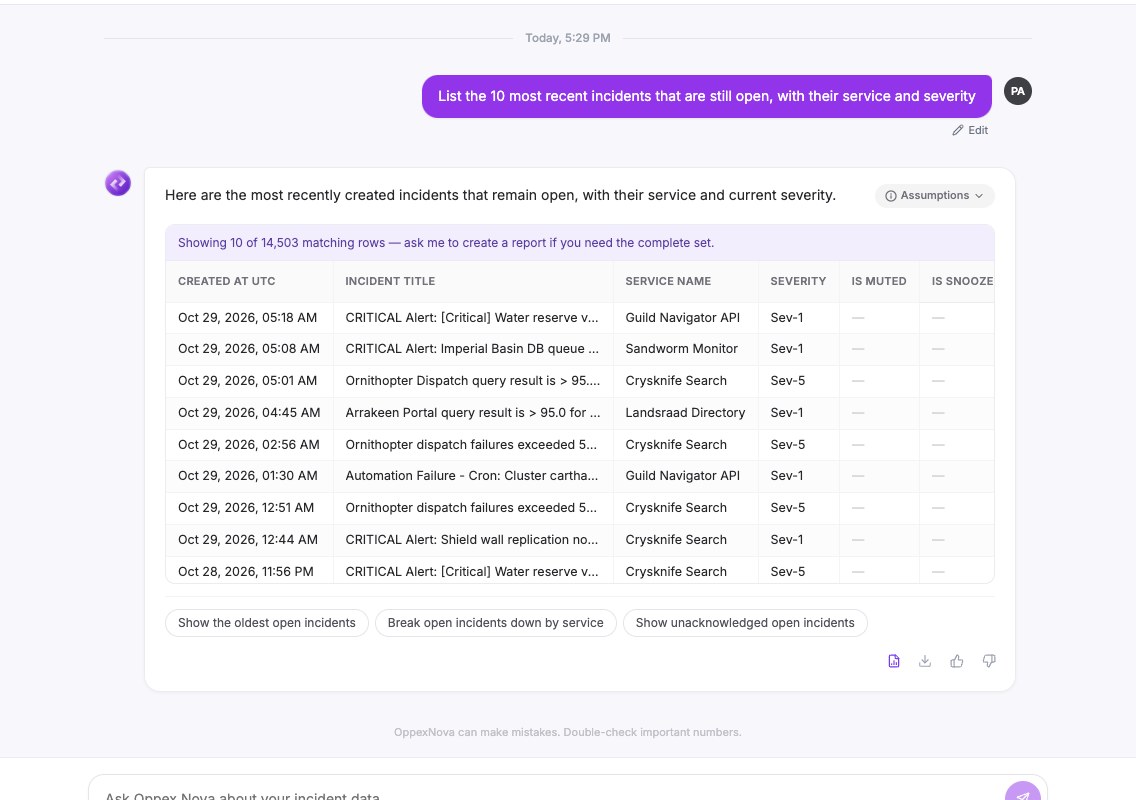
- A table shows at most 500 rows. When there are more, the banner gives the real total.
- To download every row, select the download icon Export all rows as CSV under the table. It appears when the table has more than one row.
- To keep the data as a report you can rerun or schedule, create a report from the chat.
See the incidents behind a number
Numbers with a dotted underline and an arrow can be opened.
- Select the number.
- The Incident Drill-Down panel opens on the right, with a tab named after the number.
- Scroll the list, or use the page arrows. It shows 10 incidents per page and the total, for example Total: 7778 • Pages: 778.
- Select Export to download the list, or Download All (Excel) to download every open tab in one workbook.
When Nova is not sure
If Nova could not confirm that an answer matches your question, it still shows the answer and adds the warning "I couldn't fully verify this answer against your question — please double-check it before relying on it." Treat the numbers with care, rephrase the question, or check them in a report.
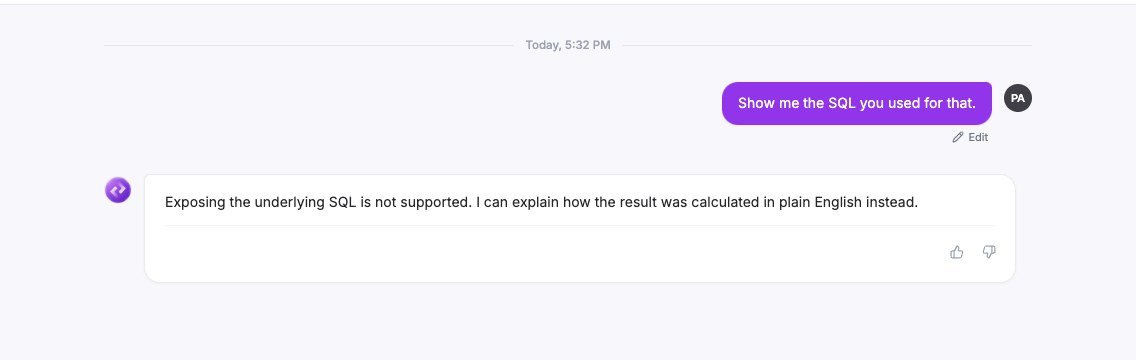
Nova does not show the query behind an answer. If you ask for it, Nova explains that it cannot, and offers to explain in plain English how the result was calculated.
Give feedback
Select the thumbs-up or thumbs-down icon under an answer. A box asks want to add why? (optional). Select Submit feedback, or Submit without a note.
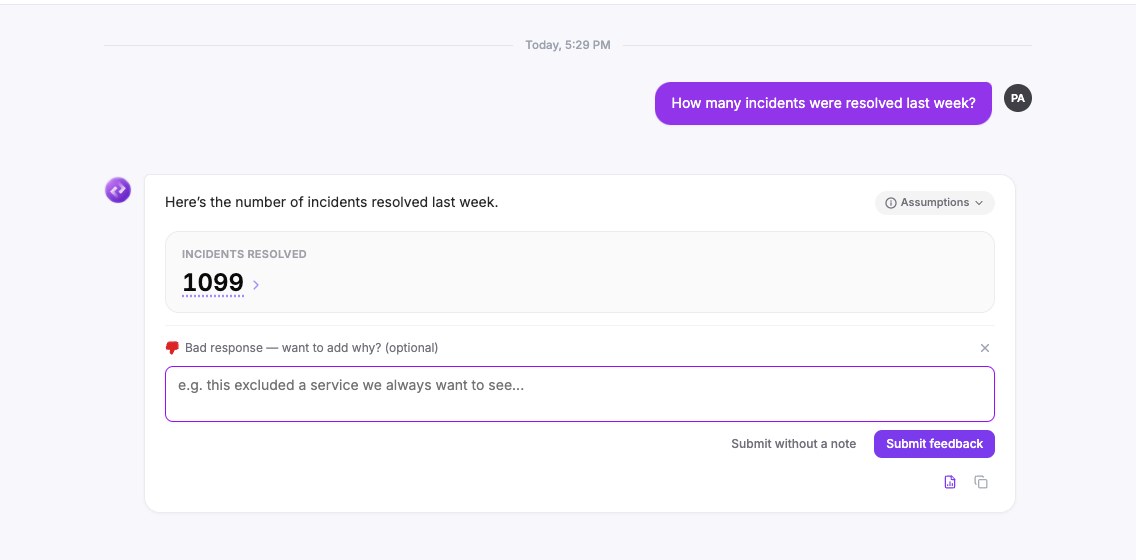
After you submit, the answer shows Feedback given and the vote is locked.