Audit Log
The Audit Log is a record of the configuration changes made in your organization. Each entry shows who made the change, what they changed, which item it affected, and when. Use it to answer questions such as "Who updated this team?" or "Who created this API key?".
Owners, Global Admins and Workspace Admins can open the Audit Log.
Open the Audit Log
- Click your avatar, then Settings.
- In the left menu, open Organization and click Audit Log.
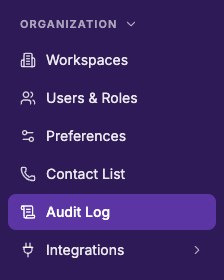
If you do not see Audit Log, your role is below Workspace Admin. Ask an Owner or Global Admin to review the log for you.
The page opens on the last 90 days, with the newest entry first. The times follow your display time zone, and recent entries read "Today at" or "Yesterday at".
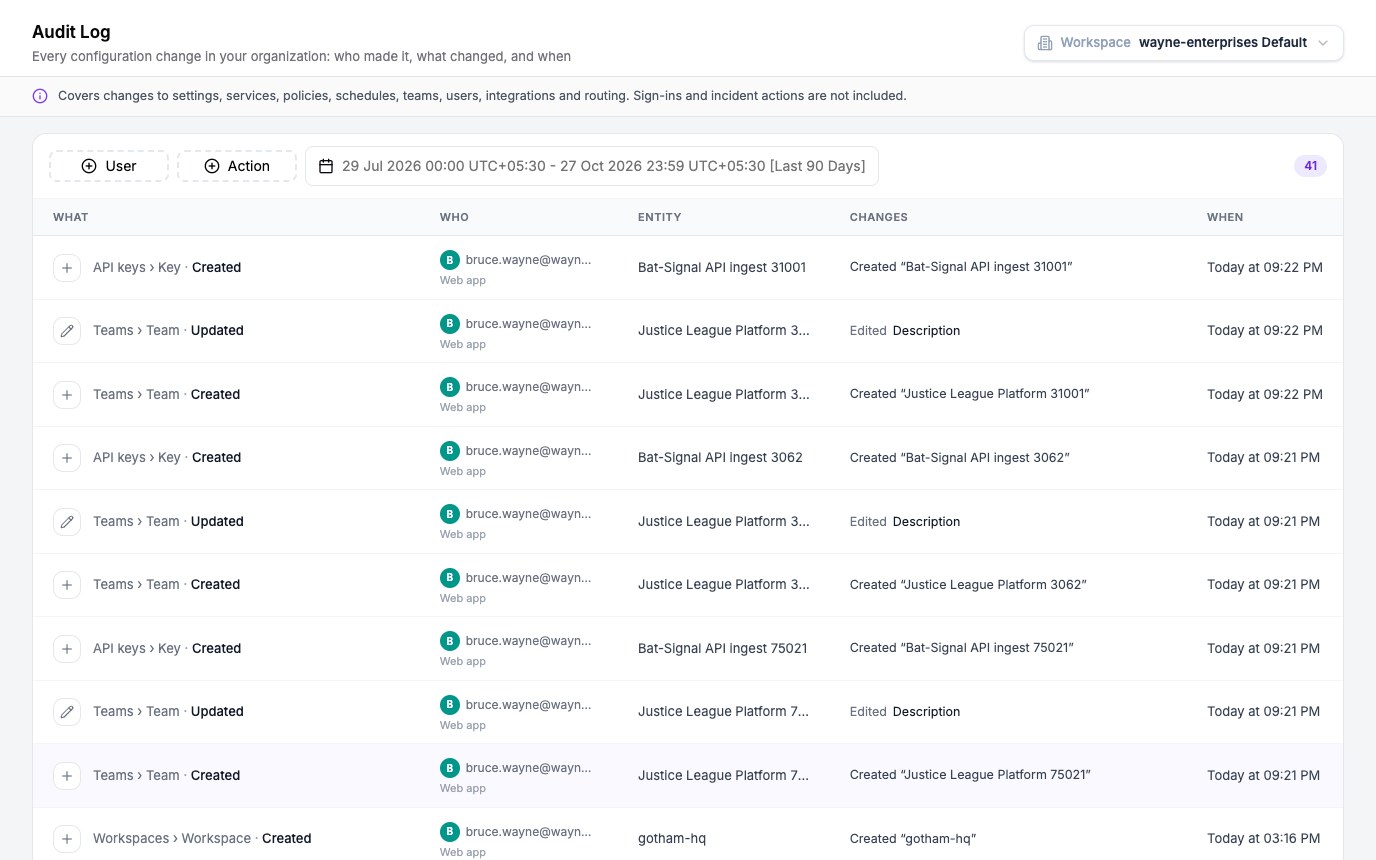
A strip under the page title lists what the log covers: changes to settings, services, policies, schedules, teams, users, integrations and routing. Sign-ins and incident actions, such as acknowledging or resolving an incident, are not included. Changes to your own personal preferences are not included either.
Read an entry
Each row is one change. The columns are:
| Column | What it shows |
|---|---|
| What | The area, the item type and the action, for example Teams › Team · Updated. An icon on the left tells the kind of action apart: create, update, remove, change or attach. A refused change shows a red alert icon instead. |
| Who | The person who made the change and how they made it: Web app, API key, Oppex Nova or Oppex support. |
| Entity | The name of the item that was changed, such as a team, a service or an API key. |
| Changes | A short summary. A new item reads Created "name". An edit reads Edited followed by the names of the fields, and adds a count such as +2 when more fields changed. |
| When | The time of the change. Hover over it to see the full date and time with the time zone. |
A row with a red alert icon and red text in the Changes column that starts with Failed: means the change was attempted and refused. Nothing was saved, and the text gives the reason Oppex returned.
Find a specific change
Three controls above the table narrow the list. A number at the right of the controls shows how many entries match.
- Click User and select one or more people to see only their changes.
- Click Action and select one or more actions. Type in the search box to find an action by name, for example team.
- Click the date range to choose a different period. The default is Last 90 Days.
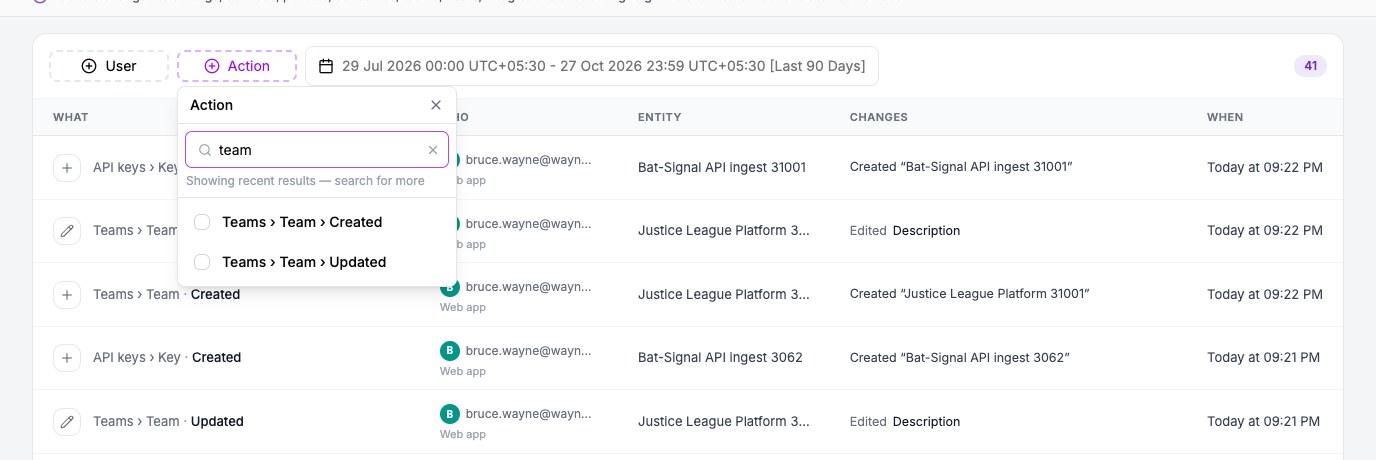
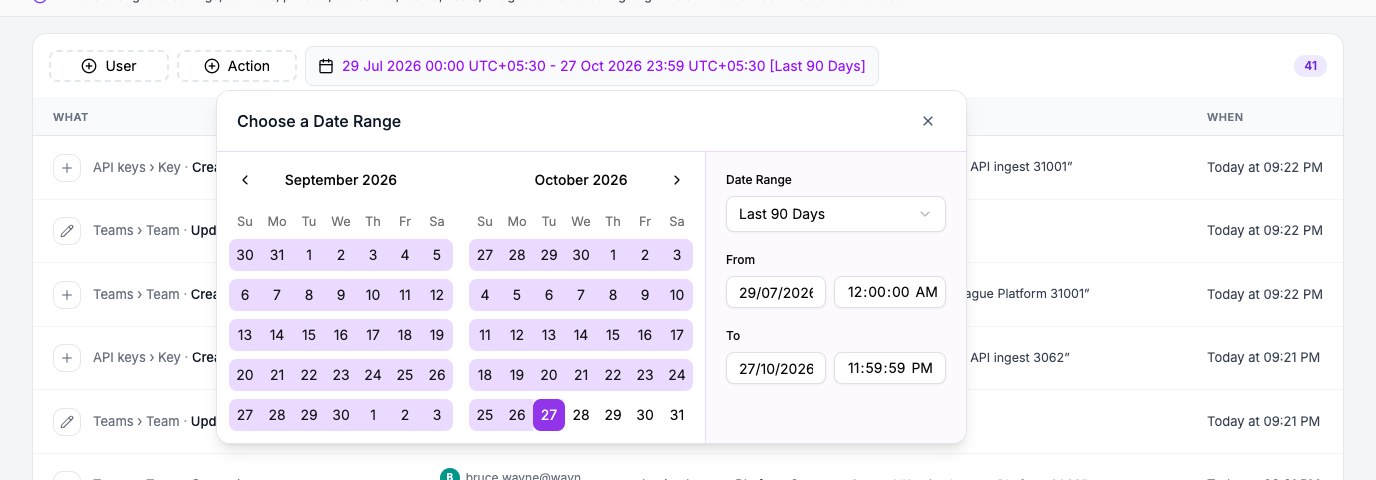
The Action list contains the actions Oppex has recorded for your organization. It shows the most recent ones first, so search for the one you want when it is not on the list. A new filter always returns you to the first page of results.
When you select a user, an action and a date range together, Oppex lists only the entries that match all three. If nothing matches, the table says No entries match and offers a way to clear the filters.
Use Rows per page under the table to show 5, 10, 20, 30, 50 or 100 entries at a time. The default is 20.
See exactly what changed
Click a row to open its details in a panel on the right. The panel shows:
- Who: the person's email address and how they made the change.
- Entity: the name of the item.
- Result: Succeeded or Failed. A failure also gives the reason.
- What changed: a Created, Changed or Removed label. For a change, each field is listed with its value before and after the edit.
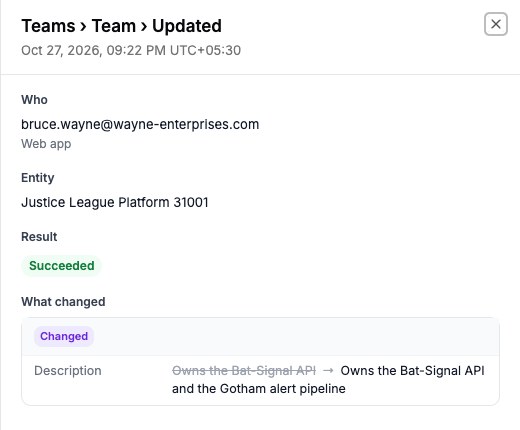
In the example above, the previous description is crossed out and the new one follows the arrow. A created or removed item shows only its label and name, because there is no earlier value to compare.
When the details panel says "No field-level changes were recorded for this action", the entry still tells you who acted, on which item and when. This happens, for example, when a save did not change any value.
Review one workspace or all workspaces
If your organization has more than one workspace, a Workspace menu appears at the top right of the page. The log opens on the workspace you are signed in to. Select another workspace to review its changes, or select All workspaces to see every change in the organization. Choosing a workspace here does not switch the workspace you are working in.
Changes made without the web app
The Who column also covers changes that did not come from someone using the Oppex web pages.
- API key: the change was made by a script or system using an Oppex API key. The entry shows the key rather than a person.
- Oppex Nova: the change was made through Oppex Nova.
- Oppex support: an Oppex support engineer made the change while signed in as one of your users. The entry reads Impersonating followed by that user's email address, so you can tell it apart from a change that the user made themselves.
What the Audit Log covers
| Area | Examples of recorded changes |
|---|---|
| Services | Creating, updating and deleting a service; adding or removing service admins; connecting a Slack channel |
| Service routing | Creating, updating and deleting rules and drafts; publishing a draft; changing the default service |
| Escalation | Creating, updating and deleting escalation policies and their service mappings |
| On-call | Creating, updating and publishing schedules; assigning or cancelling an override; rotation policies |
| Teams and groups | Creating, updating and deleting teams and groups |
| Users and workspaces | Inviting, deactivating and deleting users; changing a role; adding or removing workspace members; creating and updating workspaces |
| API keys | Creating, updating and disabling a key; adding or removing a service integration |
| Integrations | Connecting and updating Slack; enabling or disabling Oppex Nova; routing agents; tool connections |
| Grouping, parsers and variables | Creating, updating, deleting and reordering grouping strategies; parsers and their tests; variables and past-incident fills |
| Maintenance | Creating, updating, ending and cancelling maintenance windows |
| Security and settings | Single sign-on settings; changes to organization, workspace and service settings |