
Turn on-call emails on or off

Notify On Call is the switch for all of your on-call emails: shift reminders and override emails. It is off by default, so Oppex sends you neither until you turn it on.

Permissions

Every user can change this setting for themselves, including Responders. Administrators cannot change it for another user, and there is no setting that turns it on or off for a whole team.

Turn on-call emails on or off​

  1. Click Settings > Personal > Notifications. The Notifications page opens.
  2. In the On-Call Notification section, click the Notify On Call switch. Oppex saves the change straight away and shows "On-Call Notification turned on" or "On-Call Notification turned off".
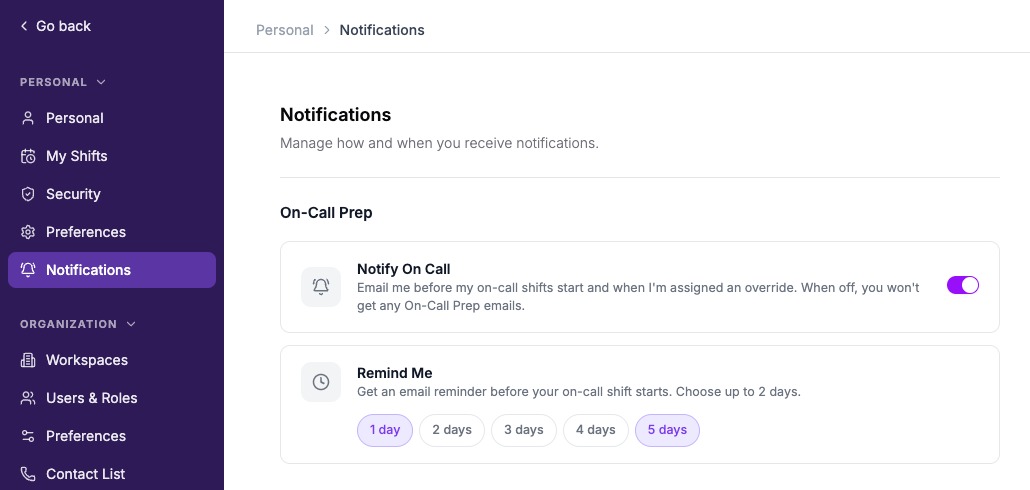
The Notifications page with the Notify On Call switch on, and Remind Me set to 1 day and 5 days.

While Notify On Call is on, the Remind Me card appears below it, where you choose how many days before a shift you get a reminder. See Choose when to get shift reminders. While the switch is off, the Remind Me card is hidden, and your reminder days are kept for when you turn it back on.

If the switch shows "Couldn't load."

Oppex could not read your setting. Click Retry next to the message. Until the setting loads, the switch is not shown, so you cannot change it by mistake.

FAQ

Are on-call emails on by default?

No. Every user starts with Notify On Call off, so no on-call emails are sent until you turn it on. Once it is on, reminders arrive 1 day and 5 days before each shift unless you choose other days.

Does turning off Notify On Call stop incident calls and texts?

No. Notify On Call controls only the on-call reminder and override emails. The calls, text messages and other notifications you receive for an incident are set by the escalation policy.

Can an administrator turn these emails off for the whole team?

No. Each user controls their own on-call emails on their own Notifications page.

In this article

FAQ

Are on-call emails on by default?

No. Every user starts with Notify On Call off, so no on-call emails are sent until you turn it on. Once it is on, reminders arrive 1 day and 5 days before each shift unless you choose other days.

Does turning off Notify On Call stop incident calls and texts?

No. Notify On Call controls only the on-call reminder and override emails. The calls, text messages and other notifications you receive for an incident are set by the escalation policy.

Can an administrator turn these emails off for the whole team?

No. Each user controls their own on-call emails on their own Notifications page.