Auto-built Parsers
A parser is a rule that reads a value out of an incident title or details and stores it in a workspace variable on every new incident. Writing that rule by hand takes some care. With an auto-built parser, you give the variable a few real values instead. Oppex finds those values in your recent incidents, writes the rule, and tests it on your own data.
The parser Oppex saves is switched off. Nothing changes for your incidents until you review it and switch it on.
You need the Workspace Admin role, or higher, in the workspace.
Build a parser from example values
This example uses a workspace that receives incidents for a service named Pit Wall API. The incident titles end with the cloud region, for example Pit Wall API latency high in eu-west-1.
- Open Settings. Under your workspace, select Variables.
- Click Add Variable. A panel opens on the right.
- Enter a Name, such as
infra.region, and a Description. Leave Data type as String. - In the Let Oppex build the parser section, type a real value in Example values and press Enter or type a comma. Repeat for each value you have. You can also paste a list that is separated by commas or line breaks.
- Check the line under each value. It tells you how many recent incident titles carry that value, whether it appears in the incident details, or that Oppex did not find it. A value of fewer than three characters also shows the warning Very short values match inside many words.
- Choose Look back 7 days or Look back 30 days. Oppex builds the parser when you save, as long as you added at least one value.
- Click Add variable.
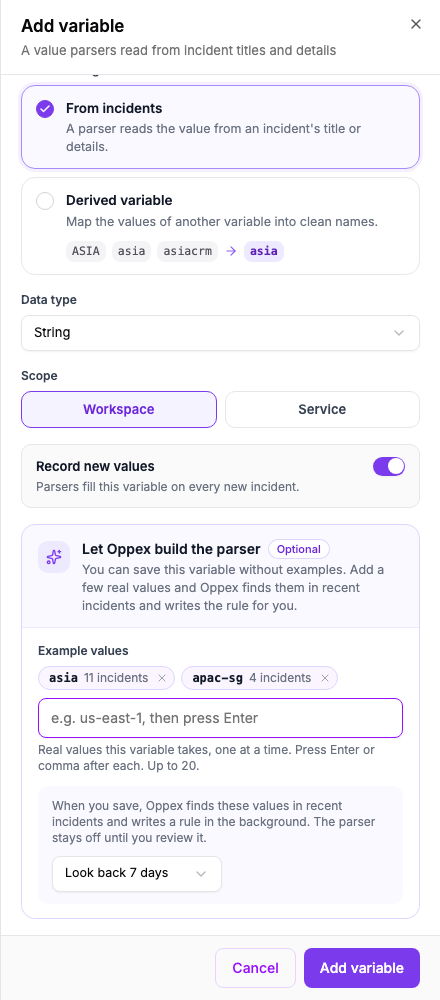
The panel filled in. Each example value shows how many incidents from the look-back period carry it, so you can spot a misspelled value before you save.
Oppex saves the variable and starts building the parser in the background.
You can add up to 20 values, and each value can be up to 128 characters on one line. Duplicates are ignored, whatever their capitalisation. For a number or date variable, each value must be valid for that data type.
If you saved the variable without examples, you can start a build later. Open the variable, add the values, choose a look-back period, and click Build.
Follow the build
- On your workspace's Parsers page, select the Auto-built tab.
- Find your variable in the list. Each row shows the variable and its example values, the reason for the run, the look-back period, the status, the progress and the start time.
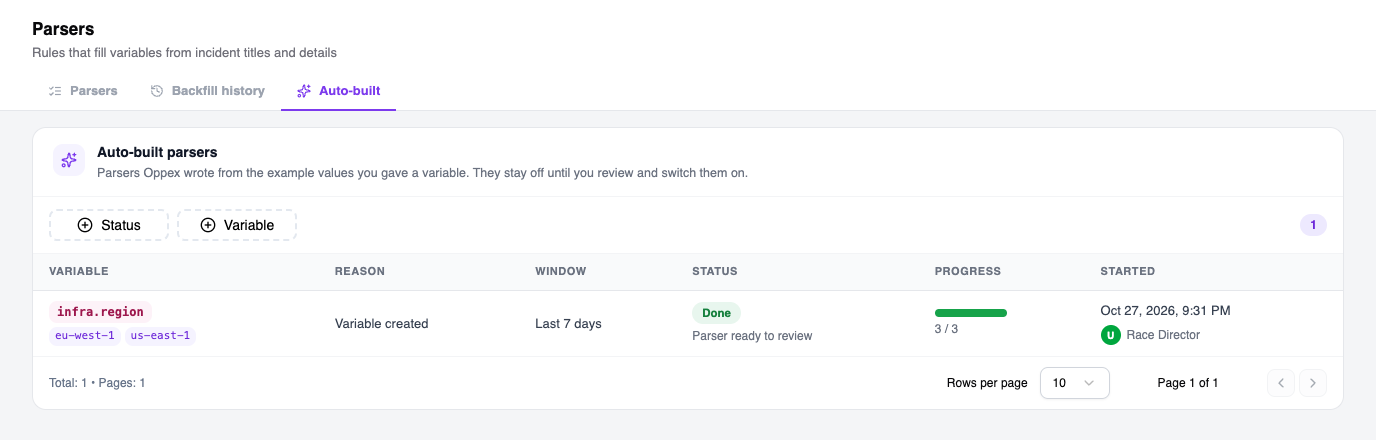
While a run is working, the Progress column shows its four steps: Find examples, Write the rule, Measure it and Save. When the run is done, the column shows how many of the tested incidents the rule filled, for example 3 / 3.
To stop a run that has not finished, open it and click Cancel run. Starting a new run for the same variable also cancels that variable's earlier unfinished run.
Read the report
Click a run to open its report.
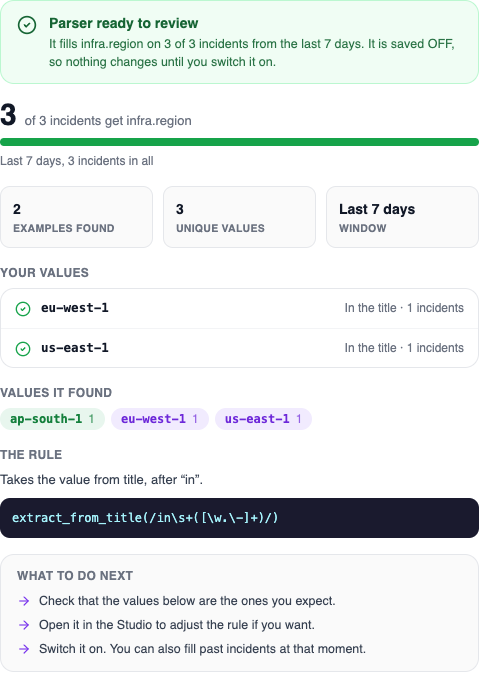
The report shows:
| Section | What it tells you |
|---|---|
| Banner | How the run ended. See the outcomes below. |
| Incident count | How many of the tested incidents the rule fills, and how many incidents it was tested on. |
| Your values | Where Oppex found each value you typed: in the title, or in the details, and in how many incidents. A value that no incident carries is marked Not found, with a tip. |
| Values it found | Every value the rule picked up, with a count. A value you did not type is marked as found by itself. Check these before you switch the parser on. |
| The rule | The rule in plain words, and as it is saved. |
| Things to know | Warnings about this run. See below. |
| What to do next | The steps that fit the outcome. |
Outcomes
| Banner | What it means | What to do |
|---|---|---|
| Parser ready to review | Oppex saved a parser that fills the variable. It is off. | Review it, then switch it on. |
| Already covered | A parser that is already on fills the variable for these values. Oppex made no new parser. | Edit that parser if its values are wrong. Add other example values and run again to build a different parser. |
| No incident has these values | None of your values appear in incidents from the look-back period. | Check the spelling, try the exact text as it appears in an incident, or look back 30 days. |
| No single rule fits | Oppex found your values but could not write one rule that picks them out cleanly. | Add one or two more example values, ideally from different kinds of incidents, or write the rule yourself. |
| This run did not finish | Something went wrong while the run was working. | Run it again. |
Things to know
The report can list warnings in an amber box. These are the ones you may see:
- Service Routing rules also set this variable. After you switch the parser on, its value wins over the rule's value whenever the parser finds one.
- Grouping strategies read this variable. Switching the parser on changes the values they see.
- Almost every matching incident gives a different value. This usually means the rule finds an id or a time, not a name you would filter by.
- The rule finds more than 200 different values. Check that they are all real values of this variable.
- A value you typed was not found in any incident from the look-back period.
- The rule was measured on the newest incidents only, because the look-back period holds more incidents than Oppex tests, or because the check took too long.
Review and switch on the parser
- In the report, click Review and switch on. The parser opens in the Studio with the banner Auto-built from your examples. Check the matches, then switch it on.
- To switch it on from the list instead, open the Parsers tab. The parser is named after the variable, for example
infra.region (generated). It carries the Auto-built badge and the Off tag. - Open the row's actions menu and select Activate.
- Optionally, tick Also fill past incidents and choose a range: Last 7 days, Last 30 days, Last 90 days or Last 180 days.
- Click Switch on.
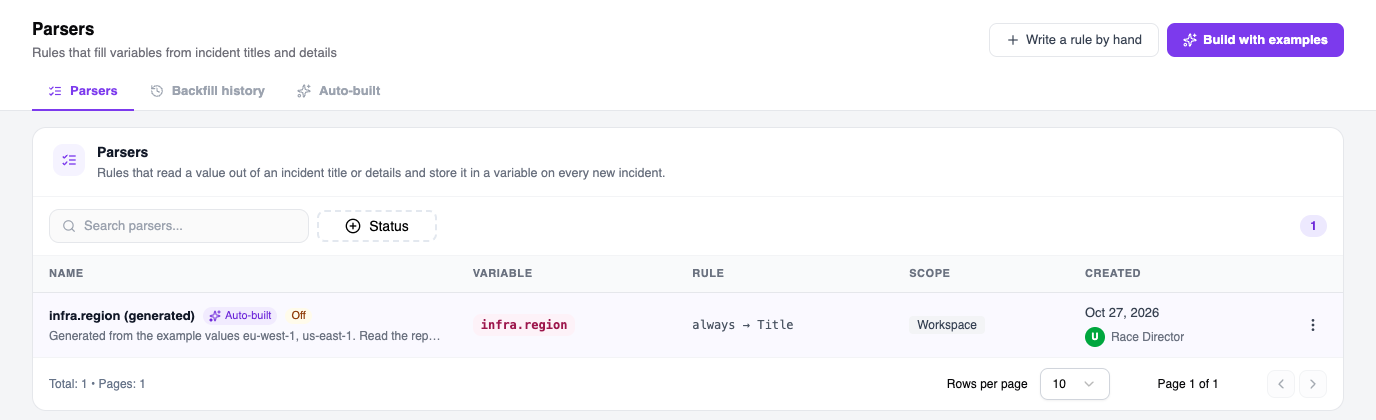
The saved parser. It stays off until you switch it on.
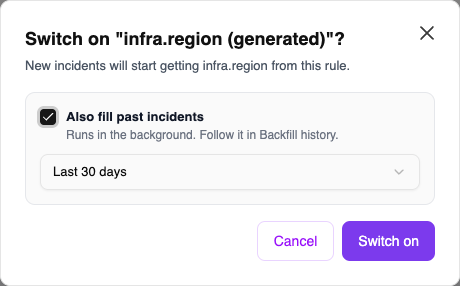
The dialog that asks before the parser is switched on. The default range for filling past incidents is Last 30 days.
After you click Switch on, new incidents start getting the variable's value from this rule. If you ticked Also fill past incidents, the fill runs in the background. You can follow it in Backfill history.
Switching a parser on affects incidents that arrive afterwards. Incidents you already have are only filled if you tick Also fill past incidents.
Run again
To build a parser again, for example after you add more example values, open the variable's run from the Auto-built tab and click Run again. A run never changes a parser that is already on. It either saves a new parser that is off, or ends with Already covered when a parser that is on already fills the variable for your values.
How Oppex finds the values
- Oppex looks in incident titles first. It looks in the custom details of an incident only for a value that no title holds.
- A value matches only as a whole word, regardless of capitalisation. For example,
us-eastis not found insideus-east-1. The report keeps the spelling used in your incidents. - Oppex tests the rule on the newest incidents of the look-back period, up to 2,000 of them. When the period holds more, the report says how many it tested.
- Oppex keeps finished runs for 180 days. The parsers they saved are not removed.
Build with examples at the top of the Parsers page opens the Studio. There you select an incident, point to the value in it, and see what the rule finds. An auto-built parser starts from a variable and is built in the background.