Set Variables on a Routing Rule
A routing rule decides which service an incident goes to. It can also store fixed values in workspace variables on every incident it matches. For example, a rule for alerts that come from Datadog can store alert.sub_source = Datadog on each of them, with no parser to write.
You use this when the value is known from the rule itself, not from the text of the incident. A parser reads a value out of an incident. A rule sets a value you choose.
You need at least one variable in the workspace that is switched on. Create it under Settings, Variables, in your workspace. You also need the Workspace Admin role, and a default service must be configured on the Service Routing page. Until it is, the page asks you to set a default service first.
Set variables on a rule
- Open Settings. Under your workspace, select Service Routing.
- Click Add Rule. To change an existing rule, use the edit icon in its Actions column instead. Its tooltip reads Edit rule.
- In step 1 · Match, describe the incidents the rule catches, then click Next.
- In step 2 · Send, choose Send to a service, select the Service, check the Severity setting described below, then click Next.
- In step 3 · Configuration, find the Set variables card. It is switched off by default. Switch it on.
- In the first row, select a variable. Then type its value in the Value box.
- To set more than one variable, click Add variable and fill in another row.
- Click Add Rule, or Save Changes when you are editing a rule.
Override the incident's severity is switched on in a new rule, and the severity starts at Sev-1. With it on, every matching incident is set to that severity. Switch it off to let matching incidents keep their own severity. The severity you choose is then used only for an incident that does not send one.
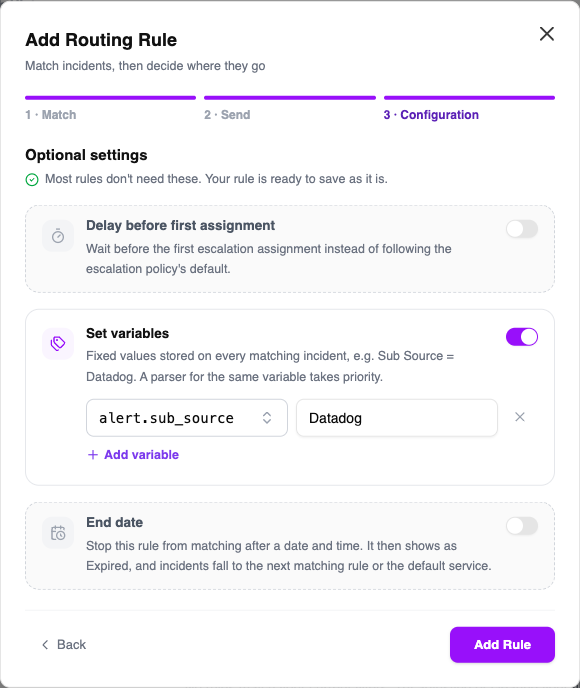
The Set variables card with one variable. The other cards in this step stay off unless you need them. Your rule is ready to save without them.
The rule is active as soon as you save it. From then on, every new incident the rule matches gets the values you set.
What you can enter
| Field | Rule |
|---|---|
| Variable | Only variables that are switched on, and that apply to the service you chose, are offered. A variable limited to other services is not listed. |
| Value | Required for every row, and at most 512 characters. It cannot contain a semicolon or a control character. |
| Number | A number, for example 12.5. |
| Date | A date, for example 2026-10-15 or 2026-10-15T10:30:00Z. |
| List | Values separated by commas, for example web, db, cache. A list can hold up to 50 items, and every item must suit the variable's data type. |
| Rows | At most 10 variables per rule. A variable can be set only once per rule. |
While you type a value, Oppex suggests values that the variable already holds on incidents from the last 30 days. A new variable, or one with no recent incidents, has no suggestions. You then type the value yourself.
Oppex shows an error under the card when a row is incomplete: Pick a variable for every row. or Enter a value for every variable. If you switch the card on and leave it empty, the message is Add a variable, or turn this off.
A suppress rule drops the incident, so no record is created and there is nothing to store a value on. The Set variables card is not offered when you choose Suppress.
See what a rule sets
The Active Mapping table shows what each rule sets, as name = value chips under the rule's service. A rule that sets more than two variables shows the first two and a +N more note. Point at the chips to see all of them.
To check a rule before an incident arrives, use Test routing. Enter an incident title and click Run test. When a rule routes the title, the result has a Sets row that lists the variables the rule would set.
A parser's value wins
If a parser also fills the same variable, the parser's value is kept and the rule's value is not stored. A parser reads the incident itself, so its value is the more specific one. The rule's value fills the variable only when no parser found a value for it.
Worked example
| Item | Value |
|---|---|
| Rule pattern | Pit Wall API |
| Service | Pit Wall API |
| Variable set by the rule | alert.sub_source = Datadog |
| Incoming incident title | Pit Wall API latency high in eu-west-1 |
The incident title contains the pattern, so the rule routes the incident to Pit Wall API and stores alert.sub_source = Datadog on it. If an active parser for alert.sub_source found a value in the same incident, that value would be stored instead.
Set variables from a CSV file
The Import CSV dialog accepts an optional set_variables column. Write the pairs as name=value and separate them with a semicolon, for example alert.sub_source=Datadog;infra.region=eu-west-1. The variables must already exist. A value cannot contain a semicolon.
Export All Active Rules writes the same column, so you can export the rules, edit them and import them again.
A rule sets variables on incidents that arrive after you save it. Incidents Oppex already holds keep the values they have.