Build a parser with examples
Writing a regular expression by hand is slow when you only know what the value looks like. In the parser builder, you open a real incident, click the value you want, and Oppex writes the rule for you. It then runs the rule on your recent incidents and shows how many get a value, so you can judge it before you save.
You need the Workspace Admin role or higher. To have Oppex build a parser from a list of values instead, see Auto-built parsers.
Open the parser builder
You can start from three places:
- On the Parsers page, click Build with examples.
- In the row menu of an existing parser, select Improve with examples.
- On an incident, select Create variable. The builder opens in a new tab with that incident ready.
Build the parser
- Choose the variable in Target variable, or select + New variable.
- In Select an incident, pick an incident that contains the value. The list is your incident list. Use the filter button to search or to change the date range, which also decides which incidents the rule is measured on.
- In Point to the value, click the value in the title or in the details. In the title, you can also drag across a stretch of text. Oppex extends a part-selected word to the whole word.
- Wait while Oppex writes the rule. The message The AI is writing the rule from your examples… shows while it works, and you can click Cancel.
- In What the rule finds, check the result. It shows how many incidents get a value, how many get nothing, the top values, and any warnings worth a look. Select Review the matches to list the incidents that matched.
- Click Save parser.
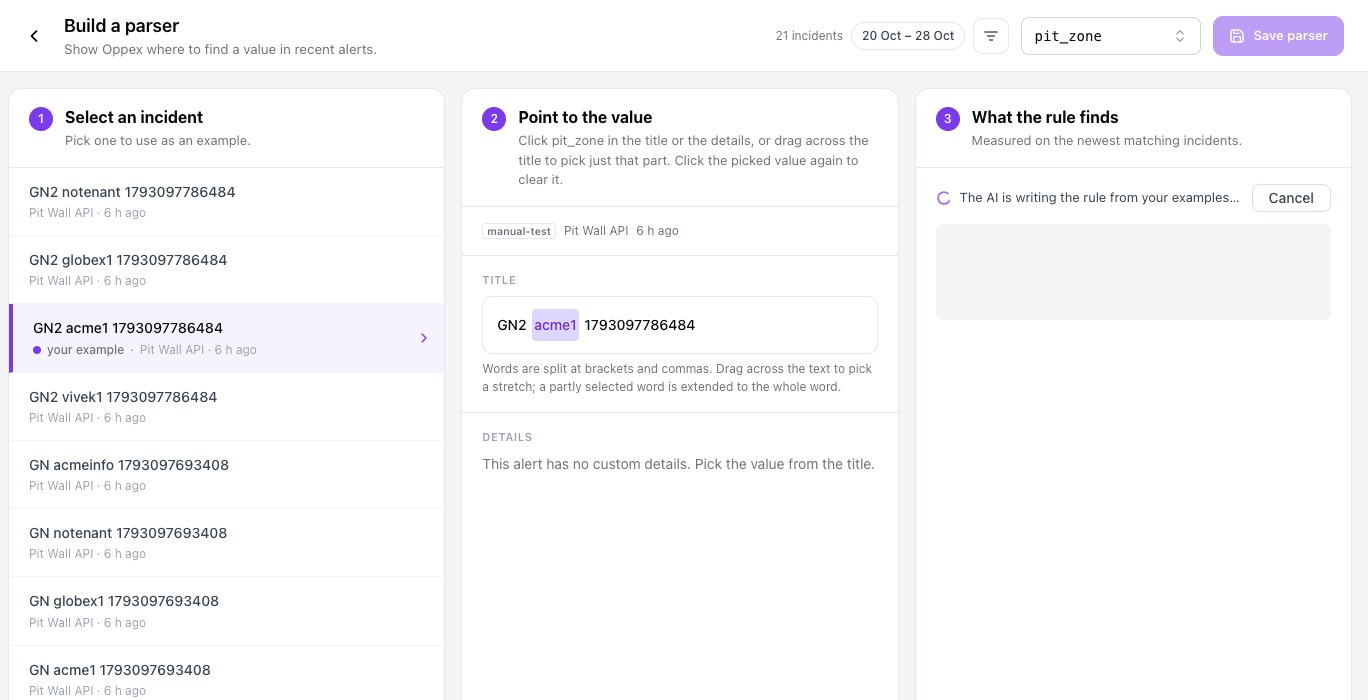
Pick one example at a time
You work with one example. Picking another value replaces the first, and clicking the picked value again clears it. When the example changes, the old rule disappears at once and Oppex writes a new one. For a saved parser, its own rule shows only while no example is picked.
Save the parser
The Save this parser dialog asks for:
- Name, which Oppex fills in for you.
- Runs on: All services in this workspace or Only some services.
- Active, which is on by default.
- Past incidents: New incidents only or Also fill past incidents. See Fill past incidents.
Oppex does not hold a saved parser for review. If you want to look at it first, switch Active off in the dialog and activate the parser later from the Parsers page.
What is automatic and what is measured
The AI writes the rule from your example. The numbers under What the rule finds are not the AI's opinion: Oppex runs the rule on real incidents and counts the results, and it adds warnings, for example when the values look like identifiers, repeat very little, or are very long.
Limits
- The check covers the 500 newest incidents that match your filters. A message tells you when it tested fewer than all of them.
- A check that takes more than about 20 seconds stops early and says so.
- If your session is in a different workspace from the page, Oppex asks you to switch to that workspace first.
- For a variable limited to some services, the builder lists and measures only incidents from those services.
- If the AI cannot be reached, a message says so and offers Try again.