Prepare for your on-call shift
On-Call Prep shows the incidents most likely during your current or next on-call shift. Use it before your shift starts, or while you are on call, to see what to expect and who has fixed each incident before.
Every user can open their own On-Call Prep page, including Responders. The page shows only your own shift. See On-Call Prep permissions and limits.
Open On-Call Prep and read your shift
-
Open a main page, for example Incidents, Services, Policies or Schedules. If you are on call now, or your next shift starts within 7 days, a banner appears under the page breadcrumb a moment after the page finishes loading.

-
Click On-Call Prep in the banner. The On-Call Prep page opens.
-
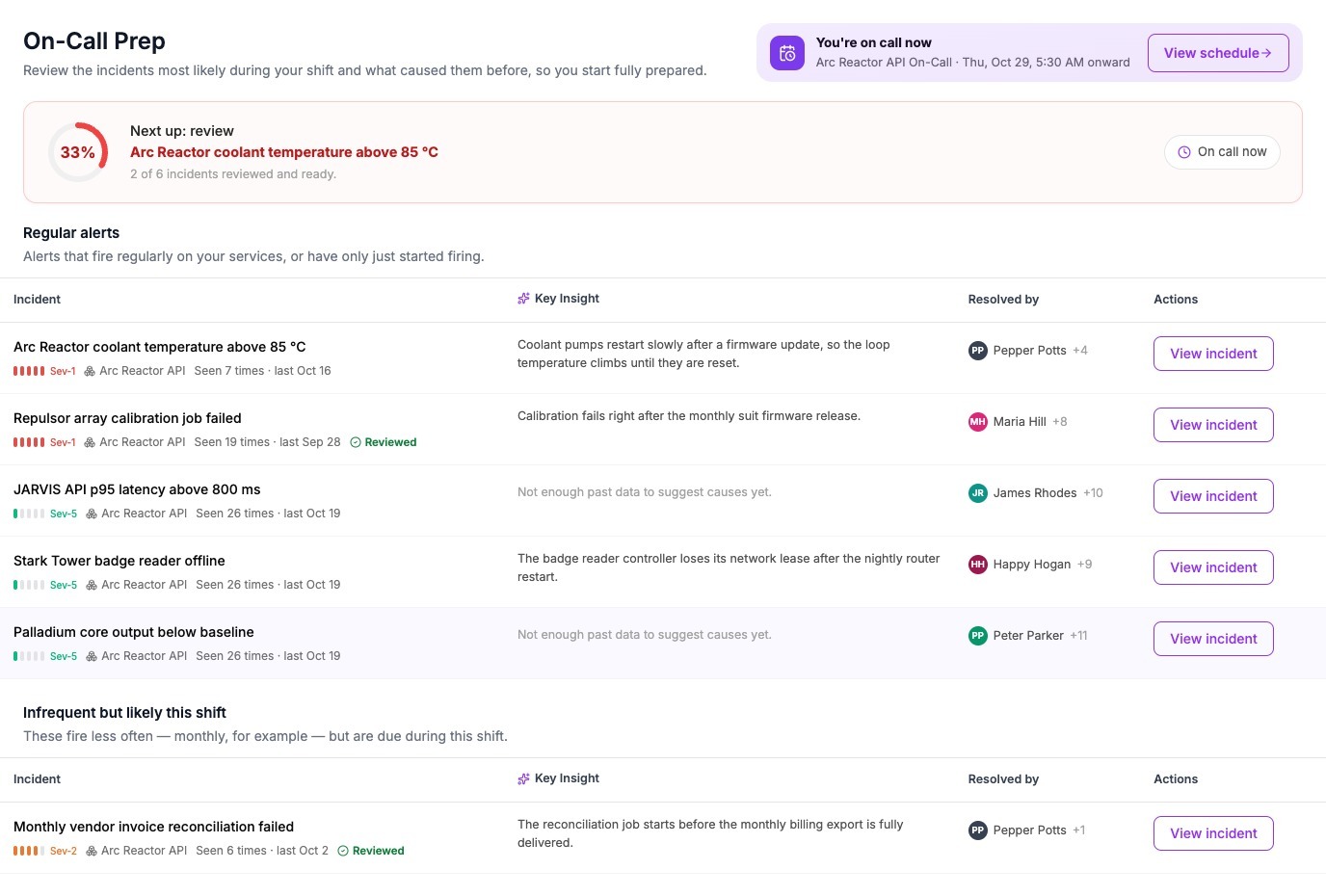
In the shift card at the top right, check the shift. It reads You're on call now or Your next on-call, and shows the schedule and the shift window in your time zone.
-
In the readiness bar, check your progress. It shows a percentage, the next incident to review, for example "2 of 6 incidents reviewed and ready.", and a countdown such as Goes on call in 17h 59m.
-
In Regular alerts, read the table. Each row shows the incident title, its severity, the service, how many times it happened and when it last happened, the most likely cause, and who resolved it before.
-
Optional: scroll to Infrequent but likely this shift for alerts that fire less often.
-
Click an incident to open it. See Review a likely incident.
When you have reviewed every incident, the readiness bar changes to "You're 100% ready for this shift — great work getting prepared!".
The banner appears whether or not Notify On Call is on. It needs only that predictions are switched on for your workspace and that you are on call now or have a shift starting within 7 days.
You can also open On-Call Prep from the Prepare for your shift button in a shift reminder email.