Review a likely incident
Open an incident on the On-Call Prep page to see its likely causes, the similar incidents Oppex found, and a link to its latest occurrence. Opening an incident also counts it as reviewed, which raises your readiness percentage.
Permissions
Every user can review the incidents on their own On-Call Prep page, including Responders. See On-Call Prep permissions and limits.
Review an incident
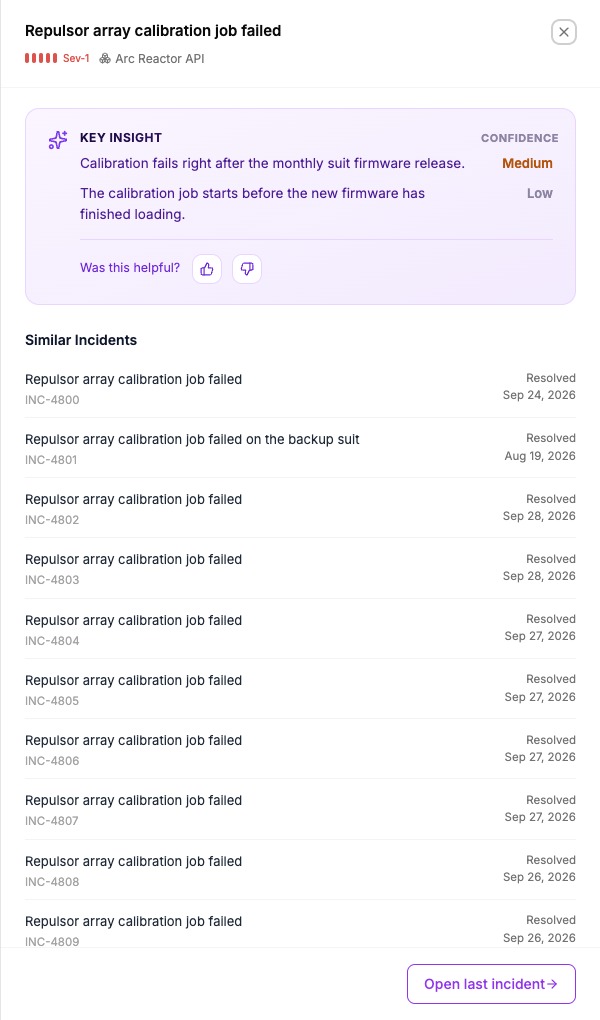
- On the On-Call Prep page, click an incident title or View incident. A panel opens on the right with the title, severity and service.
- In the Key Insight card, read the likely causes. Each cause shows a confidence of High, Medium or Low.
- Optional: under Was this helpful?, click the thumbs-up or thumbs-down button. Oppex replaces the buttons with "Thanks for your feedback".
- Under Similar Incidents, read the past incidents. Each one shows its status and date. Click a title to open that incident.
- Optional: click Open last incident to open the latest occurrence on the Incidents page.
- Click the close button to return to the list. The row now shows Reviewed, and the readiness bar updates.
Only incidents with key insights can be reviewed
The readiness percentage counts only incidents that have key insights. If the Key Insight column shows — for a row, opening it does not mark it reviewed.
Hover to preview the causes
In the list, hold the pointer over a cause in the Key Insight column to see the full Key Insight card without opening the incident. The feedback buttons appear only in the opened panel.