Temporarily disable contact
Temporarily disable contact pauses the channels Oppex uses to reach you about incidents assigned to you. You choose the channels and how long they stay paused, up to 24 hours. Use it when you are already working a problem, for example during an alert storm, and further calls and messages would only get in the way.
Every user can disable contact for their own account, whatever their role. You cannot disable contact for someone else, and it is not available to API keys. The setting follows you into every workspace you belong to.
Disable contact
- Open your profile menu, click Settings, and under Personal click Notifications.
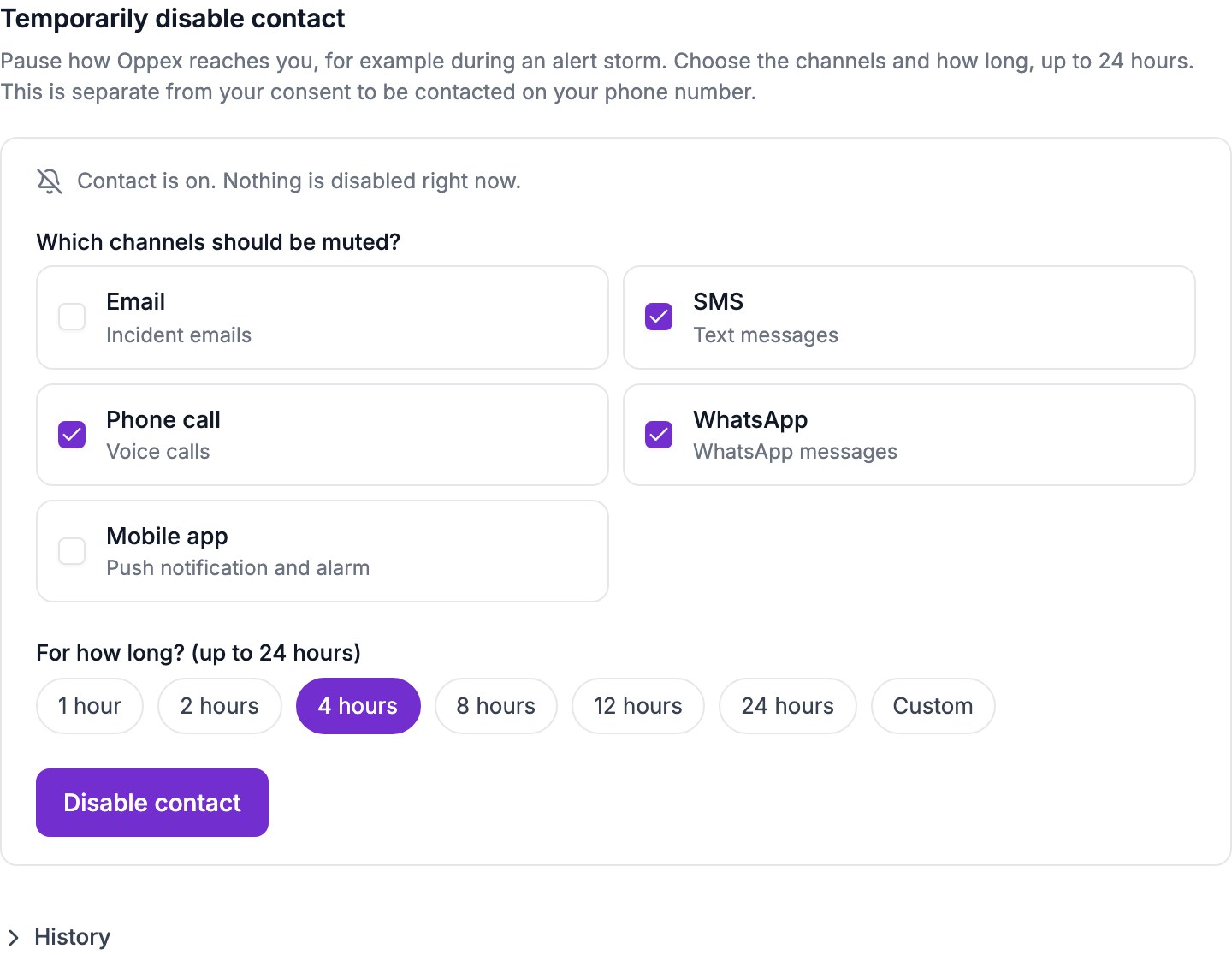
- Find Temporarily disable contact. Under Which channels should be muted?, tick one or more channels: Email, SMS, Phone call, WhatsApp, or Mobile app.
- Under For how long?, click a preset (1 hour, 2 hours, 4 hours, 8 hours, 12 hours, or 24 hours), or click Custom and enter hours and minutes. 1 hour is selected by default.
- Click Disable contact.
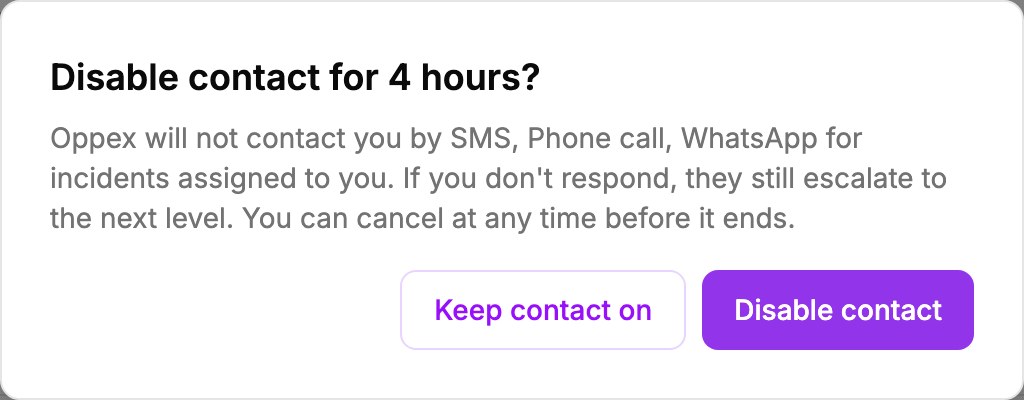
- In the confirmation, check the channels and the duration, and click Disable contact. Oppex shows the message "Contact disabled".
The confirmation repeats what will happen. Click Keep contact on if you change your mind.
- Mobile app pauses push notifications and the alarm on your phone.
- A custom duration must be between 15 minutes and 24 hours. Oppex shows the range under the boxes and keeps Disable contact unavailable until the duration is valid and at least one channel is ticked.
Oppex still assigns incidents to you and still escalates them. If you do not respond, an incident moves to the next level after the usual delay, as it does when a responder does not answer. There is no exception for high-severity incidents.
See what is switched off
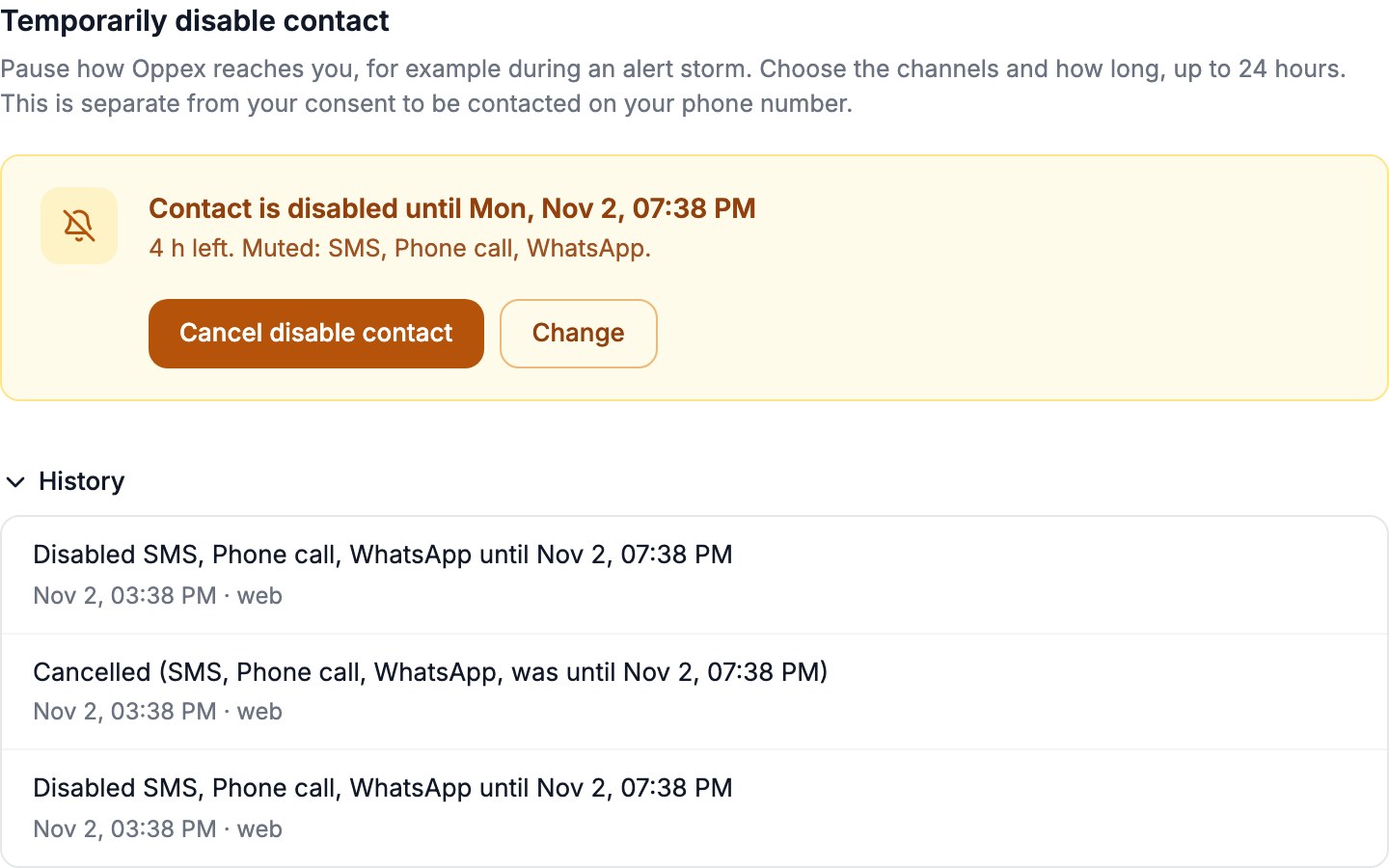
After you save, the section shows Contact is disabled until followed by the end time, how much time is left, and the channels that are muted. Times follow your personal time zone, or your workspace's time zone if you have not chosen one. See Personal Preferences.
Change or cancel it
- To end it early, click Cancel disable contact, then Turn contact back on to confirm. Oppex shows "Contact is back on", and the next contact attempt reaches you on every channel again.
- To use different channels or a different duration, click Change, choose the new settings, and click Replace and disable contact. You can have only one setting at a time, so the new one replaces the current one.
- To review what you have done, click History. It lists your most recent changes, newest first, up to 20: when you disabled contact and until when, when you cancelled, and when a new setting replaced an earlier one. Each entry shows whether you made the change on the web or in the mobile app.
When the time is up, contact resumes by itself. Oppex does not send a message and does not add an entry to History or to the Audit Log. The Disabled entry in History already shows when it was due to end.
What happens to an incident while contact is disabled
While a channel is disabled, Oppex does not send anything on it. The incident timeline still lists each skipped channel as an attempt, and the reason appears on the right: "User temporarily disabled contact until" and the end time in UTC. The other people on the escalation policy are contacted as normal.
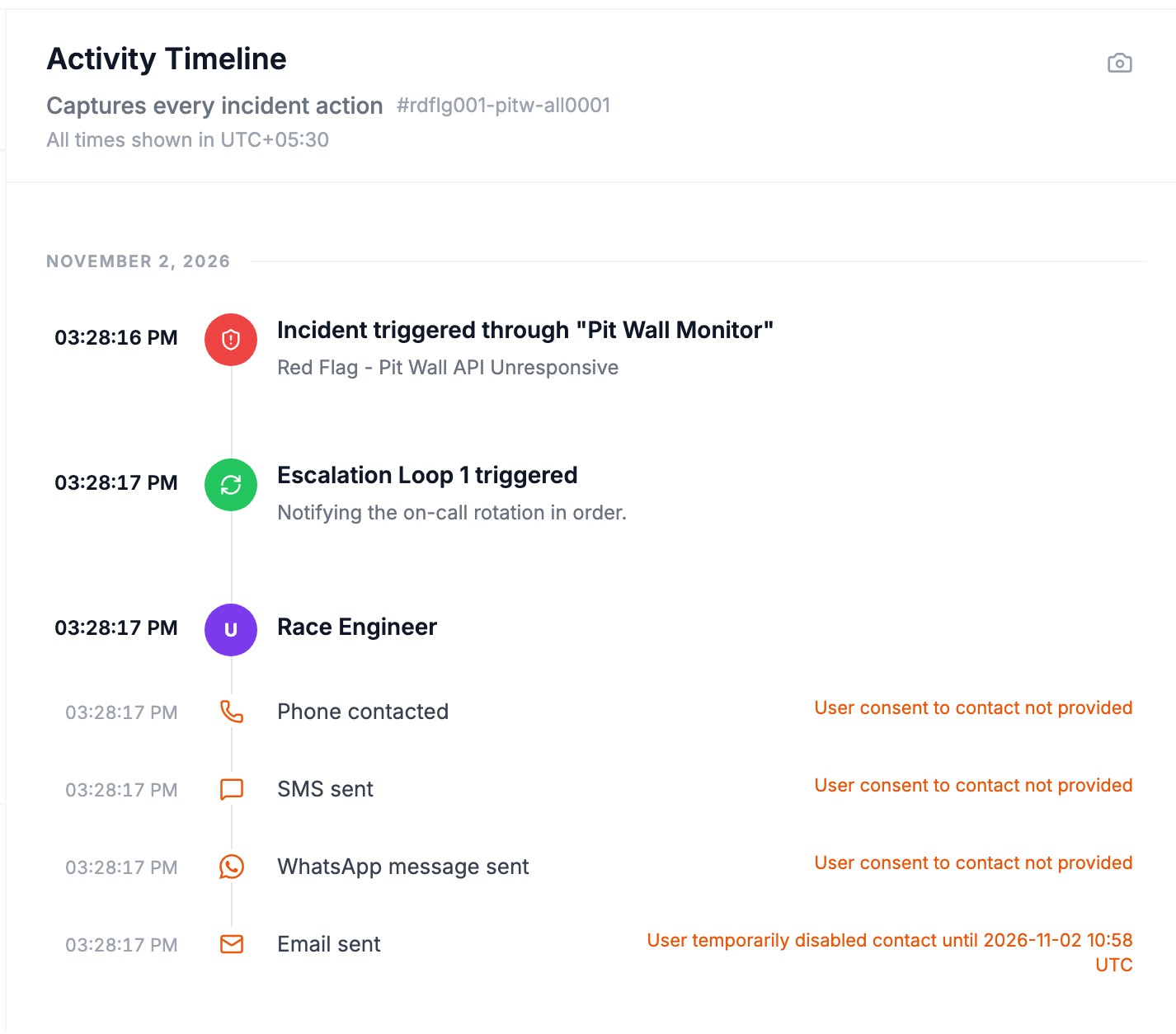
In this example the responder had also not given consent to be contacted on their phone number, so the phone channels show the consent reason and only Email sent shows the disabled-contact reason. When both apply to a phone channel, the timeline shows the consent reason. See Set up how you are paged.
- Oppex checks your setting every time it tries to contact you: the first notification, each reminder, the next escalation level, and a snooze that ends. So a setting you save after an incident opened applies to that incident's next contact attempt.
- A disabled Mobile app channel leaves no row on the timeline, because push notifications have no timeline entry.
- If Oppex cannot check your setting at the moment it tries to contact you, it contacts you as usual rather than risk missing a page.
It does not change emails about your on-call shifts, or the notifications that a service sends to shared email addresses and Slack channels. Oppex does not send you Slack direct messages for incidents, so there is no Slack option to disable. It does not change how other people are contacted.
Where administrators can see it
Owners, Global Admins, and Workspace Admins can see that you disabled or cancelled contact in the Audit Log, under Users › Contact mute. See Audit Log.